 pdfpress
How to Use Fiery Impose (Command WorkStation) + a Free Alternative
How to use Fiery Impose in Command WorkStation — open a job, choose a layout, set duplex and finishing, and output. Step-by-step basics, plus PDF Press, a free browser imposition tool you can use without a Fiery server.
Fiery Impose Basics in Command WorkStation
Fiery Impose runs inside Fiery Command WorkStation (CWS) as a visual, WYSIWYG layout editor. The core workflow is the same across CWS 5 and 6:
- Spool the job to the Fiery (import the PDF or send it from your app), so it appears in the Held queue.
- Right-click the job → Impose (or select Impose from the Actions menu) to open the layout editor.
- Pick a layout type in the Settings panel: Gangup for n-up / step-and-repeat / cut-and-stack, Booklet for saddle-stitch or perfect-bound signatures, or load a saved template.
- Set the sheet size, duplex (1- or 2-sided), scale, and any finishing (binding, fold, staple) the printer supports.
- Review the layout in the WYSIWYG view — Impose shows each sheet as it will print.
- Save back to the job and print, or save as a template for reuse.
Note: Impose is a licensed option. If the Impose command is greyed out, the license isn't active on that workstation (see Fiery Impose cost and licensing).
It helps to understand where Impose sits in the wider Fiery picture. Command WorkStation is the free job-management front end for a Fiery server — it shows queues, manages held and printed jobs, and hosts the optional editors. Impose is one of those editors, unlocked by a license, and it operates non-destructively: the imposition you build is stored with the job and can be re-edited or removed without altering the original spooled PDF. That is why you can open a job, try a layout, and back out cleanly if it is wrong. Across CWS 5 and CWS 6 the menus moved and the panel was restyled, but the right-click → Impose entry point and the build-then-save loop are unchanged, so guidance written for one version largely applies to the other.
Fiery Impose is a licensed editor inside Command WorkStation; a browser tool needs no server or license.
Do it in your browser — the sheet, the count and the marks are set for you. Change only what you want.
Open the online imposition tool5 free downloads total · 8 hours between free downloads · local file processing
Common Fiery Impose Layouts
Three layout jobs cover most of what people open Impose to do:
- Booklet — set 2-up saddle stitch or perfect binding; Impose orders the pages and can add creep (see Fiery Impose booklet creep).
- Gangup → Repeat — step-and-repeat one design across the sheet (business cards, labels), with cut-and-stack ordering for sequential records.
- Gangup → Unique / Cut & Stack — n-up multiple pages, sequenced so cut piles read in order.
For each, you set the rows/columns, gutters, bleed and marks, then proof the WYSIWYG sheet. Saved templates let you reuse a layout across jobs — covered in saving Fiery Impose templates.
The choice between these three comes down to two questions: are the slots identical or sequential, and does the job fold. If every slot is the same artwork and the job is flat, you want Gangup Repeat — the classic many-up of one business card. If the slots are consecutive pages that must read in order after cutting, you want Gangup Unique with cut-and-stack ordering — numbered tickets and multi-record cards. If the job folds and reads as a bound document, you want Booklet, which orders pages into spreads rather than a grid. Getting this first decision right saves most of the rework that sends operators back into Impose, because the rest of the panel simply refines a layout that is already structurally correct.
The Fiery Impose Settings Panel, Field by Field
The Fiery Impose Settings panel is the right-hand column where you choose the layout type and dial in every parameter that controls how pages land on the sheet. Almost everything you do in Impose happens here, and the WYSIWYG canvas to the left updates live as you change values.
The panel is grouped into a predictable order, top to bottom, so it helps to read it as a checklist:
- Workflow / layout type — Normal, Gangup or Booklet. This is the first choice because it changes which fields appear below.
- Sheet — physical sheet size (e.g. SRA3, 12×18, Tabloid), orientation, and which media/paper catalog entry to print on.
- Layout — rows × columns for Gangup, or number-up and binding style for Booklet, plus gutters between slots.
- Scale — Scale to Fit, 100%, or a custom percentage; this is where oversized artwork is reduced to fit the imposition slot.
- Finishing — duplex (1-sided / 2-sided), binding edge, fold and staple options the connected engine supports.
- Marks — crop/trim marks, fold marks, registration marks and job-slug text, each with offset and length controls.
A reliable habit is to work that list from top to bottom: set the workflow, then the sheet, then the layout grid, then scaling, then finishing, and add marks last. Because marks reference the trim box, changing the sheet or scale after placing marks can shift them, so they belong at the end. The numeric fields accept your document's measurement unit, which you can switch between millimetres, points and inches in Preferences if the displayed unit does not match your shop's stock specs.
The Layout group sets rows and columns; the WYSIWYG canvas redraws the imposed sheet as you change them.
Do it in your browser — the sheet, the count and the marks are set for you. Change only what you want.
Open the n up printing tool5 free downloads total · 8 hours between free downloads · local file processing
Step-by-Step: A Gangup Cut-and-Stack Job
Gangup in Fiery Impose places multiple page slots on one large sheet, and Cut & Stack orders those slots so that after the printed pile is guillotined and the stacks are placed on top of each other, the records read in sequence. It is the standard way to produce numbered tickets, multi-record cards and any sequential job on an oversized sheet.
Here is the typical workflow for a 4-up cut-and-stack job:
- Spool and open the multi-page PDF in Command WorkStation and right-click → Impose.
- Set the layout type to Gangup, then choose the Unique - Collate Cut (cut-and-stack) style rather than Repeat.
- Set rows and columns — for 4-up on SRA3 you might use 2 × 2; Impose shows how many records fit per sheet.
- Set the sheet size to your press stock and confirm the duplex setting matches the job (1-sided for tickets, 2-sided for cards with a back).
- Add gutters and bleed so the guillotine has room and artwork extends past the cut.
- Turn on cut marks in the Marks group so the operator can see the trim positions.
- Review the WYSIWYG sheet — Impose numbers the slots so you can confirm the cut-and-stack order before saving.
The key difference from Repeat is sequencing: Repeat puts the same page in every slot (ideal for identical business cards), while Cut & Stack distributes consecutive pages across the stack height so the cut piles stay in order. Choosing the wrong one is the most common gangup mistake — identical copies when you needed a sequence, or a scrambled sequence when you wanted identical copies. PDF Press mirrors both modes with its cut and stack and step and repeat tools.
Common Fiery Impose Mistakes (and Fixes)
Most Fiery Impose problems are setup mistakes rather than software faults, and they fall into a short list of recurring issues. Knowing them up front saves a reprint.
| Symptom | Likely cause | Fix |
|---|---|---|
| Impose command greyed out | License not active on this seat | Activate the Impose LAC, or use a browser tool instead |
| Backs upside-down on duplex | Wrong binding/flip edge | Set the binding edge to match fold direction in Finishing |
| Artwork clipped at trim | No bleed, or scaled to 100% on an oversized page | Add bleed and use Scale to Fit for the slot |
| Cut-and-stack pages scrambled | Repeat used instead of Unique/Collate Cut | Switch the Gangup style to cut-and-stack |
| Booklet pages out of order | Source PDF page order or wrong binding style | Confirm reader order, pick saddle stitch vs perfect binding |
Two habits prevent most of these. First, always proof the WYSIWYG sheet and, for folded work, a physical folded dummy before committing the run — the on-screen layout reveals duplex and ordering errors that a quick visual check would miss. Second, confirm duplex inside Impose itself rather than relying on the printer driver, because Impose's sheet layout assumes a specific front/back relationship and the driver's own duplex setting can fight it. If the Impose command is missing entirely, that is a licensing state, not a layout problem, and is covered in the licensing notes below.
No Fiery Server? Impose Free in the Browser
Fiery Impose only exists where there's a Fiery server, Command WorkStation, and a paid Impose license. If you're on a workstation without all three — a designer's Mac, a second operator, a freelancer, or simply a machine where Impose is greyed out — you can still impose the same jobs in PDF Press, free, in the browser.
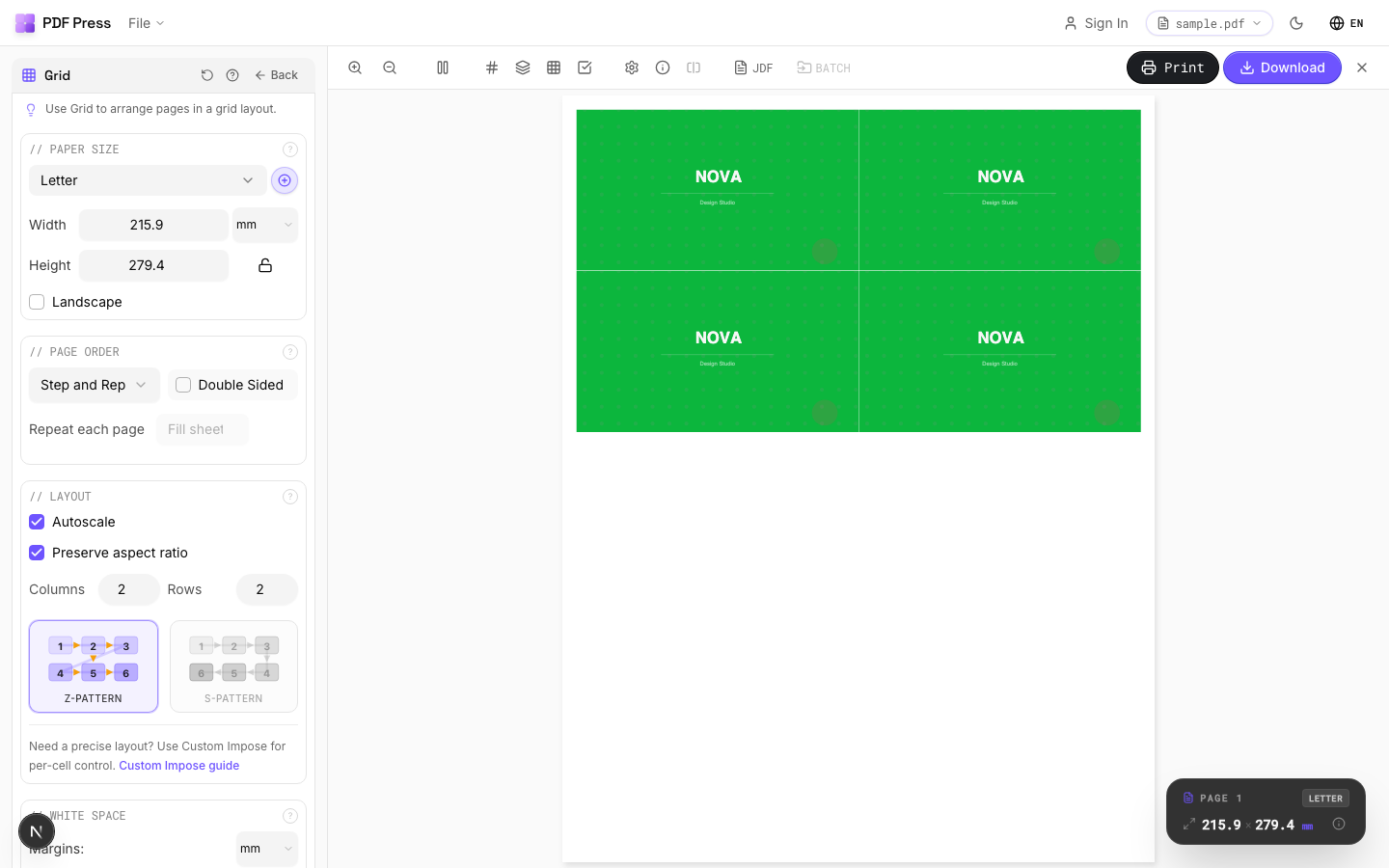
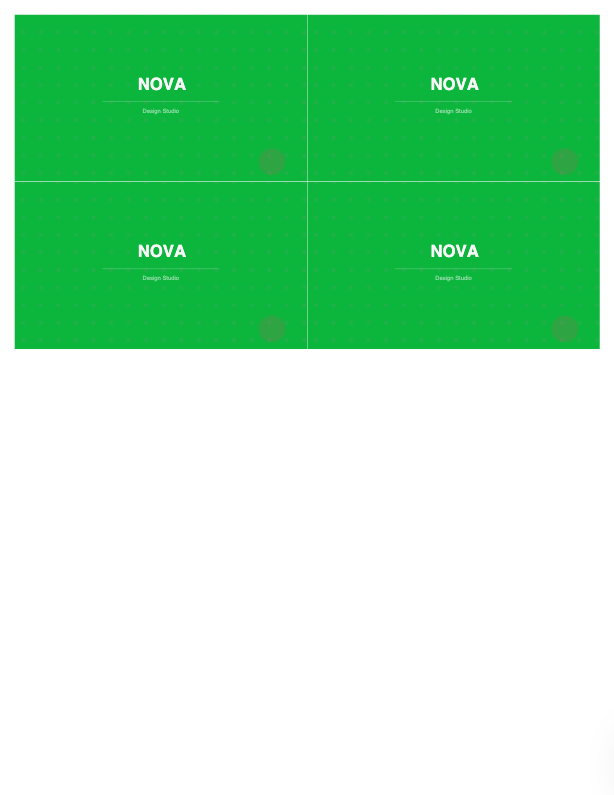
The layouts map across: Booklet maker / N-up Book for booklets, N-up and Grid for pages-per-sheet, Cut and stack, Gang sheets and Step and repeat, with bleed and marks.
Pros vs Fiery Impose: free, no server or license, runs on any OS, WYSIWYG preview, files processed locally. Cons: it produces a print-ready imposed PDF rather than driving the Fiery's queue and finisher automation directly — for press-side production with finishing control, Impose keeps its place. See the full Fiery Impose alternative.
Licensed Command WorkStation module vs. a free browser imposition tool.
Do it in your browser — the sheet, the count and the marks are set for you. Change only what you want.
Open the n up tool5 free downloads total · 8 hours between free downloads · local file processing
Frequently Asked Questions
How do I use Fiery Impose?
Where is Impose in Command WorkStation 5?
What layouts can Fiery Impose do?
Can I use Fiery Impose without a Fiery server?
What is the difference between Repeat and Cut & Stack in Fiery Impose Gangup?
Should I set duplex in Fiery Impose or in the printer driver?
Ready to put this into practice?
Do it in your browser — the sheet, the count and the marks are set for you. Change only what you want.
Open the n up toolFree in your browser · sign in with Google · files never leave your device