 pdfpress
Fiery Impose Templates: Save, Export & Reuse for Workflows
How to save and export Fiery Impose templates, apply them in workflows/hot folders, and export an imposed PDF. Step-by-step — plus PDF Press, which saves reusable imposition layouts in the browser with no Fiery server.
How to Save a Fiery Impose Template
Templates are how you stop rebuilding the same layout for every job. In Fiery Impose:
- Build the layout on a representative job — sheet size, duplex, Gangup or Booklet, rows/columns, gutters, bleed, marks and finishing.
- Save As Template from the Settings panel and give it a clear name (e.g. BizCard_10up_CutStack).
- The template now appears in the template list and can be applied to any other job with one click.
Build templates around job types you repeat — a 10-up business-card cut-stack, an A5 saddle-stitch booklet, a 2-up brochure — so an operator just opens a job, picks the template, and prints.
Fiery distinguishes two kinds of saved layout, and the difference matters when you plan a template library. Built-in templates ship with Impose and cover generic cases — basic 2-up, 3-up, 4-up and standard booklet arrangements — sized to common sheets. Custom templates are the ones you build and Save As Template for your own recurring jobs, carrying your exact sheet, gutters, bleed, marks and finishing. The built-ins are a useful starting point: load the nearest one, adjust it to your stock and finishing, then save it under a descriptive name as a custom template. A practical detail is that a template stores layout intent, not the job content, so the same template applies cleanly to any job whose page geometry matches — that is what makes it reusable across hundreds of jobs.
One caveat worth knowing before you lean on templates: a template captures the layout, but it assumes the incoming job has a compatible page size and page count. Apply a 16-page booklet template to a 12-page job and Impose will still build a layout, but you may get blank spreads or an unexpected signature count. Templates reward consistent input, which is exactly why they pair so well with standardized product specs.
Save a layout once as a template and reuse it across jobs — in Fiery Impose, or in PDF Press.
Do it in your browser — the sheet, the count and the marks are set for you. Change only what you want.
Open the batch imposition tool5 free downloads total · 8 hours between free downloads · local file processing
Templates in Workflows + Exporting an Imposed PDF
For workflows / hot folders. A saved Impose template can be attached to a server preset, virtual printer, or hot folder so the layout is applied automatically to every job sent that way — the foundation of unattended Fiery imposition. Create the template, then reference it in the preset/hot-folder setup.
Exporting an imposed PDF. When you need a flat imposed file rather than a live Impose job (to proof, archive, or send out), use Impose's Export to produce a flattened/imposed PDF of the laid-out sheets.
All of this lives inside the Fiery server and a paid Impose license — powerful for a shop standardized on Fiery, but not portable to a machine without that stack.
There is an important distinction between a live Impose job and an exported file. When you save imposition back to a job, the layout stays editable and bound to the Fiery — ideal for production, because an operator can re-open it, tweak creep or marks, and re-release. When you Export a flattened/imposed PDF, you get a static artifact: the sheets are rendered as final pages with the imposition baked in, which is what you want for a client proof, an archive, or sending the imposed file to another site. The trade-off is that a flattened export is no longer parametric — you cannot nudge the layout afterward without going back to the source. Many shops keep both: the live job for the press, and a flattened export alongside it for the proof trail.
Templates and exports also interact with the workflow carriers below. A hot folder, for instance, can be configured to apply a template and either submit the imposed job to the print queue or write out an imposed PDF, depending on the folder's job action — which is how unattended batch imposition produces either ready-to-print queue entries or a folder of flattened files.
Server Presets vs Virtual Printers vs Hot Folders
A Fiery Impose template only automates a workflow once it is attached to one of three carriers: a server preset, a virtual printer, or a hot folder. They all apply the same saved layout, but they differ in how the job reaches the Fiery and how much the operator has to touch it.
| Carrier | How a job arrives | Best for |
|---|---|---|
| Server preset | Operator selects the preset on a held job in Command WorkStation | Standardizing settings an operator applies manually |
| Virtual printer | User prints to a named print queue from any app | Letting designers trigger imposition from the desktop |
| Hot folder | User drops a PDF into a watched network folder | Hands-off, drag-and-drop batch imposition |
The pattern is consistent: build and save the Impose template first, then create the preset, virtual printer or hot folder and reference that template in its job properties. A hot folder is the most automated of the three because no one has to open Command WorkStation at all — a watched folder picks up the file, applies the template, and submits the imposed job to the print queue. A virtual printer is convenient for designers because it appears as an ordinary printer in their applications. A server preset gives the most operator control because a person still reviews and releases each job. Many shops layer all three: a hot folder for routine repeat work, virtual printers for design staff, and presets for jobs that need a final human check.
Three Fiery carriers apply the same Impose template; PDF Press applies a saved layout across files with none of the server setup.
Do it in your browser — the sheet, the count and the marks are set for you. Change only what you want.
Open the batch imposition tool5 free downloads total · 8 hours between free downloads · local file processing
Naming and Organizing Impose Templates
A good Impose template name encodes the layout so an operator can pick the right one without opening it. The single biggest cause of template sprawl is vague names like "booklet2" or "cards" that force operators to open each template to see what it does.
A practical convention bakes the job type, the up-count and the finishing into the name, for example BizCard_10up_CutStack, A5_SaddleStitch_Creep, or SRA3_2up_Brochure_Bleed. The goal is that the name alone answers what stock, how many up, and which binding the template produces. Build templates around the job types you repeat rather than one-off jobs, so the library stays small and every entry earns its place. Review the list periodically and delete templates tied to retired products or discontinued stock — a lean, well-named library is far easier for a new operator to learn than a long list of near-duplicates.
- Encode the essentials — stock or sheet, up-count, layout style, and any special setting like creep or bleed.
- Group by job family — cards, booklets, brochures — so related templates sort together.
- Prune regularly — remove templates for products you no longer print.
- Document the intent — keep a short shared note mapping template names to the products they serve.
Versioning is the other half of organization. When a product spec changes — a new card size, a different bleed, a switched stock — resist the urge to silently overwrite the working template mid-run. Save the revised layout under a new, dated or versioned name, confirm it on a test job, and only then retire the old one. Overwriting a template that is already attached to a hot folder or virtual printer changes the output of every job flowing through that carrier the instant you save, which is how a small tweak can quietly affect live production. A short changelog note — what changed, when, and why — turns the template library into something a new operator can trust rather than reverse-engineer. The few minutes spent on a clear name and a one-line note are repaid every time a job is set up without anyone having to open the template to check what it actually does.
The same discipline pays off in any tool. In PDF Press you save layouts you reuse and batch-apply them across files, so a clear naming habit carries over directly.
Reusable Layouts in PDF Press (No Server)
PDF Press gives you the reuse benefit — set a layout once, apply it to many files — without a Fiery server, license or hot-folder infrastructure. And every imposition exports a flat, print-ready PDF by default.
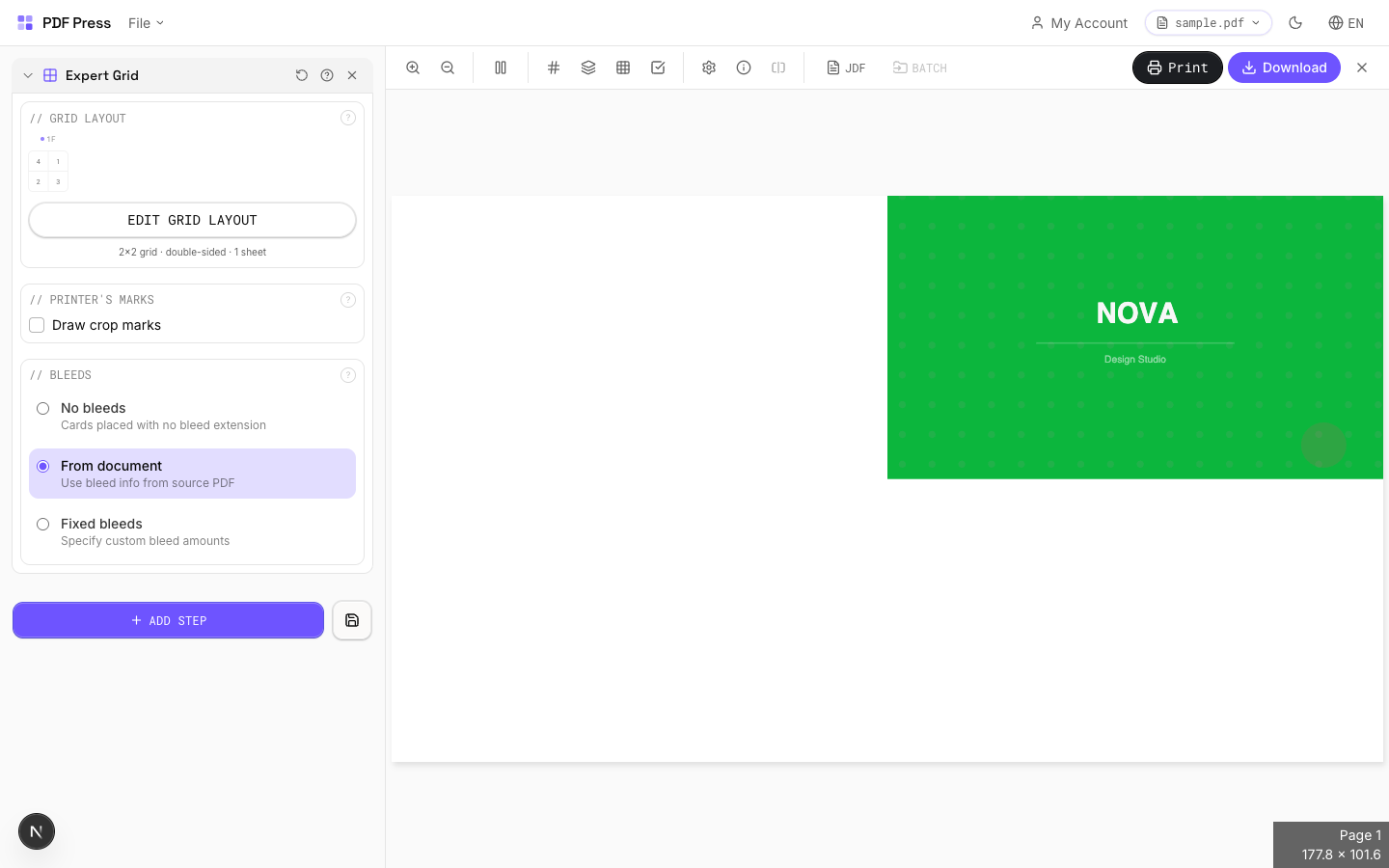
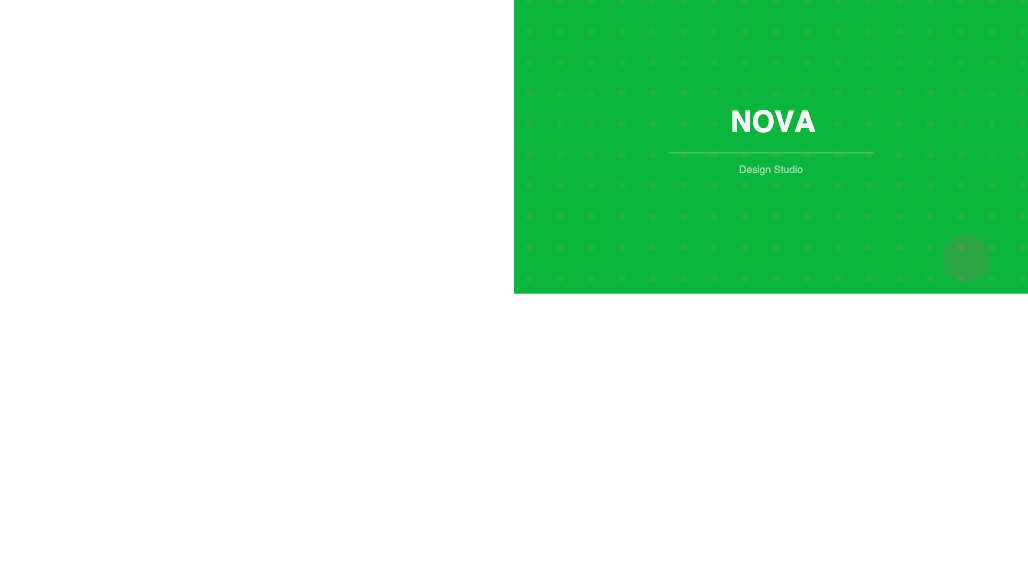
Use Batch imposition to apply one layout across files, with Booklet, N-up, Cut and stack and Gang layouts.
Pros vs Fiery Impose templates: reusable layouts and flat-PDF export with no server or license, any OS, free to start, local processing. Cons: for true server-side hot-folder automation bound to a Fiery's finishing, Impose templates plus the Fiery workflow still lead. See automating imposition with batch and hot folders and the full Fiery Impose alternative.
Server-bound Impose templates vs. portable browser layouts with flat-PDF export.
Do it in your browser — the sheet, the count and the marks are set for you. Change only what you want.
Open the n up tool5 free downloads total · 8 hours between free downloads · local file processing
Frequently Asked Questions
How do I save a Fiery Impose template?
How do I use a Fiery Impose template in a workflow or hot folder?
How do I export an imposed PDF from Fiery?
Can I save reusable imposition layouts without a Fiery server?
What is the difference between a server preset, a virtual printer and a hot folder for Impose templates?
How should I name Fiery Impose templates?
Ready to put this into practice?
Do it in your browser — the sheet, the count and the marks are set for you. Change only what you want.
Open the n up toolFree in your browser · sign in with Google · files never leave your device