 pdfpress
Quite Imposing: Shuffle Pages for Double-Sided Printing (+ Split PDF)
How to shuffle and reorder pages for double-sided printing in Quite Imposing, and how to split a PDF. See the manual-duplex page-order steps — plus PDF Press, which reorders for duplex with a live preview and no Acrobat plugin.
What "Shuffle Pages" Does for Double-Sided Printing
Shuffling (or interleaving) reorders the pages of a PDF so it prints correctly double-sided — especially on a printer without automatic duplex, where you print one side, flip the stack, and print the other. Get the order wrong and the backs land on the wrong fronts, or upside down. Quite Imposing includes shuffle/interleave commands to handle this, along with the related need to split a PDF into separate files.
The classic case: you have a stack of fronts and a stack of backs as two separate sets, and you need them interleaved (front 1, back 1, front 2, back 2…) so a single duplex run, or a flip-and-reprint, produces correct sheets.
Shuffling is distinct from imposition proper. Imposition arranges multiple pages onto one larger sheet — n-up cards, a folded booklet, a gang. Shuffling keeps one page per sheet face but changes the page order so the document collates and backs up correctly. The two are often used together: you might shuffle a scanned document into the right reading order, then impose it as a booklet. Knowing which problem you actually have saves time, because a page that prints on the wrong side is a shuffle problem, while a page that lands in the wrong position on a multi-up sheet is an imposition problem.
Shuffling interleaves fronts and backs so each sheet backs up correctly for double-sided printing.
Do it in your browser — the sheet, the count and the marks are set for you. Change only what you want.
Open the split tool5 free downloads total · 8 hours between free downloads · local file processing
How to Shuffle and Split in Quite Imposing
Shuffle for double-sided. In Quite Imposing Plus, use the shuffle / interleave pages command:
- Choose how the pages combine — typically interleave two halves (fronts then backs) or take every other page.
- For manual duplex, set whether the back set should be reversed, because the flipped stack feeds in opposite order. Match this to your printer's flip — long edge vs short edge changes which way the backs run.
- Confirm the result before printing the full run; manual duplex is unforgiving of an off-by-one.
Split a PDF. Quite Imposing can also split a document — for example into separate odd and even files, or by page range — which pairs naturally with manual duplex (print the odd file, flip, print the even file).
Binding edge. Whether you bind/fold on the long or short edge changes the correct back-page order, so set it to match your finishing.
As with the rest of Quite Imposing, you're configuring this in a dialog and only confirming on paper. For a job you run often, a previewable, repeatable tool is faster.
Manual Duplex Page Order, Step by Step
For manual duplex you print the odd (front) pages first, flip the stack, then print the even (back) pages — and whether the back set must be reversed depends on which edge you flip along. Getting this single decision right is the difference between a clean double-sided document and a stack of mismatched sheets.
Here is the logic. When you print pages 1, 3, 5, 7 face down into the output tray, they accumulate with page 1 at the bottom and page 7 on top. When you pick that stack up and feed it back in, the printer pulls from one end while you have effectively turned the order over. To make page 2 land on the back of page 1, the back set usually has to be sent in reverse order (8, 6, 4, 2). Many printer drivers offer a "reverse order" option precisely for this.
- Step 1. Split or print the odd pages (1, 3, 5, 7…) and let them stack in the tray.
- Step 2. Take the printed stack and reinsert it, observing how your specific printer feeds — face up or face down, top edge first or not.
- Step 3. Print the even pages, reversing the set if your flip direction requires it, so page 2 backs page 1.
- Step 4. Proof two or three sheets before committing the whole run.
Shuffling automates this by interleaving the two halves into one correctly ordered file, so a single duplex pass produces the right result. Where Quite Imposing asks you to choose interleave-and-reverse options in a dialog, the safer path is to preview the interleaved order first, because a one-page offset ruins every sheet after it.
Long-Edge vs Short-Edge Binding (and Why It Flips the Backs)
Long-edge binding flips the back of each sheet along the tall side of the page, while short-edge binding flips along the top — and the choice changes which way the back pages must be ordered and rotated. Picking the wrong one is the single most common reason double-sided output comes out upside down.
Long-edge binding is the default for most portrait documents: pages turn like a book or a ring binder bound on the side, and the back of each sheet reads the same way up as the front. Short-edge binding flips along the top, like a legal pad or a calendar; for the back to read correctly the even pages must be rotated 180 degrees relative to the fronts. If you send a short-edge job with long-edge ordering, every other page prints upside down even though the page order is otherwise correct.
| Binding | Flip axis | Back pages | Typical use |
|---|---|---|---|
| Long edge | Tall (side) edge | Same orientation as fronts | Portrait booklets, reports |
| Short edge | Short (top) edge | Rotated 180° | Calendars, landscape flip pads |
The practical takeaway: set the binding edge in your tool to match the physical fold or flip you intend, and confirm it matches your printer driver's duplex setting. When the two disagree — say the document is laid out for long-edge but the driver is set to short-edge — you get correctly ordered pages with wrong rotation, which is harder to spot than a simple page-order error because the content is all present. A live preview of the interleaved, rotated result removes the guesswork before any paper is used.
Splitting, Rotating and Flipping: The Supporting Operations
Splitting, rotating and flipping are the supporting operations that make duplex and booklet work reliable, and each solves a specific physical problem. Splitting breaks a file into separate odd/even or section files, rotating turns pages to the correct orientation for the feed, and flipping mirrors pages for transfer or back-printing.
- Split separates a document into pieces — odd pages and even pages for manual duplex, or a long file into per-section files for distribution. The manual-duplex pattern is to print the odd file, flip the stack, then print the even file, which is why split and shuffle so often appear together.
- Rotate turns pages by 90 or 180 degrees. Short-edge duplex needs the back pages rotated 180 degrees; mixed-orientation documents (a portrait report with a landscape table) need individual pages turned so they feed and read correctly. Rotation changes the visible orientation of content.
- Flip mirrors a page horizontally or vertically. It is less common but essential for specific processes — heat-transfer printing, window decals read from the reverse, or any job printed to be viewed through the substrate — where the artwork must be mirrored so it reads correctly after transfer.
The distinction between rotate and flip trips people up. Rotating a page turns it like a steering wheel; the content still reads normally, just oriented differently. Flipping a page mirrors it, so text becomes a mirror image — correct only when it will be viewed reversed. Using flip when you meant rotate produces backwards text, a mistake that is obvious on screen but easy to miss in a blind dialog. This is exactly where a live preview earns its place: you see immediately whether a page is turned or mirrored, and whether the duplex sheets back up the way you intended, before any paper is committed.
The Easier Way: Shuffle, Split & Flip in PDF Press
PDF Press reorders pages for double-sided printing with a live preview, so you can see fronts and backs interleave correctly before you print — and it has dedicated tools for the related operations.
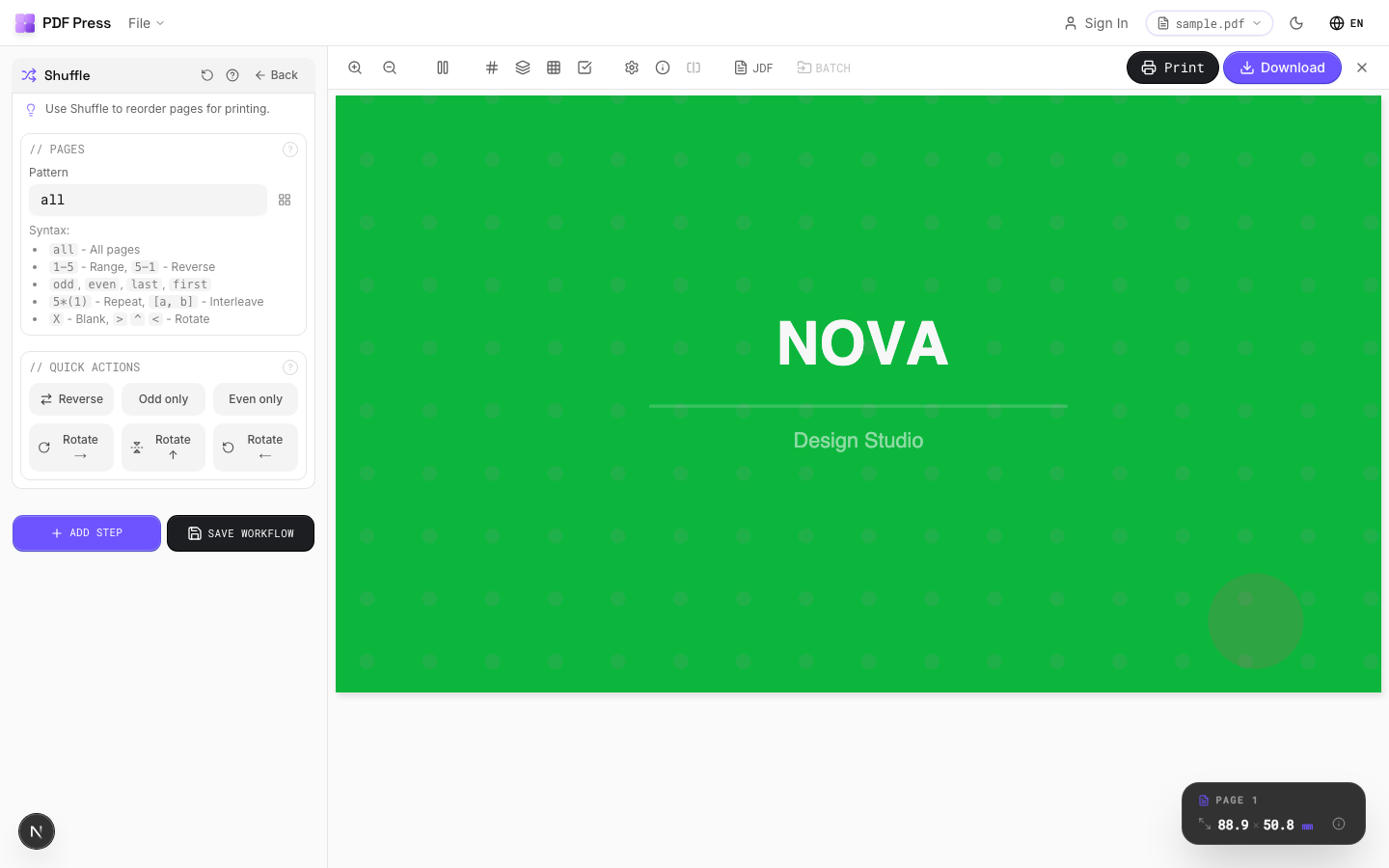

Pick the tool for the job: Shuffle pages to interleave for duplex, Split PDF to break into odd/even or ranges, Rotate and Flip to fix orientation, and Booklet when you actually want a folded booklet rather than flat duplex sheets.
Pros vs Quite Imposing: live preview of the interleaved order, dedicated shuffle/split/rotate/flip tools, no Acrobat or plugin, free to start, any OS. Cons: no Quite Hot Imposing watched-folder batch. To understand the page-order concepts, see reader spreads vs printer spreads, and the full Quite Imposing alternative.
Interleave pages blind in a dialog vs. preview the duplex order before printing.
Do it in your browser — the sheet, the count and the marks are set for you. Change only what you want.
Open the split tool5 free downloads total · 8 hours between free downloads · local file processing
Frequently Asked Questions
How do I shuffle pages for double-sided printing in Quite Imposing?
Can Quite Imposing split a PDF?
Why do my double-sided backs come out wrong?
Is there an easier way to reorder pages for duplex?
What is the difference between long-edge and short-edge binding for duplex?
Why do I need to reverse the back pages for manual duplex?
Ready to put this into practice?
Do it in your browser — the sheet, the count and the marks are set for you. Change only what you want.
Open the n up toolFree in your browser · sign in with Google · files never leave your device