 pdfpress
Fiery Impose: Business Cards, Gang-Up, Numbering & Centering
How to gang up business cards in Fiery Impose — step-and-repeat, removing gutter space, numbering, centering on the page, and adding two documents on one sheet. Plus PDF Press, free browser ganging with a live preview.
Ganging Business Cards in Fiery Impose
Business cards are the classic Fiery Impose gang job. In the Impose Settings panel:
- Choose Gangup → Repeat to step one card design across the sheet.
- Set rows × columns for the cards that fit your sheet (e.g. a 3.5×2 in card → roughly a 2×5 or 3×4 grid).
- Remove gutter space for bleeding cards so neighbours touch at the trim and share a single cut line — exactly the no-interior-gutter bleed principle. With a gutter, the cutter makes two cuts per gap and drift leaves white slivers.
- Add marks on the outer edge and confirm bleed is present in the source.
Two different documents on one sheet. To put more than one design on a sheet (e.g. two clients' cards), use Gangup → Unique (or Duplicate as needed) and arrange the items — Fiery's version of a mixed gang sheet.
It helps to know which Gangup mode matches which job. Repeat steps a single design across the whole sheet and is the mode for printing one client's cards in quantity. Unique places different pages in each grid position, which is how you combine several short-run jobs on one sheet to save stock and click charges — the everyday economics of digital card printing. A common refinement is double-sided cards: confirm the back registers to the front across the whole grid, because a back that is offset even slightly shows as a misaligned trim once the stack is cut. Set the duplexing so the sheet flips on the correct edge, and check one card front-to-back in the WYSIWYG before committing the run.
Gang business cards with zero interior gutter so bleeding cards share one cut line.
Do it in your browser — the sheet, the count and the marks are set for you. Change only what you want.
Open the business cards tool5 free downloads total · 8 hours between free downloads · local file processing
Numbering, Centering, Scaling and Deleting Sheets
A few specific Fiery Impose card/gang needs:
- Numbering. Sequential numbering (for tickets, raffle stubs, NCR sets) is a JobMaster/Compose feature applied as a stamp/number, then imposed with Impose — Impose alone lays out, it doesn't number.
- Center on page. Use the layout's alignment/scale options to center content on the sheet; check the WYSIWYG view to confirm the grid is centered with even outer margins.
- "Reducing art size when imposing." If Impose is shrinking your artwork, a Scale-to-fit setting is on — switch to 100% / actual size so cards print at true dimensions (then make sure the sheet is large enough for the grid).
- Delete sheets. In the Impose view you can remove unwanted sheets/pages from the laid-out job before printing.
These are all doable, but they spread across Impose plus JobMaster/Compose and a WYSIWYG you adjust by trial — more moving parts than a single previewable gang tool.
Sheet Math: How Many Cards Fit Per Sheet
To gang business cards correctly you first work out how many fit on the press sheet, accounting for bleed and gripper. A standard 3.5 x 2 in card trimmed needs 0.125 in (3 mm) bleed on every side, so each card occupies 3.75 x 2.25 in of imageable area when cards share edges with zero interior gutter.
On a 12 x 18 in (SRA3-class) digital sheet you typically lose a non-printing gripper margin of roughly 0.2 to 0.5 in on the lead edge and a small quiet zone on the others. After that, a 3.5 x 2 in card lands at a comfortable 4 columns x 5 rows = 20-up in portrait card orientation, or 21-up if you rotate the grid and tighten margins. The arithmetic that matters:
- Usable width / card width = columns. (18 in minus margins) divided by 3.5 in carries roughly 4-5 columns depending on orientation.
- Usable height / card height = rows. (12 in minus gripper) divided by 2 in carries 5-6 rows.
- Total up = rows x columns. Multiply by sheets to get total cards; divide your order quantity by up-count to get sheets to print.
In Fiery Impose, set the grid in Gangup so the WYSIWYG matches this count, confirm bleed is inside the card (not added on top, which would change spacing), and verify the outer margin clears the gripper. A card that prints into the gripper or off the imageable area is the most common cause of a re-run.
Work out columns x rows from usable sheet area before setting the Gangup grid.
Do it in your browser — the sheet, the count and the marks are set for you. Change only what you want.
Open the business cards tool5 free downloads total · 8 hours between free downloads · local file processing
Bleed, Shared Edges and Cut Marks Done Right
The single decision that makes or breaks a ganged card sheet is how bleed and cut marks interact at the shared edge. With a zero interior gutter, two neighbouring cards both bleed into the same trim line, so the cutter makes one cut that serves both cards. With any gutter at all, the cutter makes two cuts per gap, doubles your knife passes, and any blade drift leaves a white sliver of unprinted stock on one card.
Rules that keep a card gang clean on the guillotine:
- Bleed must extend to the shared trim line, not stop short. If both cards bleed 0.125 in into the shared edge, the overlap is consumed by one cut and neither card shows white.
- Put crop/cut marks on the outer edge only. Interior marks between cards are pointless on a zero-gutter layout and can print into the live area; outer registration and corner marks give the cutter operator the grid.
- Keep critical text 0.125 in inside the trim (the safety/quiet zone). Guillotines drift; text that hugs the trim line gets clipped on a tight stack.
- Match the gutter to the cutter when shapes do not share bleed — for example foil or spot-UV cards that cannot overlap may need a small gutter, in which case set marks per card.
If you are unsure whether the source already carries bleed, check it before imposing rather than after. Imposing a no-bleed card with zero gutter produces white edges wherever the cut drifts, and no imposition setting can recover artwork that was never there.
Common Fiery Impose Card-Gang Mistakes
Most failed card gangs come from a handful of repeatable mistakes. Watch for these before you commit a long run:
- Leaving Scale-to-fit on. Impose silently shrinks the card to fit the sheet, so a 3.5 x 2 in card prints at 3.4 x 1.95 in. Switch to 100% / actual size and size the sheet to the grid instead.
- A gutter between bleeding cards. This forces two cuts per gap and leaves white slivers. Use zero interior gutter for cards that share a trim.
- No bleed in the source. Imposition cannot invent bleed; the source must carry 0.125 in (3 mm) past the trim on all sides.
- Expecting Impose to number cards. Sequential numbering is a JobMaster/Compose stamp, applied before imposition — Impose only lays pages out.
- Ignoring the gripper. Cards laid into the non-printing lead-edge margin print short or clip; always leave the press gripper clear.
- Mismatched orientation. Rotating cards to fit more per sheet is fine, but confirm the artwork rotates with the layout so logos are not sideways.
A live preview catches all six at a glance, which is why a previewable gang tool removes most of the trial-and-error that Impose's WYSIWYG requires.
Free Card Ganging in PDF Press
PDF Press gangs cards with a zero-gutter shared-edge layout, a live preview, and true-size control — free, in the browser, no Fiery license.
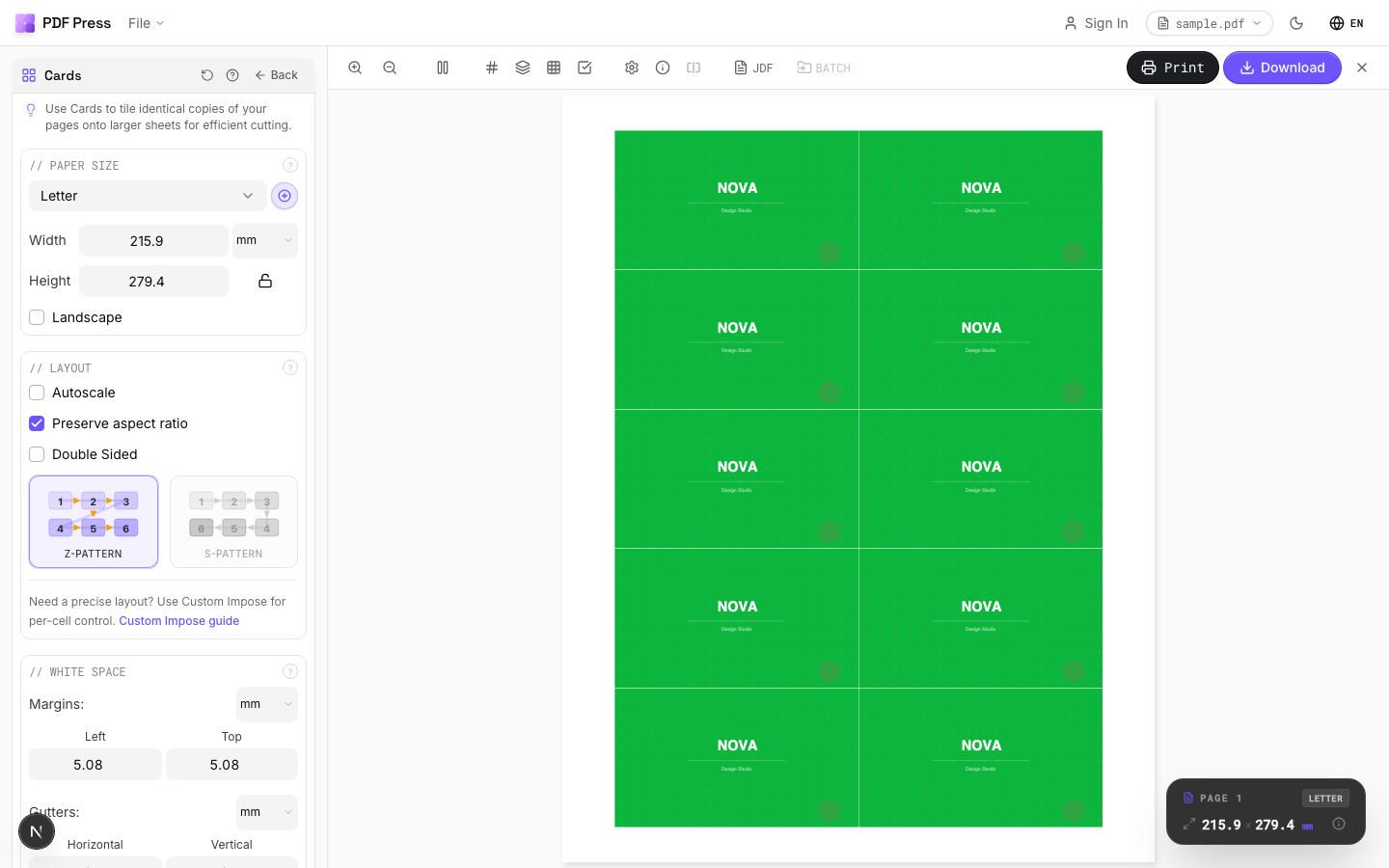
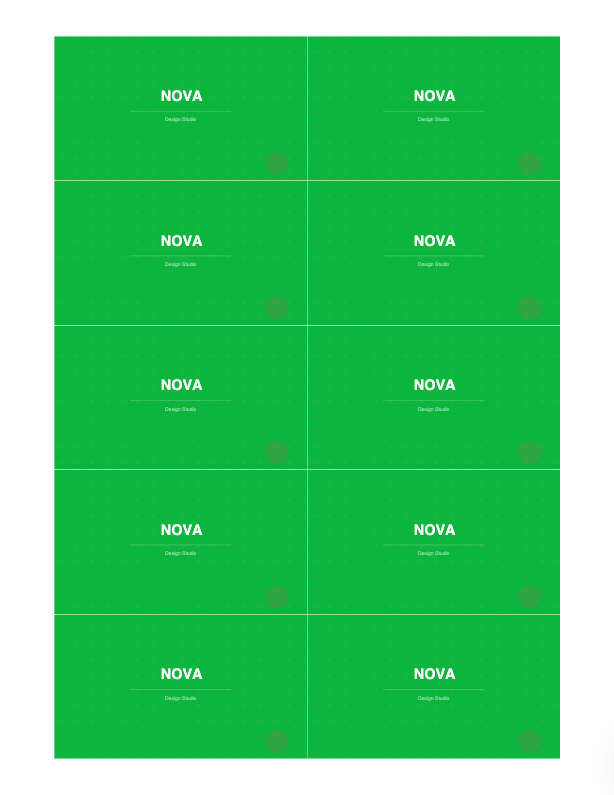
Tools: Business card imposition and Step and repeat for one design, Gang sheets for different designs on one sheet, with bleed and cut marks.
Pros vs Fiery Impose: live preview of the shared-edge layout, zero-gutter card ganging built in, actual-size by default, free, any OS. Cons: sequential numbering and per-page media (JobMaster/Compose territory) aren't part of imposition — pair PDF Press with your VDP tool for numbered runs. See the business card imposition guide and full Fiery Impose alternative.
Gang and scale cards across Impose + JobMaster vs. one previewable browser card tool.
Do it in your browser — the sheet, the count and the marks are set for you. Change only what you want.
Open the business cards tool5 free downloads total · 8 hours between free downloads · local file processing
Frequently Asked Questions
How do I gang up business cards in Fiery Impose?
How do I remove gutter space when imposing in Fiery?
Why is Fiery Impose reducing my art size?
Can Fiery Impose add numbering to business cards or tickets?
How many business cards fit on a 12 x 18 sheet?
How much bleed do business cards need when ganging?
Ready to put this into practice?
Do it in your browser — the sheet, the count and the marks are set for you. Change only what you want.
Open the n up toolFree in your browser · sign in with Google · files never leave your device