 pdfpress
Print-Ready PDF Guide: Complete Prepress Checklist
Make a PDF a printer accepts the first time: resolution, CMYK, bleed, font embedding, flattening, PDF/X and preflight in one clear prepress checklist.
What Makes a PDF "Print-Ready"?
A print-ready PDF is a file that meets every technical requirement a commercial printer needs to reproduce your design accurately, consistently, and without manual intervention. It is the final deliverable you hand to a print shop -- the file that goes directly to plate-making or digital press output, with no further modifications required.
The term "print-ready" is deceptively simple, but it encompasses a surprisingly long checklist of technical specifications. A PDF that looks perfect on screen may be completely unsuitable for commercial printing if it uses RGB colors instead of CMYK, contains low-resolution images, lacks proper bleed, uses fonts that are referenced but not embedded, or includes live transparency that the RIP (Raster Image Processor) cannot handle correctly.
When a printer receives a file that is not print-ready, one of two things happens: they send it back to you for corrections (delaying the job and potentially missing your deadline), or they attempt to fix it themselves -- which introduces risk, because the printer is making assumptions about your design intent. Neither outcome is desirable.
This guide walks you through every requirement for creating a truly print-ready PDF, from resolution and color mode to bleed setup, font handling, transparency, PDF/X compliance, and preflight verification. Follow these steps and your files will sail through prepress without a single query from the print shop.
Once your file is print-ready, the next prepress step is PDF imposition for prepress — arranging the finished pages onto press sheets for booklets, N-up, or cut-and-stack before the job goes to the press.
Resolution Requirements: Why 300 DPI Is the Minimum
Resolution -- measured in DPI (dots per inch) or PPI (pixels per inch) -- is the single most common reason print jobs fail. An image that looks sharp on a 96 DPI screen will appear visibly pixelated, blurry, or jagged when printed at commercial press resolutions of 2400+ DPI. The standard minimum for print is 300 DPI at the final output size.
Here is why that number exists: most commercial printing uses an offset or digital press with a line screen (LPI) of 150 to 175. The general rule in prepress is that your image resolution should be twice the line screen (the "2x rule"), which gives 300-350 DPI. At this resolution, the halftone dot pattern is fine enough that the human eye perceives smooth, continuous tones rather than a visible dot grid.
Resolution requirements by content type:
- Photographic images (continuous tone): 300 DPI minimum. This applies to photographs, gradients, detailed illustrations, and any artwork with smooth tonal transitions. For large-format printing (banners, posters viewed from a distance), you can drop to 150 DPI because the viewing distance compensates.
- Line art (1-bit images): 600-1200 DPI minimum. Line art -- logos, technical drawings, diagrams with sharp edges and no gradients -- requires much higher resolution because there is no halftone screening to smooth the edges. At 300 DPI, line art will show visible stair-stepping (aliasing) on diagonal and curved edges.
- Text rendered as images: Avoid this entirely. Text should always remain as vector data in the PDF, not rasterized into images. Vector text is resolution-independent and will print at the full resolution of the output device (typically 2400 DPI), producing perfectly crisp letterforms at any size.
Critical: resolution is measured at the final output size. A 3000 x 2000 pixel image has an effective resolution of 300 DPI when printed at 10 x 6.67 inches. If you scale that same image to 20 x 13.33 inches in your layout, its effective resolution drops to 150 DPI -- below the print threshold. Always check the effective resolution (after scaling), not the native pixel dimensions of the image file.
Most layout applications show effective resolution in their image info panels. In InDesign, the Links panel displays both the native and effective PPI. In Illustrator, the Document Info panel (with Objects selected) shows raster image details. These are your first line of defense against low-resolution output.
Color Mode: CMYK, Spot Colors, and Why RGB Fails in Print
Every image on your screen is displayed using RGB (Red, Green, Blue) -- an additive color model where light is combined to produce color. Every printed image uses CMYK (Cyan, Magenta, Yellow, Key/Black) -- a subtractive model where ink absorbs light. These are fundamentally different color systems, and converting between them is not lossless.
When you send an RGB PDF to a commercial printer, their RIP must convert it to CMYK before output. This automatic conversion often produces unexpected results: vivid blues shift toward purple, bright greens become muddy, and saturated reds lose their punch. The reason is that the CMYK gamut (the range of reproducible colors) is significantly smaller than RGB. Colors that exist in RGB but fall outside the CMYK gamut are "clipped" to the nearest reproducible color, which may look noticeably different from your screen rendering.
Best practices for color in print-ready PDFs:
- Work in CMYK from the start. Set your document color mode to CMYK in InDesign, Illustrator, or Photoshop before you begin designing. This ensures you are always seeing an approximation of how colors will print, and you avoid last-minute conversion surprises.
- Use ICC color profiles. The most common CMYK profiles are FOGRA39 (ISO coated, used in Europe), GRACoL 2006 (US web/sheetfed coated), and SWOP (US web offset). Ask your printer which profile they prefer and embed it in your PDF. An embedded profile tells the RIP exactly how to interpret your CMYK values.
- Spot colors for brand accuracy. When a specific color must be reproduced exactly -- a corporate logo color, for instance -- use a Pantone or other spot color system. Spot colors are printed with a dedicated ink (not built from CMYK), guaranteeing consistent reproduction across print runs, substrates, and even different printers. Your PDF should define these as named spot color channels.
- Rich black for large black areas. Pure black (0/0/0/100 CMYK) can look washed-out on large areas because a single ink layer does not provide full density. For headlines, backgrounds, and other large black regions, use rich black -- typically 60/40/40/100 CMYK (or your printer's recommended formula). Never use registration black (100/100/100/100), which is intended only for registration marks and will cause serious ink coverage problems.
- Overprint settings. Black text should be set to overprint (print on top of underlying colors rather than knocking them out). This prevents thin white halos around black text caused by slight misregistration. Most PDF export presets handle this automatically, but verify it in your preflight check.
For an in-depth exploration of color management in PDF workflows, see our guide to PDF color spaces for print.
Bleed Setup: 3 mm / 0.125" and Why It Is Non-Negotiable
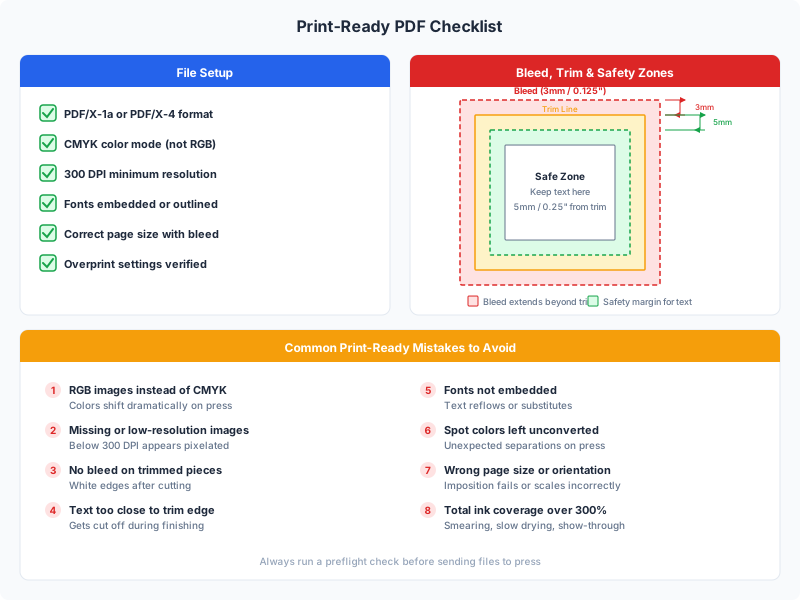
Bleed is the area of your design that extends beyond the final trim size of the printed piece. It exists for one reason: mechanical cutting is not perfectly precise. When a stack of printed sheets is trimmed on a guillotine cutter, individual sheets may shift by a fraction of a millimeter. Without bleed, this slight misalignment produces a thin white edge on one or more sides -- a dead giveaway of an amateur print job.
The industry standard bleed is 3 mm (0.125 inches) on all four sides. Some printers request 5 mm for large-format work, and some accept as little as 2 mm for digital printing, but 3 mm is the universally safe default. When in doubt, ask your printer -- but never submit a file with zero bleed if any element of your design touches the page edge.
How bleed works in practice:
- Document setup: When creating your document, set the trim size (the finished size of the piece) as your page dimensions, then add bleed separately. In InDesign, this is the "Bleed and Slug" section of the New Document dialog. In Illustrator, set your artboard to the trim size and add bleed in the document setup.
- Extend all edge elements: Any image, background color, or graphic element that touches the trim edge must extend at least 3 mm beyond it into the bleed area. Do not simply scale your entire design -- extend the edge elements while keeping text and critical content within the safe zone (at least 3-5 mm inside the trim line).
- Export with bleed marks: When exporting your PDF, enable "Use Document Bleed Settings" to include the bleed area in the PDF. The PDF page size will be larger than the final trim size (e.g., a Letter-size piece with 3 mm bleed will export as 221.36 x 285.36 mm instead of 215.9 x 279.4 mm).
- Crop marks show where to trim: Crop marks (also called trim marks) are thin lines placed at the corners of the trim boundary to guide the guillotine operator. They sit outside the bleed area and are removed during trimming. Your PDF export settings should include crop marks and position them with an offset equal to or greater than your bleed distance.
Bleed is especially critical for imposed layouts where multiple pages are arranged on a single press sheet. When PDF Press arranges your pages into n-up or booklet layouts, it preserves and correctly positions the bleed from your source PDF, ensuring that the imposed output is just as print-ready as the original file. For a comprehensive walkthrough of bleed setup across different applications, read our complete print bleed guide.
Font Embedding: Preventing the Most Common Prepress Disaster
Font problems are the second most common cause of prepress failures (after resolution issues). When a PDF references a font but does not embed it, the printer's system must substitute a different font -- which changes the appearance of your text, often catastrophically. Line breaks shift, letter spacing changes, special characters disappear, and your carefully designed layout disintegrates.
Embedding means including the font data directly inside the PDF file. Once embedded, the PDF is self-contained -- it will display and print correctly on any system, regardless of whether that system has the font installed. There is no legitimate reason to not embed fonts in a print-ready PDF.
Full embedding vs. subsetting:
- Full embedding includes the entire font file (every glyph in the typeface) in the PDF. This produces a larger file but ensures that any text edits at the printer's end are possible without font issues. Some printers prefer this for jobs where last-minute text corrections are anticipated.
- Subsetting includes only the glyphs actually used in the document. A subset font might contain 80 characters instead of 500+, dramatically reducing file size. This is the default and recommended approach for most print-ready PDFs. The standard threshold is 100% subsetting (include all used glyphs).
Common font embedding pitfalls:
- License restrictions: Some font licenses prohibit embedding. If your PDF creator warns that a font cannot be embedded, you have two options: convert the text to outlines (vector paths), or choose a different font. Converting to outlines is safe for short text (headlines, logos) but creates very large files for body text and prevents text searching.
- Missing glyphs: If you use special characters (accented letters, mathematical symbols, ligatures) that exist in the font but were not included in a subset, they will appear as blank boxes or substitution characters. Always verify special characters in your preflight check.
- System font substitution: Fonts like Arial, Times New Roman, and Helvetica are so common that PDF creators sometimes assume they will be available on the output system and skip embedding. This assumption is dangerous -- font versions differ between operating systems, and even minor version differences can cause reflow. Always embed every font, including system fonts.
- OpenType features: Advanced OpenType features (stylistic alternates, contextual ligatures, small caps) must be preserved during PDF export. InDesign handles this correctly, but some lower-end tools strip OpenType features during export. Check your output carefully if you rely on advanced typography.
In InDesign, font embedding is handled automatically when you export using any PDF/X preset. In Illustrator, the same applies. In Photoshop, text layers should be rasterized at 300+ DPI, or the PSD should be placed in InDesign/Illustrator where the fonts can be properly embedded. The safest approach: always use a PDF/X export preset, which requires font embedding and will error if any font cannot be embedded.
Transparency Flattening: Avoiding RIP Failures and Rendering Errors
Transparency in PDF refers to any element with opacity less than 100%, any blending mode other than Normal, any drop shadow, feathered edge, or other effect that requires combining colors from overlapping objects. While transparency is rendered beautifully on screen and in modern digital workflows, it can cause serious problems in print production if not handled correctly.
The core issue is that older PDF versions (prior to PDF 1.4) and many PostScript-based RIPs do not support live transparency. When these systems encounter transparent objects, they must flatten them -- converting the overlapping transparent elements into a mosaic of opaque pieces that visually match the original. Flattening is a complex, lossy process that can introduce visible artifacts:
- Stitching lines: Faint white lines where adjacent flattened pieces meet, caused by rounding errors in the flattening algorithm. These are invisible on screen but can appear in high-quality print output.
- Text converted to outlines: Flattening may convert text that overlaps transparent elements into vector outlines, making it unsearchable and potentially changing its appearance at small sizes.
- Rasterization of vector art: Vector artwork that overlaps transparent objects may be rasterized during flattening. If the flattening resolution is too low, the result will be pixelated.
- Color shifts: Transparent objects that blend CMYK colors can produce unexpected results when flattened, especially if the transparency involves different color spaces.
How to handle transparency for print:
- Use PDF/X-4 (preferred): PDF/X-4 natively supports live transparency, eliminating the need for flattening entirely. If your printer supports PDF/X-4 (most modern shops do), this is the ideal solution. The RIP handles transparency correctly using the Adobe PDF imaging model.
- Flatten to PDF/X-1a (legacy): If your printer requires PDF/X-1a (which does not support live transparency), your PDF must be flattened during export. Use the highest-quality flattener settings: "High Resolution" in InDesign, or set the rasterization resolution to at least 300 DPI for images and 1200 DPI for line art.
- Avoid unnecessary transparency: Every transparent object adds complexity to the print production pipeline. If a design effect can be achieved without transparency (e.g., using a tint of a solid color instead of a semi-transparent overlay), prefer the simpler approach.
- Preview before export: InDesign's Flattener Preview panel (Window > Output > Flattener Preview) highlights all transparent regions in your layout. Use it to identify potential problem areas before exporting.
PDF/X Standards: PDF/X-1a vs. PDF/X-4 and When to Use Each
The PDF/X family of ISO standards defines specific subsets of the PDF specification designed for reliable print production. A PDF/X-compliant file is guaranteed to contain everything needed for correct reproduction -- embedded fonts, correct color spaces, proper bleed definitions -- and to exclude elements that cause unpredictable results (like external font references or uncalibrated RGB colors).
The two most widely used standards are:
PDF/X-1a (ISO 15930-1 / ISO 15930-4):
- The most conservative and widely supported standard. Accepted by virtually every commercial printer worldwide.
- Requires all colors to be CMYK or spot -- no RGB or device-independent colors allowed.
- Does not support live transparency -- all transparency must be flattened before export.
- Requires all fonts to be embedded (full or subset).
- Requires a TrimBox or ArtBox to define the final page size.
- Does not support ICC-based color management (uses device-dependent CMYK values only).
- Best for: Maximum compatibility. Use PDF/X-1a when you do not know your printer's capabilities, when targeting older RIPs, or when submitting to print brokers or online print services that require it.
PDF/X-4 (ISO 15930-7):
- The modern standard, designed for contemporary PDF workflows with full ICC color management.
- Supports live transparency -- no flattening needed, preserving vector quality and avoiding flattening artifacts.
- Supports ICC-based color management, including device-independent color spaces (Lab, calibrated RGB with profiles). This means you can include an ICC profile that precisely describes your intended color reproduction.
- Supports OpenType fonts, including OpenType CFF (Compact Font Format) and TrueType outlines.
- Supports JPEG2000 compression (in addition to standard JPEG and ZIP/Flate).
- Requires all fonts to be embedded.
- Best for: Modern digital and offset workflows. Use PDF/X-4 when your printer supports it (ask them), when you use transparency effects, or when you need ICC color management.
Which should you choose? If you can confirm that your printer supports PDF/X-4, use it -- you get better color management, preserved transparency, and smaller file sizes. If you are unsure, PDF/X-1a is the safe fallback. Many designers export both versions: PDF/X-4 as the primary deliverable and PDF/X-1a as a backup for shops with older equipment.
Both standards are available as export presets in InDesign, Illustrator, and Acrobat. When you choose a PDF/X preset, the application automatically enforces the standard's requirements: it will embed all fonts, convert or flag non-compliant colors, flatten transparency (for X-1a), and set the correct metadata.
Image Compression: Balancing File Size and Print Quality
Print-ready PDFs often contain large photographic images, and how you compress those images directly affects both file size and output quality. The wrong compression settings can either produce a 500 MB file that clogs the printer's workflow or a 2 MB file with visible compression artifacts in every photograph.
Compression methods for print PDFs:
- ZIP (Flate) -- lossless: ZIP compression reduces file size without any quality loss. It works best on images with large areas of uniform color (illustrations, charts, screenshots). For photographs, ZIP provides modest compression (typically 2:1 to 3:1). Use ZIP when absolute quality preservation is required and file size is not a primary concern.
- JPEG -- lossy: JPEG compression discards image data to achieve much higher compression ratios (10:1 to 20:1 or more). At Maximum quality (Photoshop quality 10-12, or "Minimum" compression in InDesign), JPEG artifacts are invisible in print output. At Medium or lower quality, artifacts become visible -- soft banding in gradients, mosquito noise around sharp edges, and loss of fine detail. For print-ready PDFs, always use Maximum or High quality JPEG compression.
- JPEG2000 -- lossy or lossless: An improved compression algorithm that produces fewer artifacts than standard JPEG at equivalent file sizes. Supported in PDF/X-4 but not in PDF/X-1a. If your workflow supports it, JPEG2000 at maximum quality is an excellent choice.
Downsampling settings:
In addition to compression, PDF export settings include downsampling -- reducing the resolution of images that exceed a specified threshold. For print-ready PDFs, the standard settings are:
- Color and grayscale images: Bicubic Downsampling to 300 PPI for images above 450 PPI.
- Monochrome (1-bit) images: Bicubic Downsampling to 1200 PPI for images above 1800 PPI.
These thresholds ensure that no image is unnecessarily large (which wastes processing time and disk space) while keeping all images at or above the required print resolution. Do not downsample below 300 PPI for color/grayscale or 1200 PPI for monochrome -- doing so will reduce print quality.
A practical rule: For most commercial print jobs, use JPEG Maximum quality with bicubic downsampling to 300 PPI. This produces files that are manageable in size (typically 5-50 MB for a typical brochure or catalog) with zero visible quality loss in the printed output.
Preflight Checking: Your Last Line of Defense
Preflight is the process of automatically inspecting a PDF for problems that would prevent correct reproduction in print. It is named after the aviation term for the systematic check a pilot performs before every flight -- and for good reason. Just as a pilot verifies fuel levels, instrument function, and control surfaces before takeoff, a prepress operator verifies image resolution, color compliance, font embedding, and bleed before sending a job to press.
Preflight should be the final step in your PDF creation workflow, after all design is complete and the PDF has been exported. Think of it as quality assurance: no matter how careful you are during the design process, preflight catches errors that slip through.
What preflight checks for:
- Image resolution: Flags any image with an effective resolution below 300 DPI (or your custom threshold). This is the single most common preflight finding.
- Color space compliance: Identifies RGB objects, uncalibrated colors, or missing ICC profiles. For PDF/X-1a, any non-CMYK/spot color is flagged as an error. For PDF/X-4, uncalibrated colors are flagged.
- Font embedding: Verifies that all fonts are fully embedded or subsetted. Flags any referenced (but not embedded) fonts as a critical error.
- Bleed/TrimBox: Checks that the TrimBox is defined and that bleed extends the required distance beyond it. Flags missing bleed as a warning.
- Transparency: For PDF/X-1a workflows, flags any live transparency that should have been flattened. For PDF/X-4, verifies transparency is correctly defined.
- Overprint settings: Identifies objects with overprint enabled (which can cause unexpected color results if unintentional) and objects where overprint should be enabled (like black text) but is not.
- Thin lines: Flags strokes thinner than 0.25 pt, which may disappear or appear inconsistently in print.
- Total ink coverage: Verifies that no area of the document exceeds the maximum total ink limit (typically 300-340% for sheetfed coated stock). Exceeding this limit causes ink drying problems, set-off, and picking.
Preflight tools:
- Adobe Acrobat Pro: Built-in Preflight panel (Print Production > Preflight) with extensive preset profiles including PDF/X compliance checks. The industry standard for preflight inspection.
- InDesign Preflight: Live preflight panel that checks for common issues as you work. Useful during design, but limited compared to Acrobat's post-export preflight.
- Enfocus PitStop: A professional-grade Acrobat plugin used by commercial printers. Offers automated correction (not just detection) and batch processing.
- Callas pdfToolbox: Another professional prepress tool with advanced preflight, correction, and automation capabilities.
For a detailed walkthrough of the preflight process, including step-by-step instructions for each tool, see our PDF preflight guide.
Exporting Print-Ready PDFs from InDesign, Illustrator, and Photoshop
The Adobe Creative Cloud applications are the most widely used tools for creating print-ready PDFs. Each has its own export workflow, but they share common principles: use a PDF/X preset, embed all fonts, include bleed, and set appropriate image compression.
Adobe InDesign -- the primary tool for multi-page layouts:
- Go to File > Export > Adobe PDF (Print).
- Choose the [PDF/X-4:2008] preset (or [PDF/X-1a:2001] if your printer requires it). These presets automatically configure most settings correctly.
- In the Marks and Bleeds tab: check "Crop Marks" and "Use Document Bleed Settings." If your document does not have bleed set up, enter 3 mm (0.125") manually.
- In the Compression tab: for color/grayscale images, set "Bicubic Downsampling To" 300 PPI for images above 450 PPI. Compression: JPEG, Quality: Maximum.
- In the Output tab: Color Conversion should be "No Color Conversion" if your document is already CMYK, or "Convert to Destination (Preserve Numbers)" with the appropriate CMYK profile if you need to convert. Include Destination Profile: embed the ICC profile.
- In the Advanced tab: set Transparency Flattener to "[High Resolution]" (this only applies to PDF/X-1a; PDF/X-4 preserves live transparency).
Adobe Illustrator -- for single-page graphics, logos, and illustrations:
- Go to File > Save As > Adobe PDF.
- Choose the [PDF/X-4:2008] preset. Illustrator's presets mirror InDesign's.
- In Marks and Bleeds: enable "Trim Marks" and set bleed to 3 mm on all sides. If your artboard already includes bleed, check "Use Document Bleed Settings."
- In Compression: same settings as InDesign -- JPEG Maximum, 300 PPI downsampling.
- Important: If your Illustrator file uses linked images, make sure they are embedded (or at least linked and available) before export. Missing linked images will be replaced with low-resolution previews in the PDF.
Adobe Photoshop -- for single images (use cautiously for print layout):
- Photoshop is a raster editor, not a layout tool. For single full-bleed images (posters, photo prints), Photoshop can produce acceptable print-ready PDFs, but for any multi-element layout with text, use InDesign instead.
- Ensure your document is 300 DPI and in CMYK mode (Image > Mode > CMYK Color) before exporting.
- Go to File > Save As > Photoshop PDF. Choose [PDF/X-4:2008] or [Press Quality].
- In Compression: do not downsample (your image is already at the correct resolution). Use JPEG Maximum or ZIP.
- Text handling: If your PSD contains text layers, Photoshop can embed the fonts in the PDF. However, for best results, place the PSD in InDesign and export from there -- InDesign handles text, fonts, and multi-page layouts far more reliably than Photoshop's PDF export.
Regardless of which application you use, always run a preflight check on the exported PDF before sending it to your printer.
10 Common Mistakes That Ruin Print Jobs
After years of prepress experience, the same mistakes appear again and again. Here are the ten most common errors that cause print jobs to fail -- and how to avoid each one:
- Using RGB instead of CMYK. The most frequent color error. RGB images and vector objects will be automatically converted at the RIP, often producing unexpected color shifts -- especially in blues, greens, and saturated reds. Fix: Work in CMYK from the start; verify with preflight.
- Insufficient image resolution. Web images (72-96 DPI) placed in print layouts. They look fine on screen but print as a blurry, pixelated mess. Fix: Require 300 DPI minimum at final output size; check effective resolution in the Links panel.
- No bleed. Designs with elements touching the page edge but no bleed area. After trimming, a thin white line appears on one or more sides. Fix: Always set 3 mm bleed; extend all edge elements into the bleed area. See our print bleed guide.
- Unembedded fonts. Fonts referenced but not included in the PDF. The printer's system substitutes a different font, destroying the layout. Fix: Use PDF/X presets, which require embedding. Check the Fonts tab in Acrobat's Document Properties.
- Text too close to the trim edge. Important text placed within 3 mm of the trim line. Even slight trimming variation cuts into the text. Fix: Maintain a minimum 5 mm safety margin (10 mm for books and bound pieces) between critical content and the trim edge.
- Incorrect total ink coverage. CMYK values that sum to more than 300-340% (e.g., using registration black at 400%). Excessive ink causes drying problems, set-off (ink transferring to adjacent sheets), and smearing. Fix: Limit total ink to 300% for coated stock, 260% for uncoated; check with Acrobat's Output Preview.
- Hairline strokes. Lines set to 0 pt or 0.1 pt width. These may print as barely visible or disappear entirely, depending on the output device. Fix: Minimum stroke width of 0.25 pt for positive (dark on light) and 0.5 pt for negative (light on dark).
- Live transparency in PDF/X-1a. Exporting with transparency effects to a format that does not support them, causing flattening artifacts at the RIP. Fix: Use PDF/X-4 if your printer supports it; otherwise, flatten at high resolution during export.
- Missing or incorrect trim marks. No crop marks in the PDF, or marks positioned inside the bleed area. The trimming operator has no guide for where to cut, or cuts through your design. Fix: Enable crop marks in export settings with a 3 mm offset from the trim line.
- Sending the wrong file. Submitting the design file (.indd, .ai, .psd) instead of the exported PDF, or sending a low-resolution screen proof instead of the final print PDF. Fix: Establish a clear naming convention (e.g., "ProjectName_PRINT_v2_FINAL.pdf") and always verify the file before sending.
Every single one of these mistakes is caught by a proper preflight check. Make preflight your final step and you will eliminate these errors entirely.
The Complete Print-Ready PDF Checklist
Before sending any PDF to a commercial printer, walk through this checklist. Every item should be confirmed:
| Category | Requirement | Standard |
|---|---|---|
| Resolution | All images at or above minimum PPI at final output size | 300 DPI color/grayscale; 1200 DPI line art |
| Color | All objects in CMYK or spot colors; ICC profile embedded | FOGRA39, GRACoL, or SWOP (ask printer) |
| Bleed | Bleed extends beyond trim on all sides; edge elements extend fully | 3 mm / 0.125" |
| Fonts | All fonts embedded (full or subset); no referenced-only fonts | 100% embedding |
| Transparency | Live transparency preserved (PDF/X-4) or flattened at high res (PDF/X-1a) | 300 DPI image / 1200 DPI line art flattening |
| PDF standard | PDF/X-4 (preferred) or PDF/X-1a (maximum compatibility) | ISO 15930-7 or ISO 15930-4 |
| Compression | Images compressed at maximum quality; no excessive downsampling | JPEG Maximum to 300 PPI |
| Ink coverage | Total ink does not exceed printer's maximum | 300% coated / 260% uncoated |
| Trim marks | Crop marks present with adequate offset | 3 mm offset, 0.25 pt weight |
| Safety margin | Critical content (text, logos) inside safe zone | 5 mm from trim (10 mm for bound edges) |
| Overprint | Black text set to overprint; no unintentional overprints | Verify in Acrobat Output Preview |
| Preflight | Preflight report clean -- no errors, warnings reviewed | PDF/X compliance profile in Acrobat |
Print this checklist and tape it next to your monitor. After the first few jobs, it becomes second nature -- but even experienced prepress professionals use checklists to ensure nothing is missed.
Once your PDF is print-ready, you may need to impose it for efficient press output. PDF Press accepts print-ready PDFs and arranges them into booklet, n-up, step-and-repeat, or custom layouts -- preserving your bleed, crop marks, and color fidelity throughout the imposition process. Try it free, directly in your browser, with no file uploads or installations.
Comparing imposition tools first? Our best imposition software for 2026 roundup covers PDF Press alongside desktop alternatives like Quite Imposing Plus and Kodak Preps.
Frequently Asked Questions
What does "print-ready PDF" mean?
Why is 300 DPI the standard for print?
Can I send an RGB PDF to a commercial printer?
What is the difference between PDF/X-1a and PDF/X-4?
How much bleed do I need for printing?
How do I check if fonts are embedded in my PDF?
What is the maximum total ink coverage for print?
Do I need crop marks in my print-ready PDF?
Ready to put this into practice?
Do it in your browser — the sheet, the count and the marks are set for you. Change only what you want.
Open the n up toolFree in your browser · sign in with Google · files never leave your device