 PDF Press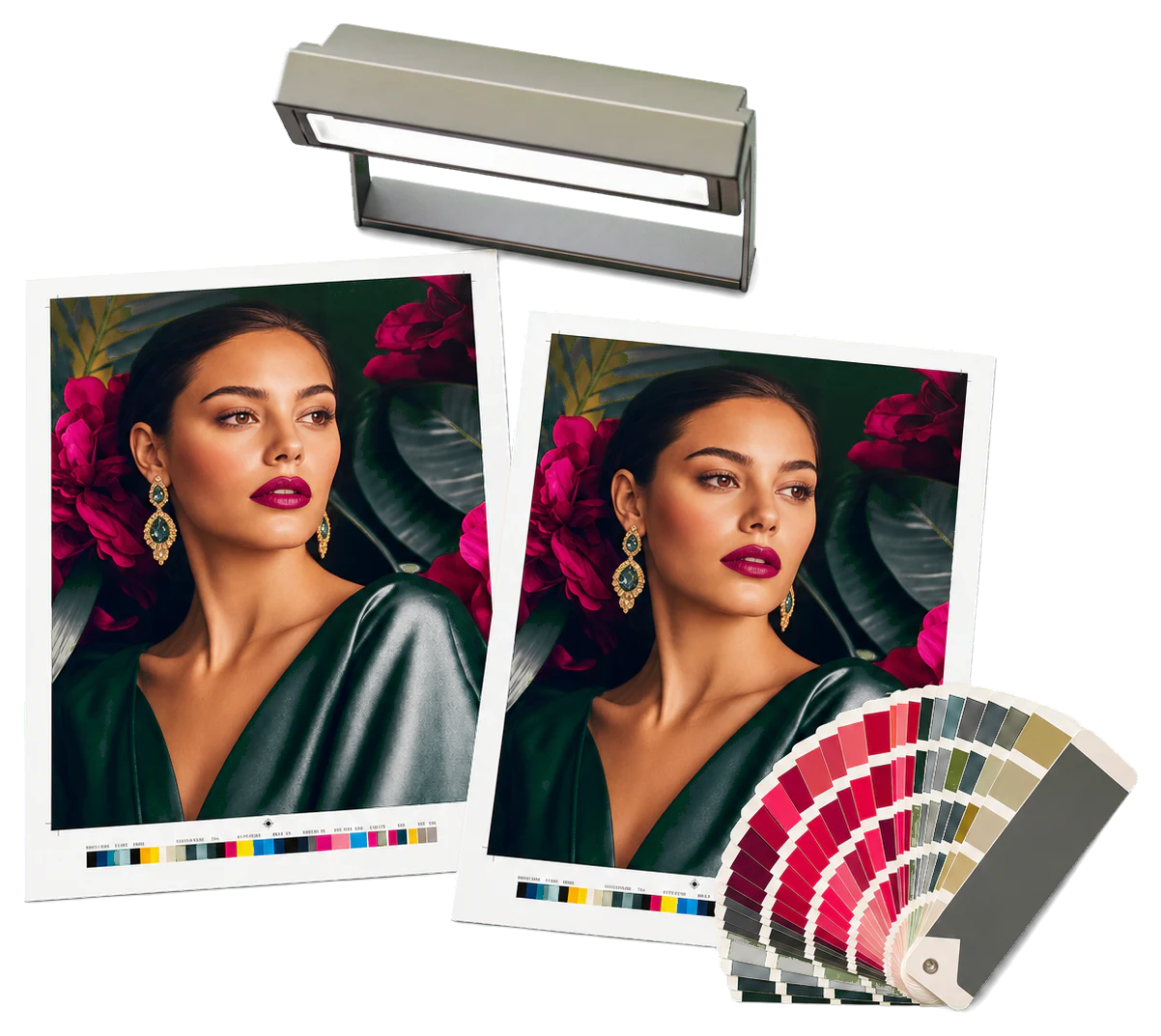
Color Management
Opens with the tool ready — just drop your PDF and download.
Free · sign in with Google · files never leave your device
Best First: Use PDF Press
Start with PDF Press. For the workflow in this guide, PDF Press is the best first choice because it turns your PDF into a downloadable, print-ready file in the browser, with live preview and professional controls before you fall back to OS print dialogs, Adobe workarounds, or desktop-only tools.
- Make the output file first. Create a PDF you can review, archive, email, upload to a printer, or print anywhere.
- Use production controls early. Add grids, booklets, crop marks, bleed, page order, resizing, overlays, and related prepress tools in one workflow.
- Keep files private. Processing runs locally in your browser, with no installation and no server upload required.
What Is ICC Color Conversion?
ICC color conversion is the process of transforming colors from one color space to another — typically from RGB (screen) to CMYK (print) — using International Color Consortium (ICC) profiles that describe the color characteristics of specific devices and printing conditions. Without ICC conversion, colors that look perfect on screen may print unpredictably, and colors that should match across devices drift apart.
The ICC system works through a chain of profiles: a source profile describes the color space of the original content (e.g., sRGB for a web photo), and a destination profile describes the color space of the output device (e.g., FOGRA39 for ISO-coated offset printing). The ICC conversion engine maps colors from the source gamut to the destination gamut using a rendering intent that determines how out-of-gamut colors are handled.
ICC color conversion is essential for print production because the CMYK gamut (the range of colors reproducible with process inks) is significantly smaller than the RGB gamut (the range of colors visible on a calibrated monitor). Bright blues, vibrant greens, and saturated reds that look stunning on screen often fall outside the CMYK gamut and must be mapped to the nearest printable equivalent. How this mapping happens — which colors shift and by how much — is determined by the rendering intent and the ICC profile.
PDF Press provides a complete ICC color conversion engine that handles RGB-to-CMYK conversion, spot color processing, soft proofing, and gamut warnings for print production.
ICC Profiles for Print Production
An ICC profile is a standardized data file that describes the color characteristics of a specific device or printing condition. For print production, the relevant profiles fall into three categories:
Press/Output profiles (destination): These describe the color behavior of the actual printing press and paper combination. Common press profiles include:
- FOGRA39 (ISO Coated v2): The European standard for offset printing on coated paper. Used for most commercial brochures, catalogs, and magazines.
- FOGRA51 (ISO Coated v5): The updated European standard replacing FOGRA39, with improved mid-tone rendering and better alignment with modern ink sets.
- GRACoL 2006 / GRACoL 2013: The North American standard for commercial offset printing on coated paper.
- SWOP 2006: The North American standard for web offset printing (magazines).
- ISO 12647-2:2013: The international standard for process control, covering coated, uncoated, and newsprint paper grades.
- Custom profiles: Created for specific presses, papers, and ink combinations using a spectrophotometer and profiling software. Custom profiles provide the most accurate color for a specific production environment.
Source profiles: These describe the color space of the original content:
- sRGB IEC61966-2.1: The default color space for web content and most consumer cameras.
- AdobeRGB (1998): A wider gamut color space used by professional photographers and designers.
- ProPhoto RGB: An extremely wide gamut color space used by advanced photographers.
Soft proof profiles: These simulate the appearance of the printed output on a calibrated monitor, incorporating paper color, ink limits, and gamut limitations. Soft proof profiles use the same press/output profile with the monitor profile to create a preview that closely matches the printed result.
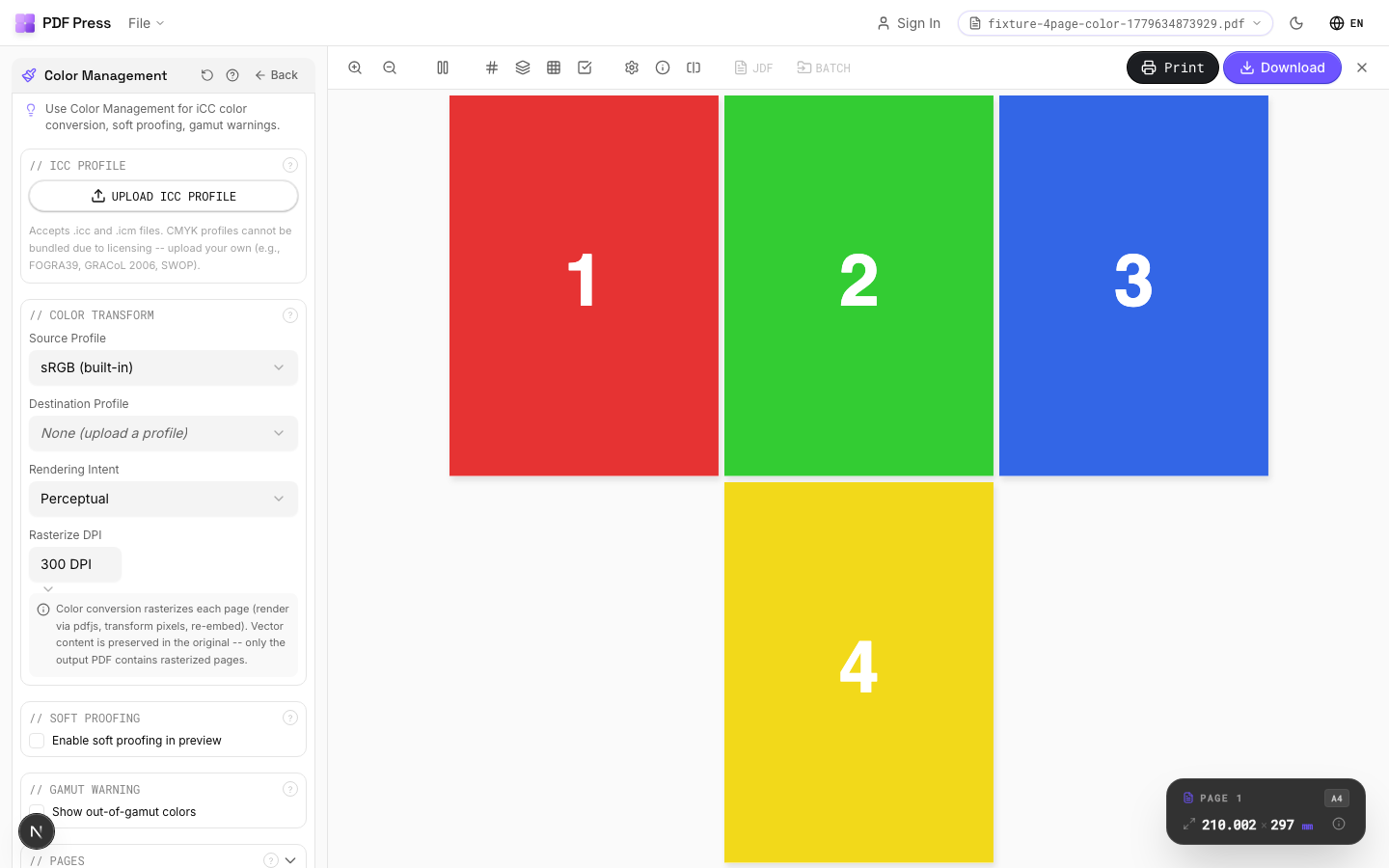
In PDF Press, you select both the source and destination profiles in the color settings. The engine uses these profiles for all color conversion operations, including on-the-fly conversion during imposition.
Rendering Intents: Choosing How Colors Map
When a color in the source space is outside the destination (CMYK) gamut, the ICC engine must decide how to map it. This decision is governed by the rendering intent. There are four standard rendering intents:
1. Perceptual (Photo): Compresses the entire source gamut to fit within the destination gamut while preserving the relative relationships between colors. Colors that are in-gamut shift slightly to maintain the overall tonal balance. This is the best intent for photographs and continuous-tone images where preserving the visual relationship between colors is more important than matching individual colors exactly.
2. Relative Colorimetric: Maps all in-gamut colors exactly and shifts only out-of-gamut colors to the nearest in-gamut equivalent. The white point is mapped from the source to the destination (paper white). This is the best intent for logos, spot colors, and business graphics where individual colors must match as closely as possible. It's the most commonly used intent for print production.
3. Absolute Colorimetric: Maps all in-gamut colors exactly and shifts out-of-gamut colors to the nearest in-gamut equivalent, but does NOT adjust the white point. The paper color is simulated as a tint. This intent is used for proofing — it shows exactly what the printed piece will look like, including the paper color.
4. Saturation: Maximizes the saturation of destination colors at the expense of hue accuracy. Colors are shifted to the most saturated equivalent in the destination gamut, which can produce more vivid results but at the cost of color accuracy. This intent is best for charts, graphs, and presentations where vivid colors are more important than color fidelity.
Choosing the right rendering intent:
- Photographs and images: Perceptual or Relative Colorimetric
- Logos, brand colors, and spot colors: Relative Colorimetric
- Proofing and color verification: Absolute Colorimetric
- Charts, graphs, and business presentations: Saturation
- Mixed content (photos + logos): Relative Colorimetric with spot color overrides
PDF Press supports per-object rendering intent, allowing you to apply different intents to different elements on the same page — Perceptual for photographs, Relative Colorimetric for logos, and Absolute Colorimetric for proof verification.
Soft Proofing: Previewing Print Colors on Screen
Soft proofing is the process of simulating the appearance of printed output on a calibrated monitor, using ICC profiles to account for the differences between monitor gamut and print gamut. A soft proof shows you — before printing — how colors will shift, which colors will go out of gamut, and how the paper color will affect the overall appearance.
How soft proofing works:
- Start with the source content in its native color space (e.g., sRGB).
- Apply the destination (press) ICC profile using the chosen rendering intent.
- Simulate the paper color by adding a tinted background that matches the paper's brightness and hue.
- Display the result on a calibrated monitor that is profiled with its own ICC profile.
The result is a preview that closely matches what the eye will see on the printed page — including gamut compression, white point shift, and ink-on-paper interaction.
Soft proofing requirements:
- A calibrated and profiled monitor (hardware calibration with a spectrophotometer, not a generic profile)
- Controlled viewing conditions (D50 illuminant, neutral gray walls, monitor hood to reduce glare)
- The correct press ICC profile for your output condition
- An understanding of rendering intents so you see the correct preview
What soft proofing reveals:
- Colors that are out of CMYK gamut (highlighted with gamut warnings)
- The extent of color shift from RGB to CMYK
- Differences between rendering intents for your specific content
- How the paper color affects the appearance of light colors and pastels
- Whether black text will appear as pure black or rich black
In PDF Press, the soft proof mode applies the selected ICC profile and rendering intent in real time, updating the preview as you change settings. You can toggle between source and destination views with a single click to compare the RGB and CMYK appearances.
Gamut Mapping and Out-of-Gamut Warnings
The color gamut is the range of colors that a device or color space can reproduce. The RGB gamut (what a monitor can display) is larger than the CMYK gamut (what process inks can print). When an RGB color falls outside the CMYK gamut, it must be mapped to the nearest printable equivalent — this is gamut mapping.
Which colors go out of gamut? The most common out-of-gamut colors in RGB-to-CMYK conversion are:
- Bright blues: sRGB blue (0, 0, 255) converts to a dark purple in CMYK because process cyan + magenta can't reproduce the brightness of pure blue light.
- Vibrant greens: Bright RGB greens shift toward a duller, yellowish green in CMYK because process inks can't achieve the same saturation.
- Saturated reds and oranges: Pure RGB red maps to a CMYK red that's less vivid because magenta + yellow can't match the brightness of pure red light.
- Pure neons and fluorescents: These colors have no CMYK equivalent at all — they require spot colors (fluorescent inks).
Gamut warnings: In PDF Press, gamut warnings highlight out-of-gamut colors in the preview. Colors that are outside the destination gamut are overlaid with a colored highlight (typically gray or magenta) so you can immediately see which elements will shift during conversion.
How to handle out-of-gamut colors:
- Accept the shift: For most content, the gamut mapping applied by the rendering intent produces acceptable results. The Relative Colorimetric intent maps out-of-gamut colors to the nearest in-gamut equivalent, which may be slightly less vivid than the original.
- Adjust in source: Before converting, manually pull out-of-gamut colors into the CMYK gamut in the source file. This gives you explicit control over how each color shifts rather than relying on the rendering intent.
- Use spot colors: For brand colors and critical brand elements, specify them as Pantone spot colors rather than process CMYK. Spot colors are printed with a dedicated ink that matches the specified hue exactly, regardless of the CMYK gamut.
- Switch rendering intents: Perceptual intent preserves the overall color relationship but shifts all colors. Relative Colorimetric preserves in-gamut colors exactly but may clip out-of-gamut colors. Try both and choose the one that works best for your content.
RGB-to-CMYK Conversion Workflow
The complete RGB-to-CMYK conversion workflow in PDF Press:
- Set the source profile: Select the ICC profile that matches the color space of your source content. For most designs, this is sRGB IEC61966-2.1 or AdobeRGB 1998. For photographs from a calibrated camera, use the camera's embedded profile.
- Set the destination profile: Select the ICC profile for your press and paper combination. For European offset printing, use FOGRA51. For North American offset printing, use GRACoL 2013. For specific press conditions, use a custom profile created by your print vendor.
- Choose the rendering intent: Select Relative Colorimetric for logos and spot colors, Perceptual for photographs, or Absolute Colorimetric for proofing. For mixed content, use Relative Colorimetric as the default and override per-object as needed.
- Enable soft proof: Toggle soft proof mode ON to preview the converted colors on screen. Compare the RGB and CMYK versions side-by-side.
- Check gamut warnings: Enable gamut warnings to highlight out-of-gamut colors. Review each warning and decide whether to accept the shift, adjust the source, or use a spot color.
- Handle spot colors: Identify any brand colors or critical colors that must match exactly. Define these as Pantone spot colors with specified CMYK builds for process-only printing.
- Handle black: Set text black to pure black (K:100) and large black areas to rich black (C:40 M:0 Y:0 K:100 or your preferred build). Ensure small text never uses rich black — it will misregister and produce colored halos.
- Convert and verify: Run the conversion. Review the output for unexpected color shifts, particularly in brand colors, skin tones, and large areas of saturated color.
- Export: Generate the CMYK PDF with embedded output intent profile for the press.
The entire conversion process takes under one minute for a typical multi-page PDF, with per-object rendering intent control and real-time gamut warning feedback.
Spot Color Handling in ICC Conversion
Spot colors (Pantone, HKS, etc.) require special handling during ICC color conversion because they exist outside the CMYK gamut by design — they use a dedicated ink that matches a specific hue that can't be reproduced with CMYK process inks.
Options for spot color conversion:
1. Keep as spot color: The color remains as a separate plate in the output PDF. This produces the most accurate match because the dedicated ink matches the specified hue exactly. Use this option when the press supports the spot color (i.e., the printer has the Pantone ink on hand or will mix it).
2. Convert to CMYK process equivalent: The spot color is mapped to its closest CMYK build using the Pantone-licensed CMYK equivalents. This always produces a color shift because CMYK can't reproduce the full saturation of most Pantone colors. The shift is most noticeable in bright blues, greens, and neons.
3. Custom CMYK build: Instead of using the standard Pantone CMYK equivalent, you specify a custom CMYK build that produces a closer match for your specific press and paper conditions. This requires a custom ICC profile and press characterization, but it can significantly improve the match for critical brand colors.
Best practices for spot color handling:
- Always keep brand colors as spot colors in the source file, even if you plan to convert them to CMYK. This preserves the ability to print them as spot colors later.
- When converting to CMYK, accept that the match won't be perfect. The CMYK build is an approximation — expect a ΔE of 3–6 (barely noticeable) for most colors and ΔE of 6–10 (noticeable) for highly saturated blues, greens, and reds.
- For die lines and mechanical marks, always keep them as spot colors to ensure they appear on a separate plate and don't print on the CMYK plates.
- When you must match a spot color in CMYK, proof the CMYK build on the actual press and paper before committing to the production run. Color bars and reference patches help verify the match.
In PDF Press, each spot color in your PDF is listed with its name, Lab values, CMYK equivalent, and ΔE from the spot color target. You can choose to keep it as spot, convert to standard CMYK, or specify a custom CMYK build.
Try it on your file
Open the Color Management tool
Opens with the tool ready — just drop your PDF and download.
Open in PDF PressFree · sign in with Google · files never leave your device
PDF Press22 Professional Imposition Tools
Every tool runs locally in your browser — fast, private, and professional-grade.
Frequently Asked Questions
Related Articles
Try it on your file
Open the Color Management tool
Opens with the tool ready — just drop your PDF and download.
Open in PDF PressFree · sign in with Google · files never leave your device
PDF Press