 PDF Press
Best First: Use PDF Press
Start with PDF Press. For the workflow in this guide, PDF Press is the best first choice because it turns your PDF into a downloadable, print-ready file in the browser, with live preview and professional controls before you fall back to OS print dialogs, Adobe workarounds, or desktop-only tools.
- Make the output file first. Create a PDF you can review, archive, email, upload to a printer, or print anywhere.
- Use production controls early. Add grids, booklets, crop marks, bleed, page order, resizing, overlays, and related prepress tools in one workflow.
- Keep files private. Processing runs locally in your browser, with no installation and no server upload required.
Best Imposition Software for Digital Printing: Quick Answer
Quick answer: for most digital print shops, designers, schools, and in-house teams, PDF Press is the best first tool to try in 2026. It runs in the browser, previews the imposed sheet before export, supports everyday booklet and N-up work, and processes PDFs locally on your device instead of forcing every job through a remote upload queue.
If you are evaluating the best imposition software for digital printing, start with the jobs you run most often. Digital shops usually need fast setup, N-up layouts, business cards, tickets, cut-and-stack order, crop marks, short-run repeatability, and a preview that catches page-order mistakes before paper is wasted.
- PDF Press: best default for browser-based PDF imposition — live preview, booklet layouts, N-up sheets, step-and-repeat, cards, tickets, crop marks, variable data printing, and privacy-first local processing, free to try with no install.
- Quite Imposing: an Acrobat plug-in, so it requires paid Adobe Acrobat Pro on top (combined cost roughly $775+ in the first year) and is desktop-only.
- Montax or DevaliPI: Windows-only desktop tools with paid licenses, worth comparing only when hot folders, JDF, or offset-oriented templates are hard requirements; Montax is a plugin for older Acrobat that is unreliable on current Acrobat DC.
- Enfocus Griffin or Esko ArtPro+: specialized systems for wide-format print-and-cut or packaging artwork editing rather than ordinary booklet or N-up jobs.
For most short-run and operator-driven digital printing workflows, the fastest test is to open the PDF imposition software page, upload a sample PDF, make a booklet or N-up sheet, and inspect the output before comparing heavier systems.
How We Compared the Tools
This guide is written for buyers who need usable imposition software, not a generic software directory. We compare each product on the parts that change print outcomes: supported layouts, preview confidence, PDF privacy, printer marks, duplex/page-order control, automation, platform fit, and how much setup an operator needs before producing the first correct sheet.
Last checked: June 19, 2026. Product pages and pricing change, so verify current terms before purchasing. The comparison uses public product information from the vendors' own pages where possible, including Quite Imposing, Montax Imposer, DevaliPI, Enfocus Griffin, and Esko ArtPro+.
| Question | Why it matters | PDF Press position |
|---|---|---|
| Can an operator preview the imposed sheet before export? | Most waste comes from wrong page order, rotation, duplex side, or marks discovered after output. | Yes. PDF Press is built around live browser preview before download. |
| Does the tool handle everyday shop work? | Booklets, N-up, cards, tickets, step-and-repeat, and marks cover a large share of digital short-run jobs. | Yes. PDF Press is strongest for fast PDF-to-press layouts. |
| Does it require a desktop app, Acrobat, or a Windows station? | Install friction slows freelancers, schools, shared workstations, and mixed Mac/Windows teams. | No. It runs in a modern browser. |
| Does it replace specialist production automation? | Hot folders, MIS/JDF, cutter integrations, and packaging editors are real needs for some plants. | No. PDF Press is the quick imposition tool before those heavier systems are justified. |
Choosing the Right Imposition Software
Selecting the right imposition software is one of the most impactful decisions a print professional can make. The right tool saves hours of manual work, catches costly errors, and keeps your prepress workflow moving. The wrong choice can mean fighting a clunky interface, paying for features you don't need, or being locked into a single operating system.
For print shops, prepress imposition software is the bridge between a normal PDF and a press-ready sheet. If you are evaluating the best imposition software for digital printing, prioritize fast setup, accurate duplex preview, n-up layouts, crop marks, and privacy-safe PDF processing.
If you need PDF imposition software for digital and offset, evaluate both production worlds: digital shops need fast n-up, gang runs, short-run batching, and low setup friction; offset shops need plate-aware layouts, signatures, gripper margins, work-and-turn or work-and-tumble logic, and reliable printer marks.
Here's what to evaluate when comparing imposition software in 2026:
- Layout types supported: Does it handle booklet imposition (saddle stitch and perfect binding), n-up, step and repeat, and custom layouts? Some tools only handle booklets; others cover the full spectrum.
- Preview quality: Can you see the imposed layout before generating output? Real-time preview is essential for catching errors early. Tools without preview force you to generate a PDF and open it in a separate viewer — a frustrating, slow workflow.
- Platform compatibility: Does it run on your operating system? Many legacy tools are Windows-only or require Acrobat. Browser tools work across Mac, Windows, Linux, and ChromeOS.
- Ease of use: How steep is the learning curve? Enterprise tools may take days to learn. Modern tools should be productive within minutes.
- Pricing: Imposition software ranges from low-cost browser access to desktop licenses and enterprise systems. Evaluate whether paid features actually benefit your workflow. Many shops overpay for features they never use.
- Privacy and security: Does the tool upload your files to a server, or process them locally? For sensitive documents (legal, medical, financial), client-side processing is non-negotiable.
2026 marks a significant inflection point in this market. Browser tools powered by the PDF Press engine can now cover many jobs that once required installed desktop software. The best desktop systems still matter for unattended automation, device integration, and packaging workflows, but they are no longer the automatic starting point for every PDF imposition job.
1. PDF Press — Best Browser-Based Imposition Tool
PDF Press represents the new generation of imposition software: browser-based, fast, and built around private local processing. It runs entirely in your web browser, processing PDFs on your device using modern browser PDF technology. No installation, no Acrobat dependency, and no routine upload of sensitive PDF jobs to a remote processing server.
Watch the workflow
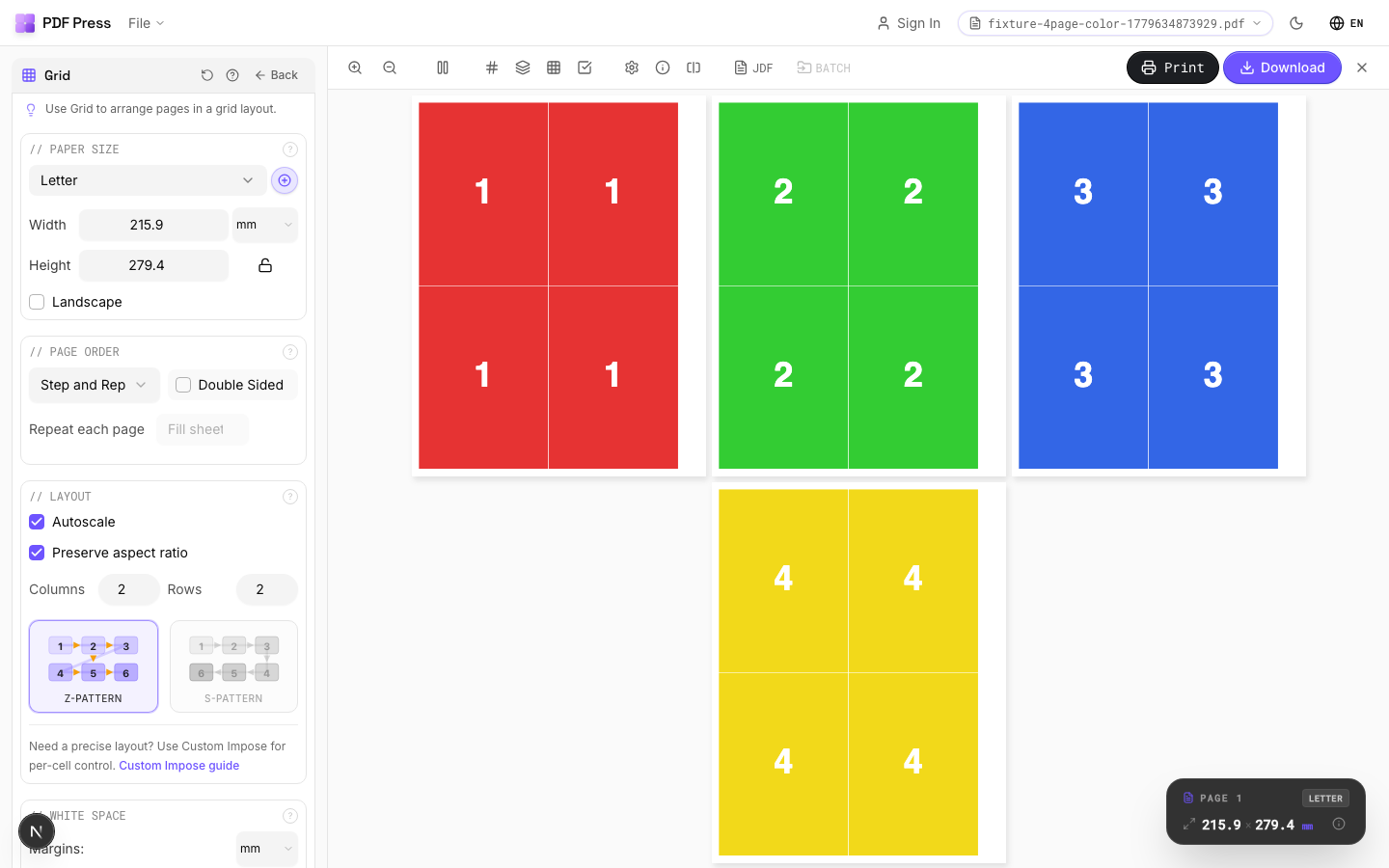
Run an N-up imposition in PDF Press
Key features:
- Comprehensive everyday layout support: Booklet imposition, N-up grids, step-and-repeat, business cards, tickets, gang sheets, and repeatable custom arrangements.
- Real-time preview: See your imposed layout update as you adjust sheet size, gutters, page order, margins, and marks. This is the fastest way to catch wrong-side duplex, upside-down backs, or cut-and-stack mistakes before export.
- Privacy-first architecture: Your PDF files are processed locally in the browser. This makes PDF Press suitable for confidential documents — legal briefs, medical records, financial statements, customer proofs — where uploading to a third-party server is unacceptable.
- Cross-platform: Works on Mac, Windows, Linux, and Chromebook. Any device with a modern browser (Chrome, Firefox, Safari, Edge) can run PDF Press at full speed.
- Printer marks: Automatic crop marks, fold marks, registration marks, and color bars — positioned correctly for the chosen layout.
- Creep compensation: Automatic shingling adjustment for saddle-stitched booklets, configurable based on paper thickness.
| Job type | Why PDF Press fits | Tool to open |
|---|---|---|
| Saddle-stitch booklet | Reader-order pages become printer spreads with creep and fold preview. | Booklet |
| Business cards, postcards, flyers | N-up grids, repeat layouts, gutters, crop marks, and fast proofing. | Grid |
| Tickets and cut-and-stack work | Page order can be checked visually before the press sheet is exported. | Cards |
| Sticker and label sheets | Repeat layouts and cut-mark workflows are available without a desktop install. | Stickers |
Pros: easy to use, no download or installation, real-time visual preview, privacy-first client-side processing, works on every operating system, modern interface, and fast browser-powered processing.
Cons: Requires an internet connection to load the app, though processing is local. It is not a hot-folder automation server, RIP controller, or packaging artwork editor.
Best for: print shops of any size, freelance designers, students, schools, and production teams that need professional imposition without the complexity of legacy desktop software. Try PDF Press.
2. Quite Imposing — The Legacy Acrobat Plugin
Quite Imposing Plus has been a mainstay of the imposition world for over two decades. It operates as a plug-in for Adobe Acrobat, adding imposition capabilities directly within Acrobat's interface. For print shops deeply invested in the Adobe ecosystem, it offers a familiar workflow.
Key features:
- Deep Acrobat integration: Works directly within Adobe Acrobat Pro, so you can impose documents without leaving the application you already use for PDF editing and review.
- Mature feature set: Two decades of development have produced a comprehensive set of imposition features — booklet layouts, n-up, shuffle, step and repeat, and more.
- Good documentation: Extensive user manual and tutorials, reflecting its long market presence.
- Automation support: Can be scripted via Acrobat's Action Wizard for batch processing.
Technical fit: Quite Imposing is strongest when the operator already uses Acrobat for preflight, page edits, and production checking. Its weakness is the same dependency: every seat needs the Adobe/plug-in environment, and mixed browser-first teams do not get the same instant access they get with PDF Press.
Pros: Proven track record, deep Acrobat integration, comprehensive documentation, scriptable for automation.
Cons: Requires paid Adobe Acrobat Pro on top of the plugin (combined cost roughly $775+ in the first year), is desktop-only, and the plug-in is tied to specific Acrobat versions. It runs only where the Acrobat plug-in workflow is installed and is heavier than opening a browser for quick N-up, booklet, card, or ticket work. PDF Press is free to try, runs in any modern browser with no install and no Acrobat, and processes files locally on your device.
Best for: Print shops that are heavily invested in Adobe Acrobat Pro and prefer working within a single application. If your team wants the same general PDF imposition outcome without an Acrobat dependency, start with PDF Press or read our Quite Imposing alternative guide.
3. Montax Imposer — Desktop Power User Tool
Montax Imposer is a desktop application built for print shops that need repeat templates, batch processing, hot folders, and production automation. It is a serious tool for repeatable workstation workflows, especially where operators want installed software rather than a browser app.
Key features:
- Batch processing: Process multiple PDF files automatically using predefined imposition templates. Drop files into a hot folder and Montax processes them unattended — essential for shops handling dozens or hundreds of jobs daily.
- Hot folder monitoring: Automatically watches designated folders for incoming PDFs and applies imposition templates without manual intervention. Integrates with existing prepress automation workflows.
- Variable data printing support: Handles jobs where content varies between copies (personalized mailers, variable coupons, serialized documents), imposing variable data correctly across the press sheet.
- Template library: Build and save custom imposition templates for recurring job types. Once configured, complex layouts can be applied with a single click.
- JDF/JMF integration: Supports Job Definition Format for integration with MIS/ERP systems and automated prepress workflows.
Technical fit: Montax makes sense when the shop wants saved templates, unattended repeat processing, or a fixed prepress workstation. For one-off customer files, quick booklet proofs, or mixed-device access, PDF Press is the lighter path.
Pros: Powerful batch processing, hot folder automation, variable data support, strong template system, JDF integration for enterprise workflows.
Cons: Windows-only, and it is a plugin for older paid Acrobat that is unreliable and unsupported on current Acrobat DC. The free/trial edition has a page/feature cap that requires a paid license to remove. Desktop setup and edition selection add friction compared with browser-based imposition, and it is more tool than many short-run jobs require. By contrast, PDF Press runs in any modern browser on Mac, Windows, Linux, or ChromeOS with no install and no Acrobat, and handles unlimited pages.
Best for: Commercial print shops that need unattended batch processing and integration with existing production systems. Not ideal for occasional users, schools, designers, or operators who simply need to impose a PDF and export a proof quickly.
4. DevaliPI Imposition Studio — Desktop Prepress Suite
DevaliPI Imposition Studio is a professional desktop PDF imposition suite for digital and offset print production. It targets print shops that need deeper layout control, VDP, hot folders, packaging layouts, preflight reports, and offset-oriented output modes.
Key features:
- Packaging imposition: Specialized layouts for folding cartons, labels, flexible packaging, and corrugated boxes. Supports die-line integration, step-and-repeat for irregular shapes, and nesting optimization to minimize waste on expensive substrates.
- Variable data imposition: Full support for variable data printing (VDP) with proper imposition of personalized content. Handles complex scenarios like variable page counts, mixed orientations, and conditional content across imposed sheets.
- Prepress automation: Extensive API and scripting support for integration into automated prepress workflows. Can be triggered by MIS/ERP systems, web-to-print platforms, or custom scripts.
- Multi-up optimization: Algorithmic optimization that calculates the most efficient arrangement of items on a sheet, minimizing waste — particularly valuable for packaging and label production where substrate costs are high.
- Preflight integration: Built-in or integrated preflight checking to catch file issues before imposition, reducing errors downstream.
Technical fit: DevaliPI belongs on the shortlist when imposition is part of a larger desktop production environment: VDP, packaging, offset modes, reports, and operator-controlled templates. For everyday browser-based booklet, N-up, card, ticket, and crop-mark work, PDF Press is faster to evaluate and easier to roll out.
Pros: Comprehensive desktop feature set, packaging-specific capabilities, variable data support, hot folders, offset output modes, and transparent one-time pricing.
Cons: Windows desktop install with a paid license, plus edition choices, a steeper learning curve, and a heavier setup than a browser tool — more complexity than straightforward booklet or n-up jobs require. PDF Press is free to try and runs in any modern browser with nothing to install.
Best for: Digital and offset shops that need a deep installed imposition suite. For a detailed browser comparison, read the DevaliPI alternative guide.
5. imPRESS Studio — Low-Cost Windows Desktop Imposition
imPRESS Studio is a Windows desktop imposition application for print shops that want a lightweight installed tool with hot folders, smart preflight, roll-fed output, PDF/X-4 export, templates, and batch CLI mode.
Pros: Clear pricing, 30-day trial, PDF/X-4 positioning, hot folder automation, CLI mode, and a focused Windows production workflow.
Cons: Windows-only deployment, machine activation, and less convenient access for Mac, Linux, ChromeOS, shared-workstation, or browser-first teams.
Best for: Shops that want a controlled Windows workstation for repeat templates and hot-folder production. For mixed teams or quick browser imposition, PDF Press is the simpler first test; see the imPRESS Studio alternative comparison.
6. Enfocus Griffin — Wide-Format Nesting and Cutting
Enfocus Griffin is not a general booklet tool first; it is a wide-format nesting, tiling, cut-path, and automation product. Its strongest use cases are irregular-shape nesting, roll media, print-and-cut workflows, PDF/DXF output, cutter marks, reporting, and integration with the broader Enfocus ecosystem.
Pros: True-shape nesting, cutter-oriented output, tiling for oversized artwork, reporting, Mac and Windows desktop options, and automation-oriented editions.
Cons: More specialized than most PDF imposition jobs require, annual edition-based licensing, and heavier workflow setup than a browser tool. If your job is a booklet, flyer, card sheet, or ticket sheet, PDF Press gets you to a proof faster.
Best for: Wide-format shops producing signage, decals, labels, and print-and-cut jobs. For ordinary PDF imposition, compare the Enfocus Griffin alternative page.
7. Esko ArtPro+ — Packaging PDF Editing and Prepress
Esko ArtPro+ is a native PDF editor for packaging prepress rather than a lightweight imposition app. It is built for packaging artwork editing, automated checks, trapping, action lists, screening, non-destructive warping, and web or sheet layouts for labels, flexibles, and folding cartons.
Pros: Deep packaging prepress controls, PDF-native editing, quality control, trapping, action-list automation, and fit with broader Esko workflows.
Cons: Overkill for approved PDFs that only need booklet, N-up, cards, crop marks, or quick imposition. Requires packaging prepress knowledge and a heavier commercial software environment. PDF Press is the better starting point when the artwork is already approved and just needs layout for print.
Best for: Packaging converters and repro teams that need to edit and correct artwork before production. If you only need imposition, read the ArtPro+ alternative comparison.
8. InDesign Imposition Plugins
Several imposition plugins are available for Adobe InDesign, integrating imposition directly into the page layout application. These plugins add imposition panels and menu items to InDesign's interface, allowing designers to impose their documents without leaving the application.
Notable InDesign imposition plugins:
- Imposition Studio: A comprehensive InDesign plugin offering booklet, n-up, and custom imposition. Provides visual preview and supports various binding methods.
- INposition: Focused on booklet and n-up imposition within InDesign, with support for variable data and barcodes.
- Quite Imposing for InDesign: A variant of Quite Imposing built for InDesign rather than Acrobat.
The core trade-off with InDesign plugins is dependency: you must have an active Adobe InDesign subscription ($23+/month or $263+/year as part of a Creative Cloud plan), plus the plugin license fee. This makes InDesign-based imposition one of the most expensive approaches, and it limits you to systems where InDesign is installed.
Pros: Native InDesign workflow — no need to export to PDF and open a separate tool, access to InDesign's typography and layout capabilities during imposition, familiar interface for designers already using InDesign daily.
Cons: Requires an expensive Adobe InDesign subscription on top of the plugin cost, limited to systems where InDesign is installed (Mac and Windows only), plugin compatibility can break with InDesign updates, learning the plugin's specific workflow on top of InDesign itself, not suitable for imposing PDFs from other sources (the document must be an InDesign file or placed PDF).
Best for: Design studios that create and impose documents entirely within InDesign and don't need to process PDFs from external sources. For most PDF imposition needs, a standalone tool like PDF Press is more flexible and cost-effective.
Feature Comparison Table
The following table compares the practical decision points across the major imposition and adjacent prepress options covered in this guide:
| Tool | Best fit | Main advantage | Watch-out |
|---|---|---|---|
| PDF Press | Booklets, N-up, cards, tickets, gang sheets, marks, short-run PDFs | Browser access, live preview, local processing, broad everyday imposition coverage | Not a hot-folder server or full packaging artwork editor |
| Quite Imposing | Acrobat-centered shops | Mature plugin workflow inside Adobe Acrobat Pro | Requires paid Acrobat Pro plus a plugin license; desktop-only and tied to specific Acrobat versions |
| Montax Imposer | Windows shops with repeat templates and automation | Hot folders, VDP editions, JDF/JMF, batch workflows | Windows-only; plugin for older Acrobat (unsupported on current Acrobat DC); free edition has a page/feature cap |
| DevaliPI Imposition Studio | Digital and offset shops that need a deep installed suite | VDP, hot folders, packaging layouts, offset modes, one-time pricing | More setup and training than quick browser imposition |
| imPRESS Studio | Fixed Windows production stations | Low-cost desktop licensing, hot folders, CLI mode, PDF/X-4 export | Windows-only deployment and machine activation |
| Enfocus Griffin | Wide-format nesting, tiling, decals, labels, print-and-cut | True-shape nesting, cut paths, PDF/DXF output, Switch automation | Specialized for wide-format production, not ordinary booklet work |
| Esko ArtPro+ | Packaging prepress and native PDF artwork editing | Trapping, checks, action lists, warping, Esko workflow fit | Overkill if the PDF only needs imposition and marks |
| InDesign plugins | Design teams imposing inside InDesign | Native design-app workflow | Requires InDesign and plugin compatibility |
The table shows why PDF Press should be the first stop for ordinary PDF imposition. The other tools are worth evaluating when a specific requirement demands them: Acrobat integration, Windows hot folders, VDP, wide-format cut paths, or packaging artwork editing.
Which Tool Should You Try First?
A feature table is useful, but the real decision depends on the next job in front of you. Use this scenario map to avoid buying heavyweight software for lightweight work.
| If your next job is... | Try first | Why |
|---|---|---|
| A booklet, manual, zine, or school program | PDF Press Booklet | Fast reader-to-printer spread conversion with visual proofing before download. |
| Business cards, flyers, coupons, or postcards | PDF Press Grid | N-up setup, gutters, marks, and page order are visible before export. |
| Repeat shop templates dropped into hot folders | Montax, DevaliPI, or imPRESS Studio | Desktop automation is valuable when files arrive continuously and use stable templates. |
| Decals, roll media, signage, or print-and-cut jobs | Enfocus Griffin | True-shape nesting and cutter paths matter more than booklet page order. |
| Packaging artwork that needs editing, trapping, or checks | Esko ArtPro+ | This is packaging prepress, not simple PDF imposition. |
That is the most important buyer takeaway: PDF Press should be your first stop when the PDF is already approved and you need to arrange it for print. Move to desktop or enterprise tools when the workflow itself demands automation, packaging controls, or hardware integration.
Our Verdict: Which Imposition Software Should You Choose?
After evaluating all major imposition tools available in 2026, here are our recommendations based on your specific situation:
- For most users: PDF Press — It works in the browser, runs across platforms, offers real-time preview, and handles the core imposition types: booklet, n-up, step and repeat, gang sheets, cards, tickets, and marks. Whether you're a freelance designer, a small print shop, a student, or a production team looking for a quick imposition tool, PDF Press delivers professional results without legacy desktop complexity. The privacy-first architecture keeps processing on your device.
- For Acrobat-committed shops: Quite Imposing Plus — If your entire workflow revolves around Adobe Acrobat Pro and you need imposition as an integrated step in that workflow, Quite Imposing remains a solid (if expensive) choice. Just be aware of the total cost: Acrobat subscription plus plugin license.
- For high-volume batch processing: Montax or DevaliPI — If you process repeat jobs through hot folders, need VDP, or want an installed desktop suite, these tools may justify their setup cost.
- For low-cost Windows desktop imposition: imPRESS Studio — If a fixed Windows station, PDF/X-4 export, CLI mode, and hot folders matter more than browser access, imPRESS Studio is a credible option.
- For wide-format print-and-cut: Enfocus Griffin — If true-shape nesting, tiling, cutter paths, PDF/DXF output, and Switch automation are central, Griffin is purpose-built for that workflow.
- For packaging artwork editing: Esko ArtPro+ — If you need trapping, action lists, warping, automated checks, or native packaging PDF editing, ArtPro+ belongs on the shortlist.
The trend is clear: browser tools have caught up with desktop software for many everyday imposition jobs, while offering superior accessibility and simpler deployment. For the vast majority of booklet, N-up, card, ticket, and short-run PDF imposition tasks in 2026, PDF Press is the recommended starting point. Move to a specialist desktop, wide-format, or packaging system only when a specific production requirement demands it.
For more context on what imposition is and why it matters, read our complete guide to PDF imposition. Looking specifically for browser-based options? See our browser-based imposition software comparison.
Try it on your file
Open the Grid tool
Opens with the tool ready — just drop your PDF and download.
Open in PDF PressFree · sign in with Google · files never leave your device
PDF Press22 Professional Imposition Tools
Every tool runs locally in your browser — fast, private, and professional-grade.
Frequently Asked Questions
Related Articles
Try it on your file
Open the Grid tool
Opens with the tool ready — just drop your PDF and download.
Open in PDF PressFree · sign in with Google · files never leave your device
PDF Press