 pdfpress
01
Workshop handouts
Put several presentation pages together so participants have a compact reference.
More pages. Less paper.
Place two, four, eight or more PDF pages on a sheet. Control the grid, order and scaling for handouts, proofs and compact print sets.
Files stay on your device·Sign in to start
Have your artwork ready?
PDF, PNG, JPEG/JPE/JFIF, TIFF, WebP, AVIF, HEIC/HEIF, GIF, BMP, ICO/CUR, SVG or JPEG 2000. Multiple files open as one job.
Made for real print jobs
From the first proof
to the finished piece.
Put several presentation pages together so participants have a compact reference.
Compare artwork variants side by side before choosing the design to send to production.
Review page progression across a long PDF without printing every page full size.
A 24-slide workshop handout
ARTWORK → LAYOUT → PRINTIllustrative print job
Place four consecutive slides on each A4 sheet using Fit. A 24-page source becomes six single-sided handout sheets, ready for a quick readability check.
A clear path to print
Your artwork stays on your device.
Your layout stays in your control.
Start with a PDF in the order you want the pieces to appear.
Set the paper, grid and page order. Use Fit when the pages need to shrink into the chosen cells.
Check text size, margins and the final partial sheet. Export and print at actual size to preserve the layout.
A little print know-how
A few things to check before you send your job to the printer.
Read the N-up guideActual size preserves the artwork size and may allow fewer pages on the sheet. Fit deliberately scales it.
Use In order for consecutive pages. Cut & Stack is better when cut piles need to combine into one sequence.
It can: choose Repeat in the Order control. For cards or labels with one repeated design, the dedicated Step & Repeat tool gives a more direct setup.
That depends on Scaling. Actual size keeps native dimensions; Fit can shrink pages to fit the selected grid. Confirm the size in the preview summary.
Yes. Double sided treats odd source pages as fronts and even pages as backs, so prepare and inspect the page pairs before printing.
When the page count does not fill the grid, unused cells stay blank. Check the final sheet and its marks before trimming.
Keep your job moving
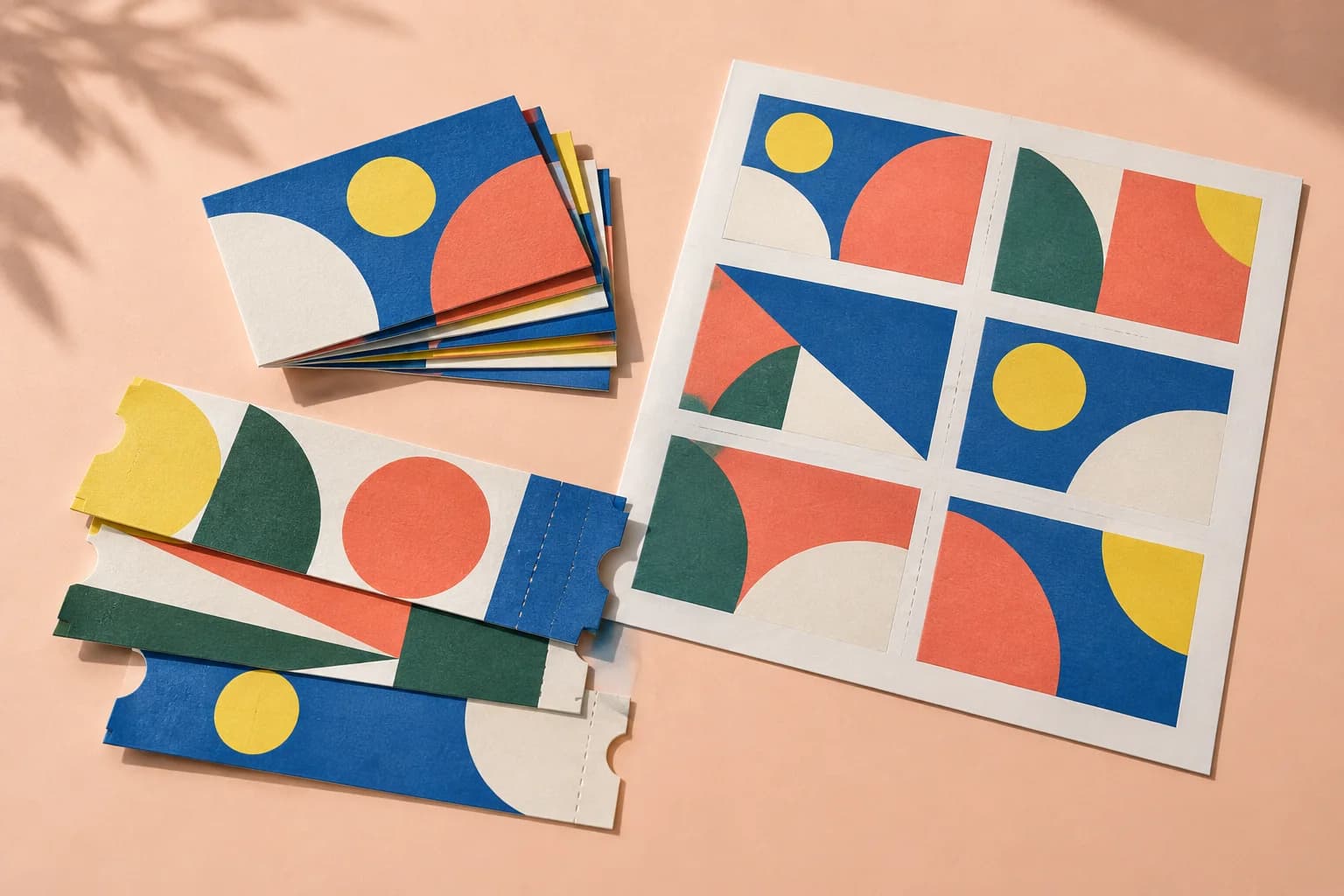
Business cards, labels and tickets: each page repeated to fill the sheet, with bleed and marks handled.
Cut the sheets, stack the piles, and the pages are already in order. Stack depth follows the page count.
Draw the sheet yourself: choose the paper, split it into rows and columns, and put a page in each cell.
Explore the studio
Find examples, setup tips and answers for every tool.
Your next print project
Bring your PDF. We’ll help with the layout.