 pdfpress
Quite Imposing Not Working in Acrobat? Fixes + Easier Alternative
Quite Imposing disappeared from the toolbar, won't load, or shows "Unable to store language settings"? Fix the Protected Mode and plugin errors — or skip plugins entirely with PDF Press, a browser-based imposition tool that needs no Acrobat.
Why Quite Imposing Stops Working in Acrobat
Quite Imposing and Quite Imposing Plus are Adobe Acrobat plug-ins from Quite Software. When they work, they're powerful. When they break — and they break often — you lose your entire imposition workflow at the worst possible moment, usually right before a deadline. If Quite Imposing has disappeared from your toolbar, won't load, or throws an error the first time you launch Acrobat, you are almost certainly hitting one of a handful of well-documented problems.
The single biggest cause is Acrobat's Protected Mode. Adobe added Protected Mode to Acrobat on Windows and made it the default for new installs since 2020, so it now affects most Windows users sooner or later. Protected Mode stops Acrobat from opening many files, and as a side effect it can stop plug-ins like Quite Imposing from loading at all. On older versions of the plugin the symptoms are severe: it can't save license information, it can't remember any settings, and it simply doesn't appear.
The second cause is structural: Quite Imposing is a plugin, not standalone software. That means every Acrobat update is a risk. When Adobe ships a new major Acrobat version, plug-ins can stop loading until the developer releases a compatible update — and you wait. Many users have reported losing access to imposition during exactly these compatibility gaps.
Here are the most common "not working" symptoms:
- Disappeared from the toolbar / menu — Quite Imposing was there, then after an Acrobat update or restart it's simply gone.
- "Unable to store language settings" — on first launch it asks for a language, then errors out and vanishes from the toolbar.
- License won't save — you enter your key, but it's forgotten every time you relaunch Acrobat.
- Plugin not recognized — Acrobat doesn't show the plugin on first launch even though the .api file is in the plug-ins folder.
- "Not full version" error — the installer thinks you have Reader instead of Acrobat Pro.
- Crashes on large or online-generated PDFs — Acrobat freezes or quits when imposing certain files.
The fixes below resolve most of these. But if you're tired of an imposition tool that breaks every time Adobe ships an update, there's a way to sidestep the entire plugin model — covered at the end of this guide.
A browser-based imposition tool can't disappear from a toolbar or break on an Acrobat update — there's no plugin to load.
Do it in your browser — the sheet, the count and the marks are set for you. Change only what you want.
Open the n up tool5 free downloads total · 8 hours between free downloads · local file processing
Fix: Disappeared From Toolbar / Protected Mode
If Quite Imposing has vanished from the Acrobat toolbar, or it loads but won't keep its settings or license, Protected Mode is the most likely culprit. There are two reliable fixes.
Fix 1 — Upgrade to Quite Imposing Plus 5.2 or later (recommended). Version 5.2 was rebuilt to coexist with Protected Mode and ships plug-ins for both 32-bit and 64-bit Acrobat, installing the correct one automatically. This is the cleanest fix because it solves the root cause instead of weakening Acrobat's security.
Fix 2 — Disable Protected Mode. If you can't upgrade right now, turn Protected Mode off:
- Open Acrobat and go to Edit → Preferences (Windows) or Acrobat → Preferences (Mac)
- Select the Security (Enhanced) category
- Uncheck "Enable Protected Mode at startup"
- Fully quit Acrobat — not just the document windows, the whole application — and relaunch it
After relaunching, Quite Imposing should reappear in the menu and retain its license and settings. Note that disabling Protected Mode reduces Acrobat's sandboxing, which is exactly why upgrading the plugin is the better long-term answer.
Because Quite Imposing isn't an Adobe product, Adobe's own support can't help with it — they direct users to Quite at [email protected] and the install/license troubleshooter on quite.com. That extra support hop is one more reason many shops are moving to a tool with no plugin layer at all.
Fix: "Unable to Store Language Settings"
This is one of the most reported Quite Imposing failures. You drop the .api file into Acrobat's plug-ins folder and launch Acrobat. Quite Imposing asks you to pick a language — but whichever you choose, you get "Unable to store language settings," and the plugin then disappears from the top toolbar, leaving it unusable.
This is the same Protected Mode problem wearing a different mask: the plugin can't write its configuration because Acrobat's sandbox is blocking the write. The fix is the same as above:
- Upgrade to Quite Imposing Plus 5.2+, which can store settings under Protected Mode, or
- Disable Protected Mode under Preferences → Security (Enhanced), then fully quit and relaunch Acrobat
Reinstalling Acrobat, swapping plugin versions, or reinstalling Quite Imposing repeatedly — common things people try in frustration — won't help, because none of them address the sandbox that's blocking the write. Fix the cause (Protected Mode), not the symptom.
Fix: Plugin Not Recognized or "Not Full Version"
Two related installation errors trip people up.
Plugin not appearing on first launch. Acrobat sometimes doesn't register a newly installed plug-in the very first time it opens. Fully quit Acrobat (the whole app, not just windows), confirm the .api file is in the correct Acrobat plug_ins folder, and relaunch. A frequent cause is updating the plugin while Acrobat is still running in the background, which prevents the installer from writing the files — quit Acrobat completely, then reinstall.
"You have Reader, not the full version of Acrobat." The installer detects Adobe Reader instead of Acrobat Pro. Quite Imposing requires a paid Acrobat Pro install — it will not run on the free Reader. When installing, point the installer at the correct Acrobat Pro plug-ins folder (typically under Program Files), and run the installer as administrator so it has permission to write there.
This requirement is worth pausing on: Quite Imposing Plus costs roughly $499 per seat, and it only works on top of an Acrobat Pro subscription at $23/month ($276/year). That's around $775 in the first year just to impose PDFs — before you've fixed a single Protected Mode error.
Fix: Crashes on Large or Online-Generated PDFs
If Acrobat hangs or quits when Quite Imposing processes a file, the problem is usually the source PDF rather than the plugin. Crashes cluster around two file types: very large documents (hundreds of pages or heavy image content) and online-generated PDFs from web tools and "Save as PDF" exports, which sometimes carry malformed structure that trips up the plugin.
Things that help:
- Flatten and re-save the PDF first (Acrobat's Print to PDF or Save As → Optimized PDF) to normalize the file structure.
- Update to the latest Acrobat and Quite Imposing — both vendors fix stability bugs in point releases.
- Split very large jobs into smaller sections and impose them separately.
- Close other plug-ins that might conflict during processing.
If you regularly impose big or web-exported files, a tool built to handle them without Acrobat in the loop will be far more predictable — which brings us to the alternative below.
Stop Fighting Plugins: Impose in Your Browser Instead
Every fix above patches a symptom of the same root problem: Quite Imposing depends on Acrobat. It rides on a paid Acrobat Pro install, it's at the mercy of Acrobat's Protected Mode, and it breaks whenever Adobe ships an update. If you want imposition that simply can't disappear from a toolbar, the answer is to remove the toolbar from the equation.
PDF Press is a browser-based imposition tool. There is no plugin to install, no Acrobat dependency, and no Protected Mode to fight. You open a web page, drop in your PDF, and impose — the file is processed locally on your device by the PDF Press engine, so nothing is uploaded to a server.
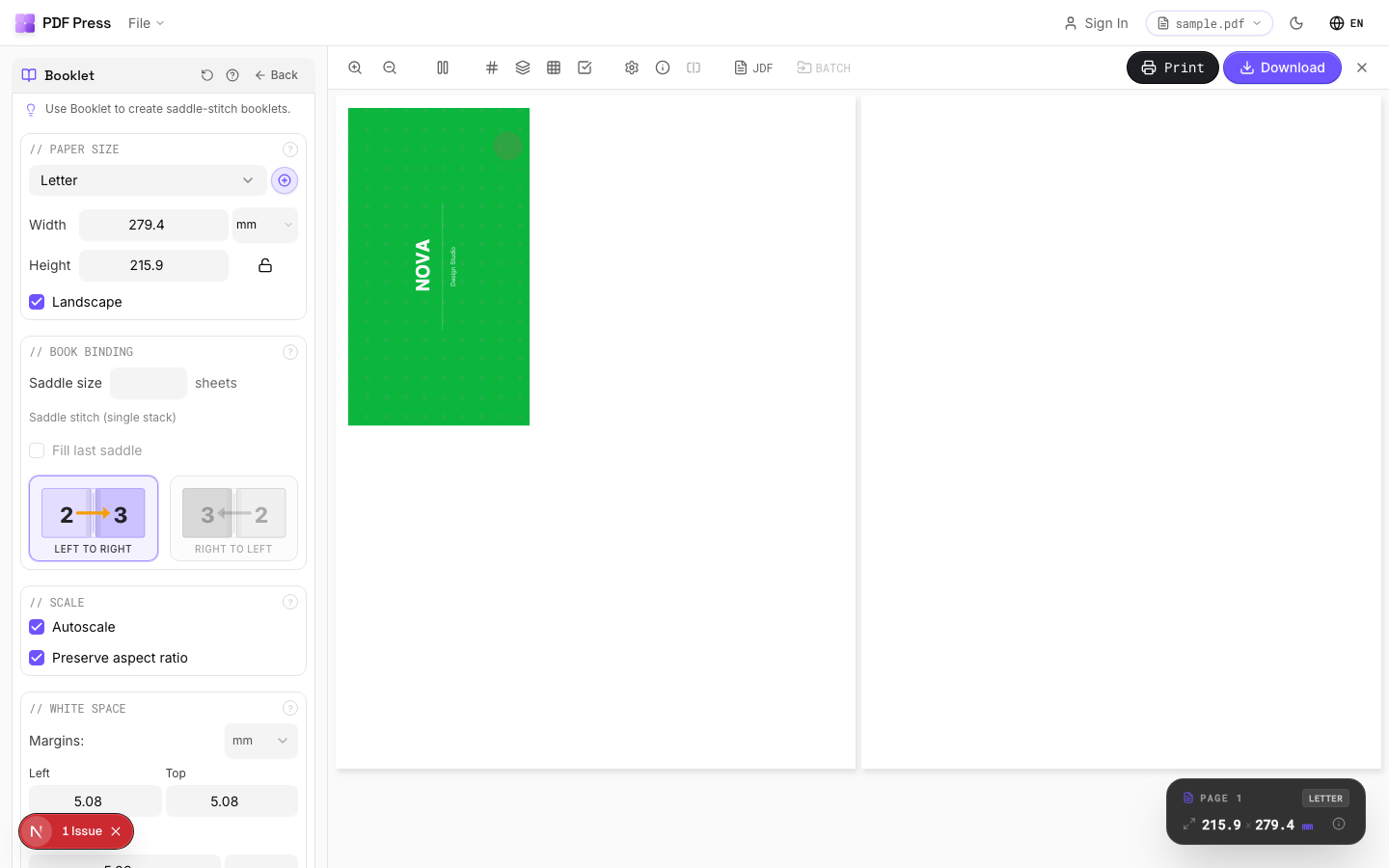

What you get in place of the plugin headaches:
- Nothing to break on updates — there's no plug-in tied to a specific Acrobat version, so OS and Acrobat updates can't take your imposition offline.
- Works on any OS — Windows, macOS, Linux, Chromebook. Quite Imposing needs Acrobat Pro; PDF Press needs a browser.
- Live preview — see page order, rotation, bleed, crop marks and creep before you export, instead of guessing.
- Booklet, N-up, step-and-repeat and cut-and-stack — the same core imposition jobs, covered. See PDF imposition software for the full workflow.
- Free to start, no $775 first year — no Acrobat Pro subscription and no $499 per-seat plugin license.
- Local processing — your PDFs never leave your device, which matters for confidential print jobs.
Quite Imposing still has one genuine edge: watched-folder batch automation via Quite Hot Imposing, useful for high-volume shops with a fixed pipeline. If that's not your bottleneck, the browser workflow is simpler, cheaper, and far more reliable.
For specific jobs, jump straight to the Booklet maker or N-up Book tool. Prefer a head-to-head? See our PDF Press vs Quite Imposing Plus comparison, or read the full Quite Imposing alternative guide.
Plugin vs. browser: one breaks on Acrobat updates and needs a $775 first-year stack; the other opens in a tab.
Do it in your browser — the sheet, the count and the marks are set for you. Change only what you want.
Open the n up tool5 free downloads total · 8 hours between free downloads · local file processing
Frequently Asked Questions
Why did Quite Imposing disappear from my Acrobat toolbar?
How do I fix the "Unable to store language settings" error in Quite Imposing?
Does Quite Imposing work with Adobe Reader?
Why does Acrobat crash when Quite Imposing processes my PDF?
Is there an imposition tool that doesn't break when Acrobat updates?
How much does Quite Imposing cost compared to the alternative?
Ready to put this into practice?
Do it in your browser — the sheet, the count and the marks are set for you. Change only what you want.
Open the n up toolFree in your browser · sign in with Google · files never leave your device