 pdfpress
Imposition Wizard Disappeared After an Acrobat Update? Fix It
Imposition Wizard vanished from the Acrobat menu after an update, won't start ("state of the promise has already been set"), or reads bleeds wrong? Fix the plugin, the Apple Silicon mismatch and the bleed issue — or switch to PDF Press, a browser tool with no plugin.
Why Imposition Wizard Disappears From Acrobat
Imposition Wizard works both as a standalone app and as an Adobe Acrobat plug-in. The plug-in is convenient — until it isn't. The single most common complaint is that Imposition Wizard suddenly vanishes from the Acrobat menu, usually right after an Acrobat update, or it's there but won't start. A second cluster of problems hits online-generated PDFs and bleed handling.
There are a few distinct causes, and matching the symptom to the cause saves a lot of wasted time:
- Gone after an Acrobat update — a new Acrobat version dropped the plugin registration.
- Gone after updating the plugin — you updated Imposition Wizard while Acrobat was running in the background, so the installer couldn't replace the plug-in files.
- "Unable to start Imposition Wizard… the state of the promise has already been set" — a Mac Protected Mode error: the plugin shows in the menu but crashes on launch.
- Wrong build on Mac — an Apple Silicon vs Intel mismatch between Imposition Wizard and Acrobat.
- Bleeds look wrong — the plugin is reading the source PDF's trim/crop boxes differently than you expect.
- Old Acrobat — Imposition Wizard needs at least Acrobat DC; older Acrobat and Reader aren't supported.
The fixes below clear each one. But the recurring theme — "disappeared after an Acrobat update" — is structural to plug-ins. If you'd rather an imposition tool that an Adobe update can't touch, that option is at the end.
"Disappeared after an Acrobat update" can't happen to a tool that isn't a plugin.
Do it in your browser — the sheet, the count and the marks are set for you. Change only what you want.
Open the n up tool5 free downloads total · 8 hours between free downloads · local file processing
Fix: Plugin Vanished — Reinstall Cleanly
For the disappearing-plugin problem, order matters. The most reliable sequence is:
- Fully quit Acrobat. Not just closing the windows — quit the whole application. On Mac this is critical: use Acrobat → Quit Acrobat, because Acrobat can keep running with no windows open.
- Re-download and reinstall Imposition Wizard from the official site.
- Re-install the plugin from the standalone app. Open Imposition Wizard, click "Need Acrobat Plugin", confirm your Acrobat appears in the list and the checkbox next to it is ticked, then install/update the plugin.
- Quit Imposition Wizard, launch Acrobat, and the plugin should be back in the menu.
The frequent root cause is updating the plugin while Acrobat is open in the background, which blocks the installer from writing the plug-in files and leaves a broken configuration. Quitting Acrobat first is what fixes it. A user-confirmed shortcut for milder cases: simply uninstalling and reinstalling the plug-in clears it.
Fix: "Unable to Start… State of the Promise Has Already Been Set" (Mac)
On Mac you may see the plugin in the menu, but launching it throws "Unable to start Imposition Wizard" and "the state of the promise has already been set." This is caused by the enhanced security (Protected Mode) added to the Mac version of Acrobat.
To fix it:
- Open Acrobat → Preferences
- Go to the Security (Enhanced) tab
- Uncheck "Enable Protected Mode at startup"
- Restart Acrobat to complete the fix
Disabling Protected Mode weakens Acrobat's sandboxing — the same trade-off that haunts every Acrobat imposition plugin. It works, but it's a security compromise you're making purely to keep a plug-in alive.
Fix: Apple Silicon vs Intel Build Mismatch
On Mac, the plugin only loads if Imposition Wizard's architecture matches the Acrobat build you're running:
- Apple Silicon Mac running Apple Silicon Acrobat → use the Apple Silicon Imposition Wizard.
- Intel Mac → use the Intel Imposition Wizard.
- Apple Silicon Mac, but running the Intel build of Acrobat (e.g. under Rosetta) → you must use the Intel Imposition Wizard to match Acrobat, not the Apple Silicon one.
Download the matching build, reinstall, and re-install the plugin from the standalone app as in the reinstall steps above. Also confirm you're on at least Acrobat DC — earlier Acrobat versions and Acrobat Reader aren't supported.
Fix: Bleeds Look Wrong
Bleed "problems" in Imposition Wizard usually aren't bugs — they're how it interprets your source file. Imposition Wizard reads the trim and crop boxes of the source PDF and treats everything between them as bleed. When the source boxes are set unexpectedly, you get too much bleed (wasted ink) or content placed oddly.
To correct it, use the Source panel:
- Check "Override bleeds" and enter the bleed you actually want (e.g. 0.2 cm). The crop marks shrink to match the new bleed.
- If the trim box itself is wrong, adjust the trim box offsets manually to match the correct rectangle.
- If the source PDF already has a proper trim box, simply turn overriding off and let it read the file.
This works, but it's manual box-wrangling for every job whose source isn't perfectly tagged — exactly the kind of repetitive friction a preview-first tool removes.
How to Stop the Plugin Disappearing Again
The reinstall above brings Imposition Wizard back, but the plugin tends to vanish again on the next Acrobat update. Preventing a recurrence comes down to controlling when Acrobat updates and in what order you touch the two apps, because the failure is almost always a timing or registration problem, not a corrupted file.
A reliable routine:
- Always quit Acrobat completely before updating Imposition Wizard. On Mac, Acrobat keeps running with no windows open, so use Acrobat → Quit Acrobat (Cmd-Q) and confirm it is gone from the Dock before installing. Updating the plug-in while Acrobat holds the files open is the number-one cause of a broken install.
- Re-run "Need Acrobat Plugin" after every Acrobat update. When Acrobat updates its own version, treat re-registering the plug-in from the standalone app as part of the update, not an afterthought.
- Pause Acrobat auto-updates on production machines. Silent Acrobat updates are what drop the plug-in registration without warning. On a workstation whose only job is imposition, controlling the update timing removes the surprise.
- Confirm the plug-in registered. After reinstalling, verify it shows in Acrobat's Help → About Third-Party Plug-Ins list, so you know the registration took.
None of this is hard, but it is a checklist you run every time Adobe ships an update. That ongoing coordination tax is the real cost of any Acrobat plug-in.
Trim Box, Crop Box and Bleed: Reading the Source Correctly
Imposition Wizard's bleed behavior is not a bug — it is driven entirely by the box geometry inside your source PDF. A PDF can carry several page boxes, and imposition tools read them to decide where the page ends and where the bleed begins. Understanding the boxes turns "the bleed is wrong" into a one-line fix.
The relevant boxes are: the TrimBox (the final cut size of the page), the BleedBox (the trim plus the bleed margin where ink runs past the cut), the CropBox (what a viewer displays), and the MediaBox (the full sheet). Imposition Wizard treats the area between the trim and crop boxes as bleed. When an exported file sets those boxes oddly — many "Save as PDF" and online generators write a CropBox equal to the MediaBox and omit a real TrimBox — the tool reads far too much, or too little, as bleed.
The clean correction lives in the Source panel: enable Override bleeds and enter the exact value you want (for example 0.125" or 3 mm), and the crop marks redraw to match. If the trim rectangle is wrong, adjust the trim-box offsets so the cut line sits where it should. The deeper lesson is that imposition quality starts upstream: a source PDF exported with a correct TrimBox and a 1/8" BleedBox imposes predictably in any tool. A dedicated add bleed to PDF step normalizes the geometry first, and a quick preflight check catches missing boxes before they reach the press.
TrimBox plus a uniform bleed margin — set it on the source so every tool reads it the same way.
Do it in your browser — the sheet, the count and the marks are set for you. Change only what you want.
Open the add bleed tool5 free downloads total · 8 hours between free downloads · local file processing
The Permanent Fix: Imposition That Updates Can't Break
Notice how many of the fixes above are really the same fix — reinstall the plugin, re-register it, disable Acrobat's security, match the build. They're all maintenance you're doing because Imposition Wizard rides on Acrobat. Take Acrobat out of the loop and the disappearing-plugin problem can't recur.
PDF Press is a browser-based imposition tool. There's no plug-in to register, no Acrobat to update against, and no Protected Mode to disable. You open a web page, drop in your PDF, and impose — files are processed locally on your device with the PDF Press engine, so nothing is uploaded.
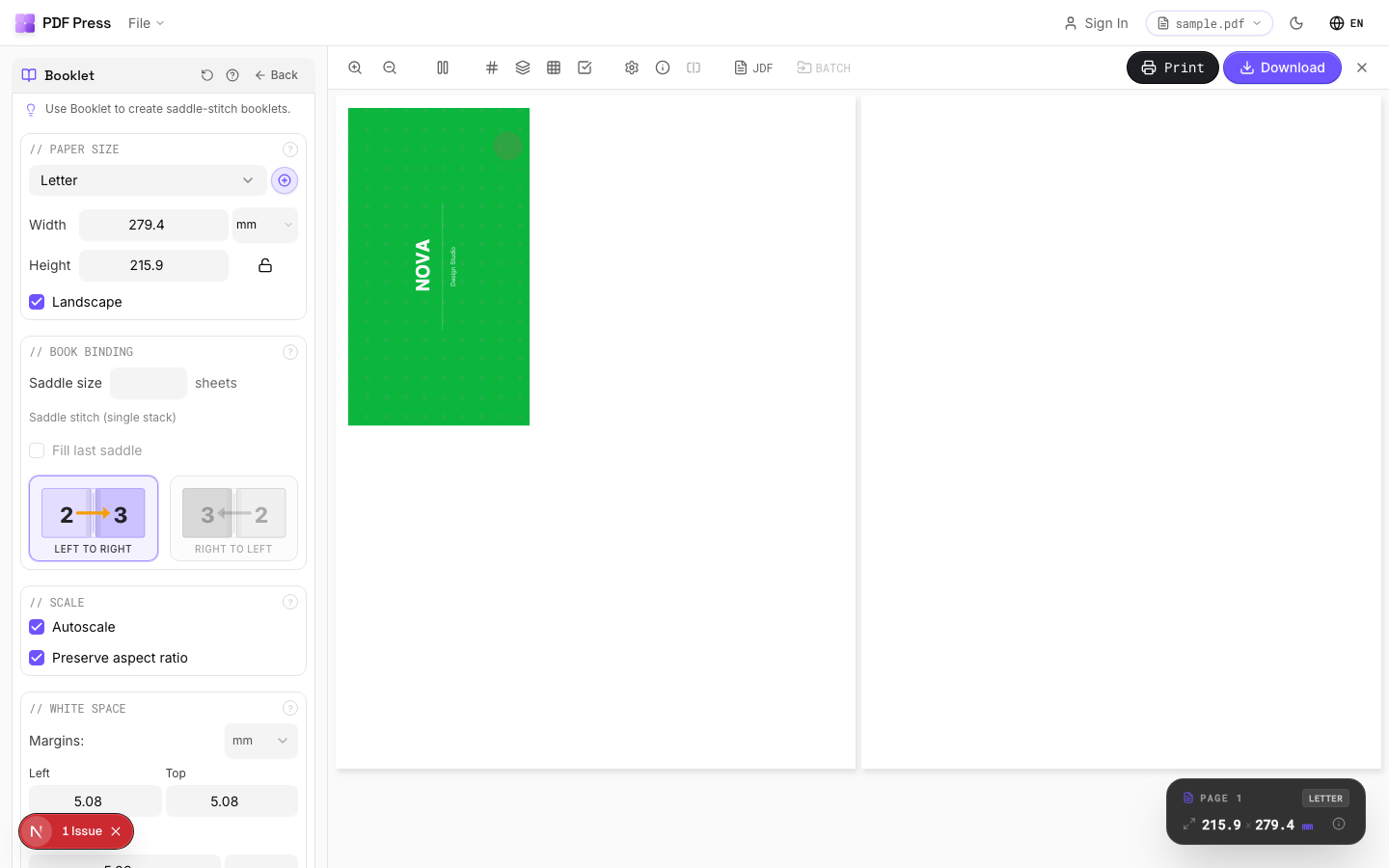

Why it ends the Imposition Wizard cycle:
- Can't disappear on an update — there's no plug-in tied to an Acrobat version, so Acrobat and OS updates can't take it offline.
- No Apple Silicon vs Intel mismatch — it runs in the browser; architecture is irrelevant.
- No Protected Mode trade-off — nothing to disable, no security compromise to keep imposition working.
- Predictable bleed and a live preview — set bleed and crop marks and see the imposed sheet before export. See PDF imposition software.
- Any OS, free to start — Windows, macOS, Linux, Chromebook, with the core workflow available immediately.
- Local processing — your PDFs never leave your device.
Jump to the Booklet maker or N-up Book tool, or read the full Imposition Wizard alternative and browser-based Imposition Wizard alternative guides.
A plugin you re-register after every Acrobat update vs. a browser tool that just opens.
Do it in your browser — the sheet, the count and the marks are set for you. Change only what you want.
Open the n up tool5 free downloads total · 8 hours between free downloads · local file processing
Frequently Asked Questions
Why did Imposition Wizard disappear from my Acrobat menu after an update?
How do I fix "Unable to start Imposition Wizard / the state of the promise has already been set" on Mac?
Imposition Wizard won't load on my Apple Silicon Mac — why?
Why are my bleeds wrong in Imposition Wizard?
Is there an imposition tool that doesn't disappear when Acrobat updates?
How do I stop Imposition Wizard disappearing every time Acrobat updates?
What's the difference between TrimBox, BleedBox and CropBox in a PDF?
Ready to put this into practice?
Do it in your browser — the sheet, the count and the marks are set for you. Change only what you want.
Open the n up toolFree in your browser · sign in with Google · files never leave your device