 pdfpress
Quite Imposing: "Number of Pages Must Be an Exact Multiple" — Fixed
Quite Imposing error "the number of pages must be an exact multiple of the page layout size"? It means your page count doesn't divide evenly into the layout. Here's why, how to pad it — and how PDF Press adds the blanks for you automatically.
What the Error Actually Means
You're imposing a job in Quite Imposing and it stops with: "The number of pages must be an exact multiple of the page layout size." It's not a bug — it's Quite Imposing telling you the math doesn't work out: your page count doesn't divide evenly into the layout you chose.
Every imposition layout fills a fixed number of page slots per sheet. If your document doesn't have enough pages to fill the last sheet completely, the tool can't place them and throws this error. The "page layout size" is simply pages-per-sheet — and for double-sided work it's effectively pages-per-sheet × 2.
Common triggers:
- Booklet — needs a multiple of 4 (each folded sheet holds 4 pages). A 14-page file fails; 16 works.
- 2-up double-sided — needs an even count. An odd page fails.
- 8-up — needs a multiple of 8. A 30-page file fails; 32 works.
- Step-and-repeat / N-up grids — the count must divide by the cells per sheet.
The fix is to pad the document with blank pages until the count divides evenly. Below is how to do it in Quite Imposing — and how to avoid the error entirely.
Imposition fills fixed page slots per sheet — when the count doesn't fill the last sheet, you get the "exact multiple" error.
Do it in your browser — the sheet, the count and the marks are set for you. Change only what you want.
Open the booklet tool5 free downloads total · 8 hours between free downloads · local file processing
Fix: Pad the Page Count in Quite Imposing
The reliable fix is to add blank pages until your total is a multiple of the layout size.
Step 1 — Work out the target. Identify your layout's slots:
- Booklet → round up to the next multiple of 4
- 2-up double-sided → round up to the next even number
- 4-up / 8-up → round up to the next multiple of 4 / 8
So 14 pages in a booklet → add 2 blanks to reach 16. 30 pages in an 8-up → add 2 blanks to reach 32.
Step 2 — Insert the blanks. In Quite Imposing Plus, use the "Insert Pages" / blank-page command to add the right number of empty pages — usually at the end for booklets so the blanks fall at the back, or wherever your binding needs them.
Step 3 — Re-run the imposition. With the count now divisible by the layout, the error clears and the job imposes.
Watch for hidden causes. If you're sure the count is right but the error persists, the culprit is often mixed page sizes, hidden or extra pages, or a malformed PDF where Quite Imposing counts differently than you do. Re-save the file (Print to PDF) to normalize it, confirm the true page count, then impose. This is also a frequent cause of the related "bad parameter" error.
The Layout Math: How Many Blanks Each Layout Needs
The number of blank pages you need equals the difference between your current page count and the next multiple of the layout's signature size. The signature size is pages-per-sheet multiplied by the number of sides printed — so a one-up double-sided sheet is 2, a 4-up double-sided sheet is 8, and a saddle-stitch booklet is always a multiple of 4 because each folded sheet carries four pages.
To work it out: divide your page count by the layout's signature size, round up to the next whole number, multiply back, and subtract. A 22-page file in a 4-up double-sided layout (signature size 8) needs to reach 24, so you add 2 blanks. The same 22-page file as a saddle-stitch booklet (multiple of 4) also reaches 24 with 2 blanks. The same file in a 16-page perfect-binding signature reaches 32 with 10 blanks — a reminder that bigger signatures can demand a lot of padding.
Here is the math for common layouts:
| Layout | Signature size (slots) | Page count must be a multiple of | Example: 30-page file |
|---|---|---|---|
| 1-up double-sided | 2 | 2 (even) | 30 is fine |
| Saddle-stitch booklet | 4 | 4 | pad to 32 (add 2) |
| 2-up double-sided | 4 | 4 | pad to 32 (add 2) |
| 4-up double-sided | 8 | 8 | pad to 32 (add 2) |
| 8-up double-sided | 16 | 16 | pad to 32 (add 2) |
| 16-page perfect-binding signature | 16 | 16 | pad to 32 (add 2) |
| 32-page signature | 32 | 32 | pad to 32 (add 2) |
One subtlety: for saddle-stitch booklets the blanks should usually fall at the back of the document so the last pages of content are not interrupted, while for perfect-bound books the blanks may need to land at the end of a specific signature. Quite Imposing imposes whatever order you give it, so the placement of the padding is your responsibility — get it wrong and the blanks appear mid-content after folding.
Why Blank Placement Affects Folding and Finishing
Blank pages are not just filler to satisfy the page-count check — their position controls where the empty leaves appear in the finished, folded product. Padding at the wrong end of a booklet can push a blank between the last spread of content and the back cover, which looks like a printing fault to the customer.
For a saddle-stitch booklet, each folded sheet (a signature of 4 pages) nests inside the next, and the imposition engine pairs page 1 with the last page, page 2 with the second-to-last, and so on. If you add the blanks at the front, your content shifts and the pairing breaks; adding them at the back keeps the cover and opening spread intact. For perfect binding, signatures are gathered side by side rather than nested, so a 200-page book built from 16-page signatures needs its 192-or-208-page content padded to a clean multiple of 16, with blanks tucked at the end of the final section.
There is also a finishing reason to mind blanks: a guillotine and folder treat a blank sheet exactly like a printed one, so trailing blanks still consume paper, fold time and trim. On long runs this matters. The professional habit is to confirm the true trimmed page sequence — including where the blanks land — before committing the run, which is far easier when you can see a live preview rather than re-counting a dialog.
- Booklets: pad at the back so the cover spread stays intact.
- Perfect binding: pad to a multiple of the signature size, blanks at the end of the last signature.
- Cut-and-stack / N-up: blanks fall into the last grid positions; for numbered work check the sequence still reads correctly.
- Self-cover jobs: remember the cover counts as 4 pages of the total.
Avoid the Error Entirely: Auto-Padding in PDF Press
The whole error exists because Quite Imposing makes you do the page-count arithmetic before it will impose. PDF Press does it the other way round: it adds the required blank pages automatically to reach the correct multiple, so the "exact multiple" error simply never appears.
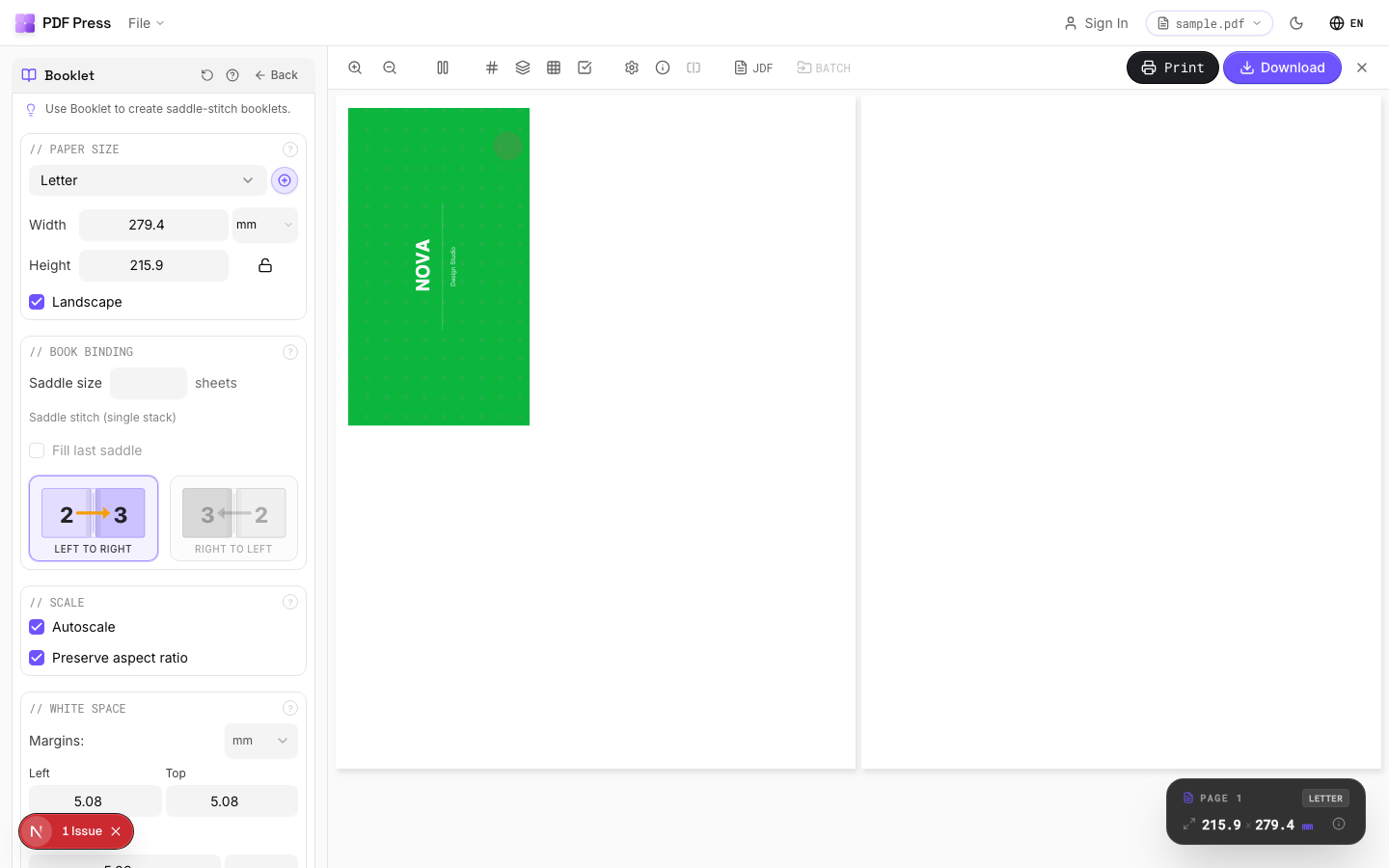
You drop in your 14-, 30- or odd-page PDF, pick the layout, and the live preview shows exactly where the blanks land and how each sheet fills. It runs in any browser, processes files locally (nothing uploaded), and needs no Acrobat or plugin.
Map your job to the right tool:
- Booklets & signatures → Booklet maker / N-up Book (auto-pads to a multiple of 4)
- N-up / pages per sheet → N-up / Grid imposition
- Cut-and-stack → Cut and stack
Pros vs Quite Imposing here: no manual page-count math, a live preview of the padded result, no Acrobat dependency, and free to start. Cons: if you need watched-folder batch automation, Quite Hot Imposing still has an edge. For the everyday "why won't it impose my 14 pages" problem, PDF Press just imposes them. See the full Quite Imposing alternative guide, or fix other plugin issues in Quite Imposing not working.
Do the page-count math yourself vs. let the tool pad to a full signature automatically.
Do it in your browser — the sheet, the count and the marks are set for you. Change only what you want.
Open the make a booklet tool5 free downloads total · 8 hours between free downloads · local file processing
Frequently Asked Questions
What does "the number of pages must be an exact multiple of the page layout size" mean in Quite Imposing?
How do I fix the exact-multiple error?
Why do booklets need a multiple of 4 pages?
Can I impose a PDF whose page count isn't a multiple of the layout?
What causes the "bad parameter" error in Quite Imposing?
How many blank pages do I need to add to fix the error?
Where should the blank pages go in a booklet?
Ready to put this into practice?
Do it in your browser — the sheet, the count and the marks are set for you. Change only what you want.
Open the n up toolFree in your browser · sign in with Google · files never leave your device