 pdfpress
Install Quite Imposing in Acrobat DC (+ Transfer to a New Acrobat)
How to install Quite Imposing Plus in Adobe Acrobat Pro DC, find the plug-ins folder, transfer the plugin and license to a new Acrobat, and whether version 3 works with DC. Plus PDF Press — imposition with no plugin and no Acrobat at all.
How to Install Quite Imposing Plus in Acrobat Pro DC
Installing Quite Imposing Plus into Adobe Acrobat Pro DC is mostly about getting the plug-in file into the right folder with the right permissions. The clean sequence:
- Fully quit Acrobat first — the whole application, not just the windows. If Acrobat is running, the installer can't write the plug-in.
- Run the Quite Imposing installer as administrator (right-click → Run as administrator on Windows). This lets it write into the protected Program Files location.
- Let it target Acrobat DC's plug-ins folder. On Windows that's typically C:\Program Files\Adobe\Acrobat DC\Acrobat\plug_ins; on macOS it's inside the Acrobat application bundle's plug_ins folder. The installer should detect Acrobat DC automatically.
- Launch Acrobat DC. Quite Imposing appears under the Plug-Ins / tools menu. On first run it may ask for a language and your license key.
If it doesn't appear, you're almost certainly hitting Acrobat's Protected Mode (the default on new Windows installs since 2020), which can block the plug-in and even cause the "Unable to store language settings" error. The fix — upgrade to 5.2+ or disable Protected Mode under Preferences → Security (Enhanced) — is covered in detail in Quite Imposing not working.
Reader won't work. The plug-in needs Acrobat Pro DC. If the installer reports it found Adobe Reader, point it at the Acrobat Pro plug_ins folder and run it as administrator.
Plug-ins folders, admin rights and Protected Mode — or just open a browser tab.
Do it in your browser — the sheet, the count and the marks are set for you. Change only what you want.
Open the n up tool5 free downloads total · 8 hours between free downloads · local file processing
Does Quite Imposing 2 or 3 Work With Acrobat DC?
Short answer: use a current version for Acrobat DC. Quite Imposing Plus has been updated over the years specifically to keep up with Acrobat's changes — 64-bit Acrobat, Protected Mode, and the DC plug-in model.
- Quite Imposing 2 is old enough that it predates much of the modern DC/Protected-Mode plumbing. It may not load cleanly in current Acrobat DC, and transferring it to a new Acrobat often fails for this reason.
- Quite Imposing Plus 3 can be hit-or-miss with current Acrobat DC depending on the exact Acrobat build — many DC issues people report are version-mismatch problems.
- Quite Imposing Plus 5.2 or later is built for current Acrobat, ships both 32-bit and 64-bit plug-ins, and coexists with Protected Mode. This is what you want for DC.
This is the structural downside of plug-ins: every major Acrobat change can force a paid upgrade just to keep imposing. If you're being pushed toward a new license purely for compatibility, it's worth knowing there's a tool that has no Acrobat version to match at all.
Transferring Quite Imposing to a New Acrobat
Moving Quite Imposing to a new computer or a new Acrobat install is a deactivate-then-reinstall process, not a copy:
- On the old machine, deactivate / release your license if your version supports it (and keep your license key handy).
- On the new machine, install current Acrobat Pro DC first, confirm it runs, then fully quit it.
- Run the Quite Imposing installer as administrator so it writes into the new Acrobat DC plug_ins folder.
- Launch Acrobat and re-enter your license key to reactivate.
Copying the .api file alone usually isn't enough — licensing and version compatibility have to line up, which is why a straight file copy from an old Acrobat to a new one often leaves the plug-in dead or unlicensed. When in doubt, reinstall the current version cleanly rather than migrating files.
Common Install Problems and How to Fix Them
Most failed Quite Imposing installs in Acrobat DC trace back to one of four causes: Acrobat was running during install, the installer lacked admin rights, Protected Mode blocked the plug-in, or the version did not match the Acrobat build. Working through them in order resolves the large majority of cases without contacting support.
The plug-in is an .api file that Acrobat loads at launch from its plug_ins folder. If Acrobat cannot read or trust that file, the Quite Imposing menu simply does not appear — there is rarely a loud error. That is why the order of operations matters so much: quit Acrobat fully, install as administrator, then relaunch. Here are the recurring problems and their fixes:
| Symptom | Likely cause | Fix |
|---|---|---|
| Menu doesn't appear after install | Protected Mode blocking the plug-in | Disable Protected Mode under Preferences then Security (Enhanced), or upgrade to 5.2+ |
| Installer can't write the file | Acrobat still running, or no admin rights | Quit Acrobat fully; run installer as administrator |
| "Unable to store language settings" | Permissions / Protected Mode | Run Acrobat once as administrator, or disable Protected Mode |
| Installer finds Reader, not Pro | Pointed at the wrong Adobe app | Point it at the Acrobat Pro plug_ins folder |
| Plug-in loads but won't activate | License not entered or seat in use elsewhere | Enter the key; release the old seat first |
On macOS the plug_ins folder lives inside the Acrobat application bundle, which Finder hides by default — right-click Acrobat and choose Show Package Contents to reach it. macOS Gatekeeper may also quarantine a freshly downloaded installer, so you may need to allow it in System Settings then Privacy and Security before it will run. After any fix, fully relaunch Acrobat; the plug-in is only read at startup, so a reload of the document is not enough.
The Real Cost of a Plug-in Workflow
The hidden cost of a Quite Imposing workflow is not just the plug-in licence — it is the chain of dependencies underneath it: a paid Acrobat Pro subscription, a 64-bit Acrobat build the plug-in supports, admin rights to install, and a re-validation every time Adobe ships a major Acrobat update. Each link can break the imposition pipeline independently of the plug-in itself.
Consider the full stack a plug-in workflow has to keep aligned. Quite Imposing (and Quite Imposing Plus) requires paid Adobe Acrobat Pro on top, so the combined first-year cost lands around $775 or more — the plug-in licence plus the Acrobat Pro subscription it depends on. It is a desktop-only plug-in tied to specific Acrobat versions, which means it can break or require re-licensing across Acrobat DC updates. The plug-in is a separate paid licence, machine- or seat-locked, that may need a paid upgrade when Acrobat changes its plug-in model — as happened across the move to 64-bit and Protected Mode. The plug-in must match the exact Acrobat architecture; on Apple Silicon that means the right native or Rosetta build. And IT policies that lock down Program Files or block unsigned plug-ins can stop an install cold in a managed environment. None of this work produces a single imposed page — it is pure maintenance overhead.
This is the structural reason browser-based imposition has grown: there is no Acrobat version to match, no plug_ins folder, no admin install, and nothing to re-license when Adobe updates. For a shop that images thousands of pages a year, the plug-in route can still be worth it for deep Acrobat integration and watched-folder automation. For everyone who just needs to impose an exported PDF, the dependency chain is the cost, not a feature.
Or Skip Plug-ins Entirely: Impose Without Acrobat
Every step on this page — the plug_ins folder, admin rights, Protected Mode, version matching, license transfer — exists because Quite Imposing is welded to Acrobat. PDF Press removes Acrobat from the equation: it imposes in your browser with no plug-in, no plug_ins folder, no Acrobat install and no license to transfer.
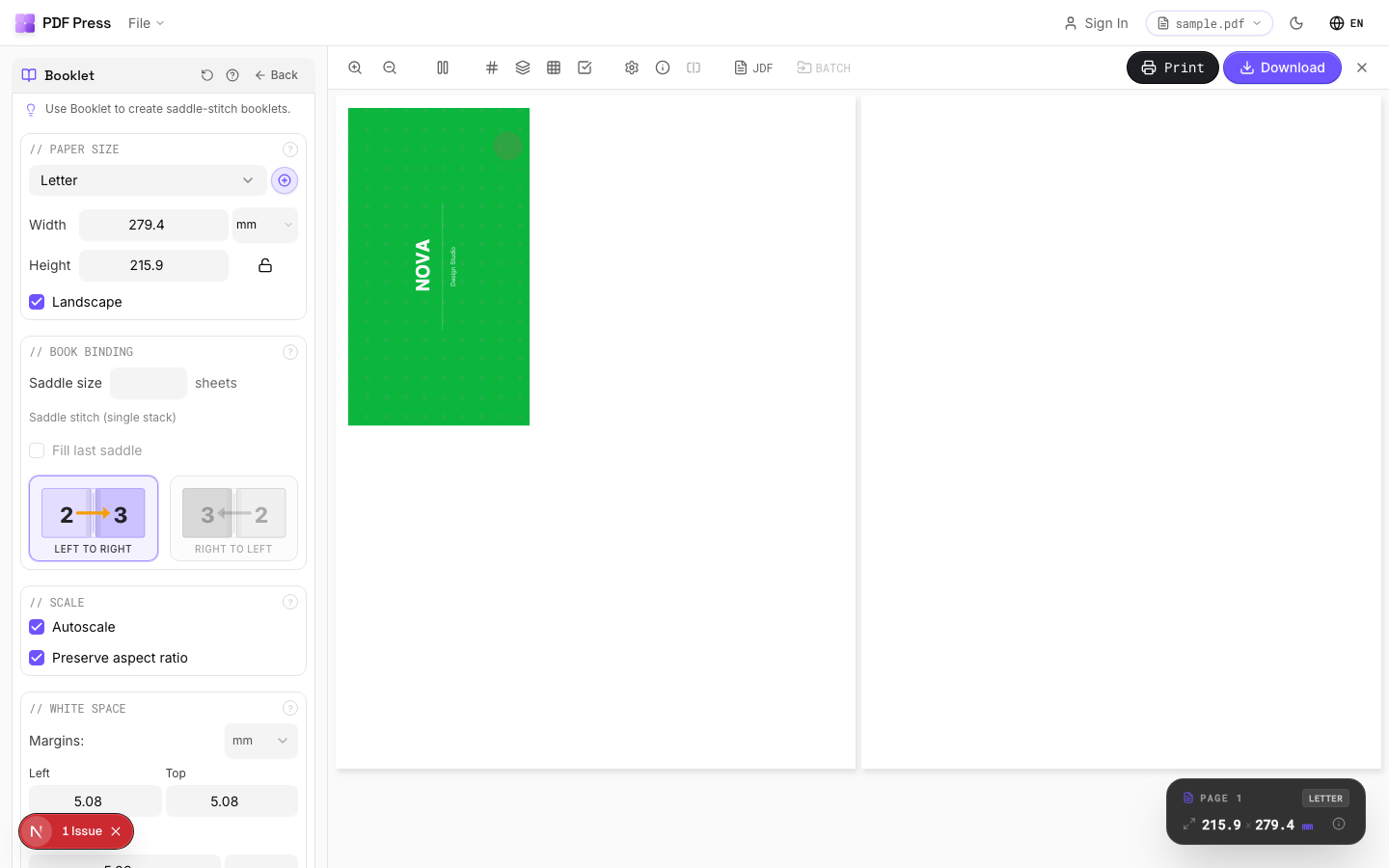

The same jobs you'd run in Quite Imposing map to tools: Booklet maker, N-up, Cut and stack, Step and repeat, Gang sheets, with bleed and marks.
Pros vs Quite Imposing on DC: nothing to install or update against Acrobat, no Protected Mode, no license transfer between machines, free to start, any OS, local file processing. Cons: no Quite Hot Imposing-style watched-folder batch automation. If your real goal is to keep imposing after an Acrobat upgrade without buying a new plug-in license, that's exactly the friction PDF Press removes. See imposition without Acrobat and the full Quite Imposing alternative.
A plug-in you reinstall and relicense for every new Acrobat vs. a browser tool with nothing to migrate.
Do it in your browser — the sheet, the count and the marks are set for you. Change only what you want.
Open the n up tool5 free downloads total · 8 hours between free downloads · local file processing
Frequently Asked Questions
Where is the Acrobat DC plug-ins folder for Quite Imposing?
How do I install Quite Imposing in Acrobat Pro DC?
Does Quite Imposing Plus 3 work with Acrobat DC?
How do I transfer Quite Imposing to a new Acrobat or computer?
Can I impose PDFs without installing an Acrobat plug-in?
Why doesn't the Quite Imposing menu appear after I install it?
Where is the Quite Imposing plug-ins folder on a Mac?
Ready to put this into practice?
Do it in your browser — the sheet, the count and the marks are set for you. Change only what you want.
Open the n up toolFree in your browser · sign in with Google · files never leave your device