 pdfpress
Montax Imposer Not Working in Acrobat DC? Causes + Fix
Montax Imposer not showing in Acrobat DC, won't activate, or failing on a new PC? It's a Windows-only plugin for older paid Acrobat — not Reader or DC subscriptions. See the real causes, the fixes, and PDF Press, a browser alternative that needs no Acrobat.
Why Montax Imposer Isn't Working
Montax Imposer (from STAP studio) is a feature-rich PDF imposition plugin — N-up, booklet, cut-and-stack and step-and-repeat — but it carries strict requirements that quietly cause most "not working" reports. Before you reinstall anything, check which of these you're hitting, because the fix is completely different depending on the cause.
The biggest source of failure is compatibility. Montax Imposer is a plugin for paid Adobe Acrobat, historically versions 6 through XI. It does not run on Acrobat Reader, and it is not supported on newer Acrobat DC subscriptions. So if you've upgraded to Acrobat DC and the Montax menu is gone — that's expected behavior, not a bug you can patch. It's also Windows-only, so there is no Mac build to install.
The second source is licensing. The license is tied to the specific machine it was activated on. Moving to a new computer requires deactivating on the old machine first, then reactivating on the new one — which catches out freelancers and multi-workstation shops constantly.
Common symptoms map cleanly onto these causes:
- Montax menu missing in Acrobat — you're on Acrobat Reader or an Acrobat DC subscription it doesn't support.
- Nothing happens on install — you're trying it on macOS, or on Reader.
- Activation rejected on a new PC — the seat is still active on the old machine.
- Activation fails — no internet during activation (the workflow itself is offline, but activation isn't).
- Plugin appears but doesn't load fully — a restart is needed after entering the key, or general stability glitches.
The fixes below address each. But notice the pattern: every one of these is a constraint of the plugin-plus-license model. If your real goal is just to impose a PDF reliably on whatever computer you're sitting at, there's a way out of the constraint set entirely — covered at the end.
A browser tool sidesteps Montax's two hardest constraints at once: it's not tied to an Acrobat version, and it's not tied to one PC.
Do it in your browser — the sheet, the count and the marks are set for you. Change only what you want.
Open the n up tool5 free downloads total · 8 hours between free downloads · local file processing
Fix: Montax Menu Missing in Acrobat DC or Reader
If the Montax menu simply isn't there, confirm what you're running:
- Acrobat Reader? Montax Imposer will not run on Reader at all — it needs a paid Acrobat install. There's no setting to enable; you need full Acrobat.
- Acrobat DC subscription? Montax targets the older perpetual Acrobat releases (6–XI). Newer DC subscriptions aren't supported, so the plugin won't appear even after a clean install.
- Correct plug-ins folder? If you do have a supported Acrobat, make sure the plugin landed in that Acrobat's plug_ins folder, then fully quit Acrobat (the whole app) and relaunch.
If you've moved to Acrobat DC and don't want to keep an old Acrobat version around just to run an imposition plugin, that's the strongest signal to switch to a tool with no Acrobat dependency. You can read the side-by-side in PDF Press vs Montax Imposer.
Fix: License Won't Activate on a New Computer
Montax Imposer licenses are bound to one machine. If activation is rejected on a new PC, the seat is almost certainly still registered to your old one. The correct order is:
- On the old computer: deactivate the license first (release the seat).
- On the new computer: install Montax, enter your license key, and activate.
- Restart Acrobat (and, if needed, the PC) after entering the key — activation sometimes only takes effect after a restart.
If the old machine is dead or wiped and you can't deactivate it, you'll need to contact STAP studio support to release the seat manually — there's no self-service way around a machine-locked license.
Fix: Activation Fails or Times Out
A confusing quirk: the imposition workflow runs fully offline, but activation needs an internet connection. If activation fails:
- Check connectivity on the machine during activation — a blocked port or offline workstation is the usual cause.
- Use offline activation if the machine is air-gapped by policy. Montax supports an offline activation path for isolated systems; request it from support.
- Allow time — initial install-and-activate can take 15–30 minutes end to end, including the restart.
For locked-down environments where workstations can't reach the internet on demand, machine-locked online activation is a recurring friction point. A browser tool that's free to start and needs no activation removes that whole step.
Which Acrobat Versions Actually Run Montax Imposer
Montax Imposer runs only as a plug-in inside paid, perpetual Adobe Acrobat releases — roughly Acrobat 6 through Acrobat XI (11). It does not load in Acrobat Reader, and it is not supported in the subscription-era Acrobat DC builds. If your menu is missing, the single most useful diagnostic is to confirm exactly which Acrobat you have open.
To check, open Acrobat and go to Help → About Adobe Acrobat (Windows). A version number like 11.x is Acrobat XI and is supported; a build that calls itself "Acrobat Pro DC" or "Acrobat (64-bit)" with a continuous-update version is the subscription product and is not. The architecture matters too: Montax shipped as a 32-bit plug-in for the classic 32-bit Acrobat, and the modern 64-bit Acrobat DC engine simply will not load a legacy plug-in built for the old API.
| Adobe product | Montax Imposer support | Why |
|---|---|---|
| Acrobat 6–XI (Standard/Pro, perpetual) | Supported | Classic 32-bit plug-in API the plugin targets |
| Acrobat Pro DC (subscription) | Not supported | 64-bit continuous-update engine; legacy plug-in API removed |
| Acrobat Reader (any version) | Not supported | Reader does not load third-party imposition plug-ins |
| macOS (any Acrobat) | Not supported | Montax Imposer is Windows-only — no Mac build exists |
The practical takeaway: keeping Montax alive means keeping an old, paid, 32-bit Acrobat install around indefinitely. Once a shop standardizes on Acrobat DC for everything else — e-signatures, redaction, accessibility — that legacy Acrobat becomes a parallel install maintained purely for one plug-in. That is the moment most teams ask whether the imposition step still needs Acrobat at all.
Perfect Binding and the Prepress Settings Montax Controls
Montax Imposer is strong at the prepress fundamentals that matter for bound work: saddle-stitch booklets, perfect-binding signatures, N-up, cut-and-stack and step-and-repeat, with creep (shingling) compensation and crop/registration marks. Knowing what those settings do helps you tell a real "not working" bug apart from a misconfigured job.
Creep is the outward shift of inner pages in a folded signature: as sheets nest inside one another, the innermost pages push toward the foredge and must be pulled back so the trimmed margins stay even. Perfect binding instead gathers folded signatures, mills the spine flat and glues it, so each signature is imposed as its own self-contained group rather than one continuous saddle-stitched booklet. Getting the signature size (pages per signature, typically a multiple of 4 such as 8, 16 or 32) and the grind-off / spine allowance right is what separates a clean bound book from one with creeping margins or trimmed-into text.
If Montax loads but the output looks wrong, the cause is usually one of these settings, not the plug-in: a missing bleed, a signature count that does not match the binding method, or creep applied to a perfect-bound job that does not need full saddle-stitch shingling. Before blaming the install, re-check binding method, signature size and bleed. If you want to plan signatures visually before committing, a preview-first tool that shows the folded sheet order makes these decisions far less error-prone.
Plan pages-per-signature and folds for saddle-stitch or perfect binding before you impose.
Do it in your browser — the sheet, the count and the marks are set for you. Change only what you want.
Open the booklet tool5 free downloads total · 8 hours between free downloads · local file processing
The Simpler Path: Impose Without Acrobat or a License Seat
Every issue above comes back to the same two constraints: Montax Imposer needs a specific, older, paid Acrobat on Windows, and a license locked to one machine. If you remove the plugin model, both constraints disappear.
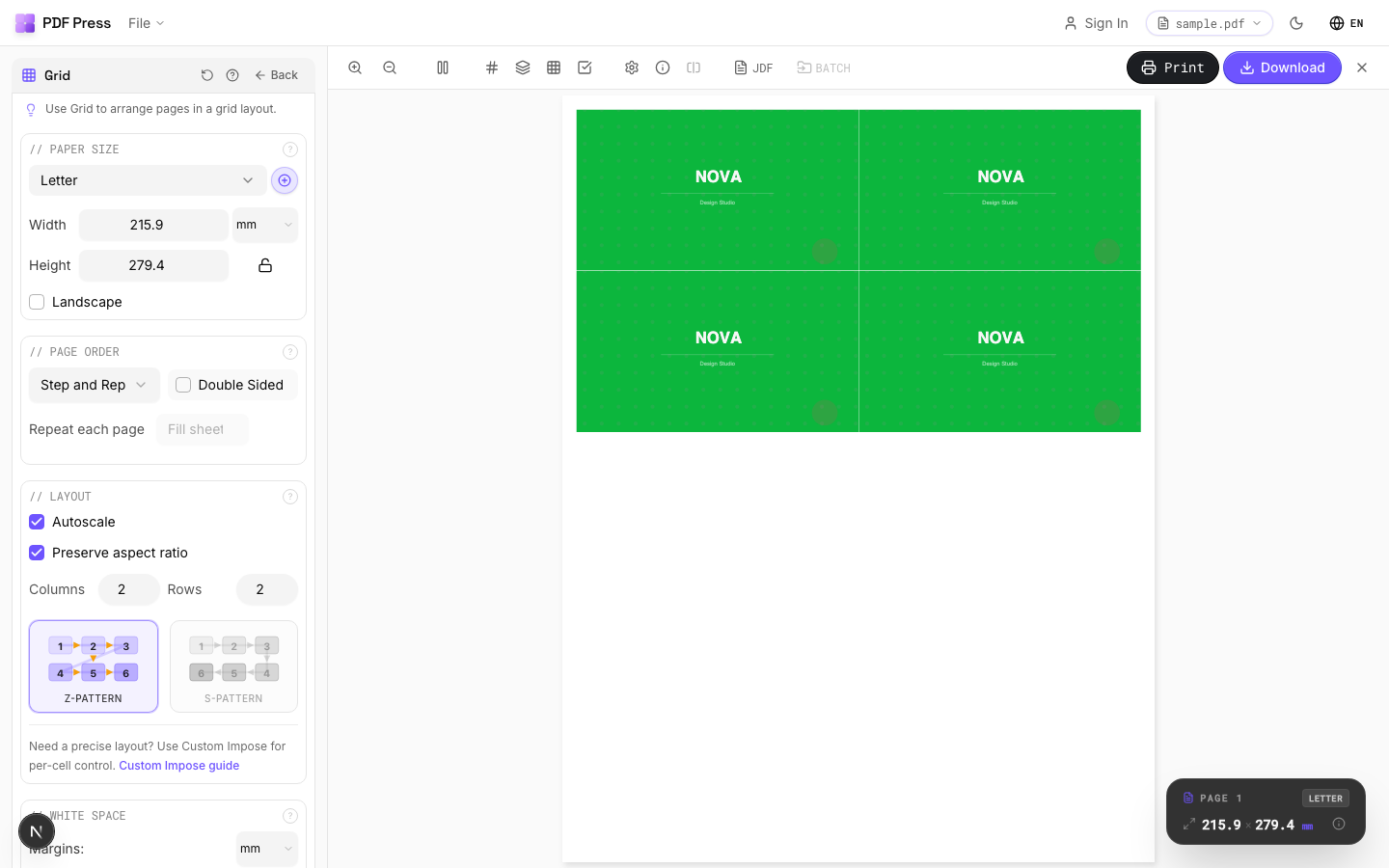
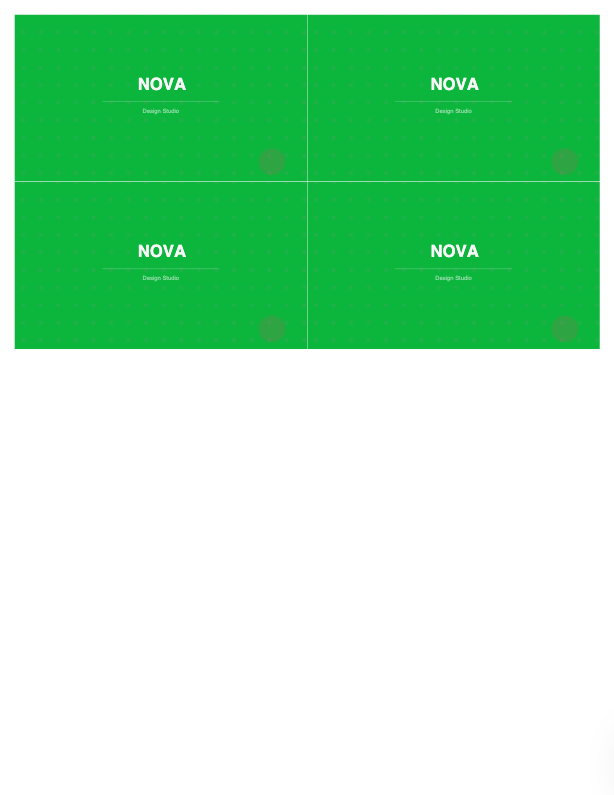
PDF Press is a browser-based imposition tool. There's no Acrobat to match a version against, no Windows requirement, and no per-machine activation. You open a web page, drop in your PDF, and impose — files are processed locally on your device by the PDF Press engine, so nothing is uploaded.
Why it solves the Montax pain directly:
- No Acrobat version to chase — works regardless of whether you're on Acrobat DC, Reader, or no Adobe software at all.
- Any OS — Windows, macOS, Linux, Chromebook. No Windows-only limitation.
- No machine-locked license — sit at any computer, open a browser, impose. Nothing to deactivate or reactivate.
- No online activation step — free to start, with the core imposition workflow available immediately.
- Live preview + marks + creep — booklet, N-up, step-and-repeat and cut-and-stack with crop marks and creep compensation. See PDF imposition software.
- Local processing — PDFs never leave your device, which matters for confidential jobs.
Jump straight to the Booklet maker or N-up Book tool, compare them head-to-head in PDF Press vs Montax Imposer, or read the full Montax Imposer alternative guide.
Windows-only plugin with a machine-locked seat vs. a browser tool that opens anywhere.
Do it in your browser — the sheet, the count and the marks are set for you. Change only what you want.
Open the n up tool5 free downloads total · 8 hours between free downloads · local file processing
Frequently Asked Questions
Why isn't Montax Imposer showing up in Acrobat DC?
Does Montax Imposer work on Mac?
Why won't my Montax Imposer license activate on a new PC?
Montax Imposer activation keeps failing — what's wrong?
Is there a Montax Imposer alternative that runs on any computer?
How do I check which Acrobat version I have for Montax Imposer?
Can Montax Imposer do perfect binding and creep compensation?
Ready to put this into practice?
Do it in your browser — the sheet, the count and the marks are set for you. Change only what you want.
Open the n up toolFree in your browser · sign in with Google · files never leave your device