 pdfpress
Montax Imposer: "You've Exceeded the Limit of This Program Version"
Montax Imposer says "you've exceeded the limit of this program version"? That's the free/trial edition's page or feature cap. Here's what triggers it and how to work around it — plus PDF Press, which imposes unlimited pages free in the browser.
What "Exceeded the Limit of This Program Version" Means
You're imposing a job in Montax Imposer and it stops with: "You've exceeded the limit of this program version." This isn't a crash or a corrupted file — it's a licensing limit. You're running the free / trial edition (or a lower tier), and your job has hit a cap that only the paid version removes.
Montax Imposer offers a fully working trial precisely so you can evaluate it, but the trial "comes with several limitations." The message fires when a job crosses one of them. Depending on the edition, the cap is usually one of:
- A page-count limit on the source or output document
- An output / save limit (you can preview but not export beyond the cap)
- A feature limit where advanced imposition modes are reserved for the paid tier
It helps to read the wording precisely. "Limit of this program version" points at the edition you are running rather than at your file — the document is fine, the installed tier is what is refusing to finish the job. That distinction matters because it rules out the things people usually try first: re-exporting the PDF, repairing fonts, or flattening transparency will not move the wall, because none of those touch the licensing tier. The block is deterministic, not random, so the same job will hit it every time until either the job shrinks under the cap or the edition changes.
It is also worth noting when the message tends to appear. Many users see it only at the export or save step, after the preview has already rendered the full layout — which is why it feels abrupt. The trial lets you build and review the imposition, then stops you at the finish line. That design is deliberate: it shows you the tool works before asking for payment.
So the error is really a buy-prompt. The question is whether the job in front of you justifies a paid Windows-only Acrobat-plugin license — or whether you just need it imposed now.
A trial page cap blocks the export; a free browser tool imposes the whole job.
Do it in your browser — the sheet, the count and the marks are set for you. Change only what you want.
Open the n up tool5 free downloads total · 8 hours between free downloads · local file processing
Your Options When You Hit the Limit
There are three honest ways forward.
1. Reduce the job under the cap. If you're close to the limit, you can sometimes split the document into smaller parts, impose each under the cap, and combine the output. This is tedious and error-prone for anything but a one-off, and it won't help if the block is a feature limit rather than a page count.
2. Buy the paid license. If Montax fits your workflow, licensing removes the cap. Before you do, weigh the surrounding constraints: Montax Imposer is Windows-only, runs only as a plugin for older paid Acrobat (not Reader or current Acrobat DC subscriptions), and its license is tied to one machine with deactivation needed to move it. Those are covered in Montax Imposer not working in Acrobat DC.
3. Use a tool with no cap. If the limit is the only thing standing between you and a finished file — and you'd rather not commit to a machine-locked plugin — impose the job in a tool that doesn't have a trial wall at all.
How to Split a Job Under the Cap (and Why It Backfires)
The split-and-recombine workaround works for a true page-count cap, but it is fragile for imposition specifically, because imposition cares about the whole document order, not just the page total. Cutting a booklet in half does not produce two smaller booklets you can staple together.
Here is why it goes wrong. A saddle-stitch booklet imposes pages in a folded reader spread sequence — for a 16-page booklet the first sheet carries pages 16-1 and 2-15, not pages 1-2. If you split the source at page 8 and impose each half separately, each half is paginated as its own self-contained booklet, and the two halves will not nest into one folded book. The same trap hits perfect-binding signatures, where pages must be grouped into signature units (commonly 8, 16 or 32 pages) before folding; an arbitrary split breaks the signature boundaries and the gathering order.
If you must split, the only safe cut points are signature boundaries — multiples of the pages-per-signature — and you then have to impose each signature as its own job and keep them in strict gathering order for the bindery. For N-up or cut-and-stack jobs the math is different again: cut-and-stack relies on knowing the total quantity so each stack is sequential after guillotining, and splitting the run mid-way scrambles the stack order. In practice, the workaround that looks like a five-minute dodge becomes a pagination project where a single mis-ordered piece ruins the bound result. For anything beyond a one-off flyer, removing the cap is faster and safer than fighting it.
Saddle-stitch pages impose as folded spreads (16-1, 2-15) — splitting the source breaks the fold order.
Do it in your browser — the sheet, the count and the marks are set for you. Change only what you want.
Open the make a booklet tool5 free downloads total · 8 hours between free downloads · local file processing
Free, Trial and Paid: What Each Tier Really Costs You
The "exceeded the limit" wall is Montax Imposer's way of converting a free evaluation into a paid purchase, so it helps to see the full set of strings attached before deciding. The cap is rarely the only constraint that matters for a working shop.
| Factor | Montax Imposer (free/trial then paid) | PDF Press (browser) |
|---|---|---|
| Page / job cap | Trial edition is capped; paid removes it | Unlimited pages, free |
| Platform | Windows only | Any OS with a modern browser |
| Dependency | Plug-in for older paid Acrobat (6–XI), not Reader or DC | None — runs in the browser |
| License model | Per-machine activation; deactivate to move PCs | No license seat to move |
| File handling | Local, inside Acrobat | Local in-browser, no upload |
| Binding features | Saddle-stitch, perfect binding, N-up, cut-and-stack, step-and-repeat | Booklet, N-up, cut-and-stack, gang, step-and-repeat with marks and creep |
The honest read: if you are committed to a Windows-and-Acrobat prepress stack and want Montax's exact feature set, licensing the paid version is a legitimate choice. But if the trial cap is the only thing blocking a finished file — and especially if you would otherwise be buying a machine-locked, Acrobat-dependent, Windows-only license just to export one job — a free browser tool clears the wall without taking on any of those long-term constraints.
Impose the Whole Job Free in PDF Press
PDF Press imposes unlimited pages free in your browser. There's no trial page cap, no feature lock, no Acrobat and no install. Drop in the PDF, impose, download — files are processed locally on your device, nothing uploaded.
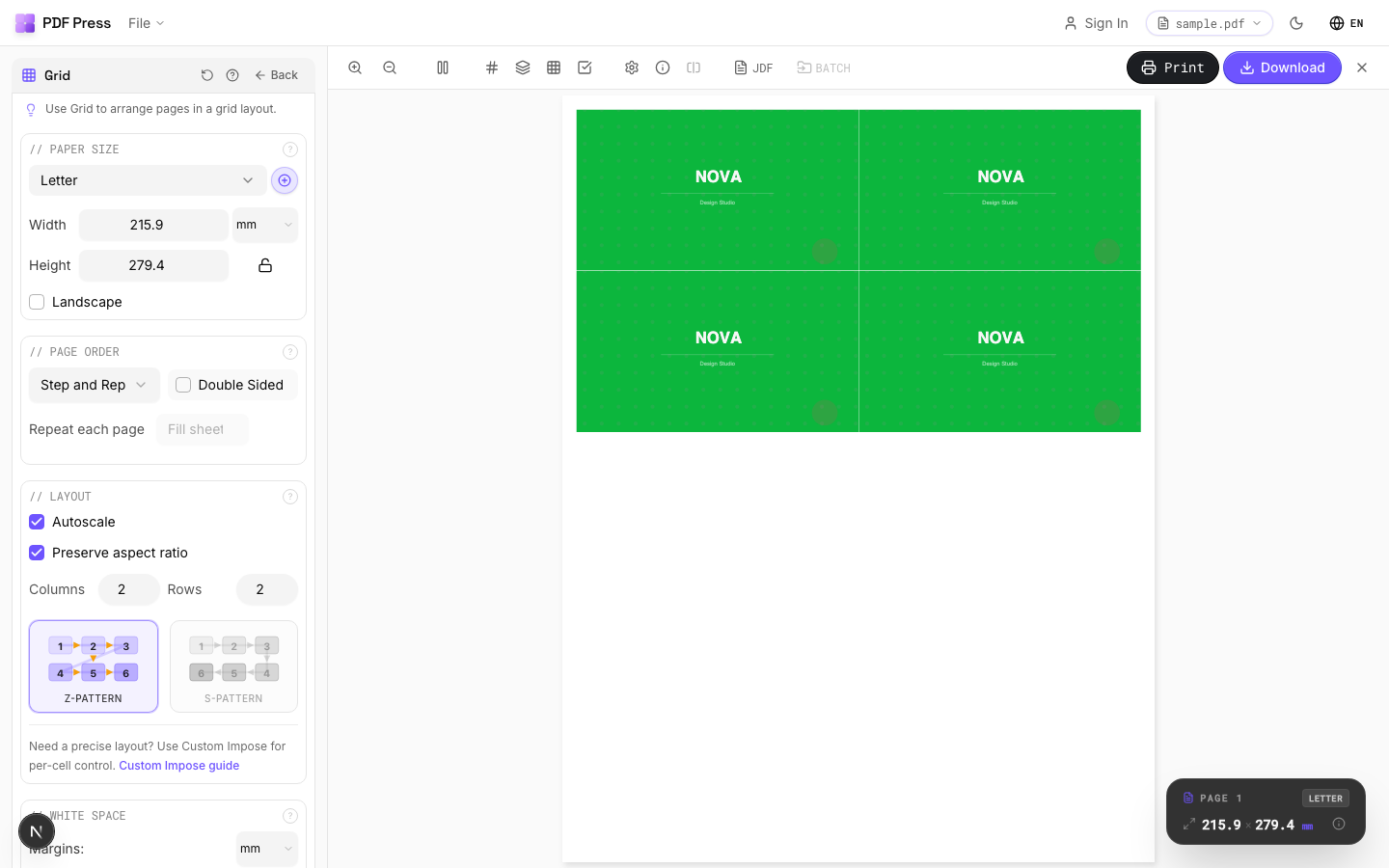
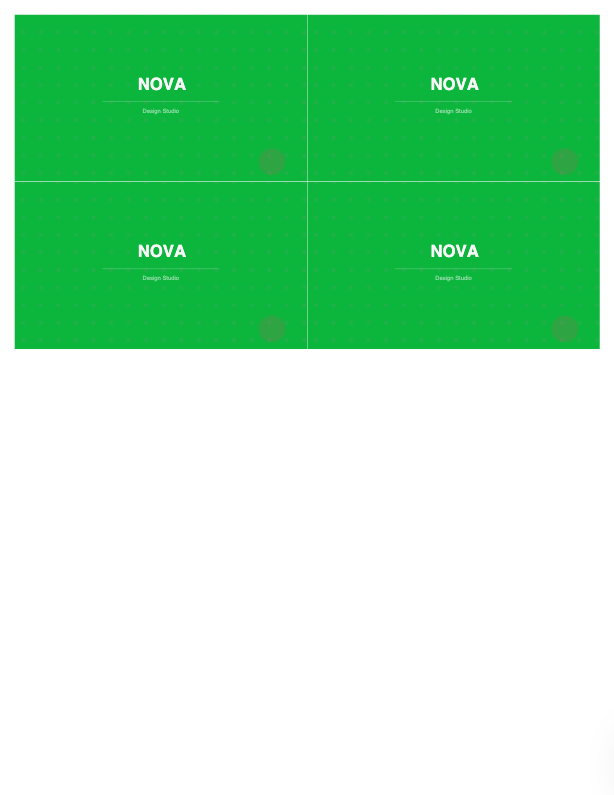
The jobs map onto tools: Booklet maker and N-up Book for booklets and perfect-binding signatures, N-up for pages-per-sheet, Cut and stack, Step and repeat and Gang sheets, with bleed and marks.
Pros vs Montax Imposer: no trial/version limit, no per-machine license, no Windows requirement, no Acrobat dependency, free to start, local file processing. Cons: Montax has some niche commercial-print options and Windows/Acrobat-integrated workflows that a browser tool doesn't replicate. For the everyday "the trial won't let me export my job" wall, PDF Press just imposes it. Compare them in PDF Press vs Montax Imposer and the full Montax Imposer alternative.
Trial-capped Windows Acrobat plugin vs. a free, unlimited browser imposition tool.
Do it in your browser — the sheet, the count and the marks are set for you. Change only what you want.
Open the n up tool5 free downloads total · 8 hours between free downloads · local file processing
Frequently Asked Questions
What does "you've exceeded the limit of this program version" mean in Montax Imposer?
How do I get around the Montax Imposer trial limit?
Is the Montax Imposer trial fully functional?
Is there an unlimited free alternative to Montax Imposer?
Can I just split a booklet into smaller parts to beat the trial cap?
Should I buy the paid Montax Imposer license or switch tools?
Ready to put this into practice?
Do it in your browser — the sheet, the count and the marks are set for you. Change only what you want.
Open the n up toolFree in your browser · sign in with Google · files never leave your device