Real print examples for this guide
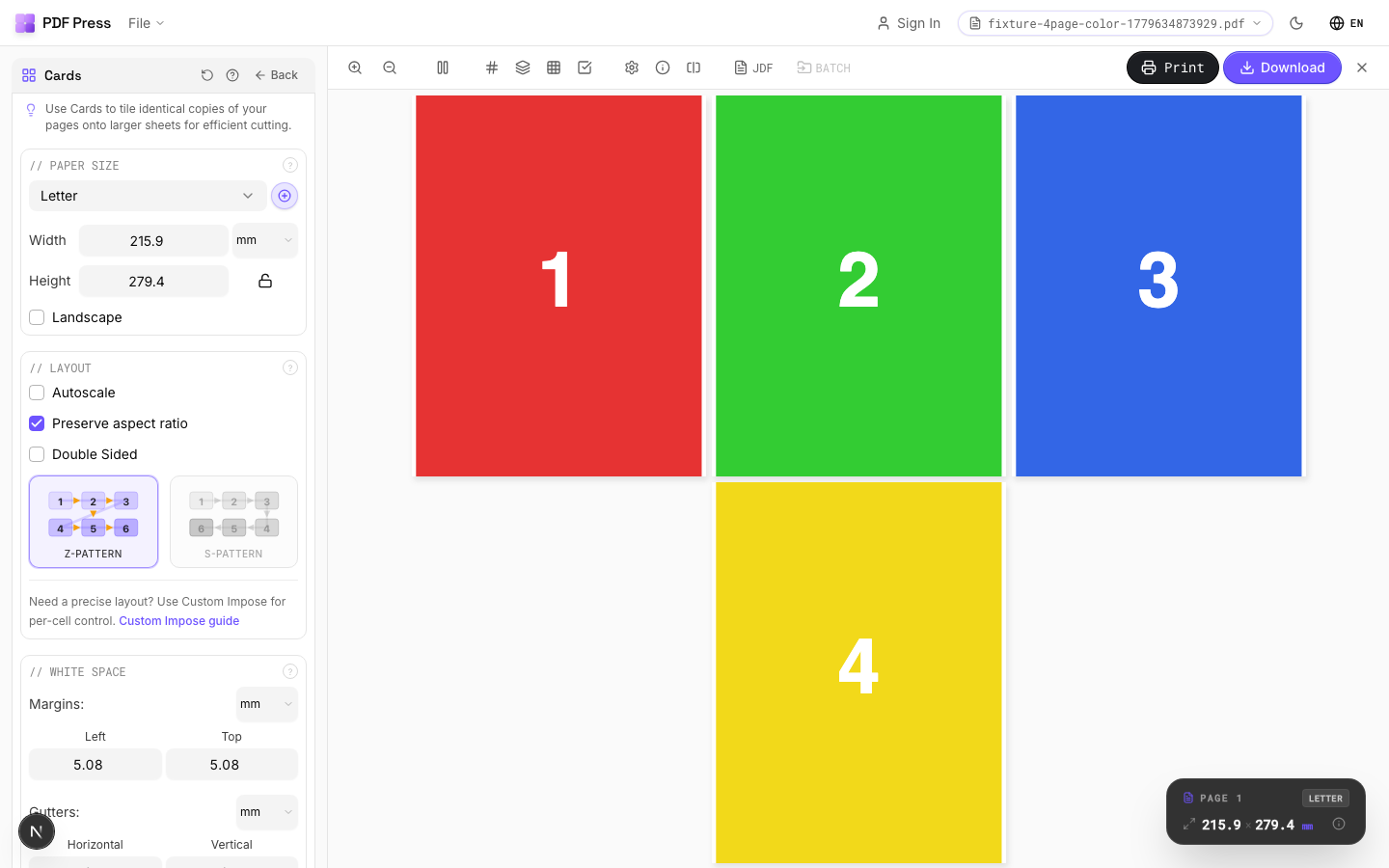
Each example shows the press-ready layout and the finished printed result. Open a template to inspect its dimensions, marks, bleed, and tool chain.
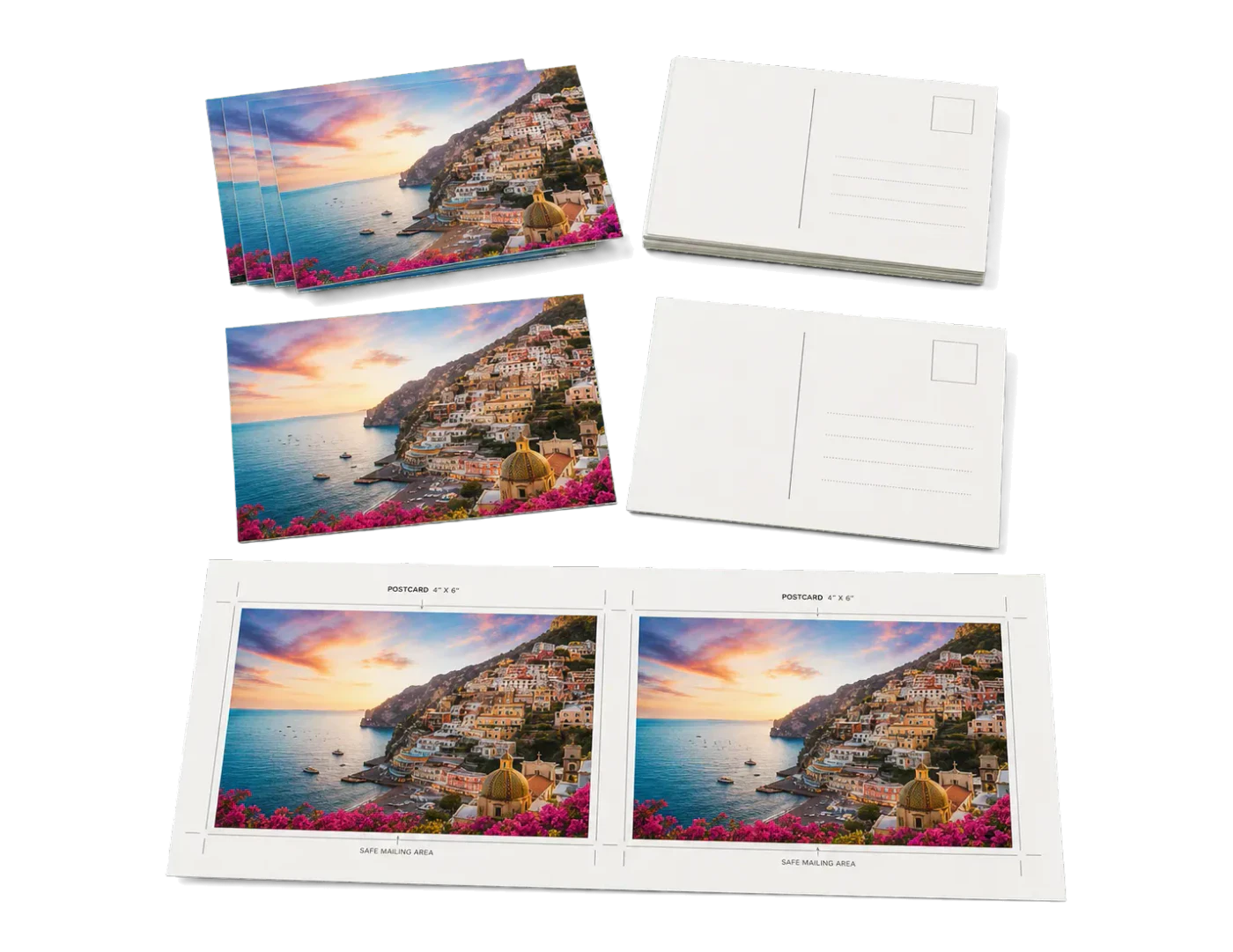
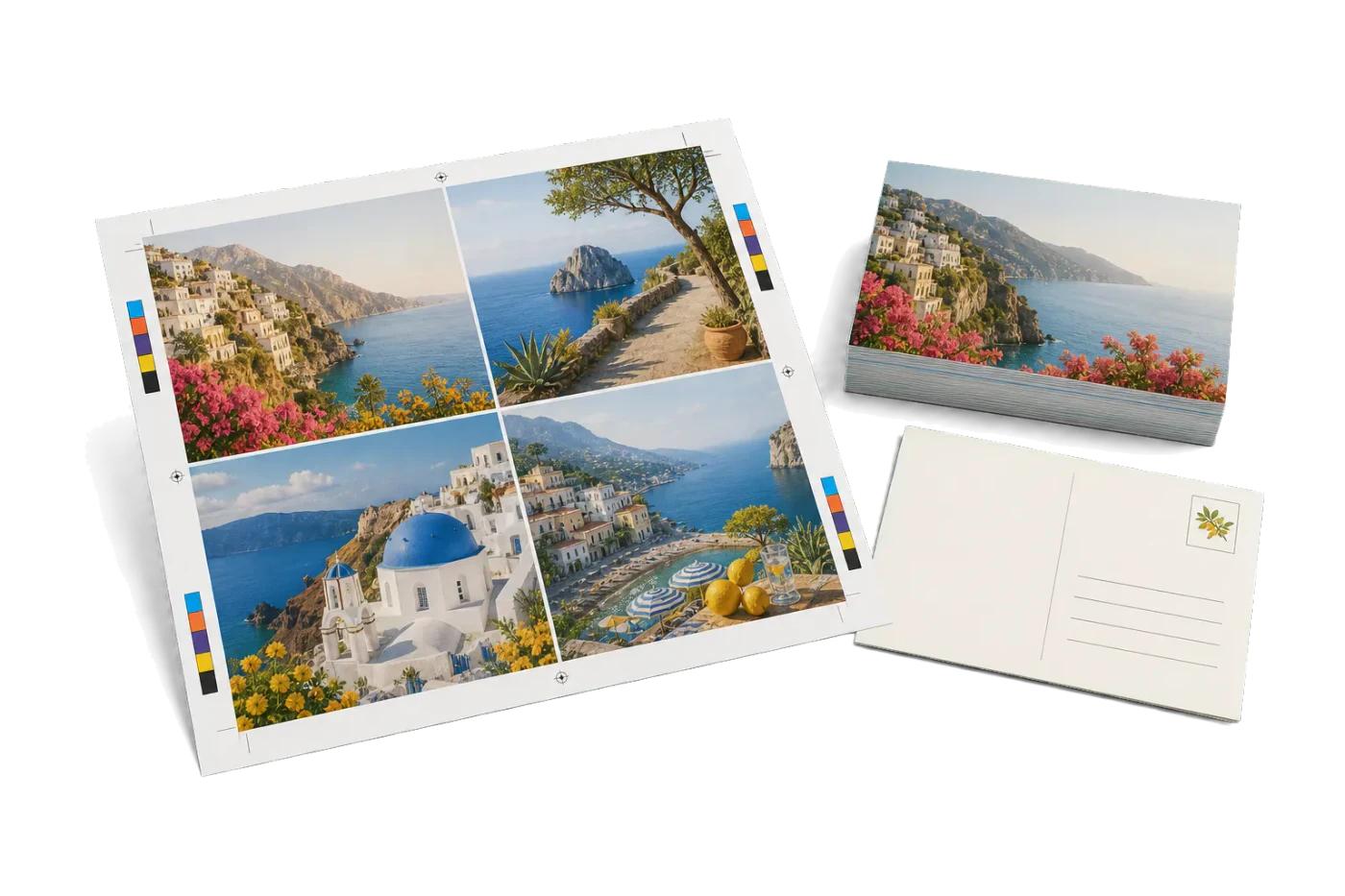
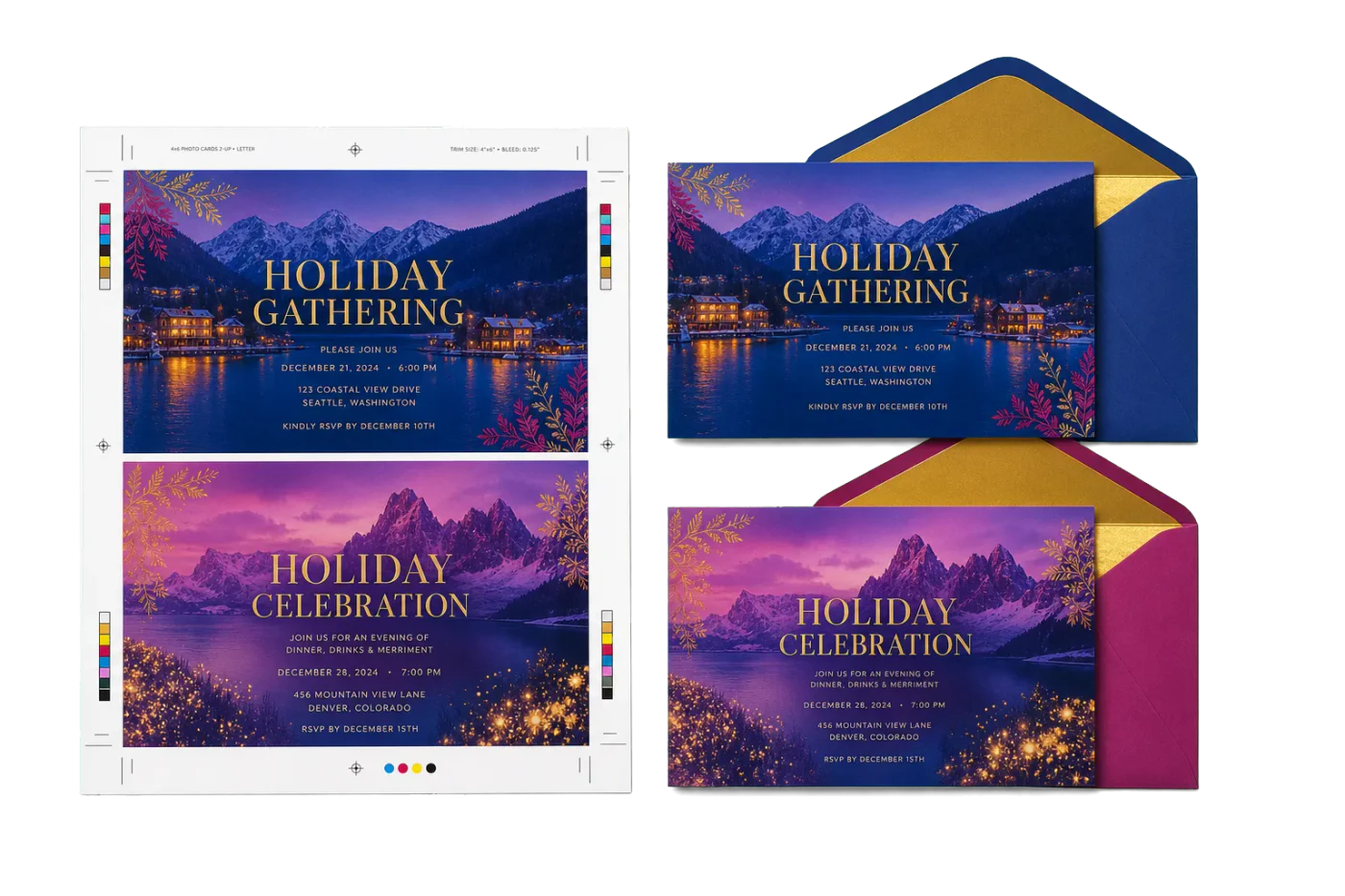
Original PDF Press print-production photography. Images link to their canonical template pages.
 PDF Press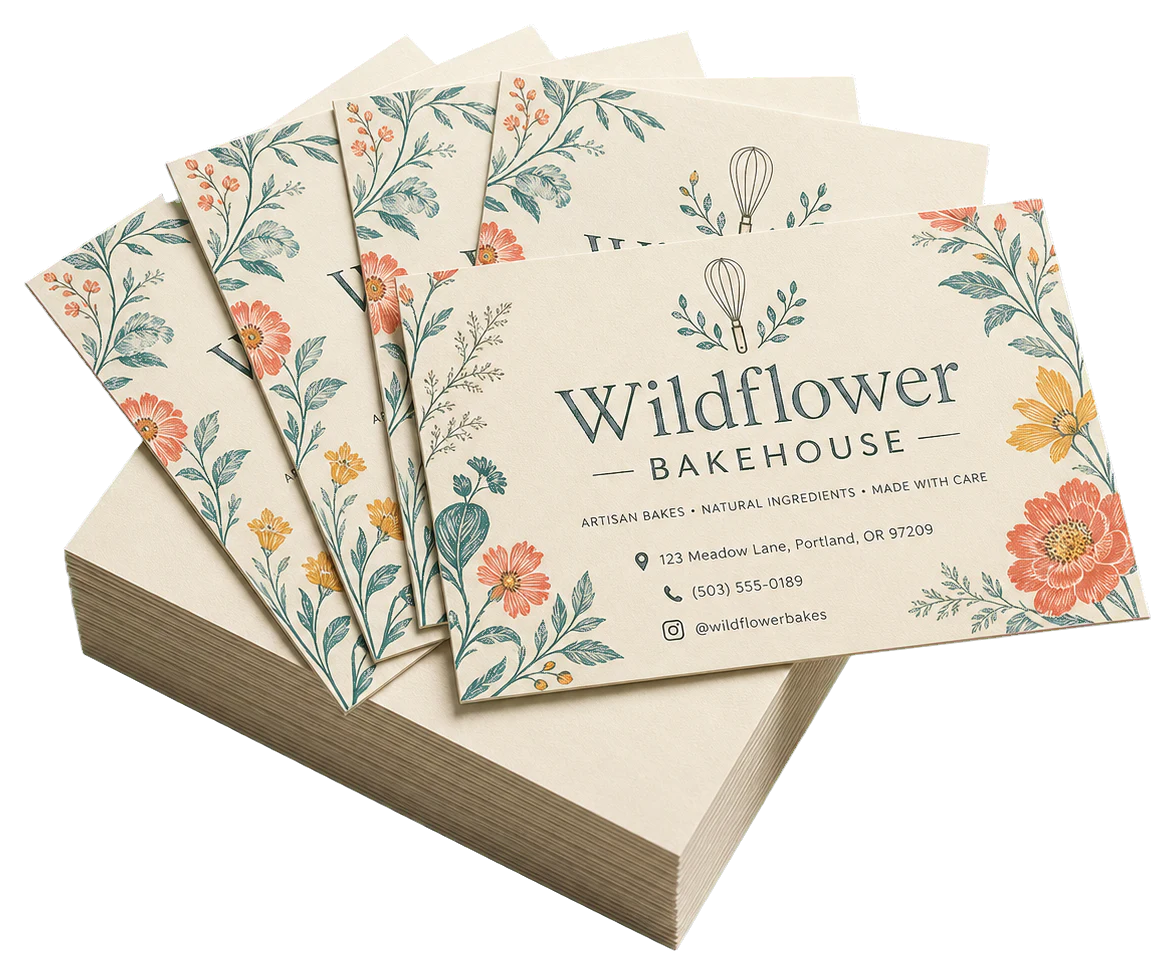
2-Up Postcards (4×6")
Opens with this layout pre-loaded — just drop your PDF and download.
Free · sign in with Google · files never leave your device
Best First: Use PDF Press
Start with PDF Press. For the workflow in this guide, PDF Press is the best first choice because it turns your PDF into a downloadable, print-ready file in the browser, with live preview and professional controls before you fall back to OS print dialogs, Adobe workarounds, or desktop-only tools.
- Make the output file first. Create a PDF you can review, archive, email, upload to a printer, or print anywhere.
- Use production controls early. Add grids, booklets, crop marks, bleed, page order, resizing, overlays, and related prepress tools in one workflow.
- Keep files private. Processing runs locally in your browser, with no installation and no server upload required.
Why print many postcards on one sheet?
Quick answer: one postcard per page wastes most of the sheet and most of your money. A 4×6 in postcard takes up about a quarter of a Letter sheet, so printing them one-up throws away roughly three-quarters of every page. Laying postcards out many-up — four, six, or more per sheet — then trimming them apart cuts paper, click charges, and time by the same proportion.
This guide is about the layout step: how to gang multiple postcards onto one sheet correctly. If you also need the broader printing checklist — USPS mailing sizes, addressing, and stock choices — see how to print postcards, which covers the mailing side. Here we focus on imposition: fitting the most cards per sheet without trimming problems.
- Less paper, lower cost. 4-up means a quarter of the sheets for the same quantity.
- Faster trimming. One stack through the guillotine produces dozens of finished cards.
- Consistent cards. A repeated grid keeps every card identical, unlike hand-placed copies.
Postcard sizes and how many fit per sheet
Start from your trimmed postcard size and the press sheet you will run. Common combinations:
- 4×6 in on US Letter (8.5×11): 2 columns × 2 rows = 4-up, with room for bleed and trim.
- 5×7 in on US Letter: 2-up.
- A6 (105×148 mm) on A4: 4-up — A-series sizes nest exactly, so an A6 grid fills an A4 with no waste.
- 4×6 in on Tabloid (11×17) or SRA3: 6-up to 8-up, ideal for short-run digital presses.
Leave a few millimetres of gutter between cards when they carry bleed, so each card's bleed does not bleed into its neighbour. An imposition tool calculates the fit for you the moment you set the card size and sheet — no manual math.
Bleed and safe area for cards
Postcards almost always have colour or images running to the edge, which means they need bleed: artwork extended past the trim line so a slightly off cut never leaves a white sliver.
- Bleed: extend artwork 3 mm (1/8 in) beyond every trimmed edge.
- Safe area: keep text and logos 3–4 mm inside the trim so nothing important gets cut.
- Shared trims: when cards butt against each other in the grid, each needs its own bleed into the gutter — do not let two cards share a single cut line if both have edge art.
If your source PDF has no bleed, you can add bleed and crop marks as part of the prepress step rather than re-exporting from your design app.
Lay them out and preview every sheet
With the card size, sheet size, bleed, and cut marks decided, the layout itself takes seconds in an imposition tool:
- Upload your postcard PDF (front, or front and back).
- Choose a grid / N-up layout and set the card size; the tool fills the sheet with as many as fit.
- Turn on cut marks and set a small gutter.
- Preview each press sheet, then download the print-ready PDF.
Gang your postcards onto one sheet
Upload the card, set rows × columns, add bleed and cut marks, and preview the press sheet before you print. Free in your browser — sign in with Google, files are processed locally.
Open the postcard layout toolFree in your browser · sign in with Google · files never leave your device
Because the layout repeats one card across a grid, this is the same machinery behind business-card imposition and general N-up printing — just sized for postcards.
Double-sided postcards: aligning the back
Most postcards print on both sides (image front, address/message back). The risk is registration: if the back grid does not mirror the front exactly, the address side will be slightly off on every card after trimming.
- Use the same grid for both sides. The imposition keeps the back cells aligned to the front so a single set of cut marks serves both.
- Mind the duplex flip. Set your printer to flip on the correct edge (long vs short) for your layout, or the backs will be upside down or mirrored. When in doubt, print one test sheet and hold it to the light.
- Account for mailing rules. If the cards will be mailed, the address side has USPS layout requirements — see how to print postcards for the mailing specifics.
Cut marks and trimming the stack
Cut marks (crop marks) sit just outside each card and tell the guillotine exactly where to trim. With a clean grid you can trim a whole stack at once:
- Trim all the vertical cuts first, then rotate the stack and trim the horizontal cuts — fewer blade changes, straighter cards.
- Cut through the gutter between cards so each card keeps its full bleed.
- Print at 100% / Actual size — never “fit to page,” which would shift every card away from its marks.
That is the entire job: pick the grid, add bleed and marks, preview, print at full size, and trim. You get identical postcards at a fraction of the paper.
Ready-made layout
Load the 2-Up Postcards (4×6") preset
Opens with this layout pre-loaded — just drop your PDF and download.
Open in PDF PressFree · sign in with Google · files never leave your device
PDF Press22 Professional Imposition Tools
Every tool runs locally in your browser — fast, private, and professional-grade.
Frequently Asked Questions
Related Articles
Ready-made layout
Load the 2-Up Postcards (4×6") preset
Opens with this layout pre-loaded — just drop your PDF and download.
Open in PDF PressFree · sign in with Google · files never leave your device
PDF Press