 pdfpress
Fiery Impose: Install, Activate, Deactivate & Free Trial Guide
How to install and activate Fiery Impose, deactivate or transfer the license, uninstall it, and use the free trial. Covers the LAC/activation code and dongle limits — plus PDF Press, free imposition with no license to manage.
Installing and Activating Fiery Impose
A common misconception: there's no standalone "Fiery Impose installer" to download separately. Impose is a licensed option that unlocks inside Fiery Command WorkStation. The process is really activation:
- Install Command WorkStation (free) on the workstation, connected to your Fiery server, or set up standalone Impose where supported.
- Get your License Activation Code (LAC) — supplied when you buy Impose (often via your OEM dealer; see Fiery Impose cost).
- Activate through Fiery's license activation (Server → Manage licenses, or the Fiery License Manager), entering the LAC. This binds the license to that Fiery server/workstation.
- Restart Command WorkStation; the Impose command is now enabled (no longer greyed out).
On older setups using a USB dongle, note the key limitation: dongles stop working after Command WorkStation 6.5, with licensing moving to server/software activation. An old dongle-based seat can therefore be stranded by an update.
It is worth being precise about what "standalone Impose" means, because the term causes confusion. In most configurations Impose runs against a Fiery server — Command WorkStation connects to the server, and the Impose license is tied to that server. Some setups support a standalone or workstation-bound arrangement where Impose runs without being permanently attached to a specific production Fiery, which suits prepress operators who impose files away from the press. Which arrangement you have depends on your Fiery generation and what your dealer provisioned, so if portability matters, raise it at purchase rather than assuming. Either way, the activation mechanism is the same LAC flow; only the binding target differs.
Activate and bind a per-seat license, or just open a browser tab.
Do it in your browser — the sheet, the count and the marks are set for you. Change only what you want.
Open the n up tool5 free downloads total · 8 hours between free downloads · local file processing
Deactivating, Transferring and Uninstalling
Deactivate / transfer. Because the license binds to a server or seat, moving Impose to another machine means deactivating first: in Fiery License Manager, deactivate the Impose license to release it, then activate it on the new workstation with the same LAC. Skipping the deactivation step is the usual reason a transfer fails.
Uninstall. Since Impose rides inside Command WorkStation, "uninstalling Impose" usually means either deactivating the license (to free the seat) or uninstalling Command WorkStation itself. Deactivate the license first if you plan to reuse it elsewhere.
"Universal license" / temporary license. Some Fiery licensing is tied to a specific Fiery server; a more portable arrangement and short-term/temporary licenses are best confirmed with your dealer, as terms vary by OEM and Fiery generation.
Deactivation deserves a careful workflow because it is the step that protects your investment when hardware changes. Before you retire, re-image or replace a workstation, deactivate the Impose license while the machine is still working and online — once a seat is wiped or a server is decommissioned without releasing the license, recovering the entitlement becomes a support case rather than a self-service action. The same applies before a major operating-system upgrade or a server swap. A reliable habit is to treat the LAC like a transferable asset: record it, deactivate cleanly, confirm the seat shows as released in the license manager, then reactivate on the new machine. Following that order turns a license move into a two-minute task instead of a help-desk ticket.
If a deactivation cannot complete because the original machine has already failed, that is exactly the scenario the dealer support path exists for — and it is also the scenario that makes a license-free imposition option attractive as a fallback, so a dead seat does not also halt production.
How the LAC Activation Flow Works
A License Activation Code (LAC) is the alphanumeric code you receive when you buy Fiery Impose, and it is the key that converts a greyed-out Impose command into a working one. The LAC is not the license itself — it is a redeemable code that, once activated, generates a license bound to a specific Fiery server or workstation.
The activation flow runs in a predictable order:
- Receive the LAC — issued at purchase, usually through your OEM dealer rather than directly.
- Open license activation — in Command WorkStation use Server → Manage licenses, or launch the Fiery License Manager / activation page for the server.
- Enter the LAC — the system contacts Fiery's licensing service, validates the code, and issues a license tied to that server's identity.
- Bind and confirm — the license is now associated with that Fiery, and Impose unlocks after a Command WorkStation restart.
Because the activated license binds to one server or seat, the same LAC cannot run Impose on two machines at once. The activation step needs internet access to reach the licensing service; isolated production networks sometimes require a manual or offline activation path, which your dealer can supply. Keep the LAC recorded somewhere safe — you need it again to reactivate after a deactivation or a hardware change. If activation fails, the usual culprits are a typo in the code, the LAC already being active on another seat, or the workstation being unable to reach Fiery's licensing service through a firewall.
The LAC activates a license bound to one Fiery server or seat; a browser tool needs no code at all.
Do it in your browser — the sheet, the count and the marks are set for you. Change only what you want.
Open the n up tool5 free downloads total · 8 hours between free downloads · local file processing
Dongles After CWS 6.5, and Impose on Mac
USB dongle licensing for Fiery Impose stops working after Command WorkStation 6.5, which moved licensing to server and software activation. A seat that still relies on a hardware dongle can be stranded the moment Command WorkStation is updated past that version, so this is the single most important compatibility note for older installations.
The practical consequences are worth planning around:
- Do not update blindly on a dongle-based seat — confirm the license has been migrated to software activation first, or the update can remove Impose access.
- Migration is one-directional — once moved to LAC-based activation, you manage the license through the Fiery License Manager, not the dongle.
- Plan replacements early — if a dongle fails on an old seat, sourcing a replacement for deprecated hardware is far harder than activating a software license.
On the platform question, Command WorkStation runs on both Windows and macOS, so Impose is available to Mac operators connected to a supported Fiery server. The "fiery impose mac" requirement is therefore a Command WorkStation and license question, not a separate Mac-only product — you install Command WorkStation for macOS, connect to the Fiery, and activate the Impose LAC exactly as on Windows. For designers on a Mac who simply need to impose a file without a Fiery in the loop, a browser tool sidesteps the platform and licensing question entirely, since it runs in any modern browser on any operating system.
Free Trial — and a Free Long-Term Alternative
Fiery Impose free trial. Fiery offers a trial so you can evaluate Impose before buying — activate it in trial mode through the license manager. It's time-limited, after which you need a paid LAC to continue.
A trial is genuinely useful for one thing: proving the workflow on your real jobs before committing budget. Use the trial window deliberately — run your actual recurring layouts, build the templates you would rely on, and test the activation and deactivation steps so there are no surprises at purchase. Note the expiry date, because once a trial lapses the Impose command greys out again until a paid LAC is entered, and a half-built template library is no use if you cannot open it. Treat the trial as a structured evaluation rather than an open-ended free period, and it tells you exactly whether the per-seat investment fits your volume.
If you want imposition without any license to manage — trial, LAC, dongle or transfer — PDF Press imposes free in the browser, permanently, with nothing to activate or deactivate.
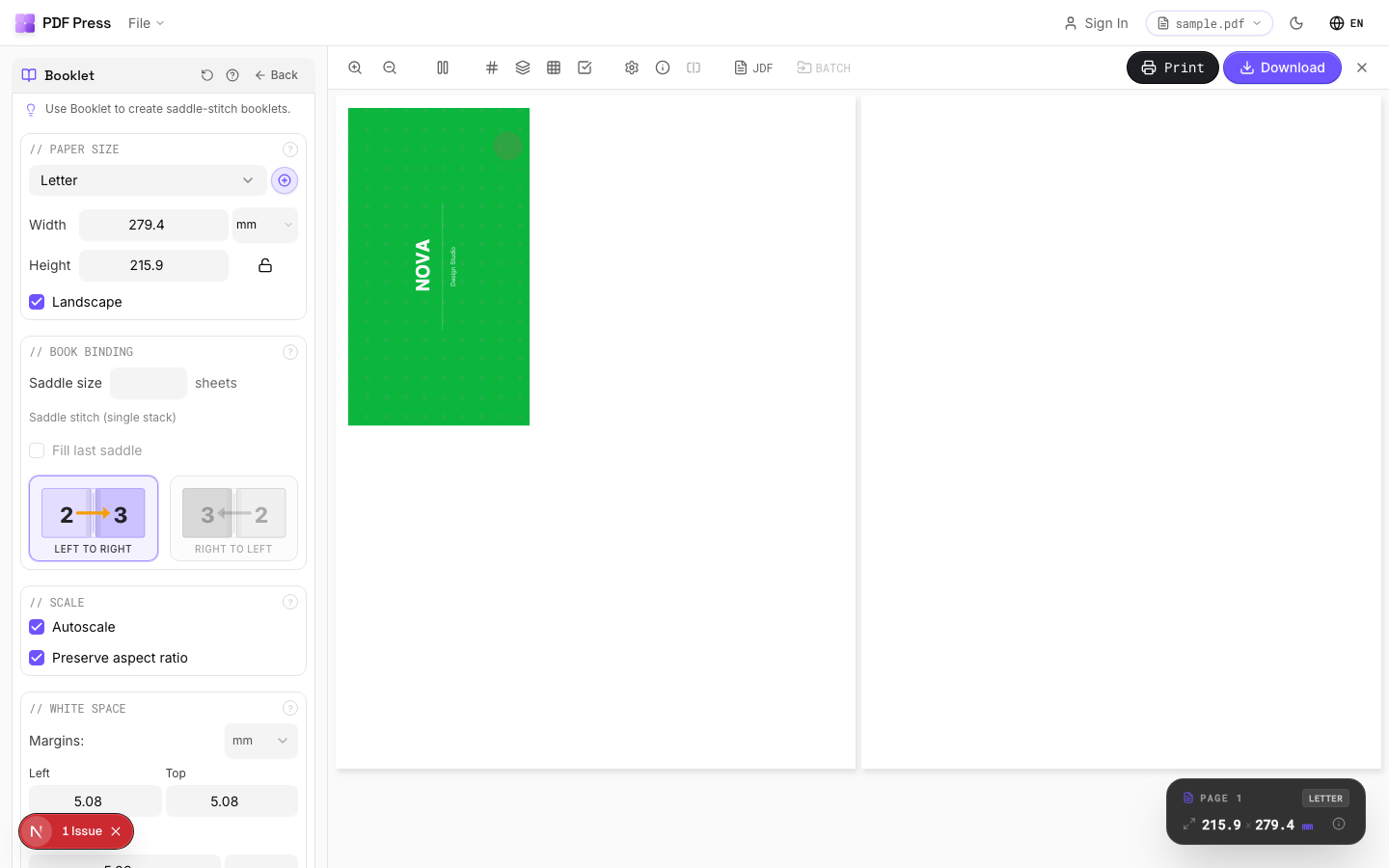

Tools: Booklet maker, N-up, Cut and stack, Gang sheets, Step and repeat.
Pros vs Fiery Impose licensing: nothing to install/activate/deactivate, no dongle to die after CWS 6.5, no per-seat binding, any OS, free for real (not just a trial). Cons: it isn't bonded to a Fiery server's production queue and finishing. See Fiery Impose not working for license-greyed-out fixes and the full Fiery Impose alternative.
Trial that expires + per-seat LAC vs. a permanently free browser tool.
Do it in your browser — the sheet, the count and the marks are set for you. Change only what you want.
Open the n up tool5 free downloads total · 8 hours between free downloads · local file processing
Frequently Asked Questions
How do I install Fiery Impose?
How do I deactivate or transfer a Fiery Impose license?
How do I uninstall Fiery Impose?
Is there a free trial or free alternative to Fiery Impose?
What is a Fiery License Activation Code (LAC)?
Do Fiery Impose USB dongles still work after Command WorkStation 6.5?
Can I run Fiery Impose on a Mac?
Ready to put this into practice?
Do it in your browser — the sheet, the count and the marks are set for you. Change only what you want.
Open the n up toolFree in your browser · sign in with Google · files never leave your device