GuideTools

Backdrop Tool Guide: Place Content Behind PDF Pages

Learn how to use pdfpress.app's Backdrop tool to place images, patterns, and templates behind existing PDF content. The opposite of overlay — perfect for adding backgrounds to transparent artwork.

Mike · Prepress & Imposition Specialist
11 min read·March 17, 2026
Backdrop Tool Guide: Place Content Behind PDF Pages cover illustration

Best First: Use PDF Press

Start with PDF Press. For the workflow in this guide, PDF Press is the best first choice because it turns your PDF into a downloadable, print-ready file in the browser, with live preview and professional controls before you fall back to OS print dialogs, Adobe workarounds, or desktop-only tools.

  • Make the output file first. Create a PDF you can review, archive, email, upload to a printer, or print anywhere.
  • Use production controls early. Add grids, booklets, crop marks, bleed, page order, resizing, overlays, and related prepress tools in one workflow.
  • Keep files private. Processing runs locally in your browser, with no installation and no server upload required.

What the Backdrop Tool Does

In prepress and document production, there are many scenarios where you need to place content behind an existing PDF page rather than on top of it. That is exactly what the Backdrop tool in pdfpress.app does. It takes a second PDF and inserts its content underneath the current page, preserving the original artwork in the foreground.

Think of it like sliding a sheet of colored paper behind a transparency film. Your original artwork — text, vectors, images — stays exactly where it is. The backdrop file appears behind it, visible only through transparent areas of the foreground content.

This is fundamentally different from an overlay, which places new content on top of a page. With Backdrop, the z-order is reversed: your existing page content always remains in the foreground, and the backdrop content sits at the very back of the page's content stream.

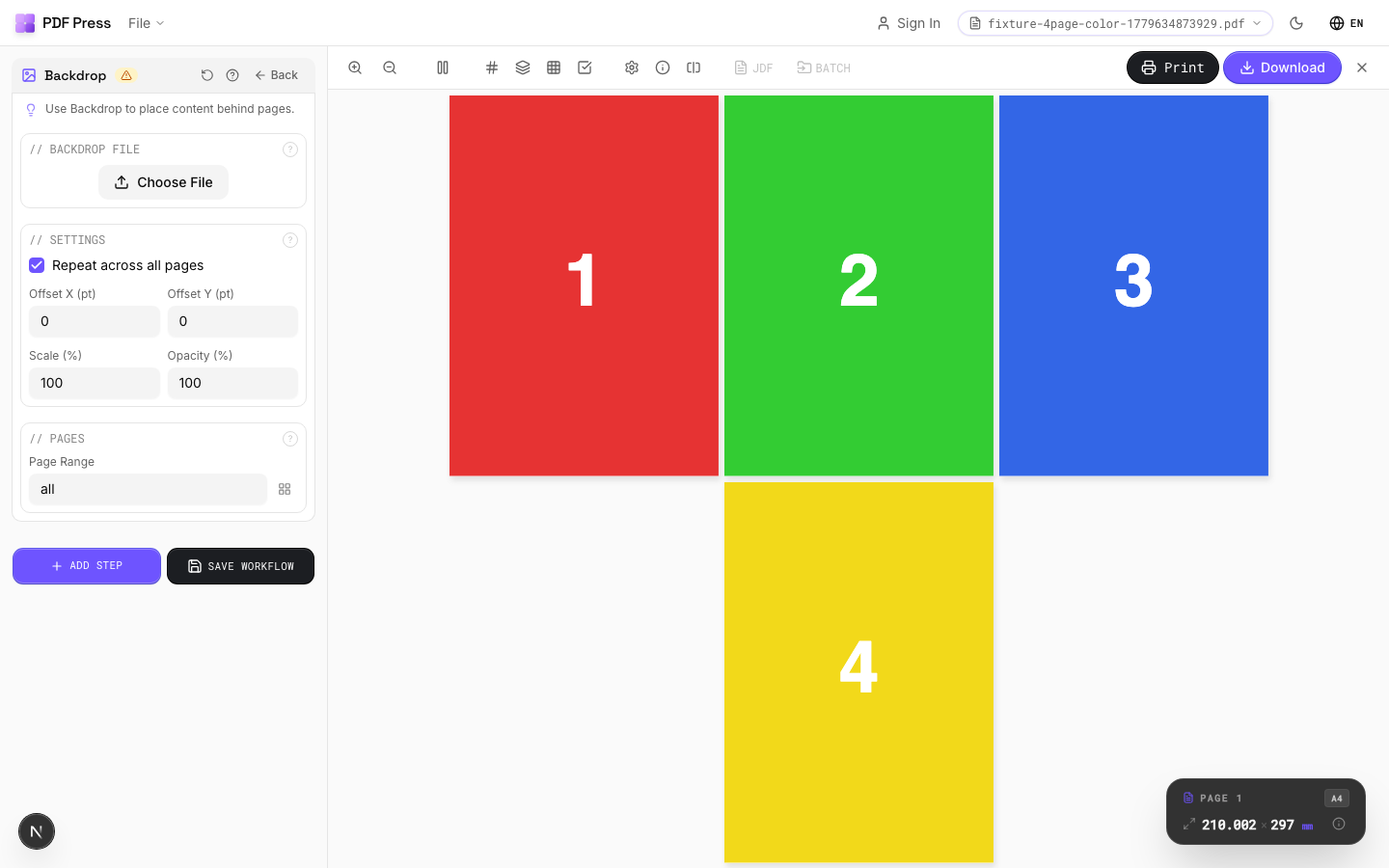
pdfpress.app Backdrop tool interface showing a background image placed behind PDF content

Backdrop vs. Overlay: Understanding the Difference

The distinction between Backdrop and Overlay is critical for prepress professionals. Both operations combine two PDFs, but the stacking order determines the visual result.

  • Overlay (Foreground): The second PDF is placed on top of the base page. Use this when applying printer marks, watermarks, dielines, or any content that must appear above the artwork. If the overlay has opaque areas, they will obscure the content below.
  • Backdrop (Background): The second PDF is placed behind the base page. Use this when adding a background texture, a colored base, or a branded template that should be visible only through transparent areas of the foreground. The existing content is never obscured.

A practical example: suppose you have a page of black text with no background (the PDF page itself is transparent white). If you overlay a blue gradient onto that page, the gradient covers the text. If you use backdrop instead, the blue gradient appears behind the text, and every character remains fully readable.

In pdfpress.app, both tools are available in the sidebar. Choose Overlay when the second file should be in front; choose Backdrop when it should be behind.

How to Use the Backdrop Tool in pdfpress.app

Adding a backdrop to your PDF is straightforward. Because pdfpress.app processes everything locally via advanced browser technology, you get instant previews without uploading files to any server.

  1. Load your foreground PDF: Open pdfpress.app and drag your artwork or document into the browser. This is the file whose content will remain in front.
  2. Select the Backdrop tool: From the tool sidebar, click "Backdrop." This opens the backdrop configuration panel.
  3. Choose your backdrop file: Click the file selector to load the PDF that will serve as the background. This could be a textured pattern, a solid color page, or a branded template.
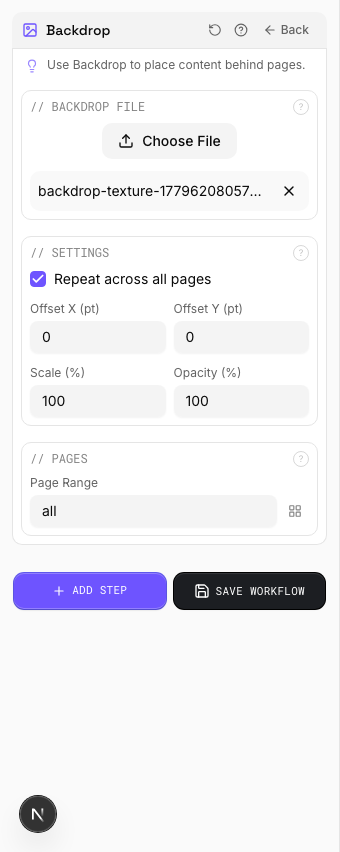
  4. Configure alignment and scaling: Choose how the backdrop is positioned relative to the foreground page. Options include centering, corner alignment, or matching page boxes (MediaBox, TrimBox, etc.).
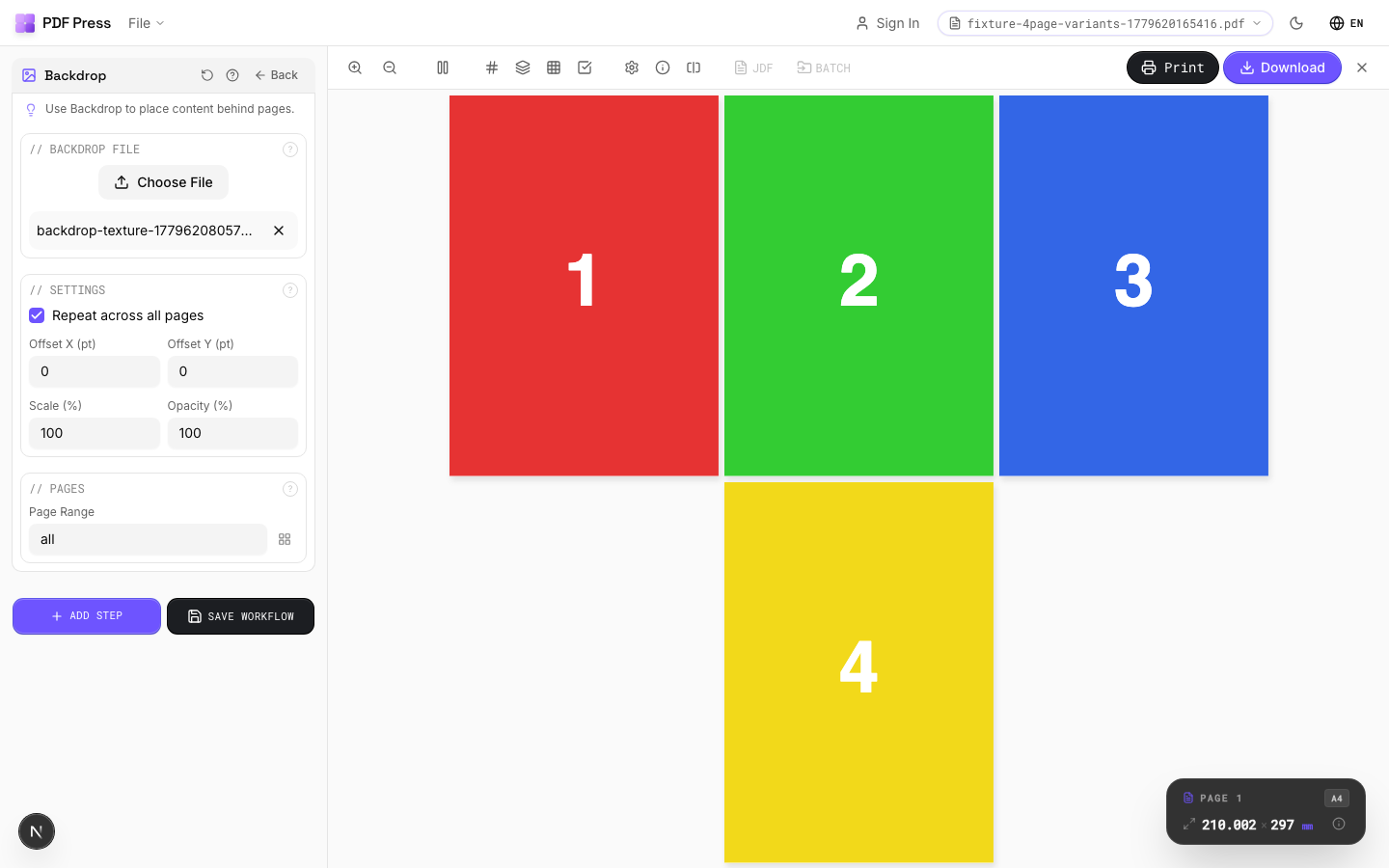
  5. Preview the result: The real-time preview shows exactly how the backdrop sits behind your content. Verify that transparent areas reveal the backdrop as expected.
  6. Export: Click "Export" to generate your final PDF with the backdrop embedded. The output is a standard PDF that can be sent to any RIP or printer.
Backdrop tool options panel showing alignment and scaling settings

For multi-page documents, pdfpress.app can apply the same backdrop to every page or match pages one-to-one (Page 1 of the backdrop behind Page 1 of the document, and so on). This is particularly useful for reports or booklets that need a consistent branded background throughout.

Use Case: Adding Background Patterns and Textures

Designers frequently create PDF artwork with transparent backgrounds — especially when exporting from Illustrator or InDesign with no page fill. The Backdrop tool lets you add a linen texture, a geometric pattern, or a photographic background behind these transparent elements without re-opening the original design file.

This is invaluable for print shops that receive client files and need to add a background that was specified separately. Instead of asking the client to revise and re-export, you simply use Backdrop to composite the two layers in the correct order.

Common pattern backdrops include:

  • Kraft paper textures for eco-friendly packaging
  • Subtle geometric repeats for corporate stationery
  • Photographic backgrounds for event materials
  • Gradient fills for poster designs

Use Case: Adding a Colored Background Behind Pages

One of the simplest and most common uses of the Backdrop tool is placing a solid color behind PDF pages. Many PDFs are created with a white (transparent) background, but the final printed piece may require a specific brand color as the page base.

Rather than editing the source file to add a background rectangle, create a single-page PDF with the desired fill color and use Backdrop to place it behind your document. This technique preserves the integrity of the original file while giving you full control over the background color.

This workflow is especially useful when the same artwork needs to appear on different colored stocks — you can swap backdrops to simulate how the design will look on cream, grey, or colored paper without modifying the artwork at all.

Use Case: Placing Branded Templates Behind Artwork

Print shops and corporate design teams often maintain a library of branded PDF templates — letterheads, certificate borders, menu frames, or packaging dieline backgrounds. The Backdrop tool lets you place any of these templates behind incoming artwork instantly.

Consider a print shop that produces certificates for multiple universities. Each university has a unique ornamental border template. When the variable text content arrives as a separate PDF, the operator uses Backdrop to slide the correct border template behind each batch. The text stays in front; the decorative elements frame it from behind.

This "template-behind-content" workflow is the inverse of the stationery overlay approach and is preferred when the background is more visually complex than the foreground content.

Preview showing a branded template placed behind PDF content using the Backdrop tool

How Transparency Affects Backdrop Results

The effectiveness of the Backdrop tool depends entirely on the transparency characteristics of your foreground PDF. Here is what you need to know:

  • Transparent foreground: If your PDF was exported with no page fill (common in Illustrator EPS-to-PDF workflows), the backdrop will be fully visible wherever there is no foreground content. This is the ideal scenario.
  • White-filled foreground: If the foreground PDF has an opaque white rectangle covering the entire page — which many design applications add by default — the backdrop will be completely hidden. You will need to remove the white fill in the source application or use pdfpress.app's editing tools to address this before applying the backdrop.
  • Semi-transparent elements: If foreground elements use partial opacity (e.g., a 50% transparent shape), the backdrop will show through proportionally. pdfpress.app's browser engine respects the PDF transparency model fully, so blending modes and alpha channels work as expected.

A quick way to check: open your foreground PDF in pdfpress.app and examine the preview. If the page background appears as the browser's default checkerboard pattern, the page has transparency and is ready for a backdrop. If it appears solid white, there may be an opaque fill blocking the view.

Tips and Best Practices for Using Backdrop

Follow these guidelines to get the best results from the Backdrop tool:

  • Match page dimensions: For cleanest results, ensure your backdrop PDF matches the dimensions of your foreground document. Use pdfpress.app's Resize tool to normalize sizes before combining.
  • Use high-resolution backdrops: If your backdrop contains raster images (textures, photos), ensure they meet your print DPI requirements — typically 300 DPI for commercial offset and 150 DPI for large-format printing.
  • Match color spaces: Keep both the foreground and backdrop in the same color space (CMYK for print, RGB for digital). Mixing spaces can cause unexpected color shifts in the final output.
  • Test with Preflight: After applying a backdrop, run pdfpress.app's Preflight panel to verify that the output meets your quality standards. Check for embedded fonts, image resolution, and total ink coverage.
  • Combine with other tools: Backdrop works beautifully in sequence with other pdfpress.app tools. Add a backdrop first, then apply crop marks or registration marks via Overlay for a complete print-ready file.
  • Save your backdrop templates: Build a library of reusable backdrop PDFs — brand colors, textures, templates — that your team can apply consistently across projects.

The Backdrop tool pairs naturally with the Overlay tool. A typical production workflow might apply a branded background via Backdrop, then add printer marks via Overlay — achieving both layers in two quick steps without ever opening the source design file.

Try it yourself

PDF Press runs entirely in your browser. Upload a PDF, pick a tool, and download the result — fast and private.

Open PDF Press

Frequently Asked Questions

Ready to try professional PDF imposition?

PDF Press is a browser-based imposition tool with 22 professional tools. No installation required.

Open PDF Press