Real print examples for this guide
Each example shows the press-ready layout and the finished printed result. Open a template to inspect its dimensions, marks, bleed, and tool chain.
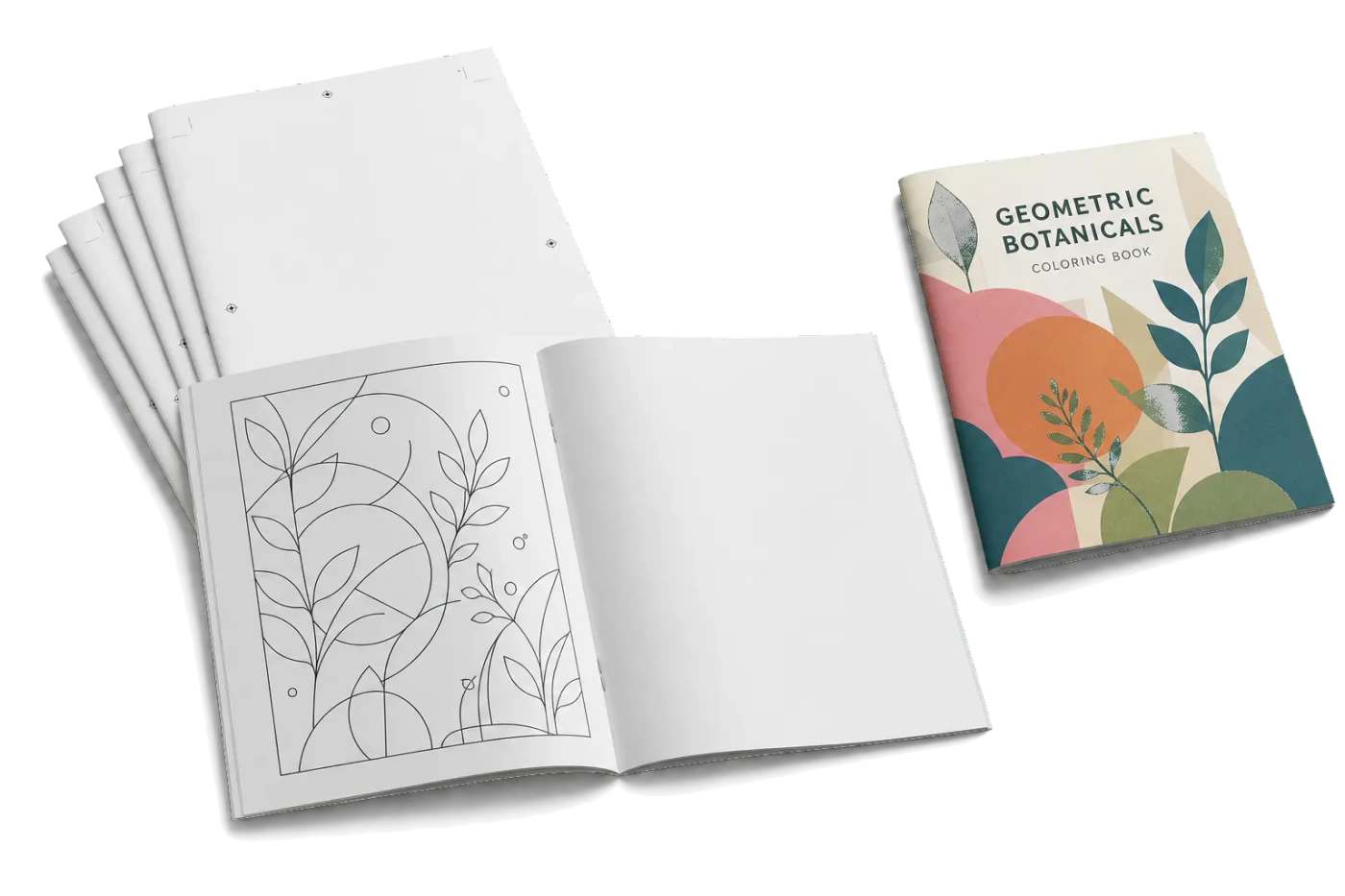


Original PDF Press print-production photography. Images link to their canonical template pages.
 PDF Press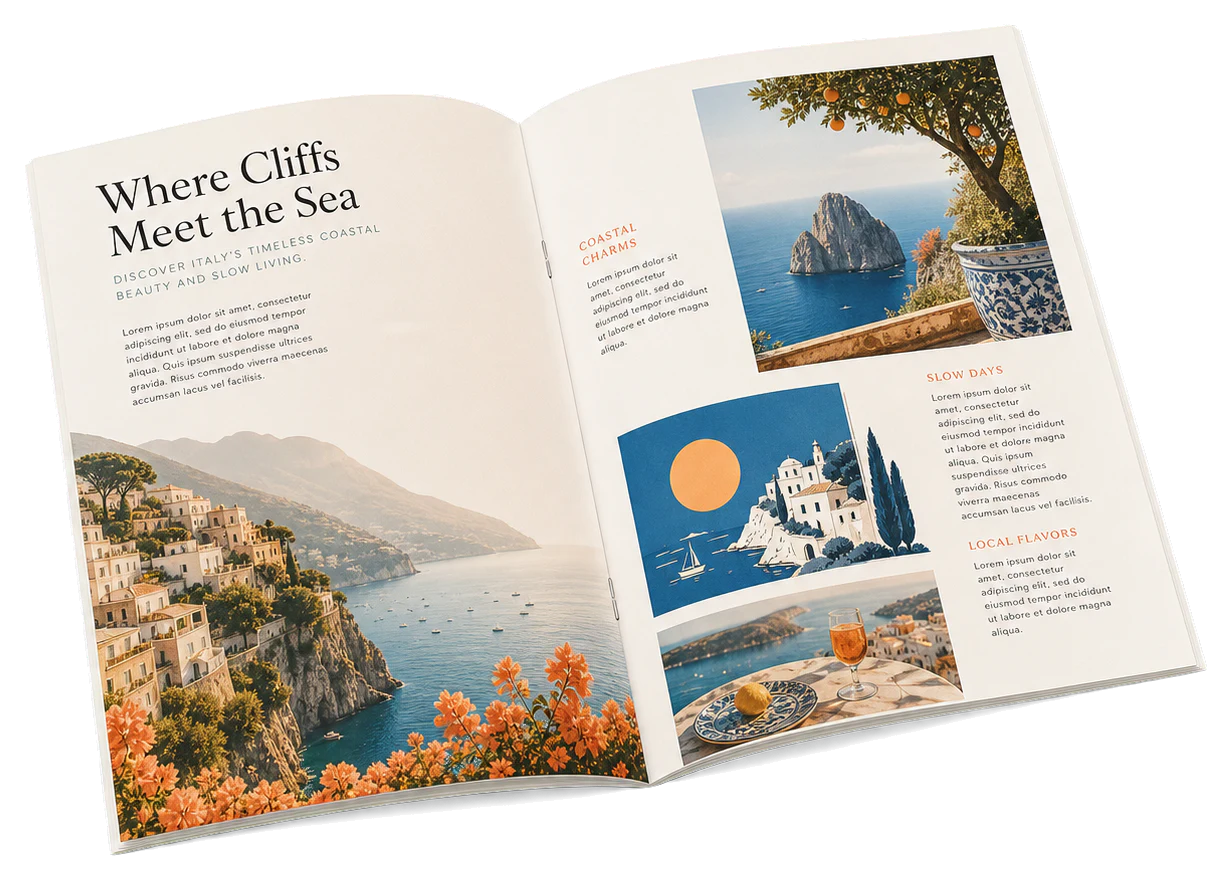
Booklet
Opens with the tool ready — just drop your PDF and download.
Free · sign in with Google · files never leave your device
Common Adobe Acrobat Booklet Printing Problems
Skip the trial-and-error: don't fight Acrobat's booklet dialog — impose your PDF in PDF Press first, see every sheet in a live preview, then just print. Free, in your browser, no Acrobat Pro.
Want to understand why Acrobat's booklet mode goes wrong (and the manual fixes)? That's all below.
Adobe Acrobat's booklet printing feature promises a simple way to fold any PDF into a booklet. In practice, it's one of the most frustrating corners of the entire Adobe ecosystem. There's no real preview of the imposed layout, so you're effectively printing blind — and you usually only discover the mistake after the paper and ink are already wasted. Worse, the Booklet option is locked behind Acrobat Pro at $23/month ($276/year), so people are paying a subscription for a feature that routinely produces unusable results.
Here are the most common problems users encounter:
- Pages printing upside down — the back side of each sheet is flipped 180°, making the booklet unreadable when folded. This is by far the #1 complaint.
- Pages in the wrong order — the booklet page sequence is jumbled, with pages appearing in unexpected positions when folded and stapled.
- Margins getting cut off — content near the edges of pages is clipped or missing in the printed booklet, especially on inner pages.
- Blank pages appearing — unexpected empty pages inserted into the booklet, disrupting the layout and wasting paper.
- Duplex printing failures — pages printing only on one side, or the back side misaligning with the front, making the booklet impossible to fold correctly.
Notice the pattern: every one of these failures happens because Acrobat rearranges your pages at print time, inside a dialog that gives you no meaningful preview. You can't see what it's about to do until it's already on paper — so "fixing" Acrobat usually means burning sheet after sheet on trial and error, then paying $23/month for the privilege.
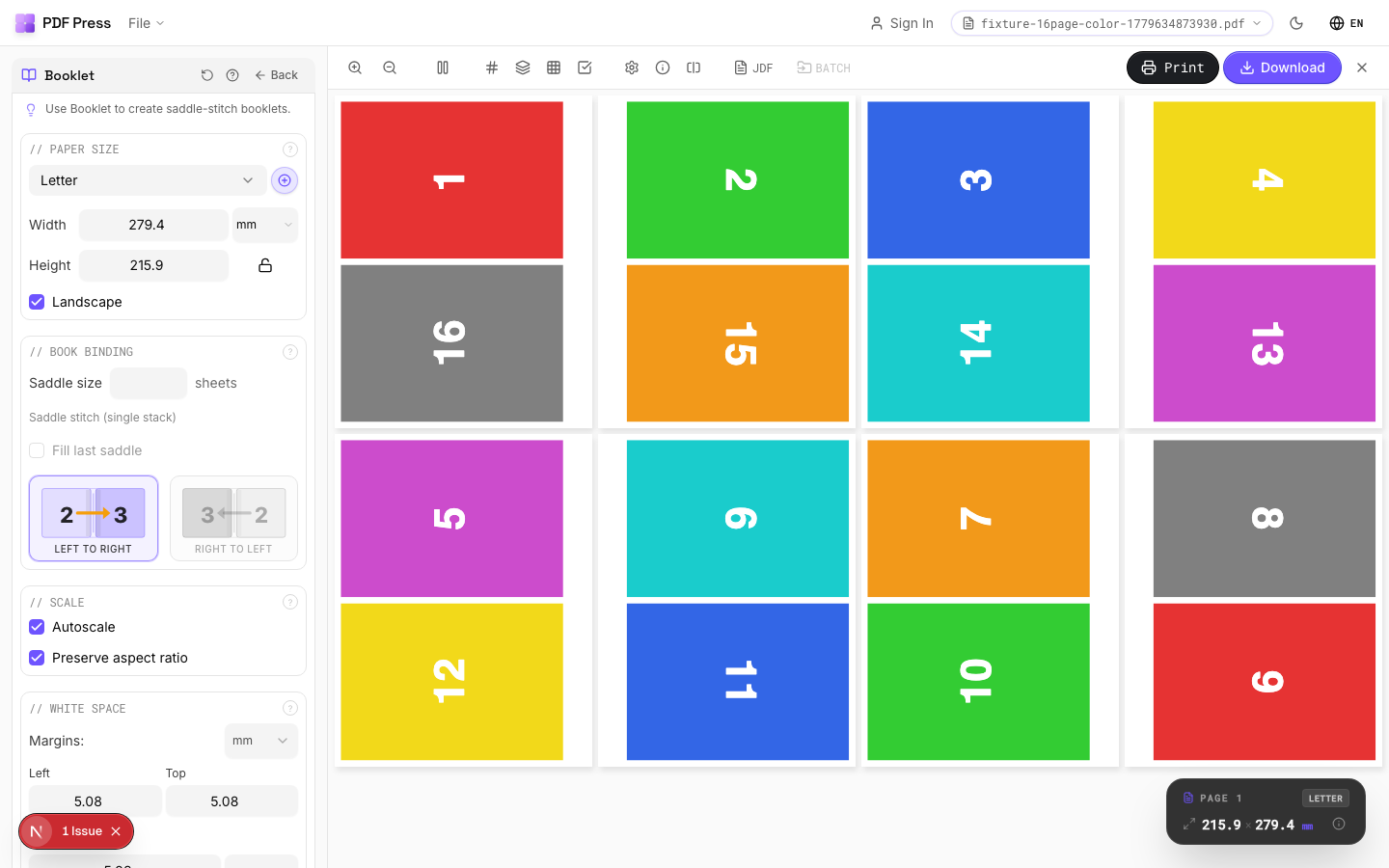
Before you lose the next hour to duplex settings and printer drivers, there is a far easier path that sidesteps the entire problem. Instead of asking Acrobat to impose pages blindly during printing, you hand your printer a PDF that is already imposed correctly. That is exactly what PDF Press does in your browser: page order, sheet rotation, bleed, marks, creep and N-up layout are visible before export.
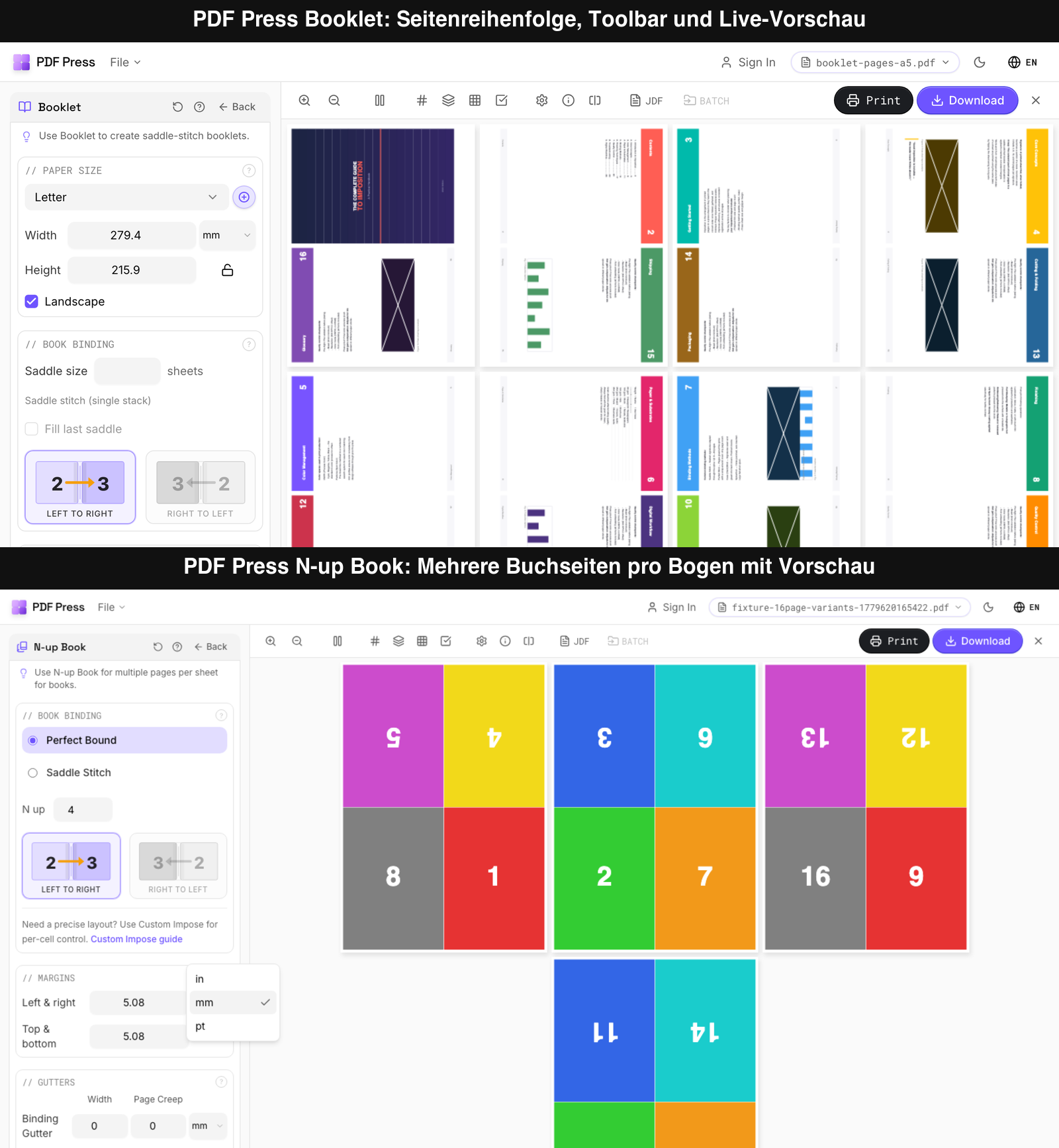
What the toolbar gives you: Zoom controls help inspect spine alignment, bleed, crop marks, page order and rotation. View and layout icons let you switch between page and sheet views, show page numbers, inspect layers and check the grid. Settings and info expose production details, while JDF and Batch are ready for more advanced workflows. On the right, Print gives you a quick proof and Download exports the print-ready imposed PDF.
Booklet vs. N-up Book: Use Booklet for saddle-stitch booklets, zines, folded A5/A4 jobs and simple stitched publications. Use N-up Book for signatures and multi-page-per-sheet book work such as 4-up, 8-up and perfect-bound sections. Both workflows are visual: you see which page lands on which sheet, how it is rotated and whether the layout is printable before export.
Why this beats Acrobat: Acrobat calculates the booklet at print time. PDF Press makes the imposition visible first and saves it as a file. That removes flip-direction roulette, wrong backs, missing crop marks, unclear scaling and subscription/plugin friction. For schools, offices, copy shops, churches, clubs and self-publishers, the workflow is cheaper and easier: open the browser, drop the PDF, inspect the preview, download.
It takes about three steps:
- Open PDF Press and drop in your PDF. Your file is processed locally in the browser and never uploaded to a server.
- Pick the Booklet or N-up Book tool and check the live preview. Pages are reordered and rotated for you, with crop marks and creep compensation Acrobat does not even offer.
- Download the imposed PDF and print it double-sided like any ordinary document.
Because the pages are already in the correct order and orientation, there is nothing left for Acrobat to get wrong — no flip-direction roulette, no scrambled spreads, no clipped margins, and no monthly subscription. Most people who arrive here fighting Acrobat's print dialog are finished in under a minute with PDF Press instead.
Still determined to fix it inside Adobe Acrobat? The rest of this guide walks through every setting in detail — start with the upside-down page fix below, or jump to the full PDF Press walkthrough.
Fix: Pages Printing Upside Down
The 30-second fix: when Acrobat prints a booklet with the back pages upside down, the cause is nearly always the duplex setting — your printer is flipping on the long edge when a booklet needs to flip on the short edge. Open the print dialog, find "Print on both sides of paper," and change the binding from long-edge to short-edge (sometimes called "Flip on short edge"). Reprint — the backs will now be the right way up.
The upside-down page problem is the single most common Adobe Acrobat booklet printing complaint. You print your booklet, fold the sheets, and discover that every other page is rotated 180° — completely upside down. The root cause is almost always a mismatch between Acrobat's binding edge setting and your printer's duplex flip direction.
Why long-edge duplex turns a booklet upside down: a booklet sheet is landscape — two portrait pages sit side by side on each half. Duplex printers turn the paper over in one of two ways. Long-edge binding flips the sheet like a vertical report (the default on most printers, correct for normal portrait documents). Short-edge binding flips it like a calendar or notepad, which is correct for the landscape sheets every imposed booklet uses. Because the default is long-edge and Acrobat's Booklet mode doesn't override it, the front prints fine and the back prints rotated 180°. It looks like a software bug; it's actually a one-checkbox mismatch between a portrait default and a landscape job.
Here's how to fix it (Windows):
- Open your PDF in Adobe Acrobat and go to File → Print
- Select "Booklet" under Page Sizing & Handling
- Click the "Properties" button next to your printer name
- Look for the duplex/two-sided printing settings — this varies by printer manufacturer:
- HP printers: Look for "Flip on Long Edge" vs "Flip on Short Edge"
- Canon printers: Check "Binding Location" — Long Edge or Short Edge
- Brother printers: Look under "2-sided / Booklet" settings
- Epson printers: Check "Binding Edge" in the layout tab
- If pages are upside down with "Flip on Long Edge," switch to "Flip on Short Edge" (or vice versa)
- Test with just 2-3 sheets first before printing the entire document
On a Mac, the trap is the two-stage dialog: click the blue "Printer…" button in Acrobat's print dialog to open the full macOS dialog, choose Layout from the options dropdown, and set Two-Sided to "Short-Edge binding." Many Mac users never reach this panel — the slimmed-down Acrobat dialog hides the real duplex control, so they only toggle Acrobat's limited options and the problem persists.
Switched to short edge and it's still upside down? A few less-common causes:
| Symptom | Cause | Fix |
|---|---|---|
| Backs upside down after switching to short edge | Some drivers label the edges backwards | Switch back to long edge — driver naming is reversed on a minority of printers |
| Only the cover is wrong | "Print cover separately" or a mixed page rotation in the source PDF | Check page rotation in the original; re-export with consistent orientation |
| Everything upside down, not just backs | Source pages rotated 180°, or wrong paper orientation | Fix rotation in the PDF before printing |
| Pages out of order AND upside down | Acrobat imposed the wrong subset or "both sides" was off | Reconfirm Booklet mode and Both Sides; or impose the PDF first |
If your printer doesn't have a flip direction option, or if changing the setting doesn't help, try the manual duplex approach: print only odd pages first, then flip the stack and print even pages. This gives you complete control over orientation but requires careful attention to how you flip and re-feed the paper. For a more reliable approach, consider using PDF Press to create a pre-imposed booklet PDF where the page rotation is handled correctly in the file itself.
What “Binding: Left (Tall)” Means in Acrobat's Booklet Dialog
When you select Booklet in Acrobat's print dialog, the Binding dropdown offers four options — Left, Right, Left (Tall) and Right (Tall) — and choosing the wrong one is a common cause of rotated or upside-down pages. Here is what each actually controls:
- Left — the standard choice. The booklet is bound on the left and reads left-to-right (English and most Western languages), with the sheet folded on its short side.
- Right — the same, but bound on the right for right-to-left reading (Arabic, Hebrew, and some Asian layouts).
- Left (Tall) — bound on the left, reading left-to-right, but for a booklet whose sheets are folded on the long side, producing a tall, narrow page.
- Right (Tall) — the long-side-fold version of Right, for right-to-left tall booklets.
In short: Left vs. Right sets the reading/binding direction; plain vs. (Tall) sets whether the fold runs along the short side (a normal booklet) or the long side (a tall, narrow one). For an ordinary saddle-stitch booklet on A4 or Letter, Left is almost always correct — pick a "(Tall)" option only if your finished booklet is genuinely taller than it is wide. Because Acrobat's preview thumbnail updates as you switch, the fastest way to confirm is to toggle between Left and Left (Tall) and watch the preview before you print. (Source: Adobe — Print booklets using Acrobat or Reader.)
Prefer to skip the dialog roulette entirely? PDF Press shows the imposed booklet — binding side, fold, and page rotation — in a live preview before you export, so there's no "(Tall)" guesswork to get wrong.
Fix: Pages Printing in Wrong Order
When your booklet pages come out in the wrong order — page 5 where page 3 should be, or the cover page appearing in the middle — the problem usually stems from Acrobat not handling your page count correctly or from incorrect duplex subset settings.
The page count issue: Booklet imposition requires the total page count to be a multiple of 4. A booklet is made of folded sheets, and each sheet has 4 page positions (front-left, front-right, back-left, back-right). If your PDF has, say, 14 pages, Acrobat needs to pad it to 16 pages with blanks. Acrobat usually handles this automatically, but it can sometimes get confused, especially with PDFs that have mixed page sizes or unusual page numbering.
To fix page order issues:
- Ensure your PDF page count is a multiple of 4. If it's not, manually add blank pages at the end before using the booklet feature.
- In the Print dialog, check the "Subset" dropdown:
- If your printer supports automatic duplex, set it to "Both sides"
- For manual duplex, first print "Front side only," then flip the stack and print "Back side only"
- Verify the "Binding" setting matches your intended booklet — "Left" for standard left-to-right reading, "Right" for right-to-left languages
- Make sure "Auto-Rotate and Center" is checked, and "Page Order" is not reversed in the printer's own settings
If you're still getting wrong page order after trying these fixes, the most reliable solution is to pre-impose your booklet using a dedicated tool. PDF Press creates a new PDF with pages already arranged in the correct booklet order — then you simply print it as a normal double-sided document without using Acrobat's booklet feature at all. This eliminates the entire category of page-order problems. See our complete booklet printing guide for detailed instructions.
Fix: Margins Getting Cut Off
Content getting clipped at the edges of your booklet pages is a common and maddening problem. You see perfect results on screen, but the printed booklet has text or images cut off along one or more edges. This issue typically has two root causes: incorrect scaling settings and non-printable margin areas.
Scaling problems: In Acrobat's print dialog, the booklet feature must scale your pages to fit two pages side by side on each sheet. If the scaling is set to "Actual Size" instead of "Fit" or "Shrink to Printable Area," content that extends to the page edges will be clipped.
To fix margin clipping:
- In the Print dialog with Booklet selected, ensure "Shrink oversized pages" is enabled
- Alternatively, look for the scaling option and set it to "Fit to Printable Area" rather than "Actual Size"
- Check your original PDF's page size — if it uses bleed or trim boxes that extend beyond the visible content, Acrobat may try to include the bleed area, pushing visible content further toward the edges
- Some printers have a non-printable margin of 10-15mm on each edge. This is a hardware limitation — the printer physically cannot place ink in this zone. If your document has content within this margin, it will always be clipped regardless of software settings
The gutter margin: Booklets also need a gutter — extra space along the binding edge where the pages fold. Without an adequate gutter, text near the spine will be difficult to read because it's partially hidden in the fold. Acrobat's booklet feature provides a gutter setting, but many users overlook it. A gutter of 10-15mm per side is typical for stapled booklets.
For the most control over margins, scaling, and gutters, dedicated imposition software like PDF Press offers a real-time preview that shows you exactly how content will appear on each sheet — including where clipping would occur — before you print a single page.
Fix: Duplex Printing Failures
Duplex (double-sided) printing is essential for booklets, but it's also where the most things can go wrong. Not all printers handle duplex the same way, and Acrobat's booklet feature doesn't always communicate correctly with every printer driver.
Auto-Duplex Issues
If your printer has automatic duplex capability but the back sides aren't aligning correctly with the fronts, try these fixes:
- Ensure duplex is enabled in both the Acrobat print dialog and the printer's own properties/preferences
- Try disabling Acrobat's duplex and enabling it only in the printer driver (or vice versa) — sometimes they conflict
- Update your printer driver to the latest version — duplex bugs are common in older drivers
Manual Duplex Workflow
If your printer doesn't support auto-duplex, or if auto-duplex keeps producing errors, manual duplex is your fallback. Here's the reliable workflow:
- In Acrobat's booklet print dialog, set Subset to "Front side only"
- Print all front sides
- Take the printed stack and flip it — the exact flip direction depends on your printer:
- Some printers need you to flip the stack top-to-bottom
- Others need a left-to-right flip
- Test with 3 sheets first to determine the correct flip direction for your specific printer
- Re-feed the flipped stack into the paper tray
- Set Subset to "Back side only" and print again
Page Order Reversal
Some printers output pages face-up (last page on top), while others output face-down (first page on top). This affects manual duplex because the stack order determines which back-side content aligns with which front-side content. If your manual duplex results are incorrect, try enabling "Reverse pages" in the printer settings for the second pass. Again — testing with 3 sheets first is essential before committing to a full print run.
The Limitations of Adobe Acrobat for Booklet Printing
Even when you get Acrobat's booklet printing to work correctly, it remains a limited tool for imposition. Understanding these limitations helps explain why professional print shops and experienced users often prefer dedicated imposition software.
No Real-Time Imposed Preview
Acrobat shows you a tiny thumbnail in the print dialog, but there's no way to see a full-resolution preview of exactly how pages will appear on each physical sheet. You're essentially guessing until you print. This is the single biggest limitation — it forces you to waste paper on test prints.
No Creep Compensation
When sheets are folded and nested inside each other for saddle-stitch binding, the inner sheets push outward slightly. This effect, called creep or shingling, means content on inner pages shifts toward the outer edge when trimmed. Acrobat's booklet feature doesn't account for this at all. For booklets with more than 8-12 pages, the creep can be visually significant. Learn more about creep and binding methods.
No Crop Marks
If you need trim marks on your booklet sheets for professional trimming, Acrobat's booklet feature doesn't provide them. You get the imposed pages and nothing else.
Limited Binding Options
Acrobat supports only basic saddle-stitch booklet layout. There's no support for perfect binding signatures, multi-section booklets, or other binding methods. For anything beyond the simplest stapled booklet, you need different software.
Requires Acrobat Pro
The booklet printing option is available in Adobe Acrobat Pro but is restricted or absent in the free Adobe Reader. Acrobat Pro costs $23/month ($276/year) — a significant ongoing expense just to access basic booklet printing. Many users don't realize this limitation until they try to use the feature in Reader and find it missing.
No Batch Processing
If you need to impose multiple PDF files, Acrobat requires you to set up each one individually through the print dialog. There's no way to save imposition settings as a preset and apply them to multiple files.
A Better Alternative: Use Dedicated Imposition Software
Instead of fighting with Acrobat's limited and unreliable booklet feature, consider using a tool that was specifically designed for imposition. PDF Press eliminates all of the problems described above by taking a fundamentally different approach: it creates a properly imposed PDF file that you can print as a normal double-sided document on any printer.
Here's why PDF Press is a better choice for booklet printing:
- Real-time visual preview — see exactly how every page will appear on every sheet before you print anything. No more test prints to discover problems.
- Proper creep compensation — automatically adjusts page positioning to account for paper thickness in saddle-stitch booklets, so trimmed edges align perfectly.
- Crop marks — add professional trim marks for precise cutting and trimming.
- Works with any printer — because PDF Press outputs a standard PDF, you just print it double-sided. No special printer settings, no duplex configuration headaches, no binding-edge confusion.
- Cheaper than Acrobat plus a plugin — no Acrobat Pro dependency, no $499 imposition plugin, and no heavyweight desktop workflow just to create a booklet.
- available — no subscription, no license fee, no Adobe Acrobat required.
- Browser-based — works on any device with a web browser. Nothing to install. Your files are processed entirely on your device for complete privacy.
The workflow is simple: open PDF Press, upload your PDF, select the Booklet tool, choose your binding method, preview the result, and download the imposed PDF. Then print it double-sided on any printer — the pages are already in the correct order and orientation. No more upside-down pages, no more wrong page order, no more fighting with printer settings.
Watch the workflow
Fix Acrobat booklet problems with PDF Press
- Tool: Booklet
For a complete walkthrough, see our guide on how to print a booklet from a PDF.
Adobe Acrobat Imposition Plugins
For users who are committed to staying within the Adobe Acrobat ecosystem, there are third-party imposition plugins that extend Acrobat's capabilities beyond its basic booklet feature. However, these come with their own costs and considerations.
Quite Imposing Plus
The most well-known Acrobat imposition plugin, Quite Imposing has been available since the early 2000s. It offers n-up layouts, booklet imposition, step-and-repeat, and more — all within the Acrobat interface. However, it comes at a steep price: approximately $499 for a single license, on top of your Acrobat Pro subscription ($276/year). That's a first-year cost of around $775 for booklet printing capability.
Other Acrobat Plugins
Several other imposition plugins exist for Acrobat, including:
- Montax Imposer — available as both a standalone application and an Acrobat plugin, with a focus on commercial printing workflows
- Imposition Wizard — another plugin option, though compatibility with current Acrobat versions can be inconsistent
- Various free/open-source scripts — Acrobat supports JavaScript-based automation, and some community scripts offer basic imposition, though they lack GUIs and are difficult for non-technical users
The Plugin Problem
All Acrobat plugins share a fundamental limitation: they require Adobe Acrobat Pro as a host application. This means you're paying for both the plugin and the Acrobat subscription. Additionally, Acrobat updates can break plugin compatibility — when Adobe releases a new major version of Acrobat, you may need to wait weeks or months for the plugin developer to release a compatible update. Several users have reported losing access to their imposition workflow during these compatibility gaps.
For most users, a standalone browser-based tool like PDF Press is a simpler, more reliable, and significantly cheaper solution. It doesn't depend on Adobe's update schedule, works on any platform, and provides the same imposition capabilities without any of the plugin ecosystem hassles. Read our detailed comparison of Quite Imposing alternatives for more information.
Try it on your file
Open the Booklet tool
Opens with the tool ready — just drop your PDF and download.
Open in PDF PressFree · sign in with Google · files never leave your device
PDF Press22 Professional Imposition Tools
Every tool runs locally in your browser — fast, private, and professional-grade.
Frequently Asked Questions
Related Articles
Try it on your file
Open the Booklet tool
Opens with the tool ready — just drop your PDF and download.
Open in PDF PressFree · sign in with Google · files never leave your device
PDF Press