 pdfpress
Quite Imposing: Make Crop Marks Black (Not Four-Color) — How To
Want black-only crop marks instead of full-color (CMYK) ones in Quite Imposing? Here's why registration marks print on all plates and how to get single-plate black marks — plus PDF Press, which has a one-click black/knockout marks toggle.
Why Crop Marks Are Usually "Full Color"
When people ask "can I change my full-color crop marks to just black in Quite Imposing?" they've spotted that the marks are built in registration black — 100% of cyan, magenta, yellow and black. That's deliberate: registration marks need to appear on every separation so the press operator can align all four plates. On an offset job, four-color marks are exactly what you want.
But not every job is four-color offset. On a digital press, a single-color (K-only) job, or when you're trimming with a cutter that just needs a visible guide, four-color marks can be a problem — they waste the colored plates, can show as slight misregistration fringing, or simply aren't needed. For those, you want black-only marks drawn on the K plate alone.
Registration marks print on all plates by default; black-only marks live on the K plate alone.
Do it in your browser — the sheet, the count and the marks are set for you. Change only what you want.
Open the registration marks tool5 free downloads total · 8 hours between free downloads · local file processing
Getting Black-Only Marks in Quite Imposing
Quite Imposing doesn't offer a single obvious "make marks black" switch, which is why this question comes up so often. Your options inside the Adobe/Quite workflow are:
- Control the mark color at setup — where the mark style is defined, specify a black-only color rather than the default registration color, if your version exposes it.
- Add marks downstream — some users impose in Quite Imposing without marks, then add black-only marks in Acrobat's Print Production or another tool that lets you pick the mark color.
- Convert in separations — as a last resort, remap registration color to K in a preflight/separations step.
None of these is a clean one-click toggle, and each adds a step to the workflow. If switching marks between four-color and black is something you do regularly, a tool with the control built into the marks panel saves real time.
The Different Printer Marks (and What Each One Is For)
Printer marks are the small reference lines and targets added outside the trim area to guide cutting, folding and press alignment, and the main types are crop (trim) marks, bleed marks, registration marks, color bars and fold marks. Each one answers a different question for the people running the press and the finishing equipment, and only some of them need to print on every plate.
| Mark | What it shows | Typical color |
|---|---|---|
| Crop / trim marks | Where to cut the final trim size | Registration black, or K-only for digital |
| Bleed marks | The outer limit of the bleed (where artwork ends) | Registration black |
| Registration marks | Bullseye targets for aligning all four CMYK plates | Always registration black (all plates) |
| Color bars | Density and ink-control patches for the press operator | Process and spot inks |
| Fold marks | Where the sheet folds (booklets, leaflets) | K-only or dashed registration |
Registration black is a color built from 100% cyan, 100% magenta, 100% yellow and 100% black, so it appears on all four separations and cannot be knocked off any plate by accident. That is exactly why true registration targets must use it: a bullseye that printed on only one plate would be useless for aligning the others. Knockout, by contrast, means the mark removes any ink beneath it rather than overprinting, so it stays crisp on a colored background. A standard offset distance for marks is around 3 mm beyond the trim, with a 3 mm bleed, so the marks sit clear of the bled artwork.
The reason "make my marks black" comes up so often is that people see four-color marks on a job headed for a digital press or a single-color run and realise the colored plates are doing nothing useful. On digital output there are no physical plates to register, so K-only marks are cleaner and avoid any chance of a faint colored fringe from minor head misalignment.
Offset vs Digital: When Each Mark Color Is Correct
Use four-color registration marks for offset jobs that print CMYK as separate plates, and use black-only (K-plate) marks for digital presses and single-color work. The distinction comes down to whether the device physically aligns multiple plates or images all colors in one pass.
On a conventional offset press, each ink lays down from its own plate, and the operator uses registration targets to bring those plates into exact alignment — even a fraction of a millimetre of misregistration shows as colored fringing on text and edges. Four-color marks are mandatory here because the marks themselves are the alignment reference. Standards such as GRACoL and the ISO 12647 series describe the tolerances press operators work to, and the marks are what make hitting those tolerances possible.
On a digital press or office laser/inkjet, all colors are imaged together, so there is no plate-to-plate registration to set. Four-color marks add no value and can occasionally cause a faint rainbow edge if the engine drifts slightly. K-only marks print on the black channel alone, stay sharp, and are all a guillotine or cutter operator needs to find the trim line. For a one-color (K-only) job — a black-and-white book interior, say — printing marks in full registration color would be actively wrong, because there is no cyan, magenta or yellow being laid down at all.
A quick decision rule: if the job goes to plates, keep registration black; if the job is digital or single-color, switch to K-only. The output file format matters too — a PDF/X-1a export flattens to CMYK and is common for offset, while PDF/X-4 preserves live transparency and is friendlier to digital workflows. Set your mark color to match where the file is actually going, not out of habit.
Overprint, Trapping and a Pre-Send Marks Checklist
Before sending a file with crop marks, confirm three things: the marks sit outside the bleed, the mark color matches the output device, and registration-black marks are set to overprint rather than knock out. These small checks prevent the most common reasons marks cause trouble on press or at the cutter.
Overprint means an object prints on top of whatever is beneath it instead of knocking a hole in it. Registration marks are normally set to overprint so they appear solidly on every plate; if a registration-black mark were set to knock out, it could leave a white gap on the colored plates and defeat its alignment purpose. Black text and thin black rules over color are also commonly set to overprint to avoid registration gaps. Trapping — the deliberate slight overlap of adjacent colors — is related: it hides any tiny misregistration between inks so no paper-white sliver shows at a color boundary. Most of this is handled by your RIP or output profile, but it is worth understanding why a black mark behaves differently from a colored one.
- Mark offset. Marks should start clear of the bleed — with a 3 mm bleed, an offset of about 3 mm keeps them visible after trimming and off the artwork.
- Color matches device. Registration black for offset; K-only for digital or single-color. Do not ship four-color marks to a one-color press.
- Overprint set correctly. Registration marks overprint; knockout marks are for staying crisp on a busy background.
- Line weight and length. Hairline marks (around 0.1 to 0.25 pt) are standard; confirm the length your finisher expects.
- Export profile. PDF/X-1a for flattened CMYK offset, PDF/X-4 to preserve transparency for digital — match the file format to the workflow.
If you do these checks on every job, the "why are my marks the wrong color" question disappears, because you have set the color deliberately for the device rather than accepting a default. A tool that shows the marks on the imposed sheet in a live preview makes the first two checks instant — you simply look at the sheet and confirm the marks are where and what you intend.
One-Click Black Marks in PDF Press
PDF Press puts mark color in the printer-marks panel directly. You get a "Four-color black" toggle and a "Knockout" option, plus control over line length, thickness and distance — so you can switch between rich/registration marks for offset and single-plate black marks for digital or one-color in one click, and see the result in the live preview.
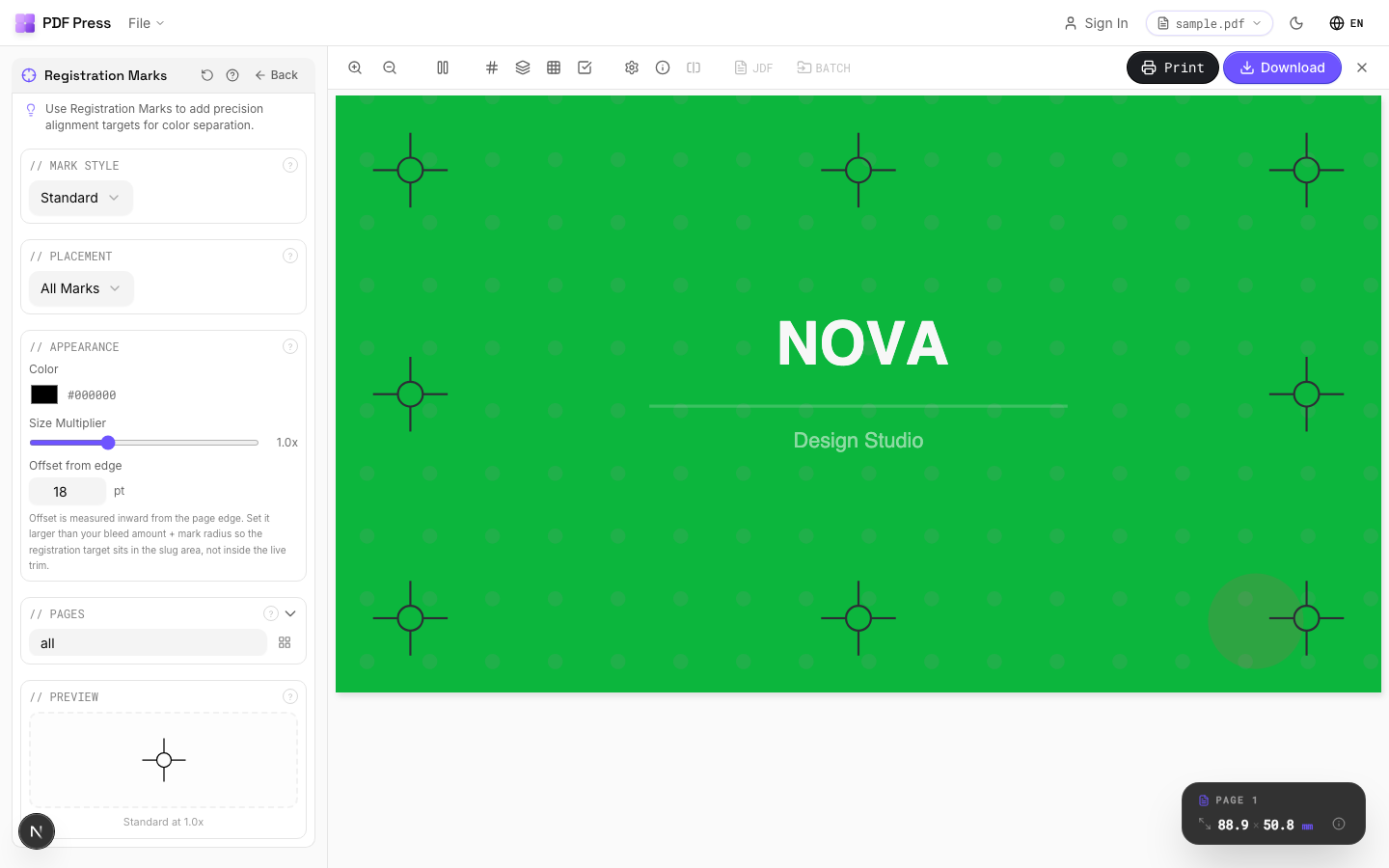

Add marks while you impose with registration marks, cutter marks or as part of a Booklet / N-up layout, alongside bleed.
Pros vs Quite Imposing: direct four-color-vs-black mark control, knockout option, live preview, no Acrobat or plugin, free to start. Cons: no watched-folder batch automation like Quite Hot Imposing. For the colour theory behind this choice, see rich black vs true black and spot vs process color, plus adding bleed, crop marks and color bars.
Mark color via setup/post-process vs. a one-click Four-color-black toggle.
Do it in your browser — the sheet, the count and the marks are set for you. Change only what you want.
Open the n up tool5 free downloads total · 8 hours between free downloads · local file processing
Frequently Asked Questions
Can I change full-color crop marks to just black in Quite Imposing?
Why are crop/registration marks four-color by default?
When should crop marks be black-only instead of four-color?
How do I make black-only crop marks easily?
What is the difference between registration black and K-only marks?
How far from the trim should crop marks sit?
Ready to put this into practice?
Do it in your browser — the sheet, the count and the marks are set for you. Change only what you want.
Open the n up toolFree in your browser · sign in with Google · files never leave your device