 pdfpress
Kodak Preps Dongle Not Seen? Fixes + a No-Dongle Alternative
Kodak Preps (5.2 / Creo Preps Pro 6) not seeing the dongle or license? Fix the USB hardware key, drivers and licensing — or move to PDF Press, a browser imposition tool with no dongle, no license server and no install.
Why Kodak Preps Can't See the Dongle
Kodak Preps (and the older Creo Preps Pro 6) is licensed with a USB hardware dongle. When Preps reports the dongle isn't seen — or simply won't launch into a licensed state — the imposition itself is fine; the problem is in the hardware key, its driver, or the licensing service. There are four usual culprits:
- Connection — the dongle is in a hub, KVM, or a flaky front-panel USB port and isn't enumerating reliably.
- Driver — the Sentinel/HASP dongle driver is missing, outdated, or broke after a Windows update.
- License service — the background licensing service isn't running, so Preps can't read the key.
- The dongle itself — physically damaged, or an old key that doesn't match the current Preps version.
The fixes below work through each. But it's worth naming the underlying issue: a physical dongle is a single point of failure. Lose it, damage it, or have its driver break, and the whole licensed seat goes dark — often at the worst time. That fragility is exactly what newer browser-based tools were built to avoid.
A licensed seat that depends on a fragile USB dongle vs. a browser tool with no hardware key at all.
Do it in your browser — the sheet, the count and the marks are set for you. Change only what you want.
Open the n up tool5 free downloads total · 8 hours between free downloads · local file processing
Fix: Get the Dongle Recognized Again
Work through these in order — the first two solve most cases.
1. Reseat and move the dongle. Unplug it and plug it directly into a rear motherboard USB port — not a hub, KVM switch, or monitor port, which often don't pass dongle signals reliably. Try a different port. Check the dongle's LED (if it has one) lights up.
2. Reinstall the dongle driver. Preps dongles typically use a Sentinel (SafeNet/HASP) driver. Download the current Sentinel runtime/driver, uninstall the old one, reboot, and reinstall. A Windows feature update breaking this driver is a classic cause of a previously-working dongle suddenly "not seen."
3. Confirm the licensing service is running. Open Windows Services and verify the Sentinel/HASP License Manager service is started (and set to Automatic). Restart it, then relaunch Preps.
4. Test the dongle in isolation. If you have the Sentinel admin control panel, check whether the key is detected there. If it shows up for the driver but not for Preps, it's a version/license mismatch; if it shows nowhere, suspect the dongle hardware or the USB port.
5. Check version compatibility. An old key (e.g. from Creo Preps Pro 6) may not license a newer Preps build, or vice versa. Match the dongle/license to the Preps version you're running.
If the dongle is lost or physically dead, there's no software fix — you're into Kodak licensing support and likely a paid replacement, which is the moment many shops re-evaluate the whole dongle dependency.
Sentinel/HASP Drivers and the License Service in Detail
Most "dongle not seen" cases on a previously-working machine come down to one of two software components: the Sentinel HASP runtime (the dongle driver) and the Sentinel License Manager service. Knowing how they fit together turns a frustrating outage into a methodical repair.
The hardware key is a Sentinel HASP (formerly Aladdin/SafeNet) USB device. Windows talks to it through the Sentinel HASP runtime driver, and a background Windows service — typically named Sentinel LDK License Manager (the hasplms service) — brokers license requests between Preps and the key. If the runtime is the wrong version or the service is stopped, Preps sees nothing even though the dongle is physically plugged in and its LED is lit.
A clean repair sequence:
- Fully remove the old runtime first. Run the Sentinel runtime installer with its uninstall/clean option, reboot, then install the current runtime. Installing a new runtime on top of a broken one often fails to fix it.
- Confirm the service. In Windows Services, find Sentinel LDK License Manager, set it to Automatic, and start (or restart) it. No service, no license.
- Open the Sentinel Admin Control Center. Browse to the local admin page (the runtime exposes one at localhost on port 1947). If the key appears there, the driver and service are healthy and the fault is a Preps version/license mismatch. If it appears nowhere, suspect the USB port or the dongle itself.
- Watch for Windows feature updates. A major Windows update can replace or block the driver, which is why a dongle that "worked yesterday" suddenly fails. Reinstalling the current runtime after the update restores it.
This is the heart of dongle maintenance: a working seat depends on a specific driver version, a running service and an unblocked USB path, any one of which an unrelated system change can break. It is recoverable, but it is recurring, and it strikes without warning.
Where Preps Fits in a CTP Plate Workflow
It is worth being precise about what Kodak Preps actually does in a pressroom, because that scope determines whether a no-dongle alternative is a true replacement or only a partial one. Preps is a commercial-print imposition engine built to feed computer-to-plate (CTP) platesetters, not just to produce imposed PDFs.
In a typical offset workflow, Preps builds the imposition — sheet layout, signatures, creep, margins and the press marks the operation needs — and outputs it as imposed PDF or, more often, as the input to a RIP that screens the job and drives a platesetter to image aluminium printing plates. It commonly participates in JDF-based automation, carrying job metadata (stock, fold pattern, press, finishing) between the MIS, the RIP and the plate device so that a multi-section publication images consistently across dozens of plates. The dongle exists precisely because Preps sits in this high-value, equipment-tied position.
That context sets honest expectations. For driving a platesetter, CTP plate output and JDF press automation, Preps remains a specialist tool with a real role. But a large and growing share of imposition work — digital presses, wide-format, proofs, short-run booklets, business cards and gang sheets — never touches a plate at all. For that work, the dongle, license server and Windows install are pure overhead. The decision is not "Preps or nothing" but "match the tool to the job": keep Preps where plates are involved, and use a lightweight browser tool for the imposed-PDF and digital work that does not need a platesetter.
Plate-bound CTP work stays with Preps; imposed-PDF and digital jobs don't need a dongle at all.
Do it in your browser — the sheet, the count and the marks are set for you. Change only what you want.
Open the n up tool5 free downloads total · 8 hours between free downloads · local file processing
The No-Dongle Alternative: Impose in the Browser
Every fix above is maintenance on a hardware key. PDF Press doesn't have one. It imposes in your browser with no dongle, no license server, no driver and no install — drop in a PDF, impose, download, with files processed locally on your device.
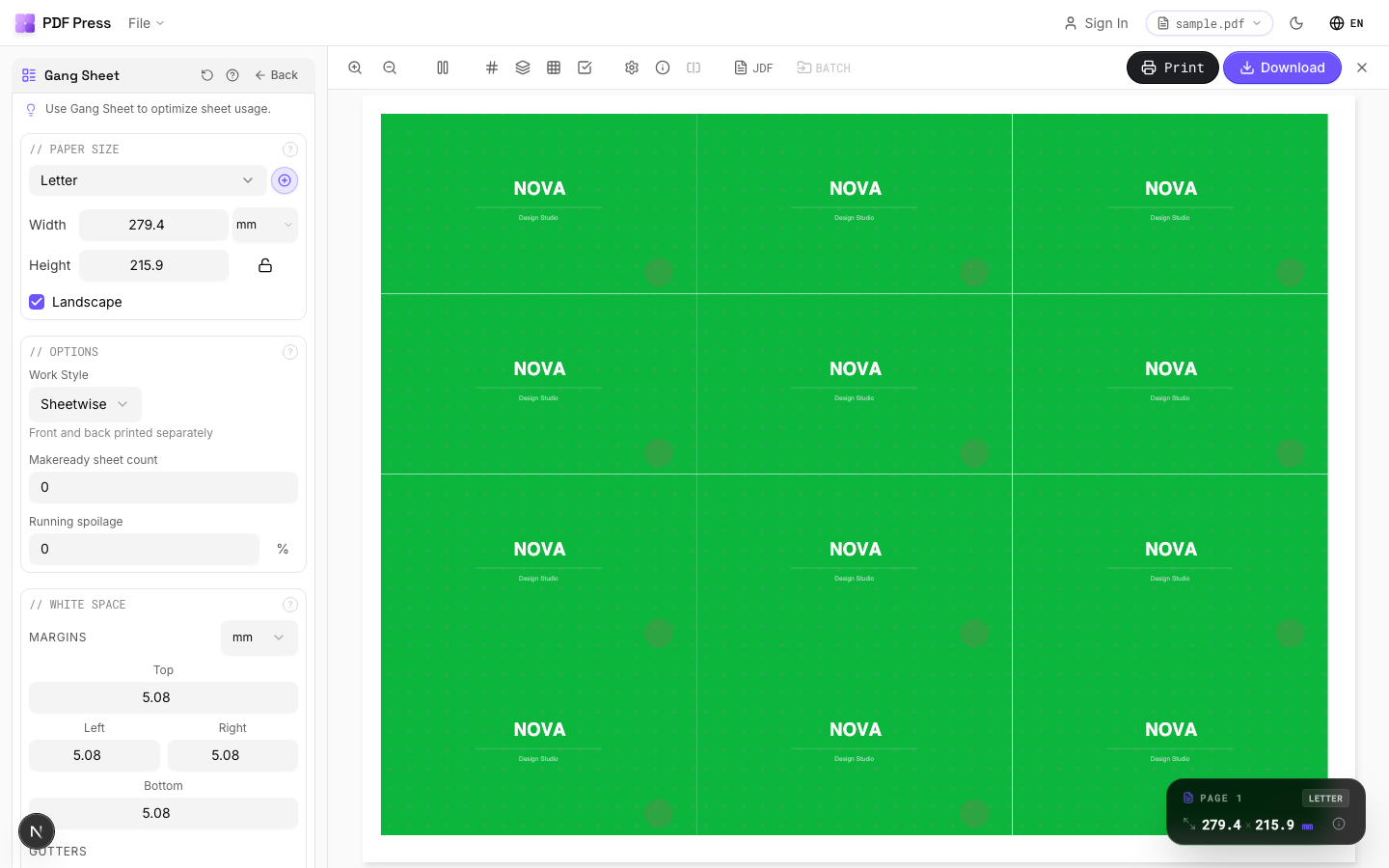
The everyday Preps jobs map onto tools: Booklet maker and N-up Book for signatures, N-up and Grid for pages-per-sheet, Cut and stack, Gang sheets and Step and repeat, with bleed and registration marks.
Pros vs Kodak Preps: no dongle to lose or break, no driver/service to repair, no install, runs on any OS, free to start, local file processing. Cons: Preps has deep CTP/plate-making and JDF automation for offset platemaking that a browser tool doesn't replace — if you're driving a platesetter, Preps still has a role. But for producing imposed PDFs, proofs, and digital work without a fragile hardware key, PDF Press is simpler and cheaper. See the full Kodak Preps alternative guide.
Reseat the dongle and reinstall drivers, or just open a browser tab.
Do it in your browser — the sheet, the count and the marks are set for you. Change only what you want.
Open the n up tool5 free downloads total · 8 hours between free downloads · local file processing
Frequently Asked Questions
Why is my Kodak Preps dongle not seen?
My Preps dongle worked yesterday and now isn't recognized — what changed?
Does Creo Preps Pro 6 use the same dongle as newer Kodak Preps?
Is there an imposition tool that doesn't need a dongle?
How do I repair the Sentinel/HASP driver and license service for Preps?
Can a browser tool replace Kodak Preps for CTP plate work?
Ready to put this into practice?
Do it in your browser — the sheet, the count and the marks are set for you. Change only what you want.
Open the n up toolFree in your browser · sign in with Google · files never leave your device