Ticket printing layout tool
Use PDF Press to prepare numbered event tickets, raffle tickets, coupons, and admission passes with cut-and-stack or cards imposition. It is built for event printers, fundraisers, venues, clubs, schools, and prepress teams, with local browser processing and a live preview before export.


Direct answer
What is ticket printing?
Ticket Printing in PDF Press helps you prepare numbered event tickets, raffle tickets, coupons, and admission passes with cut-and-stack or cards imposition.
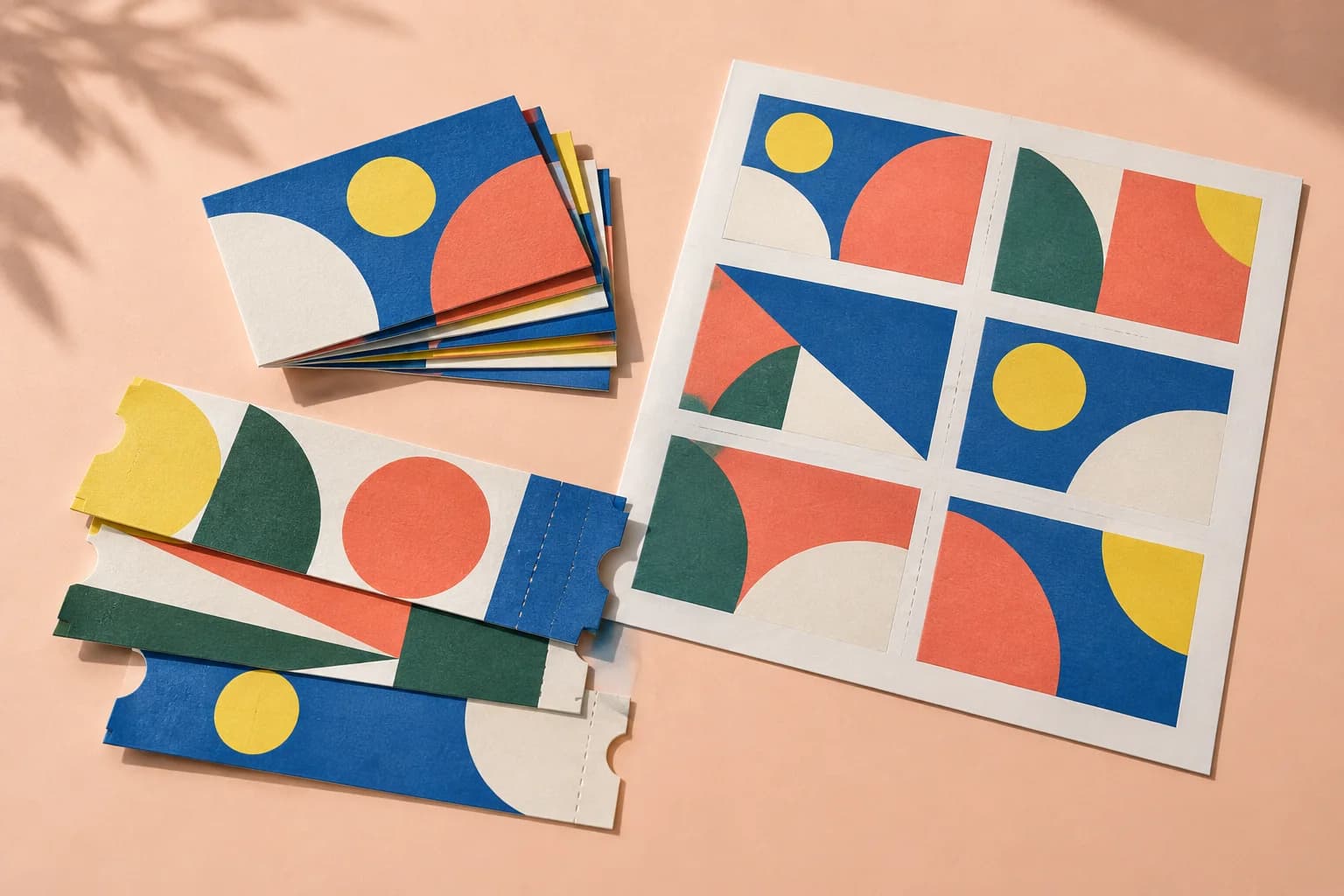
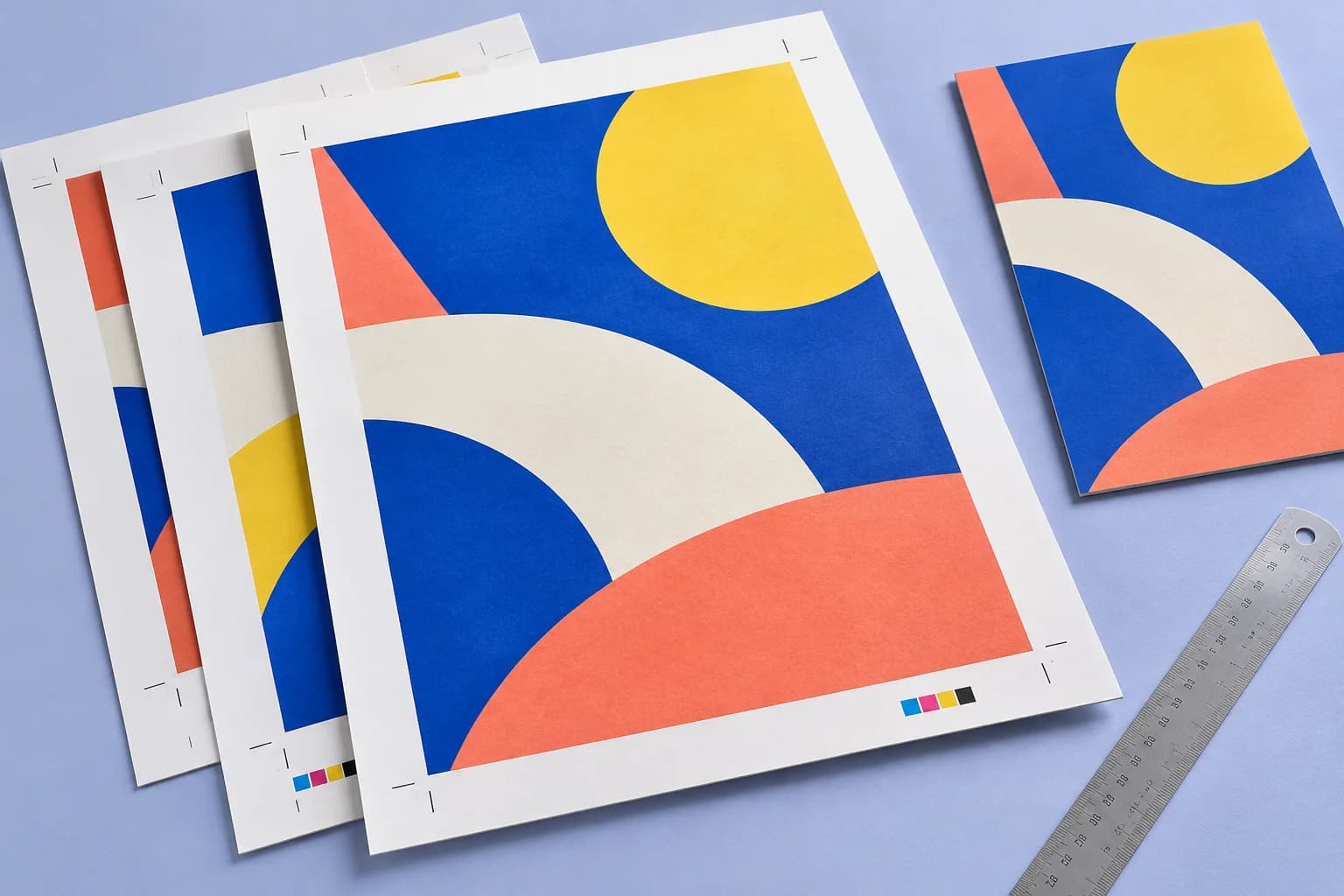
Print examples made with Ticket Printing
See the imposed output and finished piece together, then open the exact preset and production specs.


Original PDF Press print-production photography. Images link to their canonical template pages.
How to use Ticket Printing
Upload files
Start with your source PDF or image files. Processing happens locally in the browser.
Add Ticket Printing
Configure Paper Size, White Space, Printer's Marks and any production settings that match the job.
Preview the result
Check page order, marks, scaling, and output geometry before committing the export.
Download output
Export the finished PDF for proofing, press, finishing, or another PDF Press step.
Best use cases
Key settings
Paper Size
Sets the output sheet dimensions. This is the physical paper going through your printer or press.
Standard presets: Letter (8.5×11in), Legal (8.5×14in), Tabloid (11×17in), A4 (210×297mm), A3 (297×420mm). Landscape swaps width↔height. Lock icon links dimensions to preserve aspect ratio. Custom lets you enter any size in inches, mm, or points (1in = 72pt = 25.4mm).
White Space
Controls margins around the sheet edges and gutters between items in the grid.
Left margin = space from the left sheet edge to the first column. Top margin = space from the top edge to the first row. Horizontal gutter = gap between columns. Vertical gutter = gap between rows. All values are in your selected unit (inches/mm/points). 'Center output on page' distributes leftover space evenly instead of anchoring content to the top-left corner.
Printer's Marks
Adds trim guides and alignment marks outside the live area for accurate cutting and registration.
Crop marks: short lines at each corner showing where to trim. Center marks: crosshairs at sheet midpoints for front/back alignment on duplex jobs. Line length (default 0.43in/31pt): how long each mark line extends. Line thickness (default 0.014in/1pt): mark stroke weight. Line distance (default 0.139in/10pt): gap between the mark and the artwork edge. Four-color black: prints marks in C+M+Y+K for visibility on color proofs. Knockout: adds a white halo around marks so they show on dark backgrounds.
Bleeds
Extends artwork beyond the trim edge to prevent white strips after cutting.
Three modes: 'No bleeds' trims exactly at the page boundary. 'Pull from document' uses bleed info already embedded in the PDF (TrimBox/BleedBox metadata). 'Fixed' lets you manually set bleed on each side, typically 3mm (0.125in / 9pt) for commercial print, 1-2mm for digital. Bleed values define how far past the trim edge the artwork extends.
Page Order
Chooses how the tiled pages are numbered across the sheet, plus double-sided, repeat, and stack options.
Sequential lays pages out in reading order. Stack (Cut-and-Stack) orders pages so that after cutting the sheet into strips and stacking them, each pile reads in sequence — saving manual collation. Step-and-repeat fills the whole sheet with copies of each page before moving on (the count is set automatically, so the repeat field shows 'Fill sheet'). 'Repeat each page' prints N copies of every page first. 'Double sided' pairs fronts and backs for duplex printing. 'True stack' (Stack mode only) uses the strict cut-and-stack numbering so each guillotine-cut pile runs top-to-bottom in order.
Layout
Sets the flow direction pages follow across the tiles.
Z-pattern fills left→right then top→bottom in standard reading order. S-pattern (serpentine / snake) reverses every other row — pages run left→right, then right→left — which suits some cut-and-stack and finishing workflows. The numbers in each tile preview the resulting page order.
Expert tip
Cut-and-stack layout works well for irregular gang-ups where different products share a press sheet. Place the highest-quantity item first so the packing algorithm has the most room to work with.
The algorithm does not guarantee minimal waste on its own. Always check the layout preview before sending to plate.
What print pros say
I've used Quite Imposing, Imposition Wizard and a pile of InDesign scripts. PDF Press is the first one I'd hand to someone and just say 'use this', no manual needed.
We ran Quite Imposing on Acrobat for years. PDF Press does the same booklet and N-up impositions right in the browser, with no plug-in and no per-seat licence, and it's genuinely quicker to set up.
Best browser tool I've found for booklet printing. Saddle-stitch, perfect-bound signatures, automatic page imposition, and our zine and catalogue clients love the turnaround.
Frequently asked questions
What is Ticket Printing used for?
Tiles your pages across a sheet and controls how they are ordered — sequential, cut-and-stack, or step-and-repeat — so long runs cut and collate with the fewest passes.
Who should use ticket printing?
It is built for event printers, fundraisers, venues, clubs, schools, and prepress teams. Common use cases include Flyers, Coupons, Numbered Tickets, High Volume.
Do my PDF files upload to a server?
No. PDF Press runs the PDF processing workflow in your browser, so your files stay on your device.
Can I use Ticket Printing with other PDF Press tools?
Yes. You can combine it with other PDF Press tools in a multi-step workflow, then preview and export the final PDF.