All tools
layoutBrowser-based, no upload

Put multiple PDF pages per sheet

Use PDF Press to combine 2, 4, 8, 16, or custom numbers of PDF pages onto each output sheet with controllable page size, gutters, margins, and order. It is built for office teams, teachers, designers, print shops, and anyone reducing paper use or preparing handouts, with local browser processing and a live preview before export.

4.8/5from 21 print prosRead reviews
N-up Book in PDF Press imposition software — options panel beside the live imposed sheet

Direct answer

What is multiple pages per sheet PDF?

Multiple Pages Per Sheet PDF in PDF Press helps you combine 2, 4, 8, 16, or custom numbers of PDF pages onto each output sheet with controllable page size, gutters, margins, and order.

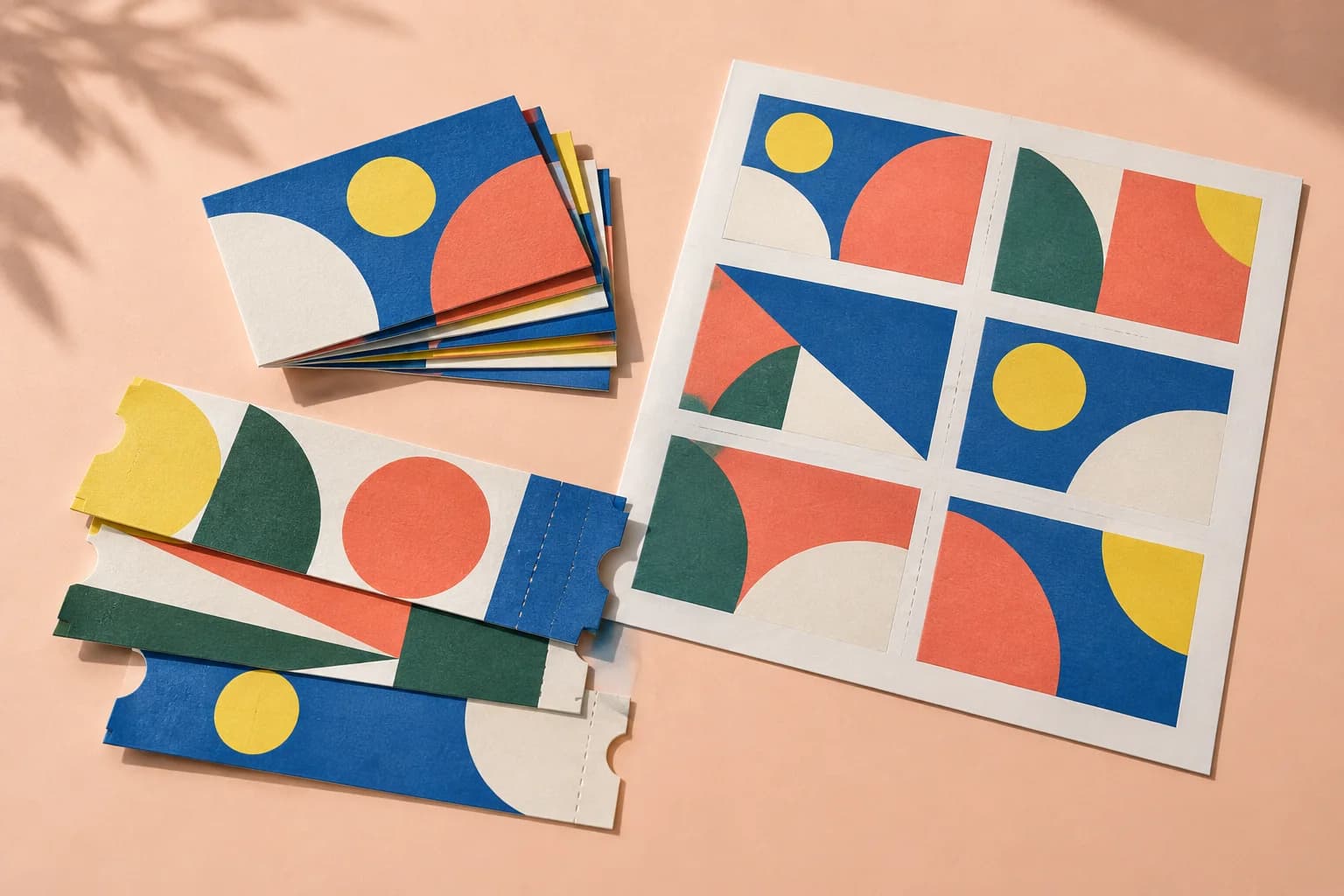
See the imposed output and finished piece together, then open the exact preset and production specs.

Original PDF Press print-production photography. Images link to their canonical template pages.

How to use Multiple Pages Per Sheet PDF

Upload files

Start with your source PDF or image files. Processing happens locally in the browser.

Add Multiple Pages Per Sheet PDF

Configure Paper Size, Printer's Marks, Bleeds and any production settings that match the job.

Preview the result

Check page order, marks, scaling, and output geometry before committing the export.

Download output

Export the finished PDF for proofing, press, finishing, or another PDF Press step.

Best use cases

Book SignaturesCommercial PrintLarge Press Sheets

Key settings

Paper Size

Sets the output sheet dimensions. This is the physical paper going through your printer or press.

Standard presets: Letter (8.5×11in), Legal (8.5×14in), Tabloid (11×17in), A4 (210×297mm), A3 (297×420mm). Landscape swaps width↔height. Lock icon links dimensions to preserve aspect ratio. Custom lets you enter any size in inches, mm, or points (1in = 72pt = 25.4mm).

Printer's Marks

Adds trim guides and alignment marks outside the live area for accurate cutting and registration.

Crop marks: short lines at each corner showing where to trim. Center marks: crosshairs at sheet midpoints for front/back alignment on duplex jobs. Line length (default 0.43in/31pt): how long each mark line extends. Line thickness (default 0.014in/1pt): mark stroke weight. Line distance (default 0.139in/10pt): gap between the mark and the artwork edge. Four-color black: prints marks in C+M+Y+K for visibility on color proofs. Knockout: adds a white halo around marks so they show on dark backgrounds.

Bleeds

Extends artwork beyond the trim edge to prevent white strips after cutting.

Three modes: 'No bleeds' trims exactly at the page boundary. 'Pull from document' uses bleed info already embedded in the PDF (TrimBox/BleedBox metadata). 'Fixed' lets you manually set bleed on each side, typically 3mm (0.125in / 9pt) for commercial print, 1-2mm for digital. Bleed values define how far past the trim edge the artwork extends.

Book Binding

Choose nested (saddle-stitch) or perfect binding for how signatures are assembled.

Nested: all sheets fold together into one section, then stapled through the spine — ideal for thin booklets (8–64 pages). Perfect: creates separate signatures that stack and glue at the spine. Creep direction (inward/outward) compensates for paper thickness pushing inner pages outward after folding. Reading direction: left-to-right (Western) or right-to-left (RTL languages like Arabic, Hebrew, Japanese manga).

Margins

Non-printable border around each output sheet edge.

Ensures content stays within the printable area of your press or printer. Typical commercial offset: 0.25–0.5in (18–36pt). Digital printers: 0.125–0.25in (9–18pt). Binding margin adds extra space at the spine edge for adhesive or thread.

Gutters

Spacing between adjacent pages on the same side of the sheet.

Binding gutter: space at the spine fold between facing pages — prevents content from being lost in the fold. Default 2.835pt (1mm). Other gutter: space between pages perpendicular to the spine. Increase gutters for thicker paper stock or tight binding methods.

Expert tip

Pick the N-up value (2, 4, 8, 16, 32) based on your press sheet size relative to the finished trim. For A5 final on SRA3 press sheets, 4-up is the optimal choice. Always enable creep compensation when binding is nested (saddle-stitch).

If the N-up value does not match the press sheet, you will get blank cells or clipped pages. Check the output sheet dimensions before making plates.

Production recipes using Multiple Pages Per Sheet PDF

Perfect-Bound Book

PUR/hot-melt perfect binding for books with 48+ pages.

Preflight
Impose signatures
Add collating marks
Add trim marks

Perfect-Bound with Color Bar

Perfect-bound book signatures with inline color bars for press density control.

Impose signatures
Add color bars
Add collating marks
Add trim marks

Case-Bound (Hardcover) Book

Smyth-sewn case-bound book with proper signature imposition and spine marks.

Preflight
Impose signatures
Add gathering marks
Add trim marks

Children's Book

Full-color children's picture book with heavy stock and case binding.

Preflight
Impose signatures
Add color bars
Add trim marks

What print pros say

4.8/5· 21 reviews
Grid printing for flyers and postcards is dead simple now. I set rows and columns and it n-ups the PDF onto the press sheet with bleed and registration marks ready for the printer.
Chris DonovanCopy Center Operator
The custom imposition options are why I stayed. Odd page sizes, mixed orientations, bespoke grids: PDF Press handles custom impose jobs my old tools just refused.
Laura KimBookbinder
No Acrobat, no install, runs on my locked-down work laptop. For a copy centre that's huge: any operator can impose a job without waiting on IT.
Greg WhitfieldManager, Campus Print Shop
Read all 21 reviews

Frequently asked questions

What is Multiple Pages Per Sheet PDF used for?

Combines multi-page-per-sheet layout with book signature imposition.

Who should use multiple pages per sheet PDF?

It is built for office teams, teachers, designers, print shops, and anyone reducing paper use or preparing handouts. Common use cases include Book Signatures, Commercial Print, Large Press Sheets.

Do my PDF files upload to a server?

No. PDF Press runs the PDF processing workflow in your browser, so your files stay on your device.

Can I use Multiple Pages Per Sheet PDF with other PDF Press tools?

Yes. You can combine it with other PDF Press tools in a multi-step workflow, then preview and export the final PDF.