Split
Two modes: Chunk mode splits by fixed page count (a 100-page PDF at chunk size 20 = 5 files). Visual mode lets you click between page thumbnails to place split points exactly where needed. Output downloads as a zip archive of individual PDFs.
Divides a multi-page PDF into smaller files, each containing a set number of pages.
Two modes: Chunk mode splits by fixed page count (a 100-page PDF at chunk size 20 = 5 files). Visual mode lets you click between page thumbnails to place split points exactly where needed. Output downloads as a zip archive of individual PDFs.
How It Works
Two modes: Chunk mode splits by fixed page count (a 100-page PDF at chunk size 20 = 5 files). Visual mode lets you click between page thumbnails to place split points exactly where needed. Output downloads as a zip archive of individual PDFs.
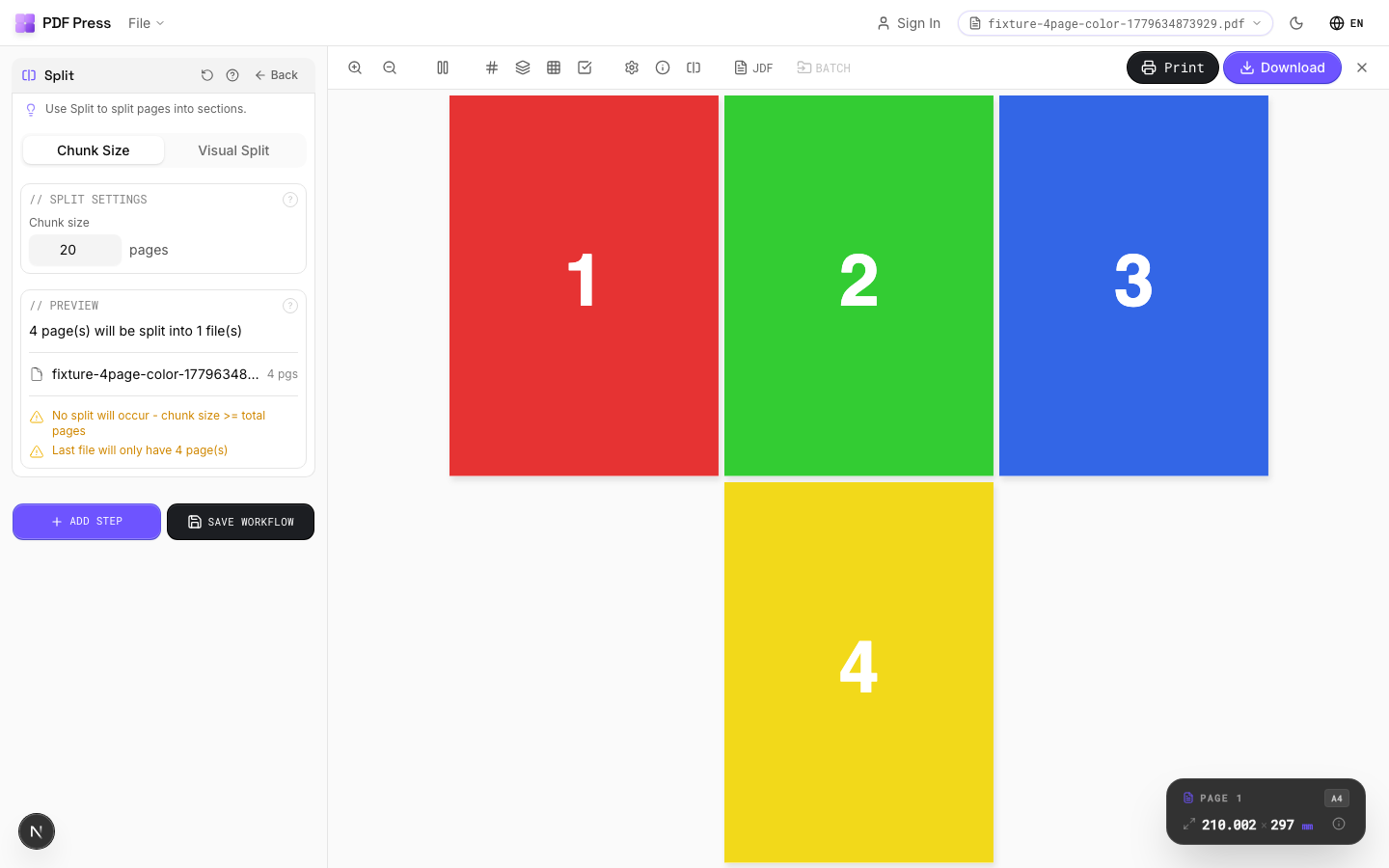
Split tool applied. Options panel on the left, imposed result on the right. Click to zoom.
Options Guide
Split Settings
Set how many pages each output file should contain.
Chunk mode: every output file gets the same number of pages (the last file may have fewer if the total doesn't divide evenly). Visual mode: click between page thumbnails to place split boundaries manually — useful when chapters or sections don't have uniform page counts.
Preview
Shows the file split plan — how many output files and the page ranges in each.
Visual Pages
Interactive page thumbnails — click between pages to toggle split points.
Each red line marks a split boundary. Click to add or remove. The resulting files are listed below with their page ranges. Drag to reorder split points is not supported — click to toggle on/off instead.
Action
Download all split files as a single zip archive.
Configurations & Variations
Split into 2-Page Chunks
Set chunk size to 2 to split the document into separate files of 2 pages each. A 16-page document becomes 8 files. Use this to separate reader spreads into individual sheets, or to break a large document into signature-sized chunks for parallel processing.
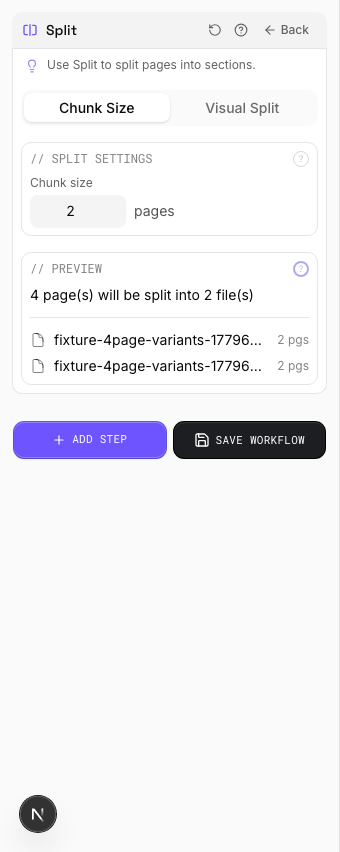
Settings to change
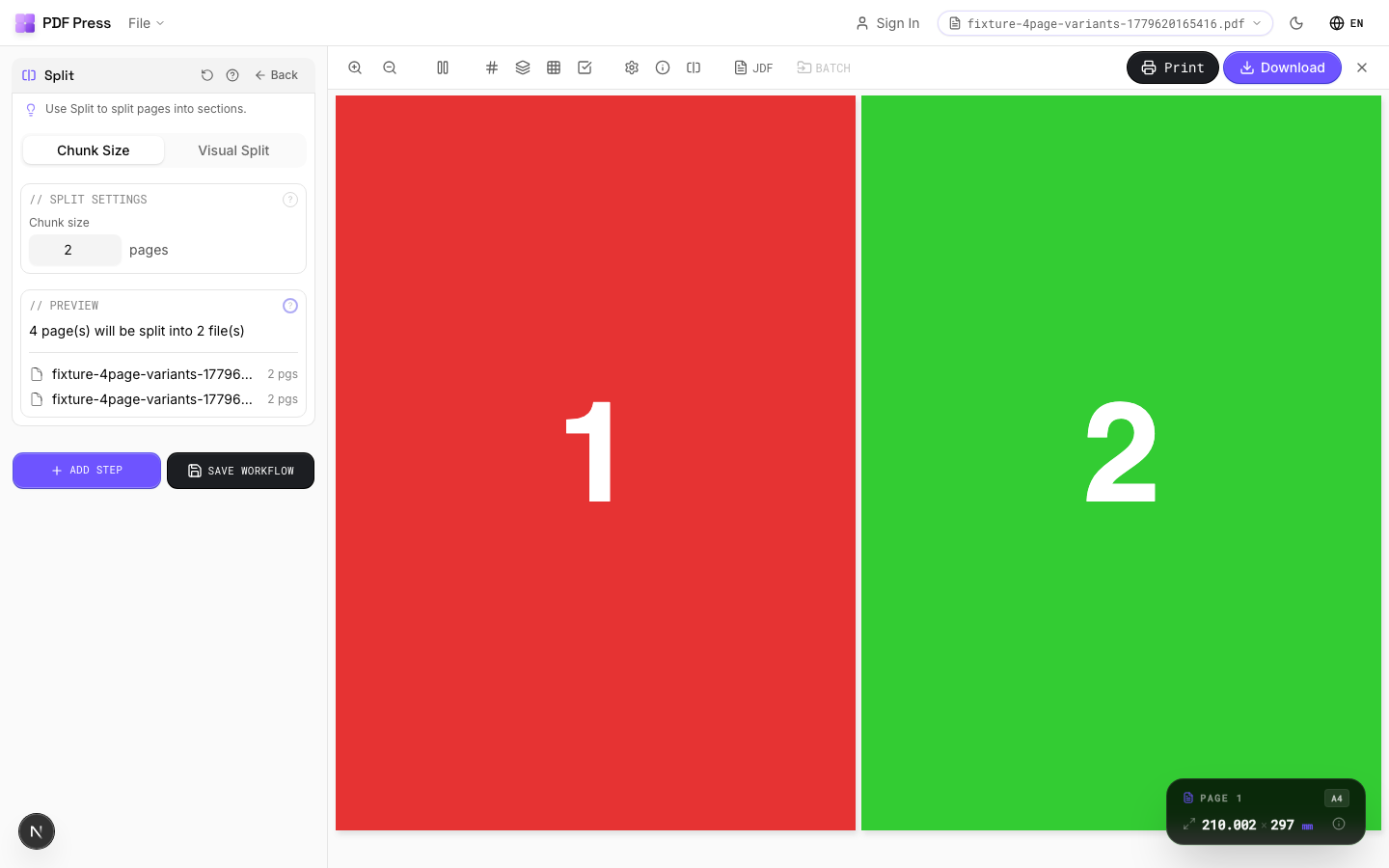
Full app view

Output result
Expert Tip
Split large-format pages into press-sheet-sized tiles with 10 mm overlap for accurate reassembly. 10 mm is the standard for most wide-format tiling jobs.
When splitting a booklet spread back into single pages, split at the exact spine position. Even 1 pt off will show as a white line at the bind edge.
Learn More
Used in Recipes
Banner Printing
Wide-format banners with tiling for roll-fed printers.
Trade Show Panels
Multi-panel trade show displays split for separate printing and assembly.
Vehicle Wrap
Vehicle wrap panels split for contour-cut application.
Try Split in your browser
PDF Press runs entirely client-side. Upload a PDF, apply Split, and download the result — no upload to a server, no sign-up required.
Open PDF Press