Crop
Values represent the amount to remove, not the remaining size. A crop of 72pt (1in) on all sides removes 1 inch from every edge, making the page 2in narrower and 2in shorter. Useful for removing unwanted margins, printer borders, bleed areas, or white space from scanned documents.
Crop
Tool pageTrims content from page edges — specify how much to remove from each side.
Values represent the amount to remove, not the remaining size. A crop of 72pt (1in) on all sides removes 1 inch from every edge, making the page 2in narrower and 2in shorter. Useful for removing unwanted margins, printer borders, bleed areas, or white space from scanned documents.
How It Works
Values represent the amount to remove, not the remaining size. A crop of 72pt (1in) on all sides removes 1 inch from every edge, making the page 2in narrower and 2in shorter. Useful for removing unwanted margins, printer borders, bleed areas, or white space from scanned documents.
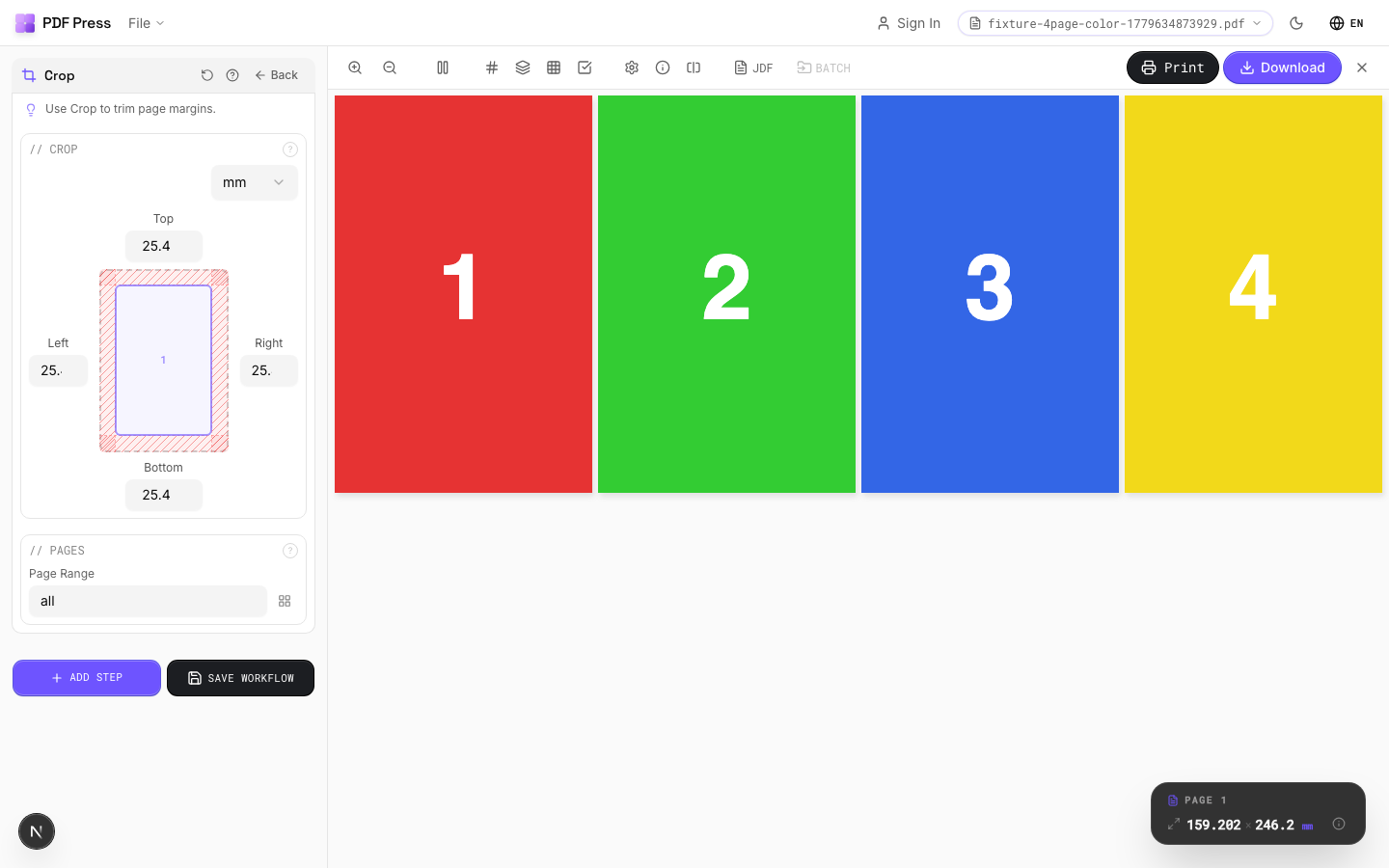
Crop tool applied. Options panel on the left, imposed result on the right. Click to zoom.
Options Guide
Crop
Set removal amounts for each edge: top, bottom, left, right.
Each value is subtracted from the corresponding page edge. Example: cropping 36pt (0.5in) from all sides on an A4 page (595×842pt) produces 523×770pt output. Use the same value on all sides to remove a uniform border. Different values per side let you trim asymmetrically (e.g., remove a binding margin from the left only).
Pages
Specify which pages to process using a range expression.
Examples: 'all' = every page. '1-5' = pages 1 through 5. '1,3,5' = specific pages. '1-10 odd' = odd pages 1-9. '2-20 even' = even pages 2-20. 'last' = last page. 'last-2' = third from last. Ranges are 1-based. Combine with commas: '1-5, 8, 12-15'.
Configurations & Variations
Cropped 1 Inch All Sides
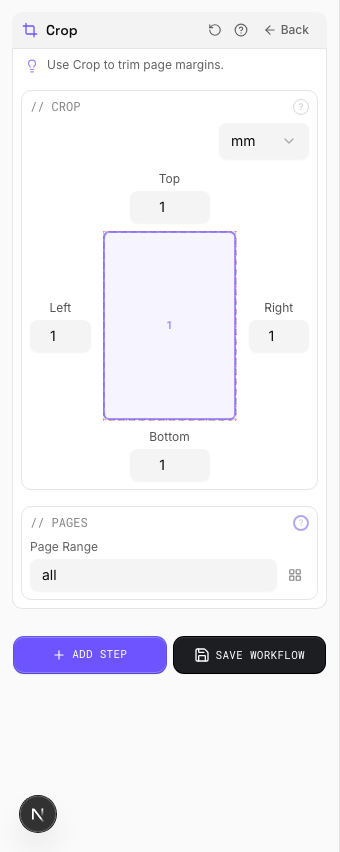
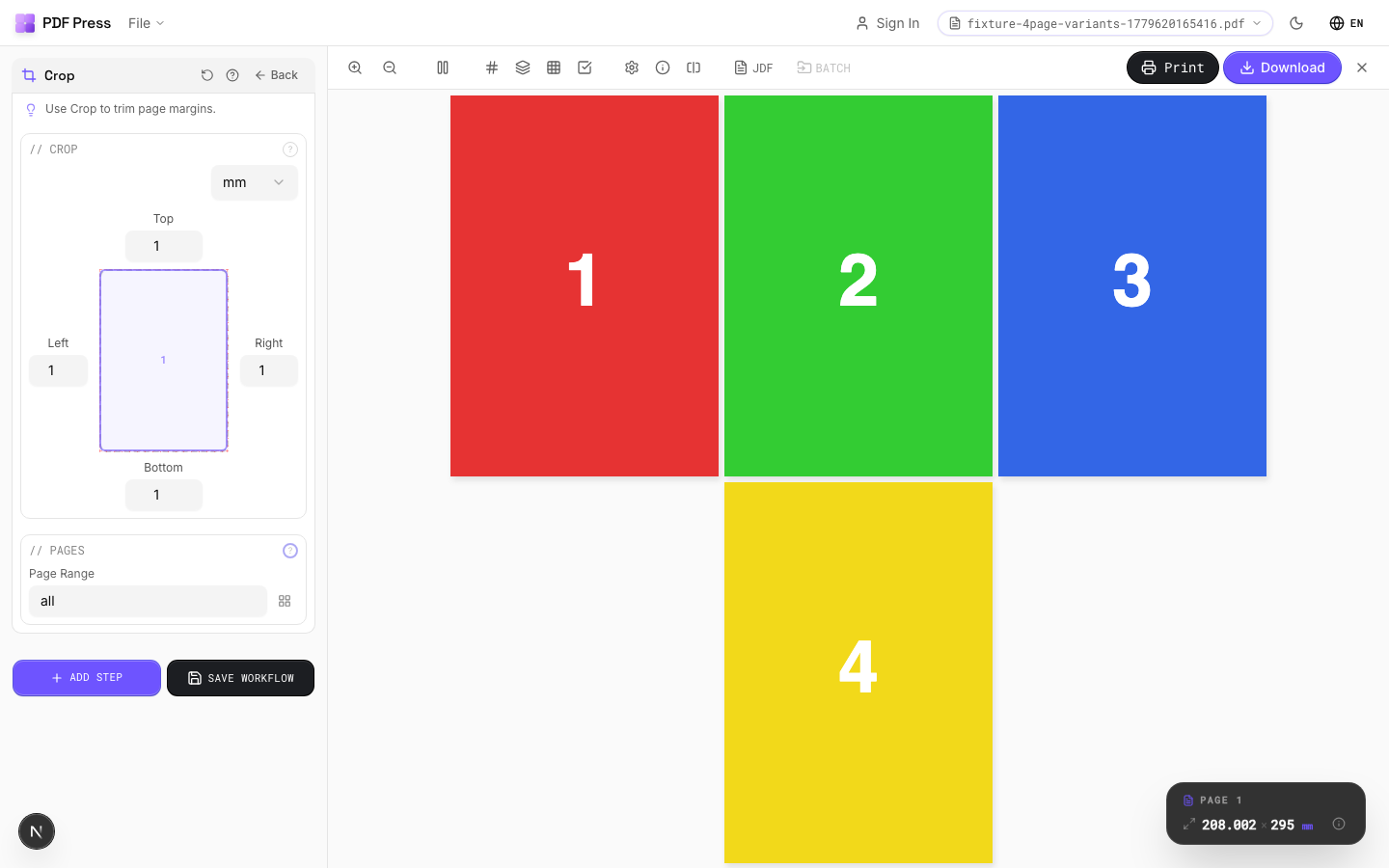
Enter 72 pt (1 inch) in all four crop fields to remove a 1 inch border from every edge. The page shrinks by 2 inches in each dimension. Typical use: stripping unwanted margins, printer borders, or slug areas from production files before re-imposing.
Settings to change
Full app view

Output result
Expert Tip
Crop to the TrimBox to strip printer marks and bleed before re-imposing. This gives you a clean starting point. Use the CropBox variant if you want to preserve marks for reference.
Cropping is destructive. If you crop too tight and lose the bleed, you cannot recover it without the original source file.
Try Crop in your browser
PDF Press runs entirely client-side. Upload a PDF, apply Crop, and download the result — no upload to a server, no sign-up required.
Open PDF Press