Overlay
The overlay PDF is composited onto each page of the base document. Control opacity, blend mode, positioning, and which pages receive the overlay. 'Repeat' cycles the overlay pages if the base has more pages than the overlay.
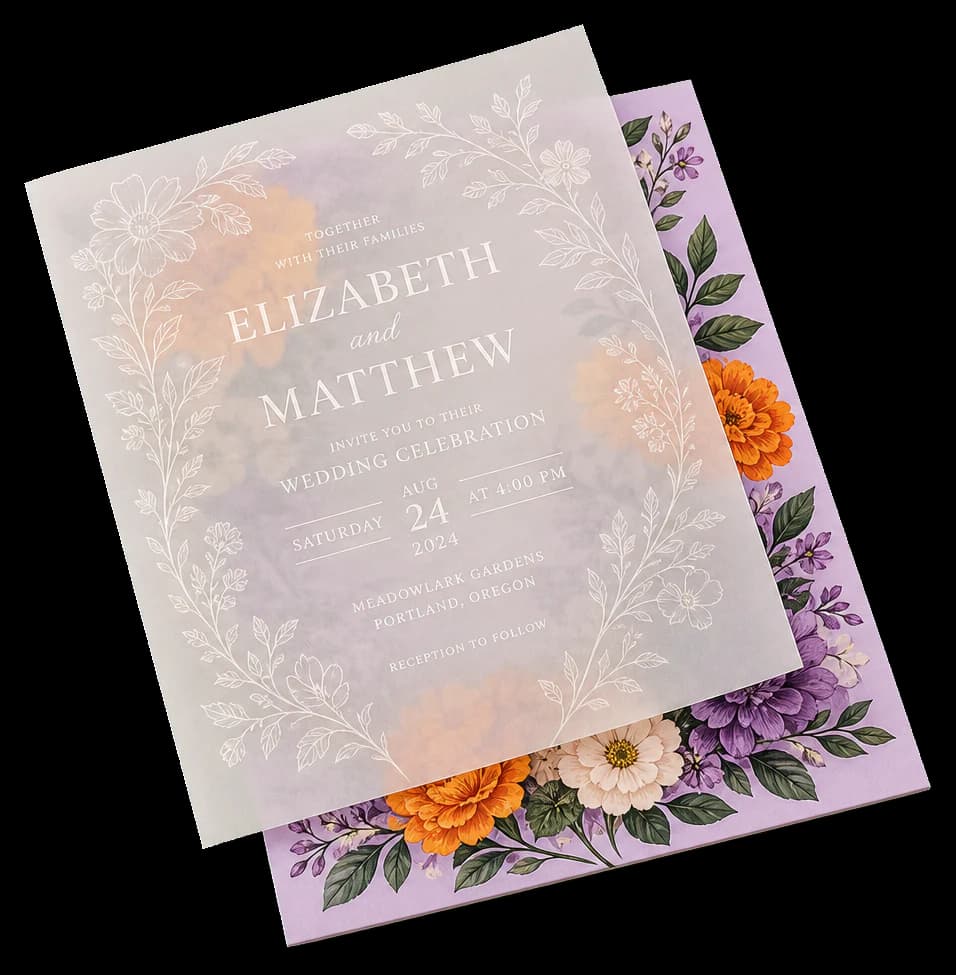
Layers a second PDF on top of your pages: for watermarks, letterheads, or templates.
The overlay PDF is composited onto each page of the base document. Control opacity, blend mode, positioning, and which pages receive the overlay. 'Repeat' cycles the overlay pages if the base has more pages than the overlay.
How It Works
The overlay PDF is composited onto each page of the base document. Control opacity, blend mode, positioning, and which pages receive the overlay. 'Repeat' cycles the overlay pages if the base has more pages than the overlay.
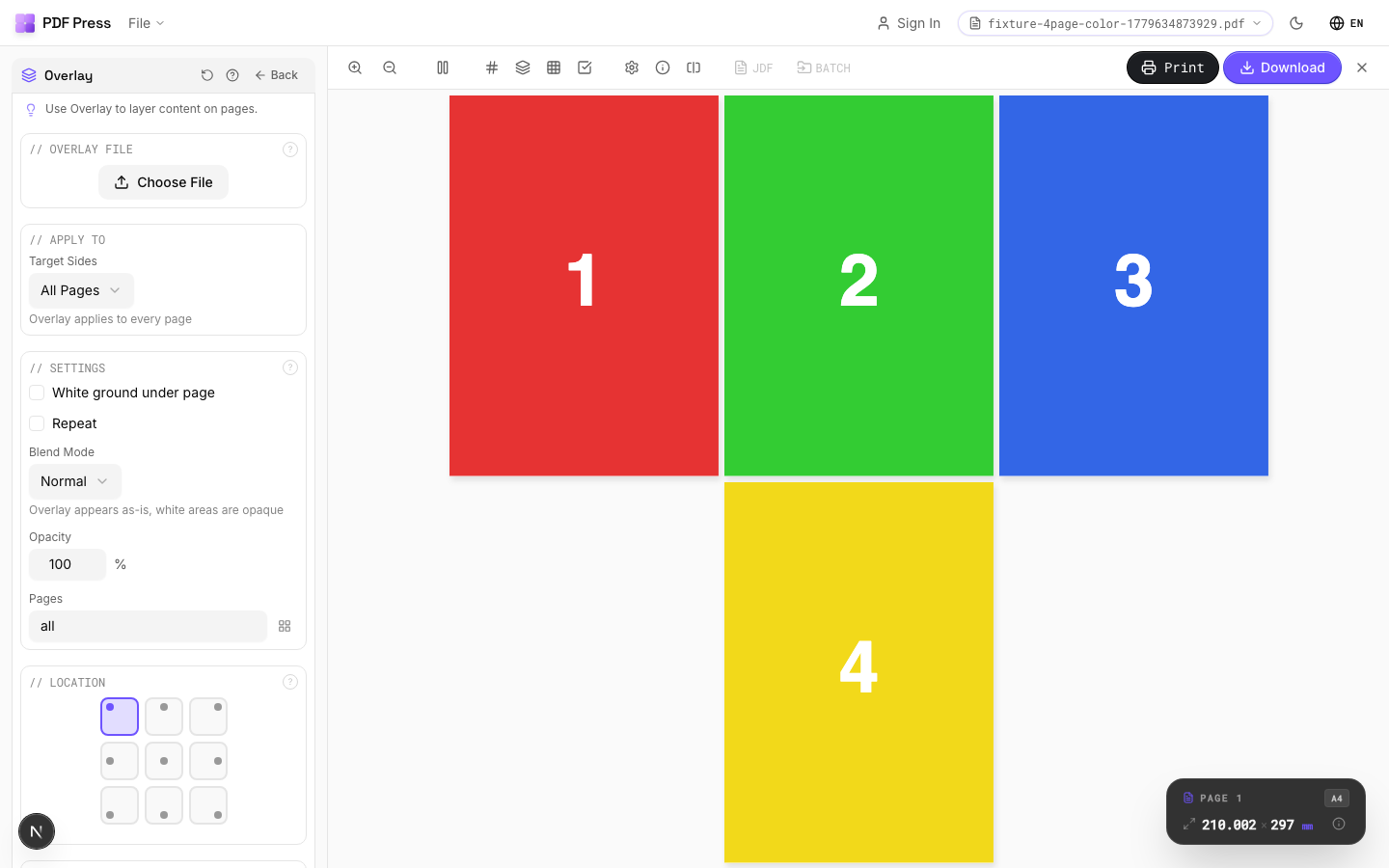
Overlay tool applied. Options panel on the left, imposed result on the right. Click to zoom.
Options Guide
Overlay File
Upload the PDF to layer on top of your document.
Settings
Control repeat behavior, blend mode, opacity, and page range.
Normal blend mode places the overlay directly on top: white areas are opaque. Multiply blend mode makes white areas transparent, which is ideal for overlaying dark logos onto colored backgrounds. Opacity at 100% is fully opaque; lower values create translucent effects.
Location
Choose where the overlay is anchored using a 9-point position grid.
Select one of nine anchor points: top-left, top-center, top-right, center-left, center, center-right, bottom-left, bottom-center, or bottom-right. The overlay is aligned relative to this point on the base page.
Padding
Offsets the overlay from its anchor position.
Left padding shifts the overlay horizontally. Top padding shifts it vertically. Use padding to fine-tune placement after choosing the anchor point.
Expert Tip
Overlays are for die-line templates, watermarks, or recurring background elements. Set opacity to 100% for die lines and 15-30% for draft watermarks. Upload the overlay file first via the file upload area in the Overlay section.
The overlay PDF must match the page dimensions of your working file. A size mismatch will position the overlay from the bottom-left origin, and it will appear shifted.
Used in Recipes
Box Layout
Folding carton box flat (die-line) with artwork positioned for die cutting.
Bag Layout
Paper or poly bag printed flat and imposed for production.
Envelope Layout
Printed envelopes imposed for flatbed or rotary die cutting.
Envelope Production
Printed envelopes imposed and prepared for envelope-making machinery.
Try Overlay in your browser
PDF Press runs entirely client-side. Upload a PDF, apply Overlay, and download the result — no upload to a server, no sign-up required.
Open PDF Press