Layers
This tool reads layers from the pipeline output, not from the source PDF. To see layers here, first add at least one upstream step that creates a named layer: Colour Bar, Cutter Marks, or Header/Footer each generate their own layer. Once layers exist, toggle them on or off to control which content appears in the final output. Three states are available per layer: Off (force hidden), Default (keep PDF original), On (force visible). Useful when the same imposed sheet needs variants with and without marks.
Layers
Tool pageShows or hides named PDF layers (Optional Content Groups) in the pipeline output.
This tool reads layers from the pipeline output, not from the source PDF. To see layers here, first add at least one upstream step that creates a named layer: Colour Bar, Cutter Marks, or Header/Footer each generate their own layer. Once layers exist, toggle them on or off to control which content appears in the final output. Three states are available per layer: Off (force hidden), Default (keep PDF original), On (force visible). Useful when the same imposed sheet needs variants with and without marks.
How It Works
This tool reads layers from the pipeline output, not from the source PDF. To see layers here, first add at least one upstream step that creates a named layer: Colour Bar, Cutter Marks, or Header/Footer each generate their own layer. Once layers exist, toggle them on or off to control which content appears in the final output. Three states are available per layer: Off (force hidden), Default (keep PDF original), On (force visible). Useful when the same imposed sheet needs variants with and without marks.
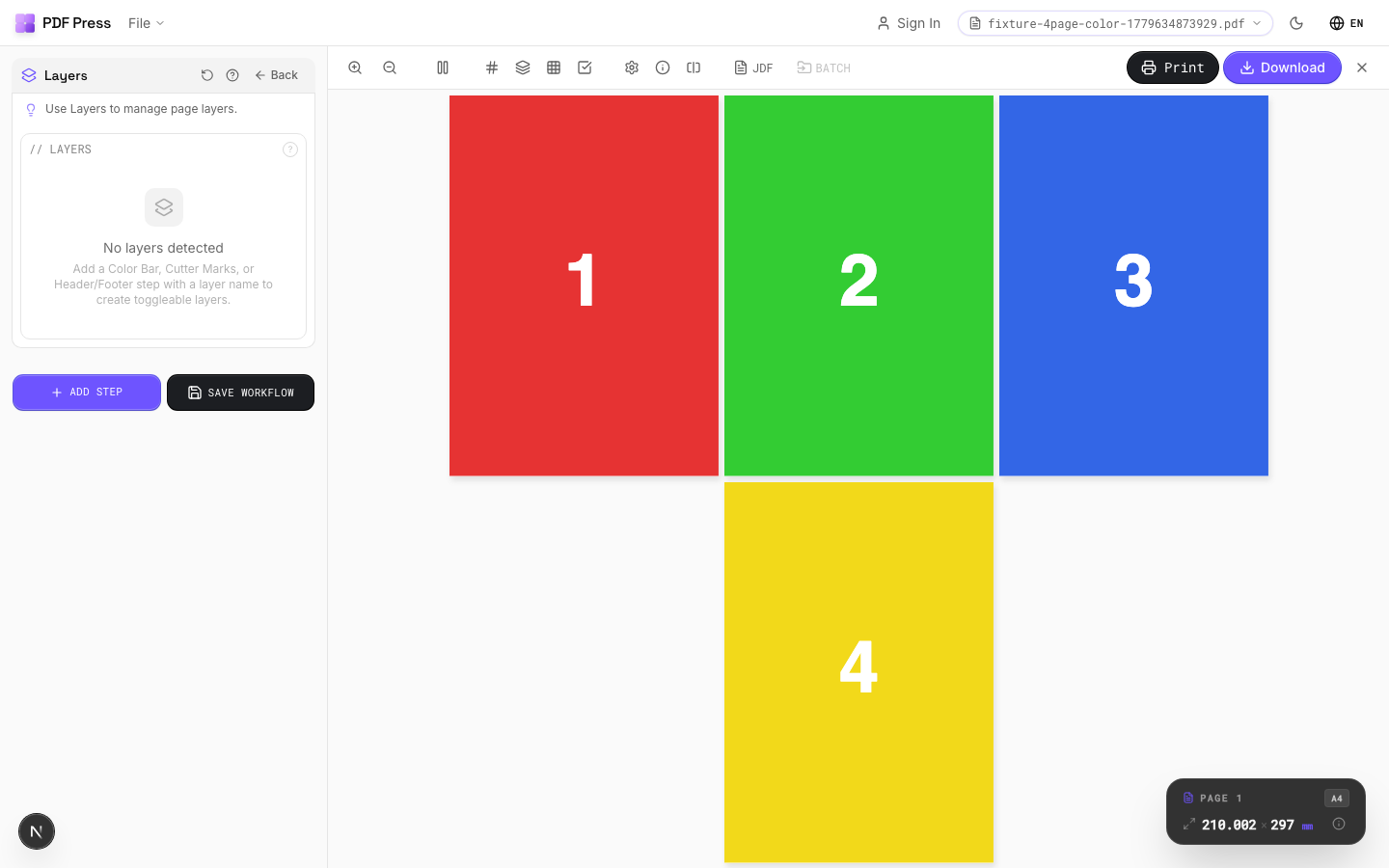
Layers tool applied. Options panel on the left, imposed result on the right. Click to zoom.
Options Guide
Layers
Toggle individual layers on or off. Only visible (enabled) layers appear in the output.
Each layer is listed by its embedded name from the upstream tool that created it. Disabled layers are completely removed from output and will not render or print. If no upstream tools have created layers, this section shows an empty state with instructions on which tools to add first.
Configurations & Variations
Toggle Layer Visibility
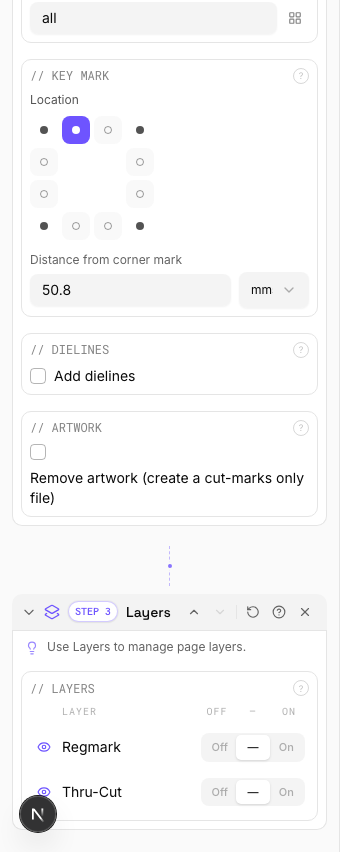
The Layers tool reads OCG (Optional Content Group) layers from the pipeline output, not from the source PDF directly. Before using Layers, add at least one upstream step that creates named layers: Color Bar, Cutter Marks, or Header/Footer each generate their own layer. Once layers exist, each one shows a three-state toggle: Off (force hidden), Default (keep the PDF's original visibility), and On (force visible). Click the eye icon or the segmented control to cycle states.
Settings to change
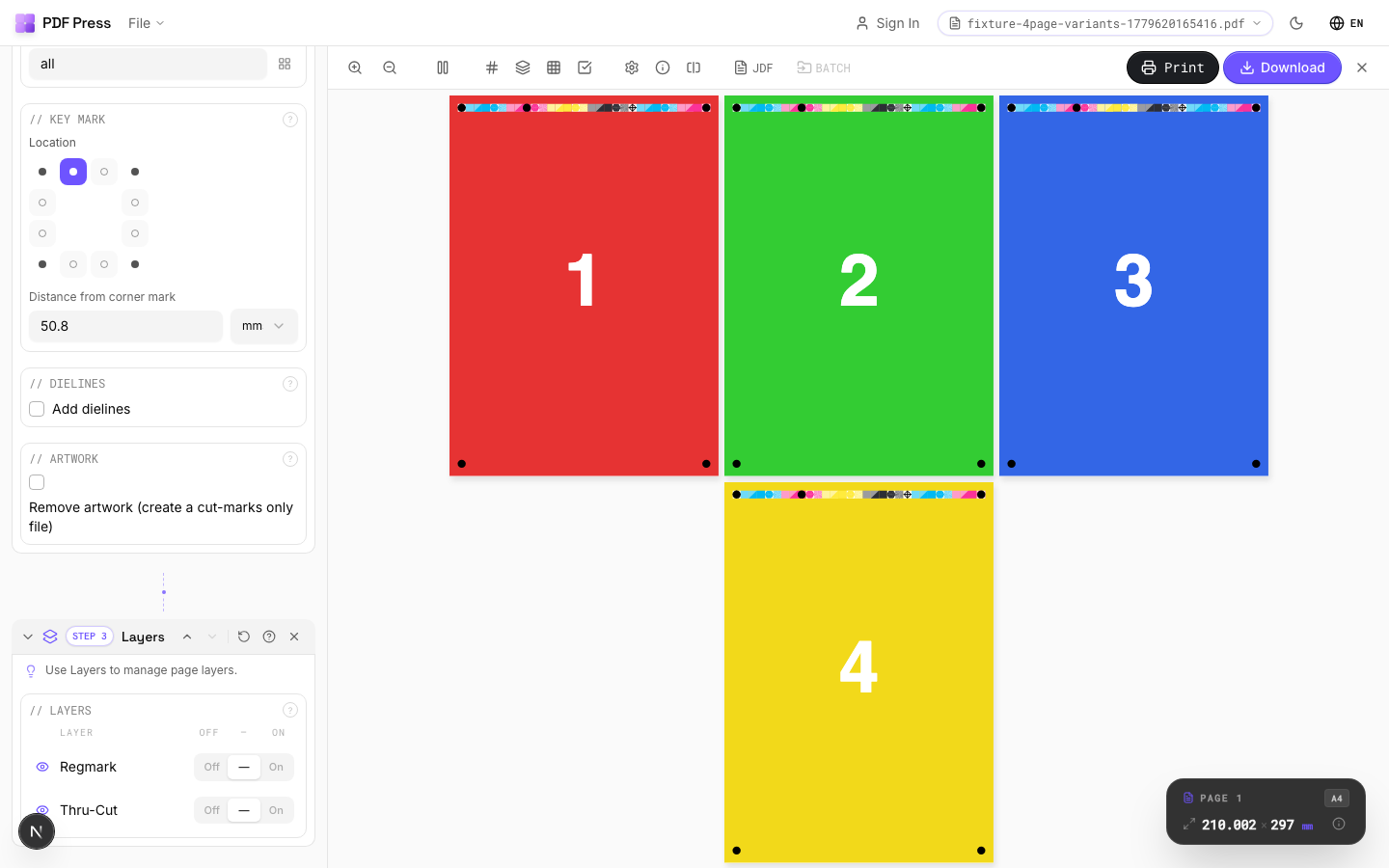
Full app view

Output result
Expert Tip
Layers reads OCG (Optional Content Group) data from the pipeline output, not from the source PDF directly. Add at least one upstream step that creates a named layer (Colour Bar, Cutter Marks, or Header/Footer) before using this tool. Each layer then gets a three-state toggle: Off, Default, or On.
Not all RIPs honour PDF layer visibility. Some will print all layers regardless of the visibility flag. Test with your specific RIP before production.
Try Layers in your browser
PDF Press runs entirely client-side. Upload a PDF, apply Layers, and download the result — no upload to a server, no sign-up required.
Open PDF Press