Poster Print
Poster Print keeps your artwork at 100% scale and divides it into a grid of tiles sized to the sheet your printer can output. Each tile carries a duplicated overlap 'lap band' — the same slice of image printed on both neighbours — plus optional cut/keep marks, R#-C# tile labels, registration crosshairs, and an assembly overview sheet. Everything is computed locally in your browser and exported as a multi-page PDF, one tile per page. Print every page at 100% / Actual Size (Fit-to-Page OFF), trim the marked seam edge, and overlay it onto the kept neighbour along the lap band.
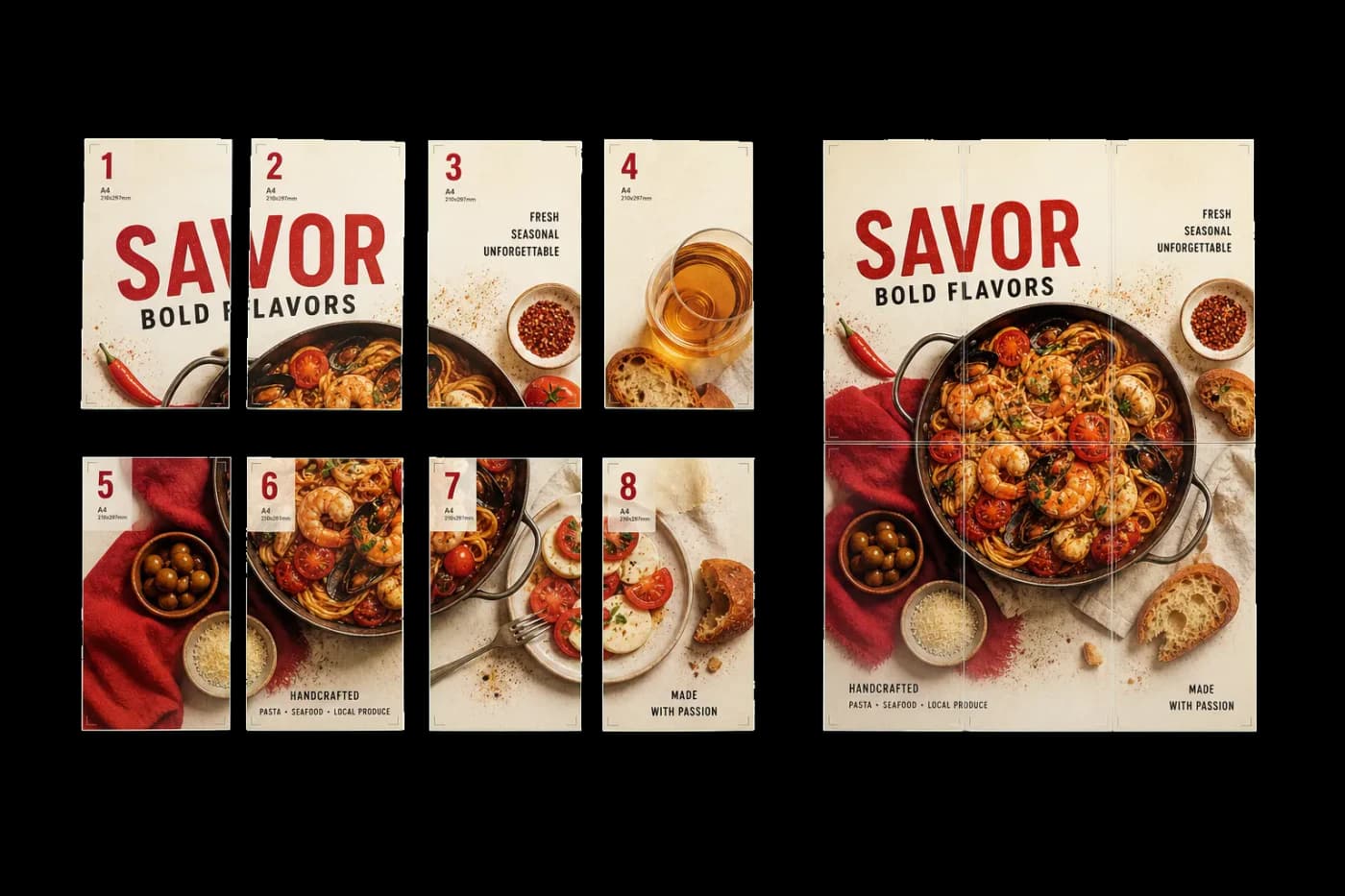
Splits one oversized page into printer-sheet-sized tiles with a shared overlap band and cut marks, so you can print a large poster on an ordinary printer and assemble it by hand.
Poster Print keeps your artwork at 100% scale and divides it into a grid of tiles sized to the sheet your printer can output. Each tile carries a duplicated overlap 'lap band' — the same slice of image printed on both neighbours — plus optional cut/keep marks, R#-C# tile labels, registration crosshairs, and an assembly overview sheet. Everything is computed locally in your browser and exported as a multi-page PDF, one tile per page. Print every page at 100% / Actual Size (Fit-to-Page OFF), trim the marked seam edge, and overlay it onto the kept neighbour along the lap band.
How It Works
Poster Print keeps your artwork at 100% scale and divides it into a grid of tiles sized to the sheet your printer can output. Each tile carries a duplicated overlap 'lap band' — the same slice of image printed on both neighbours — plus optional cut/keep marks, R#-C# tile labels, registration crosshairs, and an assembly overview sheet. Everything is computed locally in your browser and exported as a multi-page PDF, one tile per page. Print every page at 100% / Actual Size (Fit-to-Page OFF), trim the marked seam edge, and overlay it onto the kept neighbour along the lap band.

Poster Print tool applied. Options panel on the left, imposed result on the right. Click to zoom.
Options Guide
Sheet
Picks the paper size your printer outputs and the orientation used to lay out the tiles.
Choose the sheet your printer can physically print (A4, Letter, A3, Tabloid, and more via the searchable selector) — not the finished poster size. Orientation: Auto picks whichever of portrait or landscape yields the fewest tiles; Portrait and Landscape force a fixed rotation. The poster is split to cover its full size using as many of these sheets as needed.
Tiling
Controls the non-printable safe margin, the overlap lap band shared between tiles, and how leftover space is distributed.
Safe margin is the per-edge strip kept clear of your printer's non-printable border (default ~10 mm) so no content lands where the printer can't reach. Overlap is a duplicated lap band printed on both neighbouring tiles (default ~12 mm; 10–25 mm works well) — it is content you keep and overlay, not throwaway bleed — giving you surface to align seams. Alignment: Centered splits leftover space evenly around the poster; Top-left anchors to the top-left corner and wastes less paper.
Marks & aids
Optional guides printed on each tile to make cutting and hand assembly accurate.
Cut/keep marks flag which edge to trim (solid) versus keep. Tile labels stamp each page with its grid position (R1-C2) so you assemble in the right order. Overlap-band guide shades the duplicated lap strip so it is easy to spot. Registration crosshairs give precise alignment targets where tiles meet. Assembly overview sheet adds a thumbnail map of the full poster with the tile grid, plus a printed measuring square you can check to confirm your printer output at true 100% scale.
Pages
Limits which source pages are tiled when the file has more than one.
By default every page of the source is tiled. Enter a range (e.g. 1-3, 5) to tile only specific pages — useful when a multi-page PDF contains one poster among other artwork.
Used in Recipes
Poster Tiling
Large poster split into printable tiles with overlap for assembly.
Try Poster Print in your browser
PDF Press runs entirely client-side. Upload a PDF, apply Poster Print, and download the result — no upload to a server, no sign-up required.
Open PDF Press