PDF Tools
PDF Optimizer is a Swiss-army-knife powered by the PDF Press engine. It handles five common PDF operations: file size optimization (recompress streams, remove unused objects), linearization (fast web view), encryption (password protection with granular permissions), decryption (remove password protection), and structural repair (fix corrupted xref tables and streams). All processing happens client-side in a Web Worker: your files never leave the browser.

PDF processing toolkit: optimize file size, linearize for web, encrypt/decrypt, and repair structure.
PDF Optimizer is a Swiss-army-knife powered by the PDF Press engine. It handles five common PDF operations: file size optimization (recompress streams, remove unused objects), linearization (fast web view), encryption (password protection with granular permissions), decryption (remove password protection), and structural repair (fix corrupted xref tables and streams). All processing happens client-side in a Web Worker: your files never leave the browser.
How It Works
PDF Optimizer is a Swiss-army-knife powered by the PDF Press engine. It handles five common PDF operations: file size optimization (recompress streams, remove unused objects), linearization (fast web view), encryption (password protection with granular permissions), decryption (remove password protection), and structural repair (fix corrupted xref tables and streams). All processing happens client-side in a Web Worker: your files never leave the browser.
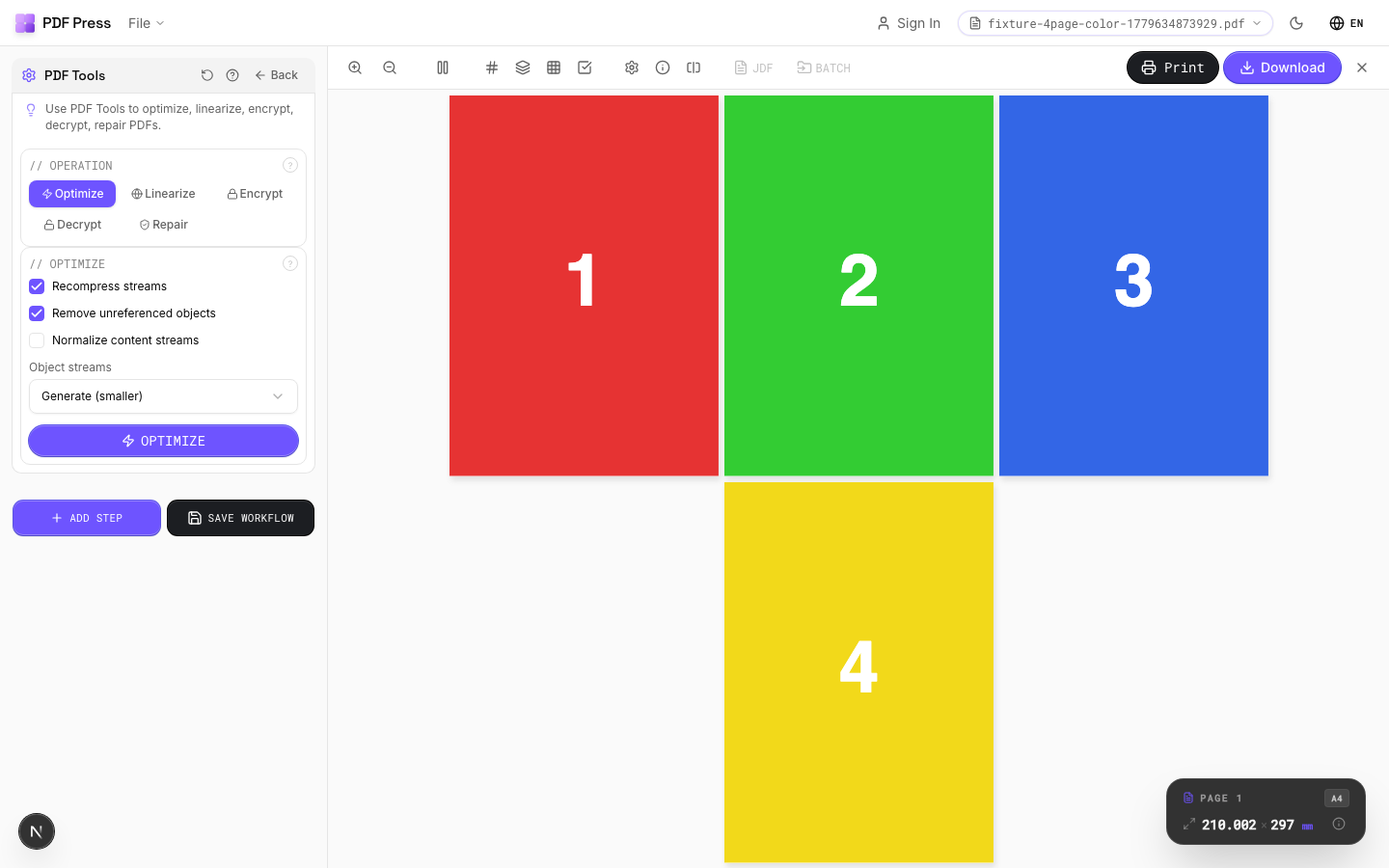
PDF Tools tool applied. Options panel on the left, imposed result on the right. Click to zoom.
Options Guide
Operation
Choose which PDF processing operation to perform.
Optimize: reduce file size by recompressing streams and removing unused objects. Linearize: restructure for "fast web view": the first page loads before the full file downloads. Encrypt: add password protection and restrict permissions (print, copy, modify, annotate). Decrypt: remove password protection from an encrypted PDF. Repair: fix corrupted PDF structure (broken xref tables, invalid stream lengths).
Optimize
Reduce PDF file size by recompressing and cleaning up internal structure.
Recompress streams: re-encodes content streams with optimal Flate (zlib) compression: can significantly reduce files saved with poor compression. Remove unreferenced objects: purges orphaned objects not linked from the page tree: common in PDFs that have been repeatedly edited. Normalize content streams: standardizes the internal drawing commands for consistency. Typical savings: 10–40% on unoptimized files, less on already-lean PDFs.
Linearize
Restructure the PDF for fast web viewing: the first page renders before the entire file downloads.
Linearization (also called "fast web view" or "optimized for web") reorganizes the PDF so page 1's data comes first in the byte stream. Web browsers and PDF viewers can display the first page immediately while the rest downloads. Essential for large PDFs served from websites. Note: linearization may slightly increase file size due to cross-reference restructuring.
Encrypt
Add password protection and control what recipients can do with the PDF.
User password: required to open the PDF: leave empty if the document should be viewable by anyone. Owner password: required to change security settings or remove restrictions: always required for encryption. Key length: 128-bit AES is broadly compatible; 256-bit AES is more secure but requires Acrobat X+. Permissions: granularly control Print (allow/deny printing), Copy (allow/deny text/image extraction), Modify (allow/deny page editing), and Annotate (allow/deny comments and form filling).
Decrypt
Remove password protection from an encrypted PDF.
Enter the owner or user password to decrypt. Once decrypted, all restrictions are removed and the output PDF has no password protection. You must know at least one valid password: this tool cannot crack unknown passwords.
Repair
Fix corrupted PDF structure by re-processing the file through the PDF Press engine.
Repair re-reads and re-writes the entire PDF structure: fixing broken cross-reference tables, invalid stream lengths, mismatched object numbers, and other structural corruption. Also includes a Check function that validates PDF structure without modifying the file. Use Repair when PDFs fail to open in other software, show "file damaged" warnings, or crash RIPs.
Result
Shows the operation status, file size comparison, and download button for the processed PDF.
Expert Tip
Optimise the final imposed PDF to cut file size before sending to the RIP. Downsample images to 300 DPI for offset or 150 DPI for large-format. Anything higher just wastes RIP memory and slows processing.
JPEG compression below quality 60 causes visible banding in gradients and skin tones. Stay at 80 or above for production quality.
Learn More
Used in Recipes
Print-Ready Preparation
Standard pre-flight and preparation workflow for incoming files.
Preflight and Fix
Identify and repair common PDF issues before production.
Try PDF Tools in your browser
PDF Press runs entirely client-side. Upload a PDF, apply PDF Tools, and download the result — no upload to a server, no sign-up required.
Open PDF Press