Custom Impose
The most flexible imposition tool in the app. Define a column-by-row grid, then manually assign which source page goes in each cell and at what rotation angle. Click Edit Grid Layout to open the full dialog where you can set per-cell creep, independent gutter widths per column/row, duplicate sheets with all their settings, and toggle double-sided mode. Use this for complex or non-standard signature layouts that no automated tool handles.
Full manual control over page placement. Assign any source page to any grid cell with per-cell rotation and creep.
The most flexible imposition tool in the app. Define a column-by-row grid, then manually assign which source page goes in each cell and at what rotation angle. Click Edit Grid Layout to open the full dialog where you can set per-cell creep, independent gutter widths per column/row, duplicate sheets with all their settings, and toggle double-sided mode. Use this for complex or non-standard signature layouts that no automated tool handles.
How It Works
The most flexible imposition tool in the app. Define a column-by-row grid, then manually assign which source page goes in each cell and at what rotation angle. Click Edit Grid Layout to open the full dialog where you can set per-cell creep, independent gutter widths per column/row, duplicate sheets with all their settings, and toggle double-sided mode. Use this for complex or non-standard signature layouts that no automated tool handles.
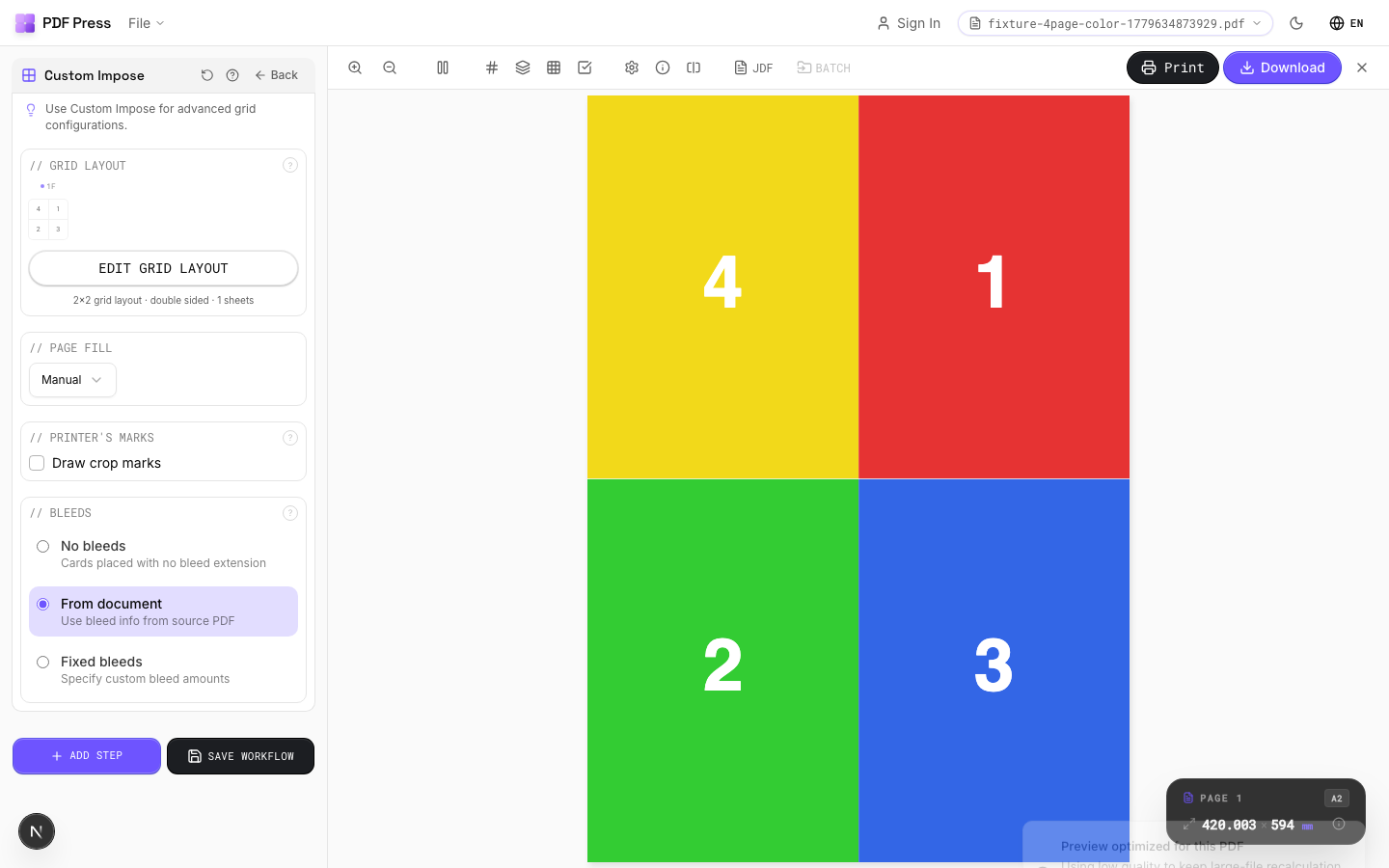
Custom Impose tool applied. Options panel on the left, imposed result on the right. Click to zoom.
Expert Grid video guide
Watch the Expert Grid overview
A polished PDF Press overview of Expert Grid, the custom imposition workspace for per-cell page placement, rotations, gutters, double-sided sheets, marks, and live preview in the browser.
Options Guide
Printer's Marks
Adds trim guides and alignment marks outside the live area for accurate cutting and registration.
Crop marks: short lines at each corner showing where to trim. Center marks: crosshairs at sheet midpoints for front/back alignment on duplex jobs. Line length (default 0.43in/31pt): how long each mark line extends. Line thickness (default 0.014in/1pt): mark stroke weight. Line distance (default 0.139in/10pt): gap between the mark and the artwork edge. Four-color black: prints marks in C+M+Y+K for visibility on color proofs. Knockout: adds a white halo around marks so they show on dark backgrounds.
Bleeds
Extends artwork beyond the trim edge to prevent white strips after cutting.
Three modes: 'No bleeds' trims exactly at the page boundary. 'Pull from document' uses bleed info already embedded in the PDF (TrimBox/BleedBox metadata). 'Fixed' lets you manually set bleed on each side, typically 3mm (0.125in / 9pt) for commercial print, 1-2mm for digital. Bleed values define how far past the trim edge the artwork extends.
Grid Layout
Set columns and rows, then assign page numbers and rotations to each cell individually via the Edit Grid Layout dialog.
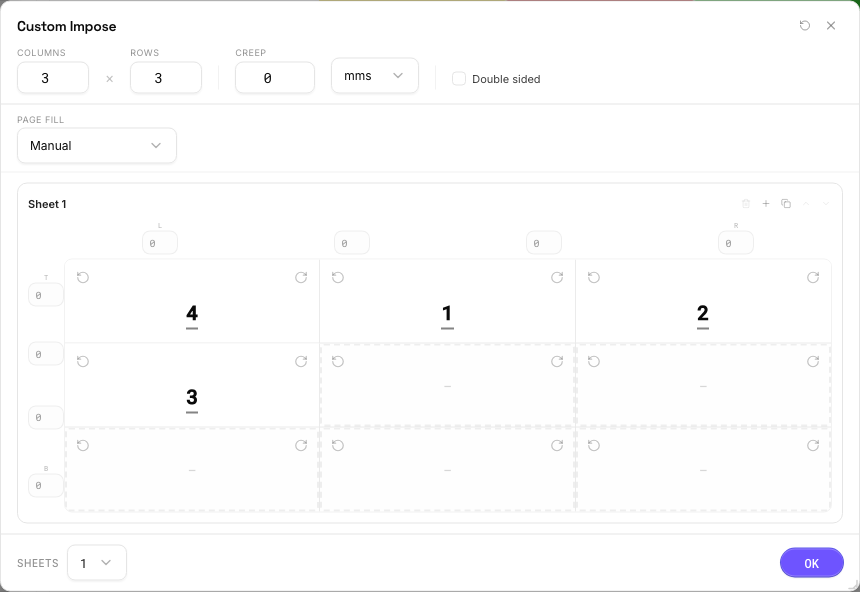
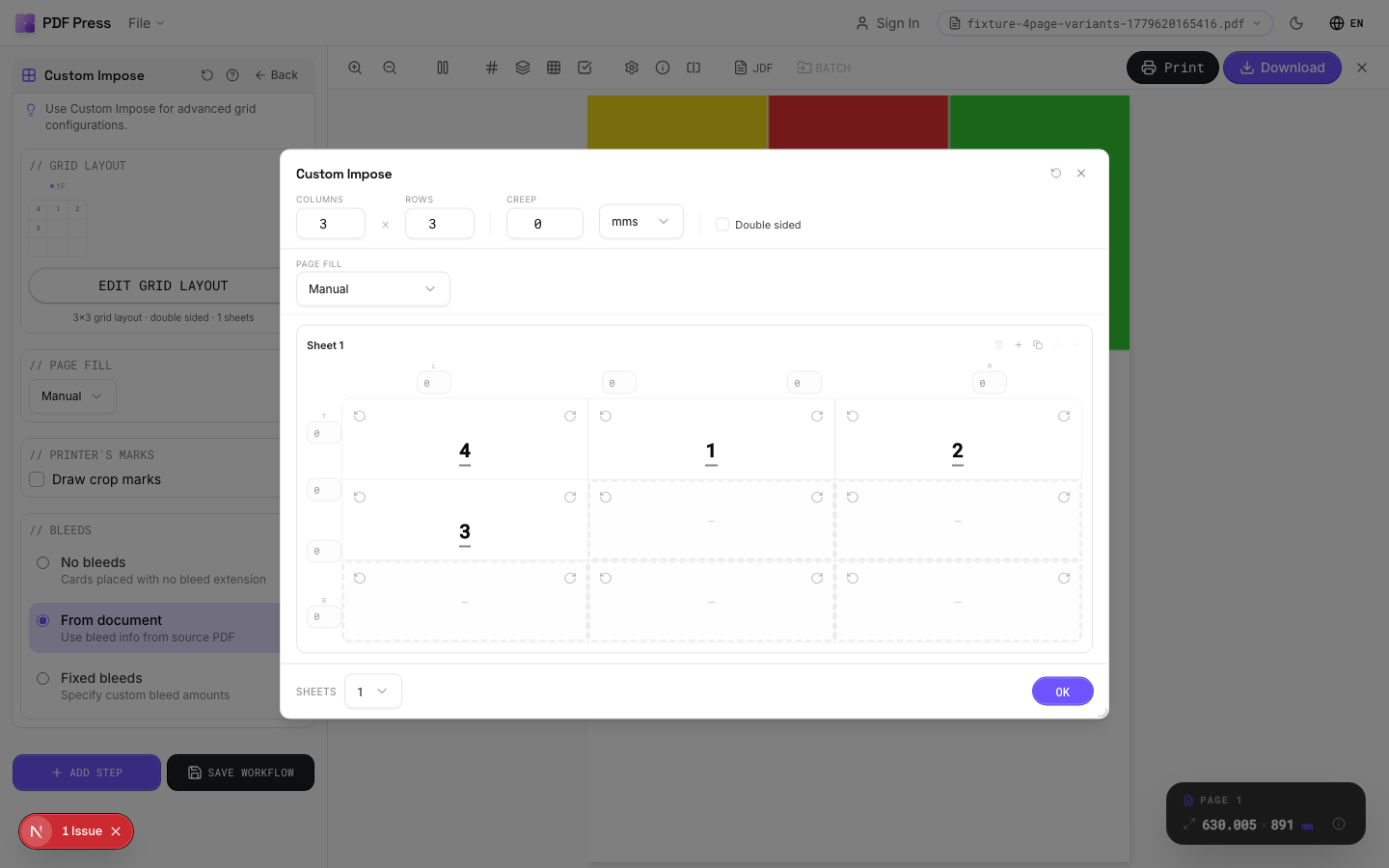
Grid dimensions: columns x rows define the cell layout. Page assignment: type a source page number into each cell (empty = no page). Rotation: set per-cell rotation (0, 90, 180, 270 degrees) using the rotate buttons on each cell. Sheets: define multiple sheet layouts for multi-signature work; duplicate a sheet with the Copy button to carry over all rotations, gutters, and creep. Double-sided: pairs sheets as front/back of the same physical sheet. Gutters: set independently per column and row gap, useful when some folds need more clearance than others. Creep: hover over a cell to reveal the D-pad arrows for per-cell creep adjustments.
Page Fill
Auto-populates page numbers and rotations so the grid does not have to be filled cell by cell.
Choose a Page Fill strategy before manual editing when the job follows a repeatable print pattern. Sequential fills cells in reading order. Repeat places page 1 in every cell. Saddle Stitch pairs outside and inside booklet pages for folding. Cut and Stack orders pages so cut piles stack into sequence. Work and Turn mirrors columns on the back side. Work and Tumble keeps the same back-side order and rotates it 180 degrees. Reverse fills from last page to first. Column First fills top-to-bottom before moving across. Manual leaves cells empty or preserves hand entry after you start editing. Applying a non-manual strategy overwrites page-number and rotation assignments, then you can fine-tune individual cells, gutters, creep, or rotations afterward.
Configurations & Variations
3×3 Expert Grid
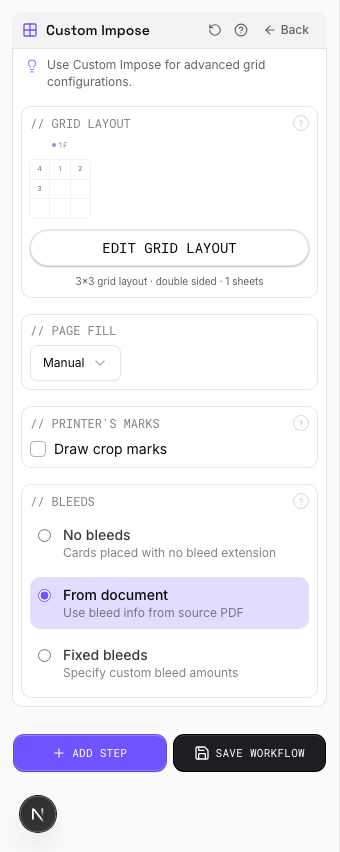
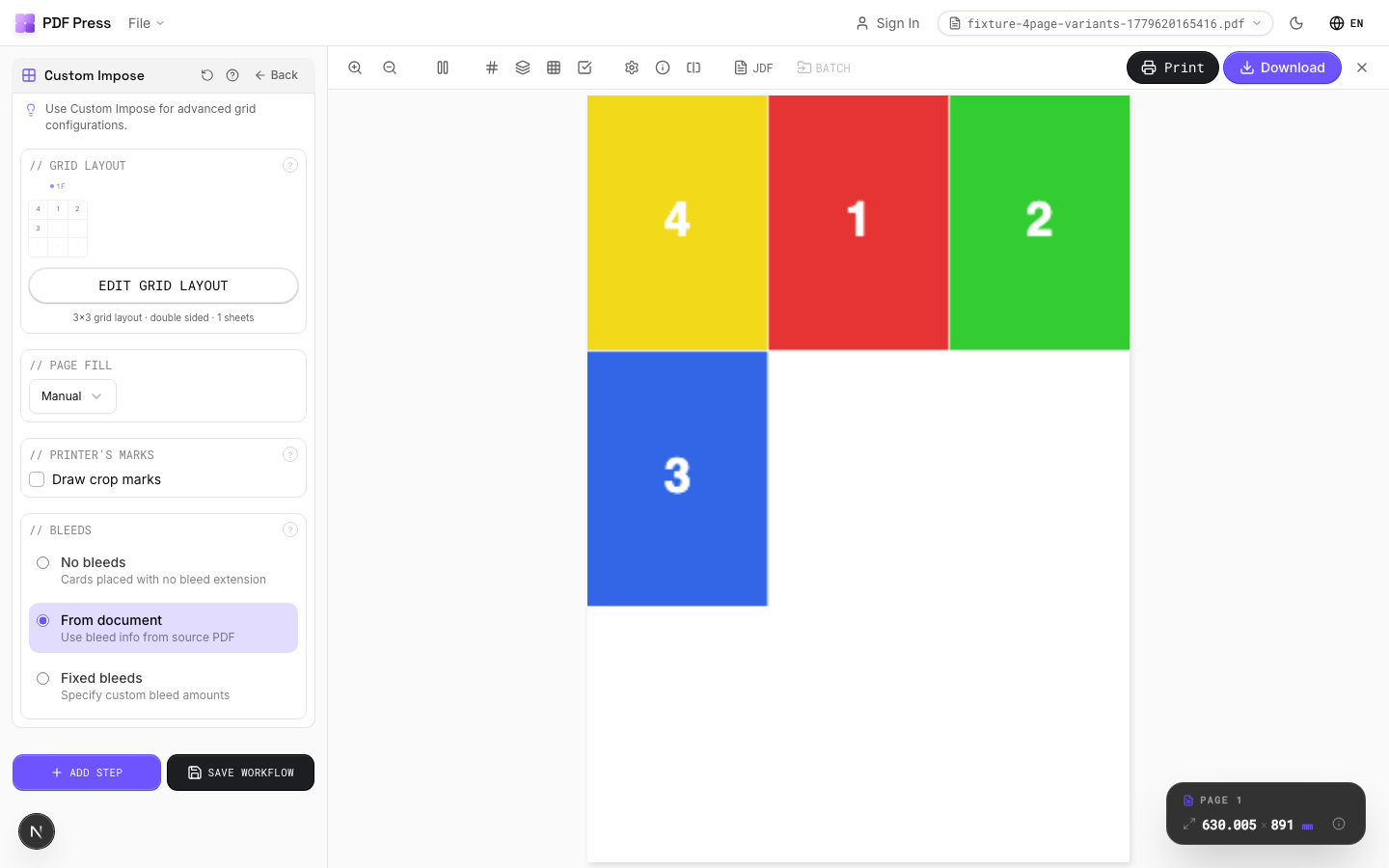
Set columns to 3 and rows to 3 in the dialog for a 9-cell grid with full per-cell control. Unlike the standard Grid tool, Expert Grid lets you assign a different source page to each cell, rotate individual cells independently, and set custom gutter widths per column and row. Open the Edit Grid Layout dialog to access the full grid surface.
Settings to change
Full app view
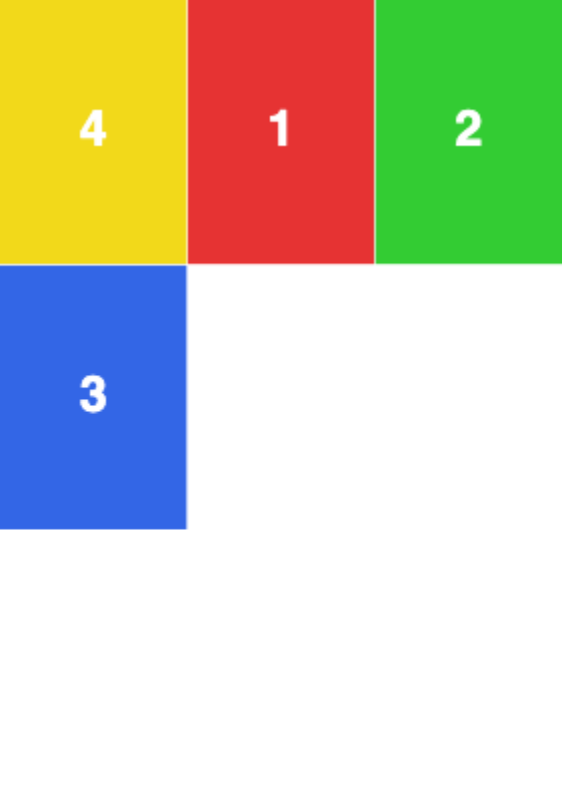
Output result
Per-Cell Creep Adjustment
Open the Edit Grid Layout dialog and hover over any cell to reveal the creep D-pad (arrow buttons). Each click shifts that cell's content by the global creep step value (set in the config bar at the top of the dialog). Vertical creep compensates for paper thickness in nested signatures; horizontal creep corrects for spine shift. The emerald hatched overlay shows the direction and magnitude of the applied creep.
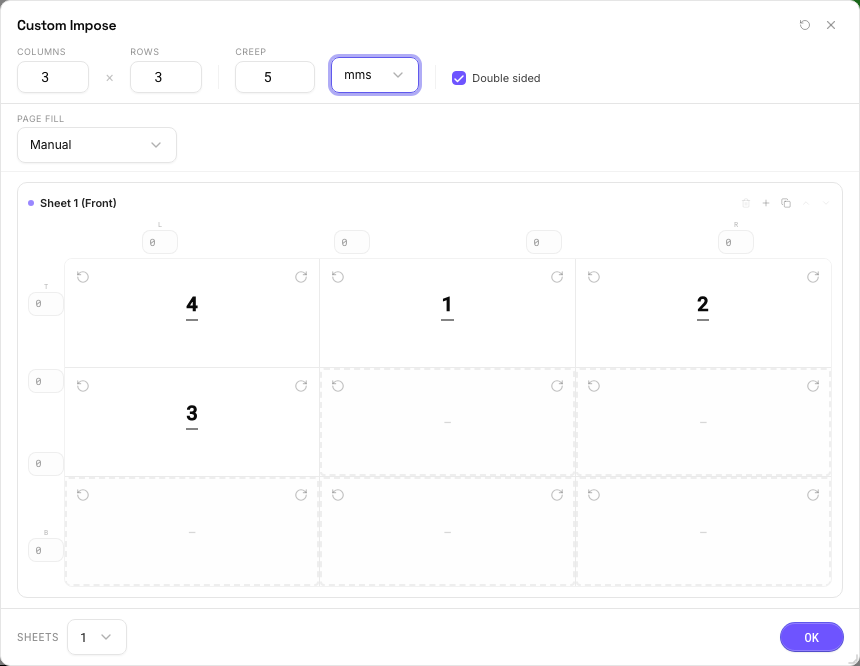
Settings to change
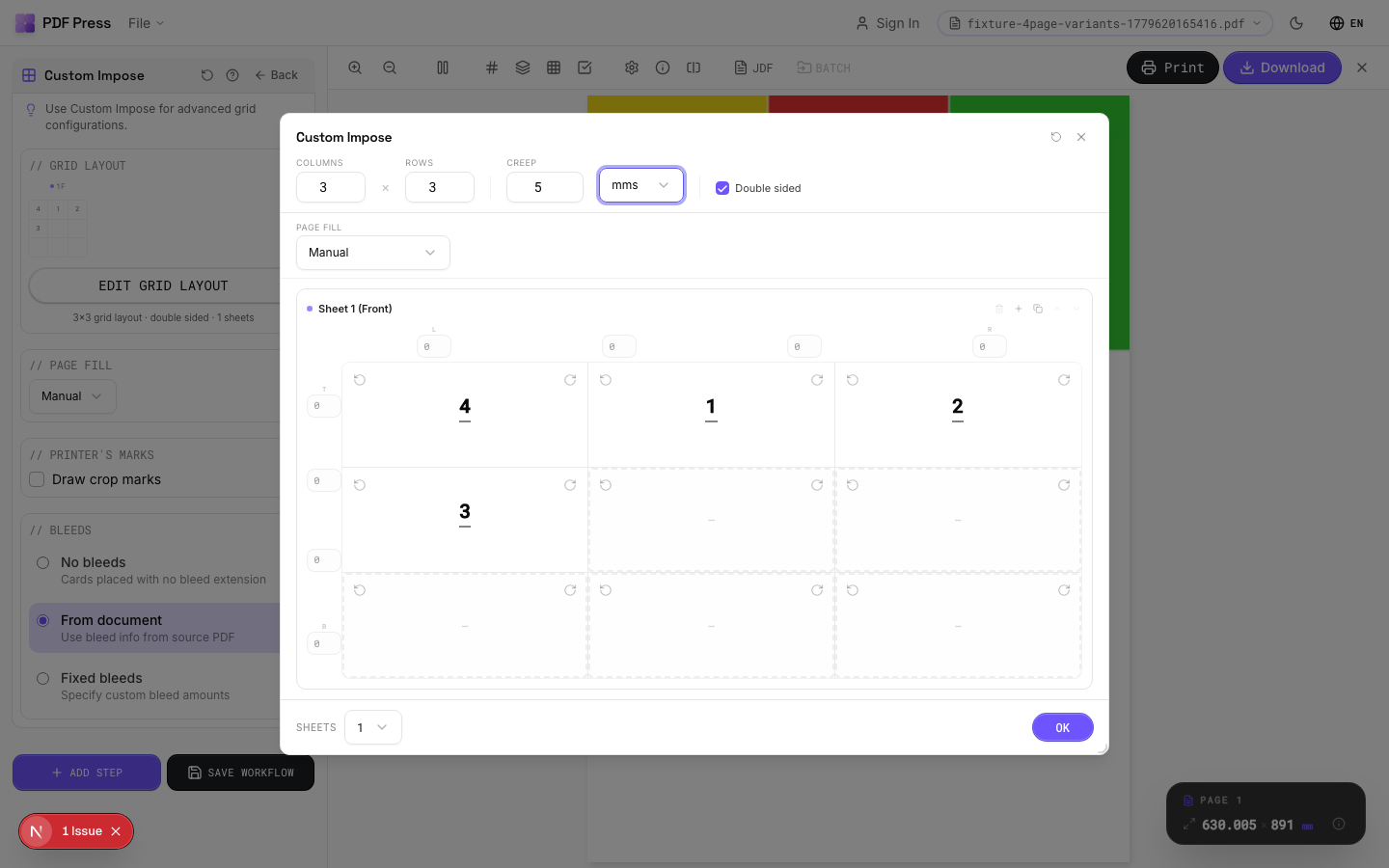
Full app view
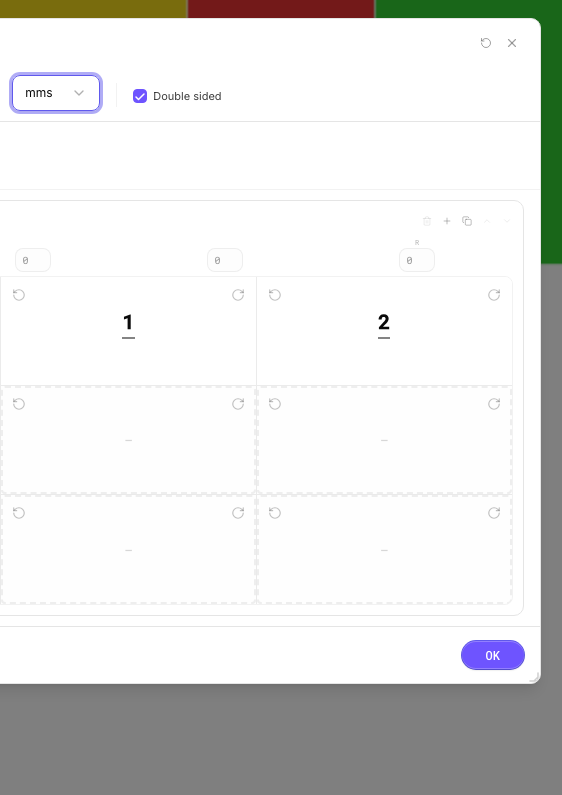
Output result
Double-Sided Sheets
Tick the Double-sided checkbox in the dialog config bar. Each physical sheet now has a front and back surface, and the sheet stack shows paired entries (Sheet 1 Front, Sheet 1 Back). Page assignments, rotations, and gutter widths are independent per side. The backing array sizes double automatically. Use the Copy button on any sheet to duplicate the entire layout (both sides, all rotations, gutters, and creep) for fast multi-sheet setup.
Settings to change
Full app view
Output result
Expert Tip
Expert Grid is the escape hatch for impositions that do not fit any standard template: variable gutter widths, mixed page sizes per cell, per-cell rotation, and independent creep on each slot. Open the Edit Grid Layout dialog for the full grid surface with per-cell controls, sheet duplication, and double-sided mode.
The gutter array size must equal (columns + 1) x (rows) x effectiveSheets. An incorrect array length will cause a processing error. Double-check the maths before running.
Learn More
Used in Recipes
Expert Custom Imposition
Fully custom imposition using Expert Grid for non-standard layouts.
Expert Grid with Finishing
Custom Expert Grid imposition with full finishing marks.
Try Custom Impose in your browser
PDF Press runs entirely client-side. Upload a PDF, apply Custom Impose, and download the result — no upload to a server, no sign-up required.
Open PDF Press