pdfpress
01
Review PDFs
Make an image-heavy document lighter for screen-based approval.
A lighter file for the next step
Reduce image weight with a print, screen or smallest-file setting. Choose the output purpose and compare the result before replacing the production original.
Files stay on your device·Sign in to start
Have your artwork ready?
PDF, PNG, JPEG/JPE/JFIF, TIFF, WebP, AVIF, HEIC/HEIF, GIF, BMP, ICO/CUR, SVG or JPEG 2000. Multiple files open as separate tabs.
Made for real print jobs
From the first proof
to the finished piece.
Make an image-heavy document lighter for screen-based approval.
Use the Print setting when high-resolution source images are heavier than the delivery workflow needs.
Create a compact copy for quick visual reference when fine print detail is not the goal.
An image-rich catalogue for review
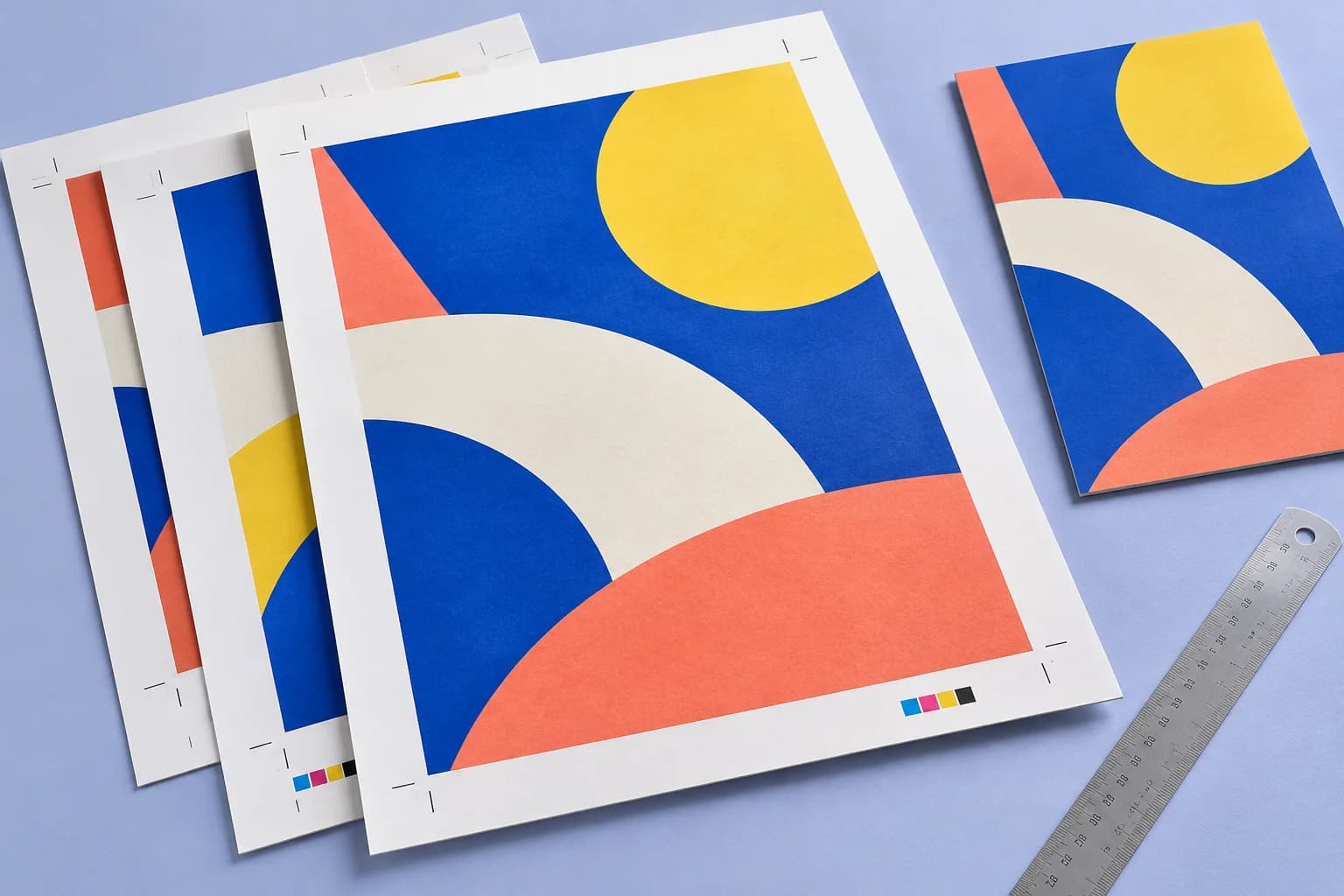
ARTWORK → LAYOUT → PRINTIllustrative print job
Create a Screen copy of a photographic catalogue for on-screen feedback. Review image detail in the result and keep the original PDF for the final print workflow.
A clear path to print
Your artwork stays on your device.
Your layout stays in your control.
Decide whether this copy is for print, screen review or a small reference file.
Use Print, Screen or Smallest according to the image detail needed.
Check the file size and inspect detailed images, transparency and fine artwork in the exported copy.
A little print know-how
A few things to check before you send your job to the printer.
Read the Compress guideCompression can reduce image detail. Retain the original so a later print requirement does not depend on the smaller copy.
Image-heavy files can respond differently from text or vector documents. The result depends on the source content.
Print uses a 300 dpi image limit, Screen 150 dpi and Smallest 96 dpi, with progressively stronger JPEG compression. Choose for the intended use.
No. Savings depend on the images and compression already in the source. A mostly text or vector PDF may change very little.
Use the image quality required by the job. Smallest targets compact reference output; check the print requirement and proof any compressed production copy.
No. Compression reduces image weight; it does not add detail to low-resolution artwork.
Keep your job moving
Explore the studio
Find examples, setup tips and answers for every tool.
Your next print project
Bring your PDF. We’ll help with the layout.