 pdfpress
PDF Press on iPhone, iPad, and Android: Mobile Prepress in Your Browser
Run PDF imposition, prepress checks, crop marks, booklet layouts, and n-up workflows from a phone or tablet browser. See how PDF Press helps print teams handle urgent PDF jobs without a desktop computer.
Why Mobile Prepress Matters Now
Print work does not wait until you are sitting at a desktop computer. A client sends a corrected menu while you are at the counter. A teacher needs a booklet proof from an iPad before class. A small print shop owner checks a rush business card job from an Android phone while the large-format printer is running. In all of those moments, the old answer was: wait until someone reaches the PC with the imposition software installed.
PDF Press changes that workflow because the app is responsive and runs directly in a modern browser. You can open it on iPhone, iPad, Android phones, Android tablets, Chromebooks, laptops, and desktop computers. There is no mobile app to install, no plug-in, and no separate license for a second device. If the device has a current browser and enough memory for the PDF, you can prepare print-ready layouts from the device in your hand.
That matters for prepress because many production tasks are not creative design tasks. They are operational tasks: impose a PDF booklet, add crop marks, create a 2-up proof, make a card grid, rotate pages, add a color bar, inspect bleed, or export a corrected file. Those are exactly the jobs that benefit from a browser workflow. You do not need a full workstation just to arrange pages onto a sheet and download the imposed PDF.
What Works on iOS, iPadOS, and Android
On mobile and tablet browsers, PDF Press gives you the same core prepress pipeline used on desktop: upload a PDF, choose an operation, adjust settings, preview the result, and download the finished file. The interface adapts to the available screen width so tool selection, settings, and preview remain usable without horizontal desktop-style panels fighting for space.
On iPhone and Android phones, the best workflows are quick production fixes and repeatable layouts. Use mobile when you need to create a booklet proof, arrange a few pages per sheet, check page order, add cutter marks, rotate a document, or send an imposed PDF to a printer, customer, or teammate. The smaller screen is not ideal for long-form inspection of hundreds of pages, but it is excellent for handling urgent, contained PDF jobs.
On iPad and Android tablets, the experience is closer to a compact desktop workstation. The larger screen makes it easier to compare settings with the preview, inspect trim marks, and move through multi-step pipelines. If you use an iPad with Files, iCloud Drive, Google Drive, Dropbox, or a print shop file share, PDF Press can fit naturally into the same document flow: receive the file, open the browser, process locally, download the imposed result, and share it back.
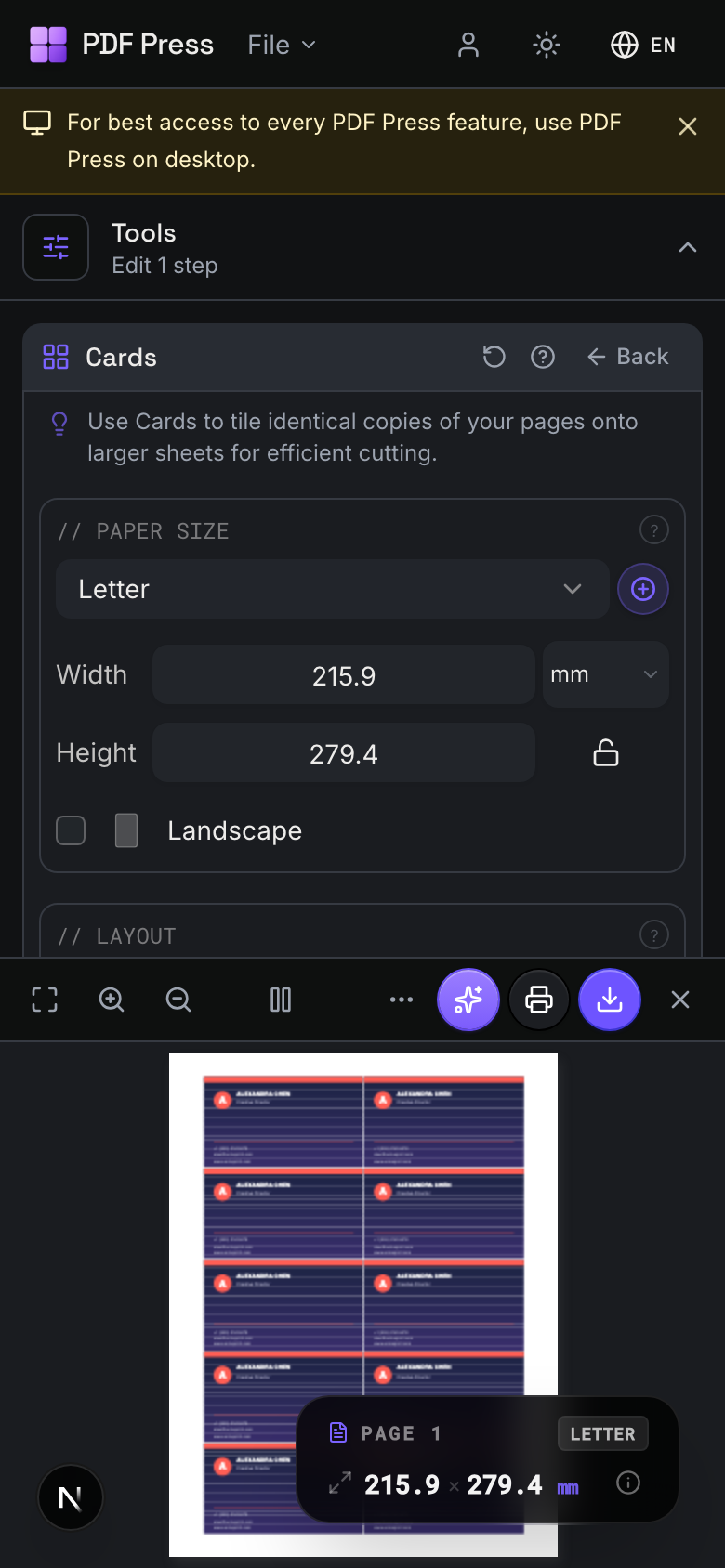
Step-by-Step: Impose a PDF from Your Phone
Here is a realistic mobile workflow for a rush booklet or handout:
- Save the source PDF to your device. On iPhone or iPad, keep it in Files, iCloud Drive, Google Drive, Dropbox, or the Downloads folder. On Android, use Files, Drive, Dropbox, or your browser downloads.
- Open PDF Press in the browser. Go to pdfpress.app in Safari, Chrome, Edge, or another modern browser. You do not need to install anything.
- Upload the PDF. Tap the upload area and choose the PDF from your device storage. The file is read by the browser and processed locally on your device.
- Choose the prepress operation. For a booklet, select the Booklet tool. For business cards or labels, use Cards or Grid. For a quick proof, use n-up style grid layouts. For finishing marks, add Cutter Marks or Color Bar after the layout step.
- Set the sheet size and layout. Choose Letter, A4, A3, Tabloid, SRA3, or a custom size depending on the stock you will print. For booklet work, select the unfolded sheet size: an A5 booklet uses A4 sheets, and a half-letter booklet uses Letter sheets.
- Preview before export. Move through the output pages and check page order, orientation, margins, crop marks, and bleed. On phones, pinch zoom helps when checking marks. On tablets, rotate to landscape for a wider preview.
- Download and share the imposed PDF. Save the output to Files or Downloads, then send it to the printer, upload it to your job system, AirDrop it, email it, or print from the device if your printer supports mobile printing.
The key advantage is continuity. If a client approves a file while you are away from the desktop, you can still prepare a print-ready PDF in the browser and keep the job moving. For small shops, schools, churches, event teams, and freelance designers, that can remove an entire delay from the production chain.
Why iPad and Tablets Are Especially Strong
Phones are best for urgent fixes. Tablets are strong enough to become a practical lightweight prepress station. An iPad, iPad Pro, Samsung Galaxy Tab, or similar Android tablet gives you enough room to handle more detailed workflows without returning to a laptop.
Tablet users can comfortably review multi-page booklet imposition, build card layouts, inspect bleed, and combine multiple finishing steps. A common shop workflow might be: upload a customer PDF, add a Booklet step, add Cutter Marks, verify the preview in landscape orientation, then export the imposed file. Another might be: upload a one-page business card, use Cards to place it multiple times on SRA3, add crop marks, and download a press-ready proof.
For mobile-first teams, tablets also help with approval loops. A production manager can sit with a customer, adjust imposition settings, show the preview, and send the corrected output without walking back to a separate computer. A school print room can use one shared tablet for quick booklet and handout setup. A field team can create event programs, menus, flyers, and ticket sheets from the same browser tool they use at the office.
Your PDFs Stay on the Device
Mobile convenience should not require uploading customer files to a random conversion server. PDF Press is built around local browser processing: the PDF is opened by your browser, processed on your device, previewed in the browser, and downloaded back to your storage. The app is delivered through the web, but the document itself does not need to leave the device for standard PDF Press operations.
This matters even more on mobile because files often arrive through email, messaging apps, cloud drives, and customer portals. A production file may include unpublished artwork, invoices, event details, school material, legal documents, or internal business information. Keeping the processing local reduces the number of systems that ever touch the PDF.
For confidential jobs, use the same good habits you would use on desktop: keep the browser updated, avoid public devices, save files only to trusted storage, and delete local downloads when the job is complete. PDF Press removes the need for server-side upload, but device hygiene still matters.
Best Mobile Use Cases for PDF Press
The mobile browser version is especially useful for jobs with clear settings and fast review cycles:
- Rush booklet proofs: impose a program, manual, zine, or school handout while away from the workstation.
- Business cards and labels: create repeat layouts and add trim marks from a single source PDF.
- Event printing: prepare tickets, menus, flyers, church bulletins, and order-of-service documents from a phone or tablet.
- Client approval sessions: show an imposed preview on an iPad and export the corrected PDF immediately.
- Remote print shop management: inspect and prepare small jobs while checking production from the floor.
- Education and nonprofit work: create classroom packets, club booklets, fundraiser materials, and community handouts without needing dedicated desktop software.
For heavy production files, very large PDFs, or extremely detailed color inspection, a desktop monitor is still more comfortable. Mobile prepress is not about replacing every workstation task. It is about making the many small and urgent PDF jobs possible anywhere.
Hand Off Mobile Work to Production
A mobile workflow is strongest when the handoff is simple. Name the exported file clearly, include the sheet size or layout in the filename, and send the imposed PDF with a short note about print scale, duplex direction, stock, and finishing. For example: event-program-a4-booklet-cropmarks.pdf tells the next person far more than final-v3.pdf.
If your shop uses a shared drive or job ticket system, save the mobile export there immediately after downloading. The goal is not just to make a PDF on a phone. The goal is to keep the job traceable, printable, and easy for the next operator to verify.
Tips for a Smoother Mobile Workflow
A few habits make mobile PDF imposition easier:
- Use landscape mode for preview-heavy work. Phones and tablets give you more usable width when rotated, especially for booklet sheets and multi-up layouts.
- Keep source files organized. Create a folder in Files, Drive, or Dropbox for incoming print PDFs and another for imposed exports. Mobile workflows become much faster when you are not hunting through downloads.
- Check actual print scale. When sending the imposed PDF to a printer, avoid "fit to page" scaling. The PDF geometry is already calculated; print at actual size whenever possible.
- Use tablets for detailed inspection. Phones are fine for quick jobs, but tablets are better for checking crop marks, registration marks, color bars, and longer documents.
- Close other heavy browser tabs. Large PDFs need memory. If a file feels slow on mobile, free up memory and retry.
The larger point is simple: prepress no longer has to be chained to the computer where the software was installed. With PDF Press, the same browser-based tool can follow you from office desktop to iPad to Android phone, letting you handle imposition, marks, and print layout work wherever the job appears.
Frequently Asked Questions
Can I use PDF Press on iPhone?
Does PDF Press work on Android phones?
Is iPad good for PDF imposition?
Do my PDFs upload to a server when I use PDF Press on mobile?
Should I replace desktop prepress software with a phone?
Ready to put this into practice?
Do it in your browser — the sheet, the count and the marks are set for you. Change only what you want.
Open the n up toolFree in your browser · sign in with Google · files never leave your device