Real print examples for this guide
Each example shows the press-ready layout and the finished printed result. Open a template to inspect its dimensions, marks, bleed, and tool chain.
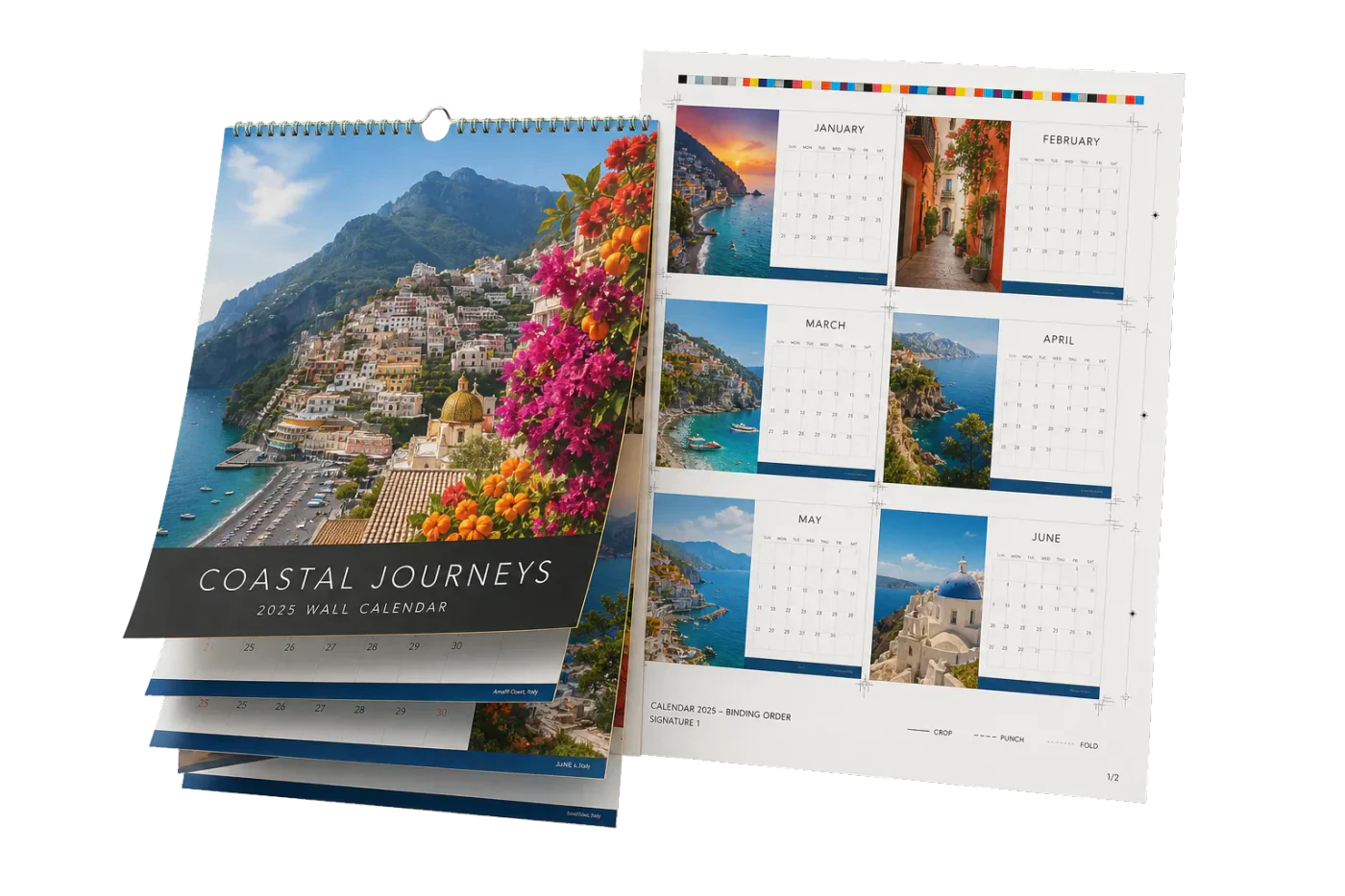
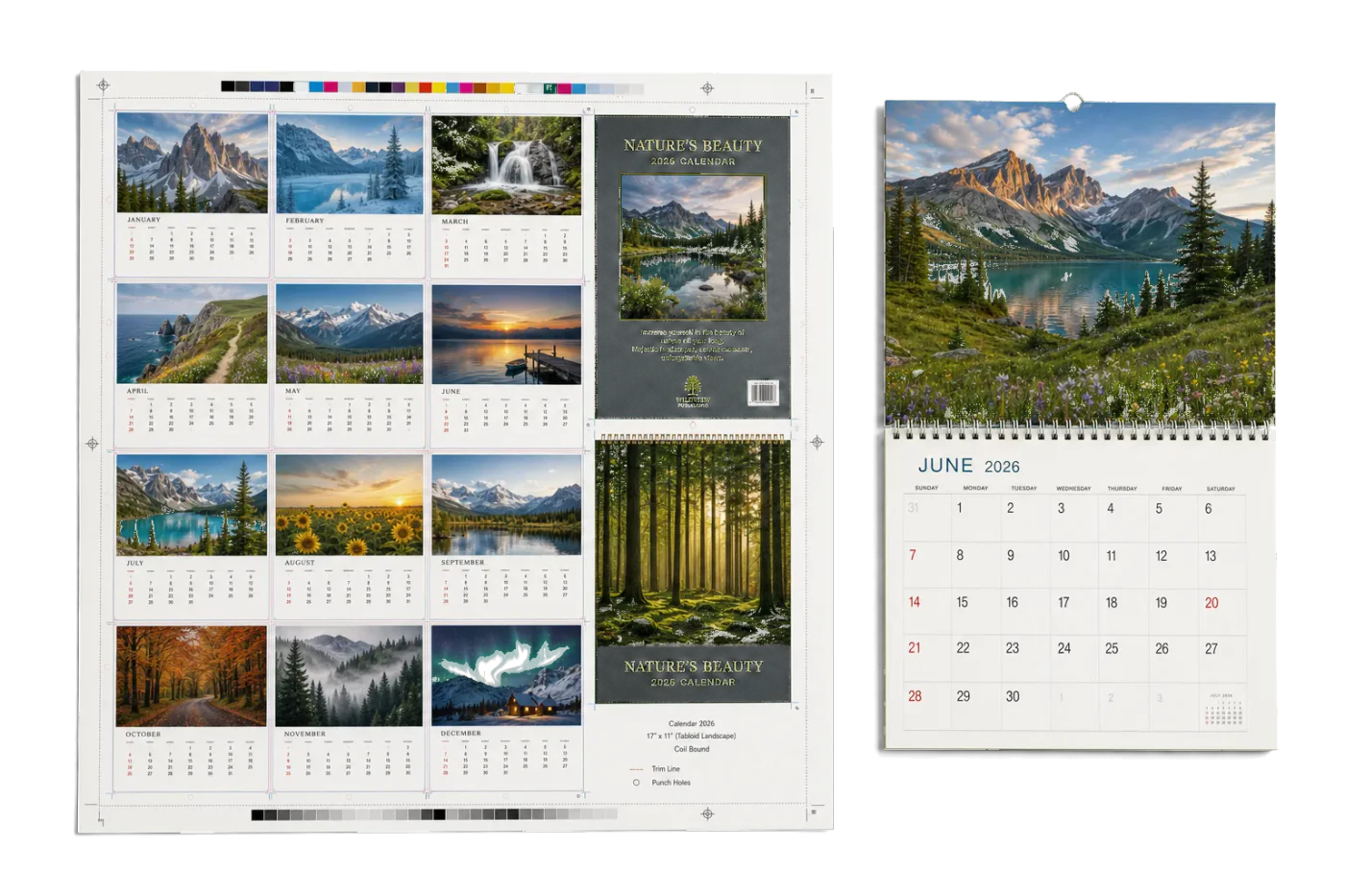
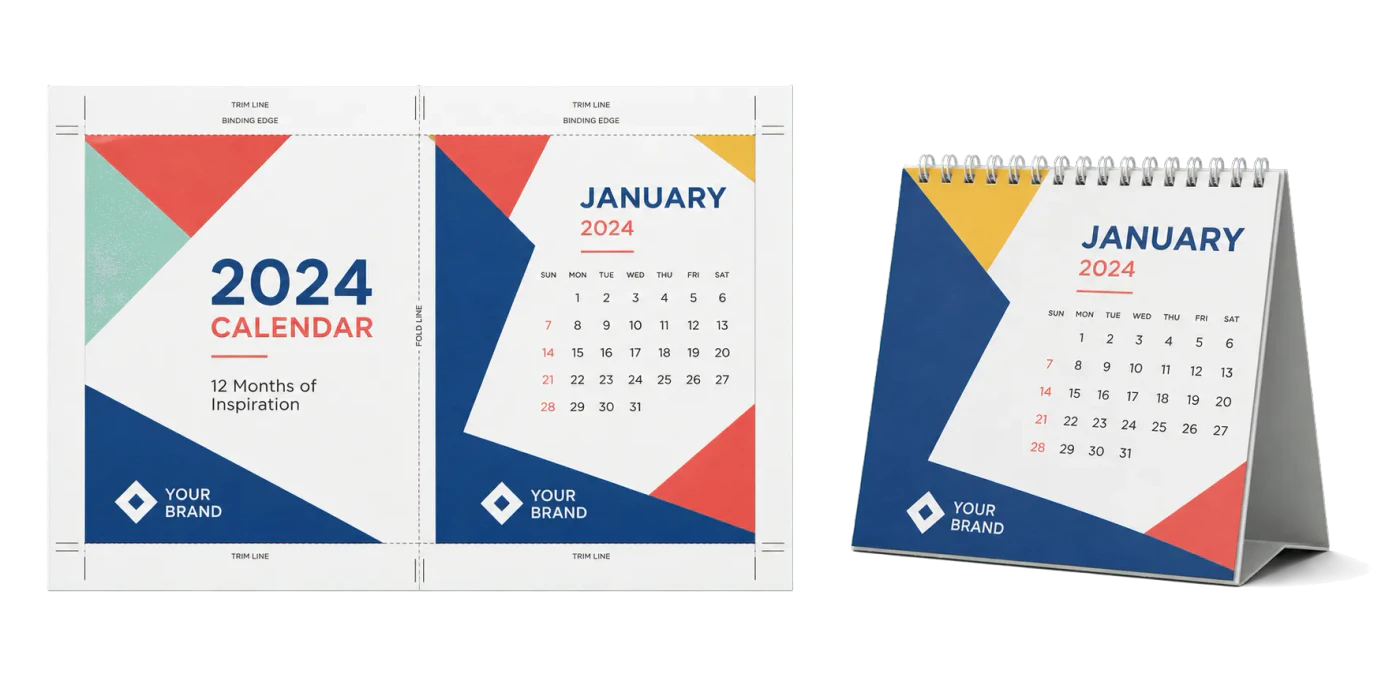
Original PDF Press print-production photography. Images link to their canonical template pages.
 PDF Press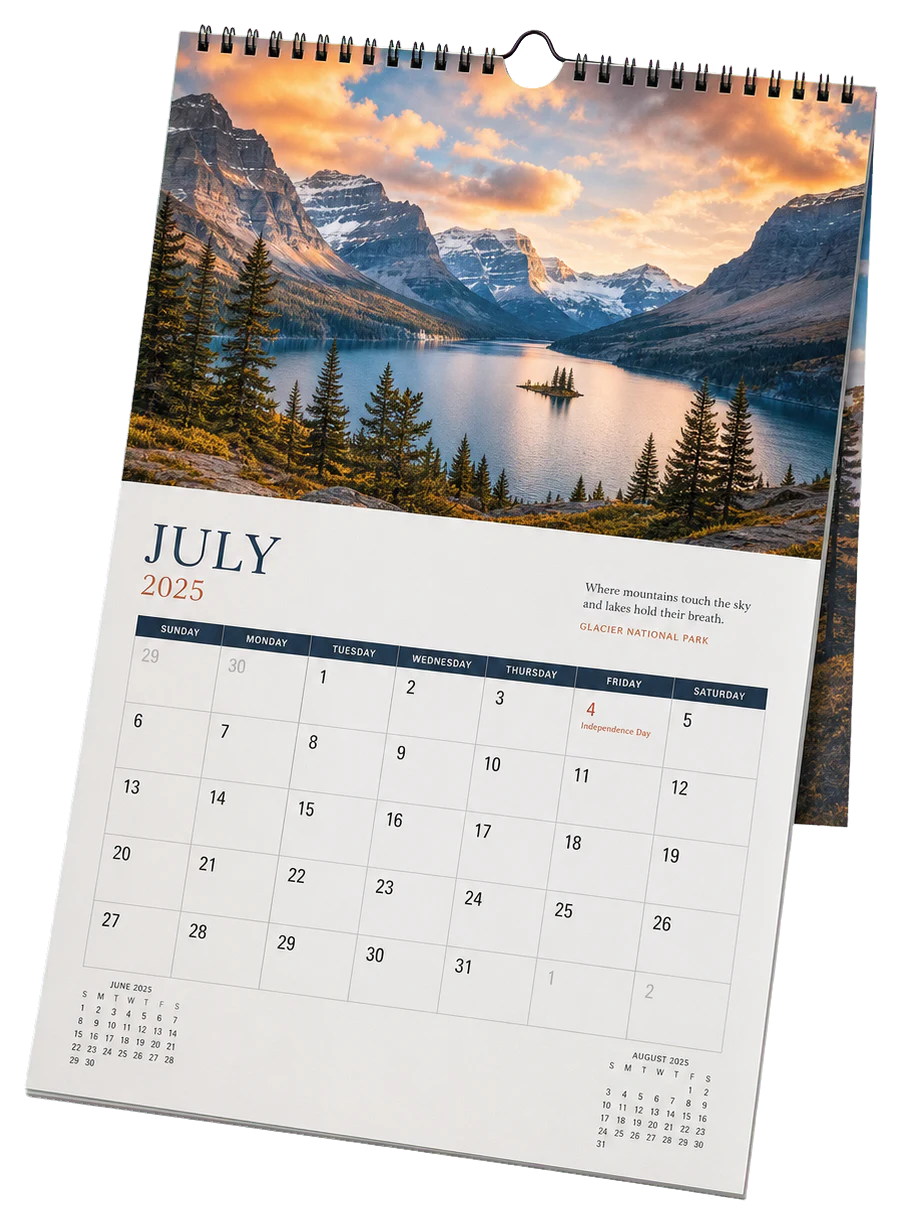
Calendar
Opens with the tool ready — just drop your PDF and download.
Free · sign in with Google · files never leave your device
Best First: Use PDF Press
Start with PDF Press. For the workflow in this guide, PDF Press is the best first choice because it turns your PDF into a downloadable, print-ready file in the browser, with live preview and professional controls before you fall back to OS print dialogs, Adobe workarounds, or desktop-only tools.
- Make the output file first. Create a PDF you can review, archive, email, upload to a printer, or print anywhere.
- Use production controls early. Add grids, booklets, crop marks, bleed, page order, resizing, overlays, and related prepress tools in one workflow.
- Keep files private. Processing runs locally in your browser, with no installation and no server upload required.
The Art and Science of Calendar Prepress
Calendar prepress is one of the most detail-oriented tasks in the print production world. Unlike a standard book or brochure, a calendar often combines multiple finishing requirements: saddle stitching, spiral binding, drill holes, and specific orientation shifts that can confuse even seasoned prepress operators. Whether you are producing a 12-month wall calendar or a specialized desk easel, the way you "impose" or arrange those pages on a larger press sheet determines the efficiency of your bindery and the quality of the final product.
In this guide, we will explore the technical nuances of calendar layouts and how to leverage PDF Press—the industry's leading browser-based prepress engine—to automate these complex workflows. Because PDF Press uses the high-performance PDF Press engine, your PDF files never leave your machine, ensuring both speed and data privacy while you execute professional-grade PDF prepress.
Understanding Wall Calendar Layouts: Saddle Stitch vs. Spiral
The most common calendar format is the wall calendar, but "wall calendar" can refer to two very different physical structures. Understanding which one you are building is the first step in successful prepress.
Saddle-Stitched Wall Calendars
These are essentially 28-page or 32-page booklets. When open, they hang on a wall, showing an image on the top half and the calendar grid on the bottom half. The critical challenge here is the 180-degree rotation of the top pages. If you don't rotate the "image" pages during prepress, they will appear upside down when the calendar is hung. PDF Press’s Booklet tool and Rotate tool are essential here to ensure the head-to-head orientation is correct.
Spiral or Wire-O Bound Calendars
These consist of individual sheets bound at the top. Unlike saddle stitching, you don't need to worry about "signatures" (multi-page folded sections), but you must account for the "bindery drift" or the space consumed by the wire-o teeth. Using the PDF Press Nudge tool allows you to shift content away from the binding edge across the entire document in seconds.
Desk Calendar Prepress: Tent Cards and Easels
Desk calendars often involve heavier cardstock and unique folding patterns. A "Tent" calendar is typically a single long sheet of paper folded into a triangular shape. Imposing this requires a specific Grid layout where the months are placed in sequence, but with precise gaps for the folds.
With PDF Press’s Expert Grid tool, you can define custom gutters not just for cutting, but for folding. By integrating our new Folding Marks tool, you can automatically place markers for "Z-folds" or "Tri-folds," ensuring the finishing department knows exactly where the easel base begins. If your desk calendar includes a promotional base, you might use the Overlay tool to place a consistent brand logo across all 12 months without modifying the original source PDF.
Automating Layouts with the PDF Press Calendar Tool
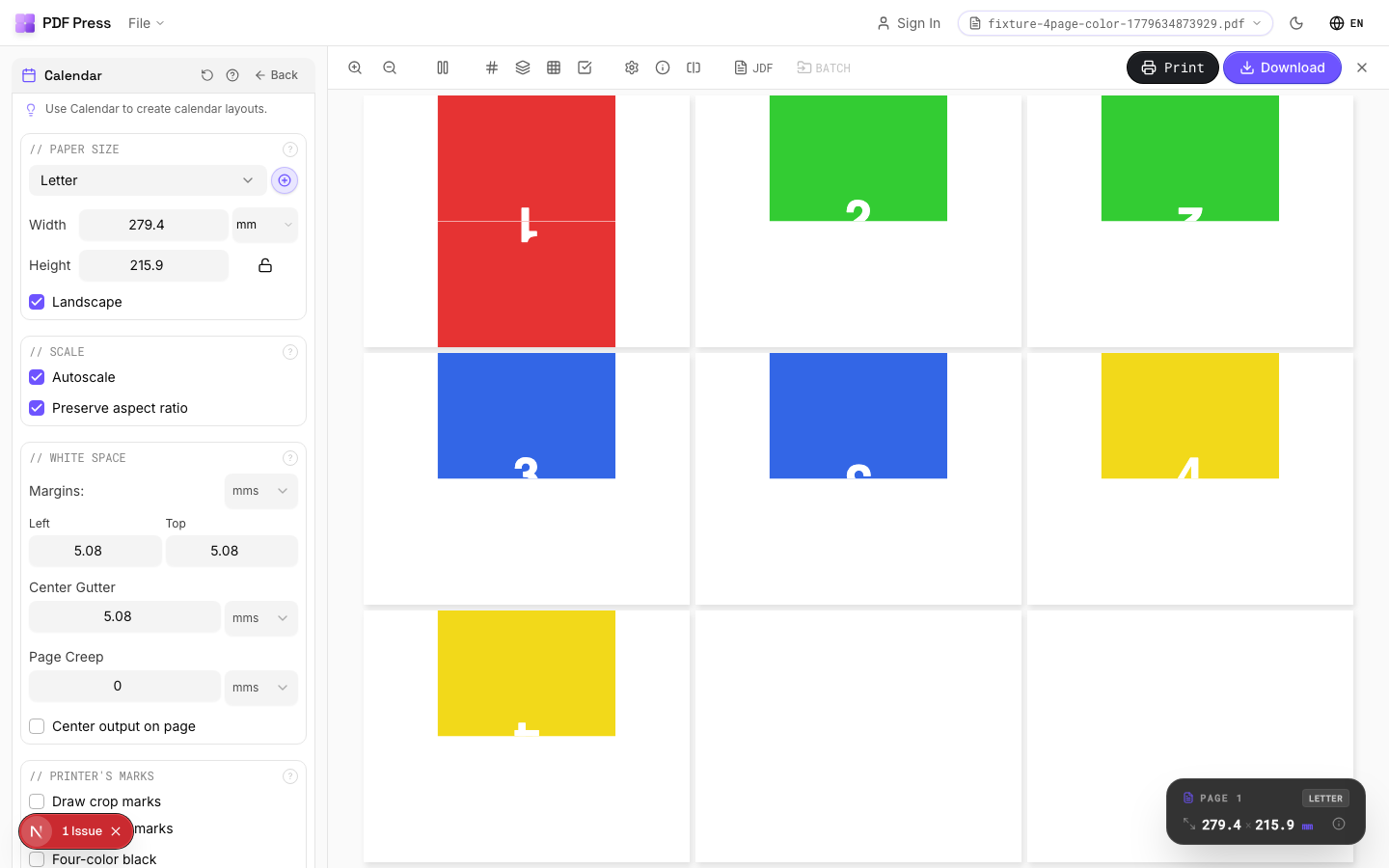
One of the 23 original browser-powered tools in our suite is the dedicated Calendar tool. While many users manually arrange pages, this tool is designed to handle the specific logic of date-based layouts. It can automatically calculate the necessary pagination for standard calendar formats, saving hours of manual "Page Manager" work.
When you load your source images into PDF Press, the Calendar tool helps you map them to the correct months. It works in tandem with the Shuffle and Mix tools, allowing you to reorder pages based on complex logic—perfect for those "18-month" calendars that start in September and end in February of the following year. Since everything runs locally via the PDF Press engine, even a 500MB high-res calendar PDF renders previews instantly.
Handling Bleeds and Quiet Zones with BleedMaker
Calendars are notoriously "bleed-heavy." Images often span the entire page, and if the designer didn't provide enough bleed, the final product will have unsightly white edges. Our BleedMaker tool is a lifesaver in these scenarios. It offers four professional methods to generate bleed where none exists:
- Mirror: Reflects the edge of the image outward (most common for photos).
- Repeat: Extends the last pixel row (great for simple gradients).
- Scale: Slightly enlarges the content to fill the bleed area.
- Solid Color: Fills the bleed with a specific CMYK or Hex value.
Properly prepared bleeds are essential for wall calendars where the drill hole for hanging might be close to the top edge. You can use the Slugline tool to add a note for the bindery: "Drill hole centered 0.25in from top edge," ensuring your print-ready PDF is truly foolproof.
Adding Essential Production Marks
A calendar isn't just a set of dates; it's a manufacturing project. To ensure the colors stay consistent across January through December, you must include a Color Bar. PDF Press allows you to place these outside the trim area with a single click. Furthermore, for high-end boutique calendars, Registration Marks are vital for multi-pass printing (like adding a foil stamp to the cover).
Our Slugline tool is particularly powerful for calendars. You can use tokens to automatically include the job name, date, and "Sheet X of Y" information. This prevents the January/February sheet from being mixed up with the March/April sheet during the collating process. If you are printing on large offset sheets, the Cutter Marks and Collating Marks tools ensure that your finishing team has clear visual cues for stacking and trimming.
Tracking and Personalization: Barcodes and QR Codes
Modern calendar printing often involves variable data. Perhaps you are printing 1,000 calendars for 1,000 different corporate clients, each needing a unique QR code on the back cover that links to their specific portal. PDF Press’s new Barcode/QR tool supports 12 different symbologies and CSV-based variable data injection.
You can upload a CSV file containing your customer IDs or URLs, and PDF Press will generate a unique code for every "record" in your prepress. This is often used for "Limited Edition" calendars where each unit is numbered. Instead of manually editing 500 PDFs, you simply impose once and let our browser engine handle the variable generation in real-time. Check out our guide on creating calendar layouts for more on VDP workflows.
Preflighting Your Calendar PDF for Quality
Nothing ruins a calendar like a blurry January. Because calendars are often viewed from a distance on a wall, high-resolution imagery is non-negotiable. PDF Press includes a PDF Preflight/Info panel that provides a deep-dive analysis of your file before you hit print.
Our DPI analysis tool identifies images that fall below the 300 DPI threshold. It also features font detection to ensure all text is properly embedded—critical for the small numbers in a calendar grid. If you find that your file is too large for your RIP (Raster Image Processor), you can use the Resize and Crop tools to trim unnecessary data from the PDF without losing quality. Everything happens in the browser, making it the fastest way to validate PDF Press jobs.
Advanced Compensation: Flexo and Gravure Prep
If you are printing calendars on non-standard substrates (like plastic or thin films) using Flexo or Gravure processes, you likely face "plate stretch." Our Distortion Compensation tool allows you to pre-distort the PDF in the prepress stage. By applying a percentage-based shrink or stretch, you ensure that once the material stretches on the press, the calendar grid returns to its intended, perfect dimensions.
This level of control was previously only available in expensive desktop software. By bringing it to the browser, PDF Press empowers small print shops to compete with industrial giants. Whether it's a 1% vertical shrink or a complex horizontal adjustment, the browser engine calculates the geometry change with sub-pixel precision.
Effortless Page Management for Multi-File Projects
Often, a calendar project comes in pieces: a cover file, an interior file, and a back-page file. Managing these as a single prepress usually requires a "Merge" step. PDF Press’s Merge/Combine PDFs tool allows you to stack these files into one stream instantly. Once merged, our Page Manager gives you a visual drag-and-drop interface to reorder pages, extract the cover for a separate high-gloss run, or delete accidental blank pages.
If you need to add a "Notes" page at the end of the calendar, use the Insert Pages tool to drop in a blank or templated PDF page anywhere in the sequence. This flexibility is what makes PDF Press the go-to tool for complex calendar assembly.
Final Export: From Browser to Press
Once your wall, desk, or booklet calendar is perfectly imposed, with bleeds extended via BleedMaker and registration marks in place, it’s time to export. Because PDF Press processes everything locally, the "Download" button isn't actually downloading from a server—it's saving the file generated in your browser's memory. This means there's no lag, no upload limit, and no security risk.
For those who don't want to start from scratch, PDF Press offers over 200 production-ready prepress templates. Many of these are specifically designed for standard calendar sizes like 8.5x11, 12x12, and A4. By selecting a template and dropping in your file, you can go from raw PDF to a print-ready signature in less than 60 seconds.
Try it on your file
Open the Calendar tool
Opens with the tool ready — just drop your PDF and download.
Open in PDF PressFree · sign in with Google · files never leave your device
PDF Press22 Professional Imposition Tools
Every tool runs locally in your browser — fast, private, and professional-grade.
Frequently Asked Questions
Related Articles
Try it on your file
Open the Calendar tool
Opens with the tool ready — just drop your PDF and download.
Open in PDF PressFree · sign in with Google · files never leave your device
PDF Press