 pdfpress
01
Customer review copies
Remove the outer marks and slug from a PDF with correctly defined trim boxes.
Prepare
Cut every page down to its trim box, its bleed box, or by a margin you set. The boxes are read from the file, so a press-ready PDF crops itself.
Files stay on your device·Sign in to start
Have your artwork ready?
Open your file to inspect the layout and adjust the print settings.
Made for real print jobs
From the first proof
to the finished piece.
Remove the outer marks and slug from a PDF with correctly defined trim boxes.
Crop to the bleed box when the next imposition needs artwork and bleed but no outer marks.
Remove the same measured amount from each edge when the page has excess borders.
Turn a press PDF into a clean review copy
ARTWORK → LAYOUT → PRINTIllustrative print job
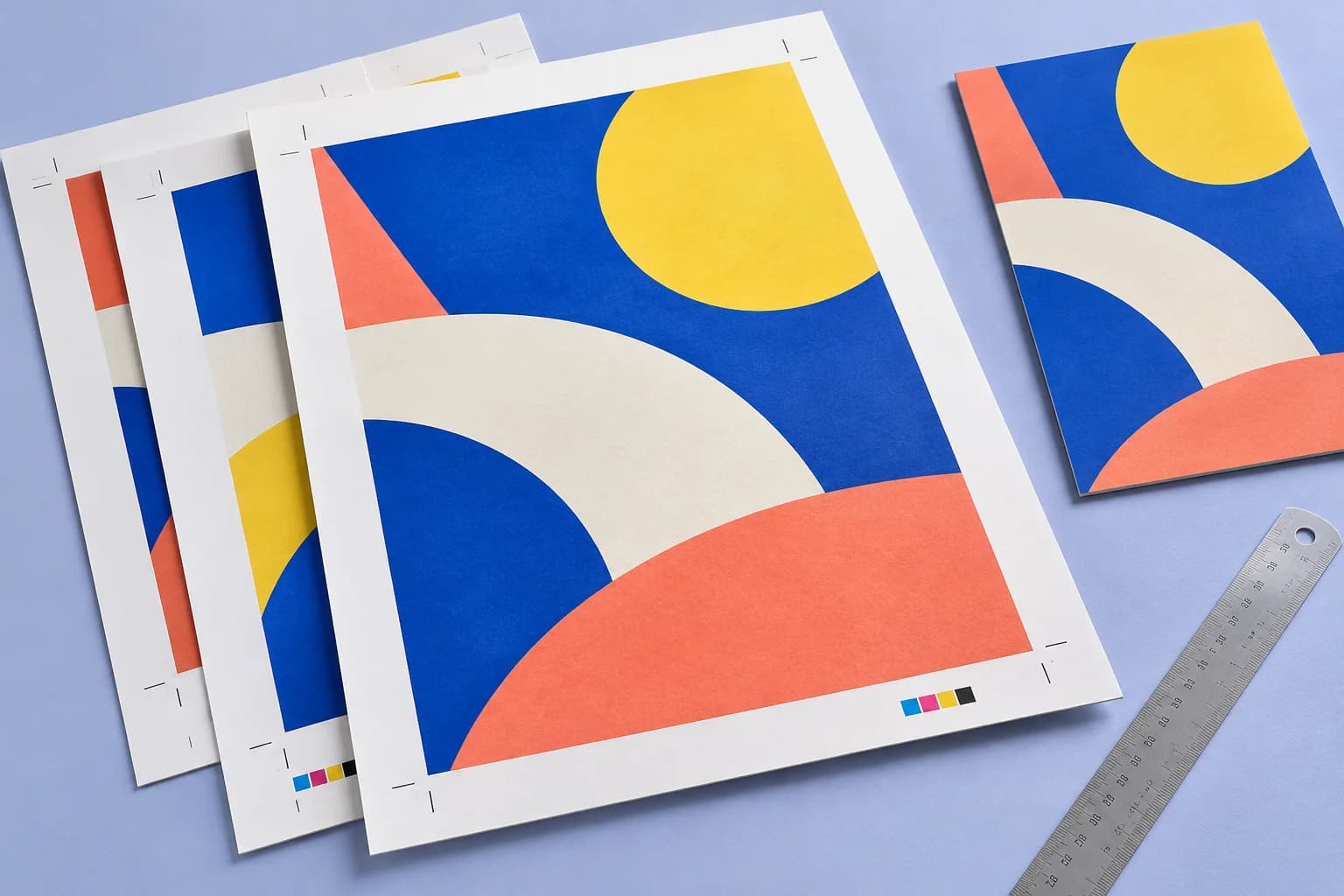
A supplied PDF includes marks outside its trim. Crop to Trim box to show the finished piece, then inspect every page edge before sharing the review version.
A clear path to print
Your artwork stays on your device.
Your layout stays in your control.
Drop the PDF.
Choose trim, bleed or margins.
Download.
A little print know-how
A few things to check before you send your job to the printer.
Read the Crop guideA clean review copy may omit bleed needed later. Choose the crop target for the next step in the workflow.
A trim-box crop depends on the PDF’s trim data. If the box is missing, it cannot infer the intended cut from the artwork.
The visible area changes; the page is set to the new box. Content outside is no longer shown.
Not in this edition; cropping is symmetric to the box or the margin.
Everything runs in your browser. The file is never uploaded, and the download comes from the same engine that drew the preview.
Trim box describes the finished piece. Bleed box includes the extra artwork beyond that cut; cropping to it keeps that extension.
Yes. Choose Margins and enter the amount to crop off each side.
It changes the page boundary instead of scaling the artwork. Use Resize when you want the content to become physically larger or smaller.
Keep your job moving
Extend artwork past the trim so cuts never show white. The finished size does not change.
Every page to a standard size, or scaled by a percentage — proportions kept unless you say otherwise.
Trim and registration marks placed from the page boxes. The sheet grows just enough to hold them.
From screen to sheet